Table of contents
When you build an Android app or test an APK (an Android app package file) someone sent you, adb install installs it from your computer straight to the phone. adb is Android Debug Bridge, the command-line tool that talks to the phone. If the install fails, the terminal prints a code that starts with INSTALL_FAILED in the square brackets after Failure. The code name tells you the cause, and sometimes a note follows the colon. Match the code to decide whether to uninstall the app, get a different APK, or add an install flag.
I tested on Windows 11 with Android SDK Platform-Tools 37.0.1 (adb 1.0.41) and a Samsung Galaxy S8 (Android 9, API 28, arm64-v8a). The test APKs are samples I built myself, one for each error in the table below.
Error code reference
The screenshot below shows two of the errors. The APK with an older version prints only the code. The APK signed with a different key adds a note after the colon that explains the cause:
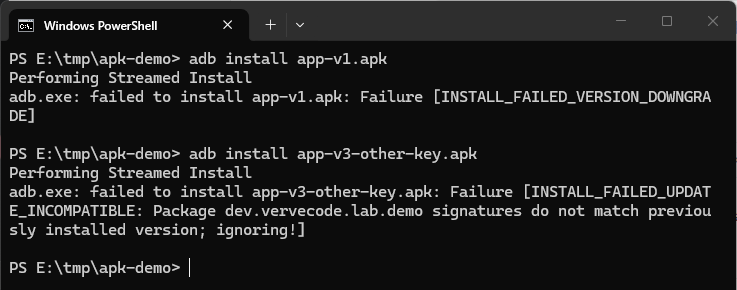
I reproduced every code in the table on the Galaxy S8. Find the row that matches the code in the brackets:
| Error code | Cause | Fix |
|---|---|---|
INSTALL_FAILED_UPDATE_INCOMPATIBLE |
Same package name, but signed with a different key than the installed app, such as a debug build versus a release build | Run adb uninstall <package name>, then install again |
INSTALL_FAILED_VERSION_DOWNGRADE |
The APK’s version code is lower than the installed version | Run adb uninstall <package name>, then install again. For a debuggable app, you can also add -d |
INSTALL_FAILED_TEST_ONLY |
The APK is marked as test-only | Add -t and install again |
INSTALL_FAILED_OLDER_SDK |
The APK requires a newer Android version than the phone has | Use a phone with a newer Android version, or get an APK that supports this phone |
INSTALL_FAILED_NO_MATCHING_ABIS |
The APK contains native code, but none of it is for an architecture the phone’s CPU supports | Get an APK that includes an architecture the phone supports |
INSTALL_PARSE_FAILED_NO_CERTIFICATES |
The APK is not signed | Sign it with apksigner, then install again |
INSTALL_PARSE_FAILED_NOT_APK |
The file is not an APK | Get the APK file again |
adb uninstall deletes the app’s data along with the app. If the phone has data you want to keep, back it up or export it inside the app first. If the terminal prints failed to stat with no code, the APK path in the command does not exist. Change to the folder that contains the APK and run the command again.
Check the phone’s version and architecture
INSTALL_FAILED_OLDER_SDK and INSTALL_FAILED_NO_MATCHING_ABIS depend on the phone’s state. The three commands below query the API level, the CPU architectures, and the version code of an installed app. The last column is the result on the Galaxy S8:
| What to check | Command | Galaxy S8 result |
|---|---|---|
| Android API level | adb shell getprop ro.build.version.sdk |
28 |
| Supported CPU architectures | adb shell getprop ro.product.cpu.abilist |
arm64-v8a,armeabi-v7a,armeabi |
| Version code of an installed app | adb shell dumpsys package <package name> |
versionCode=2 minSdk=21 targetSdk=28 in the output |
The note for INSTALL_FAILED_OLDER_SDK reads like Requires newer sdk version #30 (current version is #28). Here #30 is the minimum API level the APK requires, and #28 is the phone’s current level. For INSTALL_FAILED_NO_MATCHING_ABIS, switch to an APK built for any architecture in the list. The S8 can install arm64-v8a, armeabi-v7a, or armeabi builds.
Install flags related to these errors
The official Android adb documentation lists the flags you can add to adb install. Here are the test results for the three flags that relate to the errors above:
| Flag | Official description | Test result |
|---|---|---|
-r |
Reinstall an existing app and keep its data | With adb 1.0.41, reinstalling the same APK succeeds even without -r |
-t |
Allow installing a test-only APK | With it, the APK that failed with INSTALL_FAILED_TEST_ONLY installs successfully |
-d |
Allow installing an APK with a lower version code | On the S8, -d downgraded only debuggable apps. Non-debuggable apps still returned INSTALL_FAILED_VERSION_DOWNGRADE |
Summary
When adb install fails, read the code in the brackets to tell whether the problem is the signature, the version, the architecture, or the file itself. Then use the table to uninstall the app, get a different APK, or add a flag. I reproduced seven codes on the Galaxy S8, and each one maps to its cause through the code name and the note.
Further reading