Table of contents
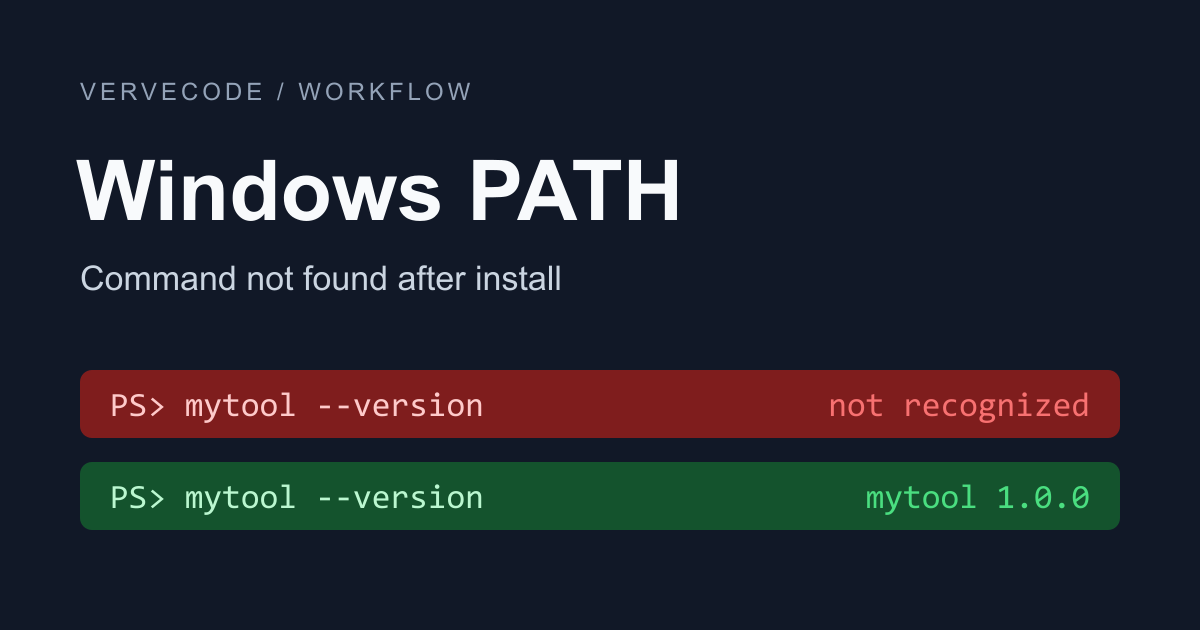
When you type a command such as java or uv in a terminal, Windows looks through the folders listed in the PATH environment variable for a program with that name, and runs it if it finds one. If a command-line tool you just installed is reported as “not recognized”, usually its folder is not in PATH, or the terminal was already open before the install and has not read the new PATH. Add that folder to your user PATH, open a new terminal, and the command runs by name.
I tested on Windows 11 (26H2) with Windows PowerShell 5.1, PowerShell 7.6, and Command Prompt. The mytool in the examples is a small program that only prints its version number.
The error message for a missing command
The three terminals word the error differently, but all of them mean that no program with that name exists in the PATH folders. My Windows is Traditional Chinese, so the terminals show the messages in Chinese. The last column gives the English messages. I captured the Windows PowerShell 5.1 and Command Prompt ones on the same computer from processes that ran with an English interface. The PowerShell 7 one is the standard English wording, which I did not capture:
| Terminal | Error message on my computer | English wording |
|---|---|---|
| Windows PowerShell 5.1 | 無法辨識 'mytool' 詞彙是否為 Cmdlet、函數、指令檔或可執行程式的名稱 |
The term ‘mytool’ is not recognized as the name of a cmdlet, function, script file, or operable program. |
| PowerShell 7 | 無法將 'mytool' 字詞辨識為 Cmdlet、函式、指令檔或可執行程式的名稱 |
The term ‘mytool’ is not recognized as a name of a cmdlet, function, script file, or executable program. |
| Command Prompt | 'mytool' 不是內部或外部命令、可執行的程式或批次檔 |
‘mytool’ is not recognized as an internal or external command, operable program or batch file. |
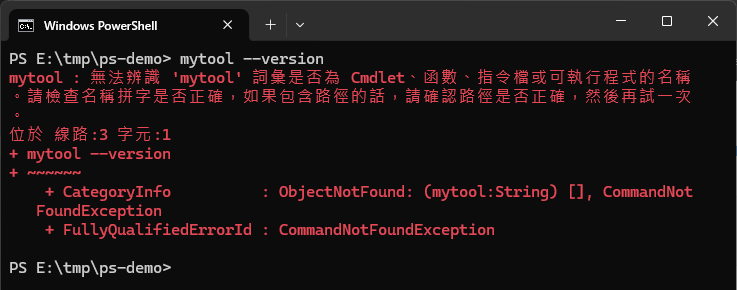
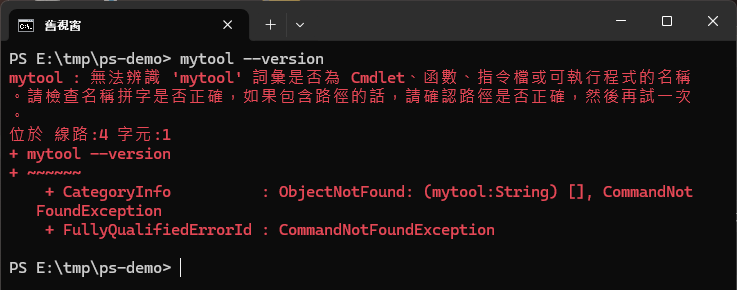
When you run mytool --version in Windows PowerShell, you see red text like this:
When you need to change PATH
A terminal reads PATH only at the moment it opens. If an installer changes PATH afterward, a window that is already open does not see the change. Many installers add their own folder to PATH, for example when you install OpenJDK with WinGet or install uv with the official script. Close the terminal, reopen it from the Start menu, and run the command again. The result tells you which case you are in:
| Reopened terminal | Cause | What to do |
|---|---|---|
| The command runs | The old terminal was open before the install | Nothing to change |
| Still not found | The tool’s folder is not in PATH | Add the folder to PATH with the steps below |
Find the program’s folder
What you add to PATH is the folder that holds the executable, not the executable itself. The tool’s official install guide usually gives the install location. For a portable tool you downloaded yourself, it is the folder where you extracted the executable.
If the tool runs on another computer, you can run where.exe command-name there to find its location. These are the folders for a few tools I use. %USERPROFILE% expands to C:\Users\your-user-name:
| Tool | Folder of the executable |
|---|---|
| uv | %USERPROFILE%\.local\bin |
| node, npm, and commands installed globally with npm | C:\nvm4w\nodejs (when Node.js is installed with nvm-windows) |
| java | C:\Program Files\Eclipse Adoptium\jdk-version-hotspot\bin (Eclipse Temurin) |
In PowerShell, where is an alias for a different command, so always write where.exe.
Add the folder to your user PATH
PATH comes in two lists, user variables and system variables, and the terminal combines them. If only you use the tool, add it to the user variables. That needs no administrator rights and does not affect other accounts on the computer.
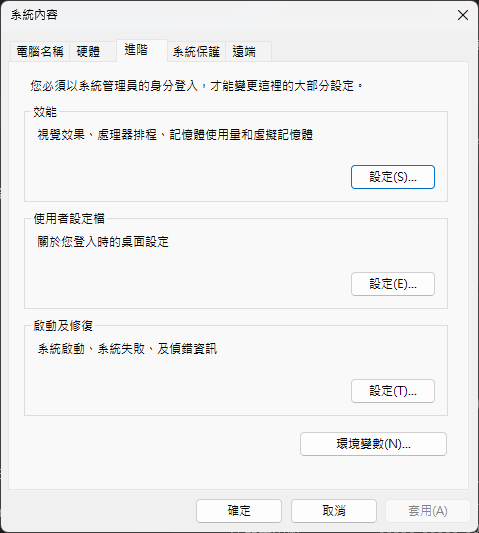
Open “Settings > System > About”, click “Advanced system settings” under the related links, and in the System Properties window, select the Advanced tab and click “Environment Variables”.
The screenshots in this section are from Traditional Chinese Windows. The 系統內容 window is System Properties, the 進階 tab is Advanced, and the 環境變數 button is “Environment Variables”.
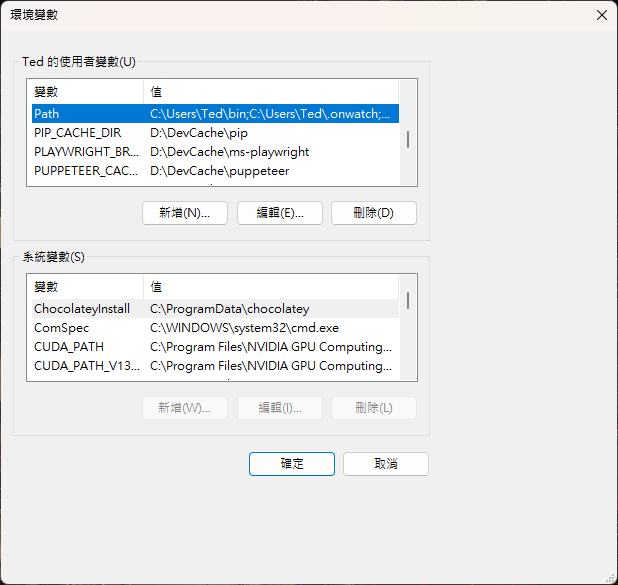
In the user variables list at the top, select “Path” and click “Edit”.
In this Traditional Chinese window, the buttons below the list are 新增 (New), 編輯 (Edit), and 刪除 (Delete).
Click “New” on the right and paste the folder of the executable into the empty row at the bottom of the list. Then click “OK” in the “Edit environment variable” window and in the “Environment Variables” window to save.
In this window, 新增 is New, 編輯 is Edit, and 瀏覽 is Browse. The window title 編輯環境變數 is “Edit environment variable”.
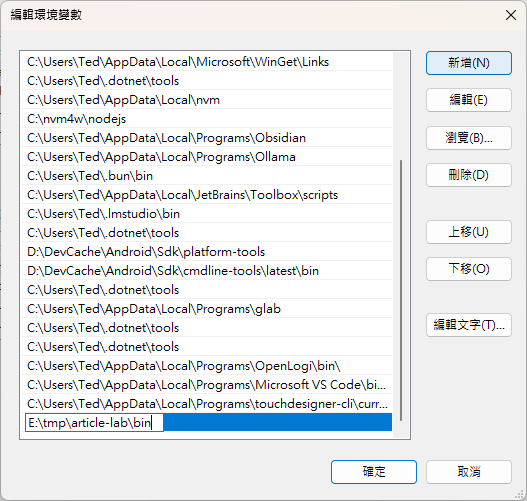
Leave the existing paths in the list alone. To undo the change, go back to the same window, select the row you added, click “Delete”, and then click “OK”.
Check that a new terminal can run it
In a Windows PowerShell window that was open before you saved, running the command again still fails:
Reopen the terminal from the Start menu and run it again, and it prints mytool 1.0.0:

Summary
When Windows cannot find a command, first reopen the terminal from the Start menu and try again. If it is still not found, add the folder that holds the executable to your user PATH. In my test, a window that was open before saving still reported the error, and a reopened terminal ran mytool.
Further reading