Table of contents
Since November 2026, the Claude Code desktop app lets you build custom themes with mods, so the background, text, and accent colors of the Code tab, where Claude Code runs inside the desktop app, can match any palette you like. A mod is plugin code that runs inside Claude Code. The desktop app won’t apply a theme whose background layers are in the wrong order or whose text contrast is too low, so picking colors by hand is harder than it looks. If you already have a DESIGN.md, a design spec file that describes colors, type, and spacing for AI agents, you can hand it to Claude. Claude reads the colors, writes the theme mod, and checks that the theme can apply. You review what it derived.
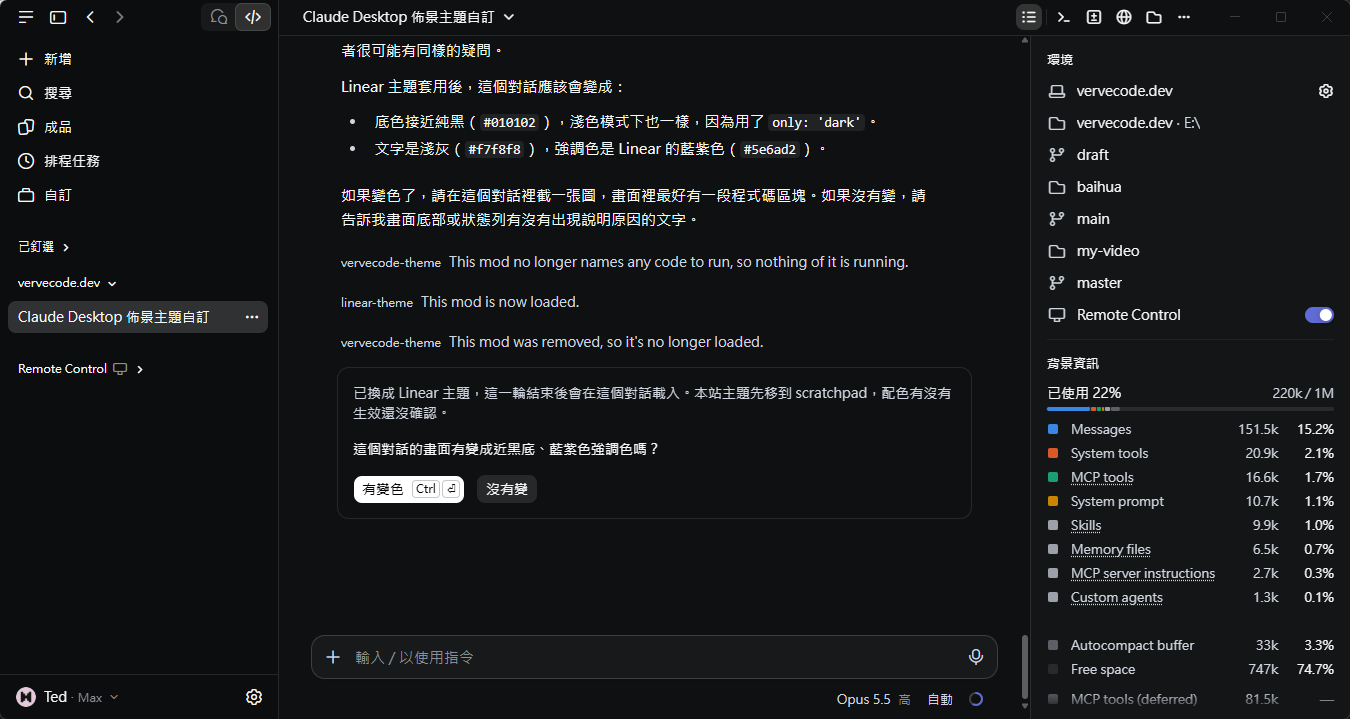
I tested on Windows 11 with the Claude desktop app, using three DESIGN.md files from the community collection awesome-design-md: Linear, Cursor, and Spotify. With the Linear dark theme, the sidebar, conversation, and right panel all turn near-black, and the toggles switch to Linear’s blue-violet. My app runs in Traditional Chinese, so the screenshots show Chinese labels:
When a theme applies
A theme applies only to local sessions that load the theme mod, and only when the Claude Code version bundled with the desktop app is 2.1.324 or later. To check the version, type /status in a local session in the Code tab and look at the Claude Code row:
| Situation | Theme applies | What to do |
|---|---|---|
| Local session in the Code tab, 2.1.324 or later | Yes | Ask Claude to build the theme as in the next section |
| Version below 2.1.324 | No | Update the desktop app, then start a new local session |
| The new session screen and other sessions | No | Copy the mod into your skills directory (see below) |
According to the official docs, Claude Code in the terminal keeps its own colors, and permission prompts always keep the app’s own look.
Ask Claude to build the theme mod
The official docs note that a mod runs with your permissions and isn’t sandboxed. A theme mod that Claude writes on your machine is one you can read before you trust it, unlike a theme from an unknown source. Here are the steps:
-
Start a local session in the Code tab and paste this prompt, replacing the URL with the URL of your own DESIGN.md. I wrote it in Chinese; this is the English equivalent:
1Read https://raw.githubusercontent.com/VoltAgent/awesome-design-md/main/design-md/spotify/DESIGN.md and use its colors to make a theme mod for the Claude Code desktop app. I want both light and dark modes. If the DESIGN.md has only one mode, derive the other one from its style. -
Claude loads the built-in plugin-authoring skill, reads the DESIGN.md, writes the mod, and checks it with
claude plugin validate. With the Spotify file, it took about 50 seconds from sending the prompt to a finished mod, and Claude didn’t ask me any questions. -
The mod loads when Claude’s reply for that turn ends. My session used the Auto permission mode, so the desktop app turned the mod on right away. In other permission modes, the official docs say the app first asks whether to turn on the mods for that session, and the mod loads after you allow it.
-
Once it loads, the conversation shows the line
spotify-look This mod is now loaded.and the app switches to the new colors.
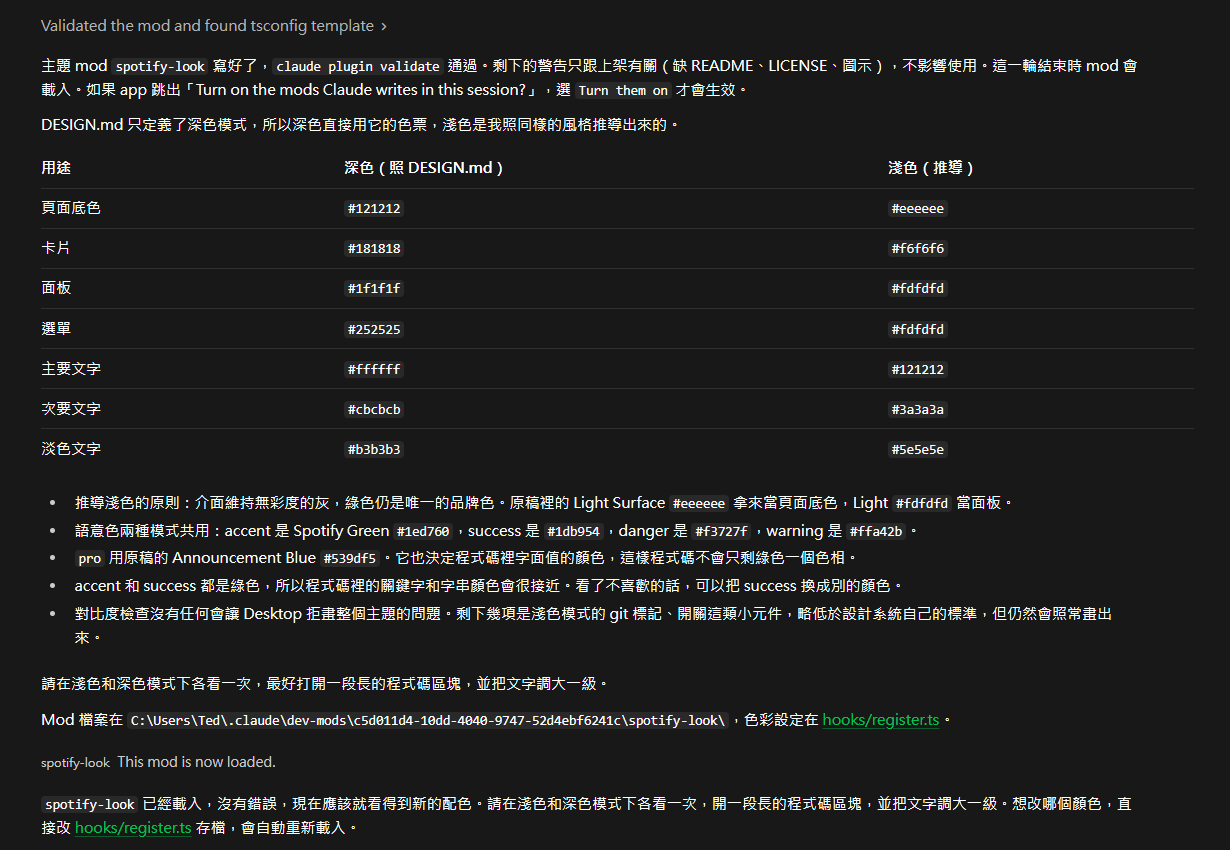
When Claude hands over the mod, it lists the colors it used for dark and light modes:
Check the colors Claude derived
A DESIGN.md describes a website’s palette, while the desktop app needs more colors than that, so Claude derives or borrows some of them. In Claude’s color table (the screenshot above), check three things:
- The derived mode: the Spotify DESIGN.md has only a dark mode, so Claude derived a light mode from three light grays,
#eeeeee,#f6f6f6, and#fdfdfd. The Cursor DESIGN.md has only a light mode, and Claude derived a dark mode from the file’s note that the featured pricing tier switches to a dark background. If you want to keep the original single mode, ask Claude to build only that one. The Linear DESIGN.md says outright that Linear has no light mode, so I built only a dark theme. - The borrowed colors: a desktop theme has five role colors, accent, danger, success, warning, and pro, and code syntax highlighting draws from them too. For example, keywords use accent and strings use success. When the DESIGN.md has no matching color, Claude borrows another one. Spotify’s pro color, for instance, borrows Announcement Blue. Claude also pointed out that Spotify’s accent and success are both green, which makes keywords and strings in code look alike.
- The contrast check: a theme mod builds its full palette from a few colors with a function called
makeColors, which also lists any spots with too little contrast. A line that starts withDesktop won't paint this thememakes the desktop app skip the whole palette. Other lines are only warnings, and the theme still applies. When Claude finishes the mod, its reply says whether any line would block the theme. The last bullet in the screenshot above is that note.
After reviewing the table, open Settings > General in the desktop app and switch Theme under Appearance to light and then to dark, looking at the app in each mode. The screenshot shows the Traditional Chinese labels for these settings:

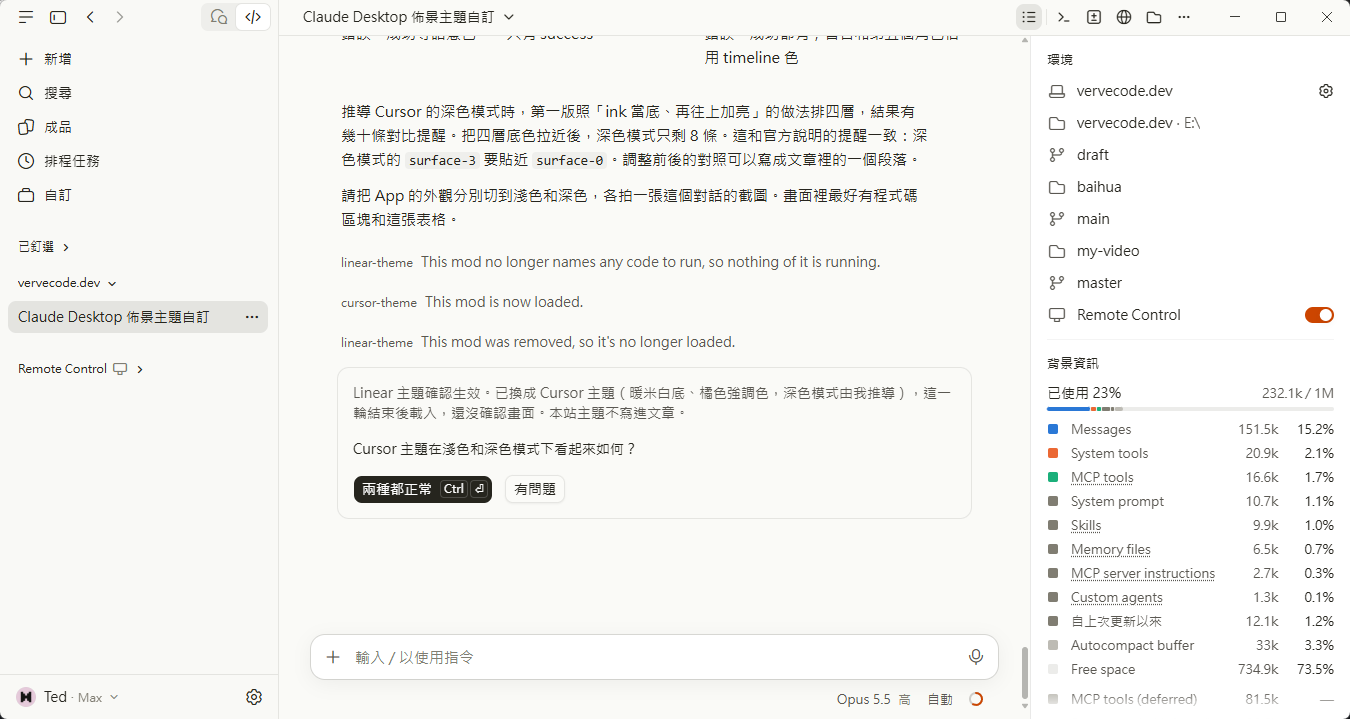
With the Cursor light theme, the background turns warm off-white and the toggles turn orange:
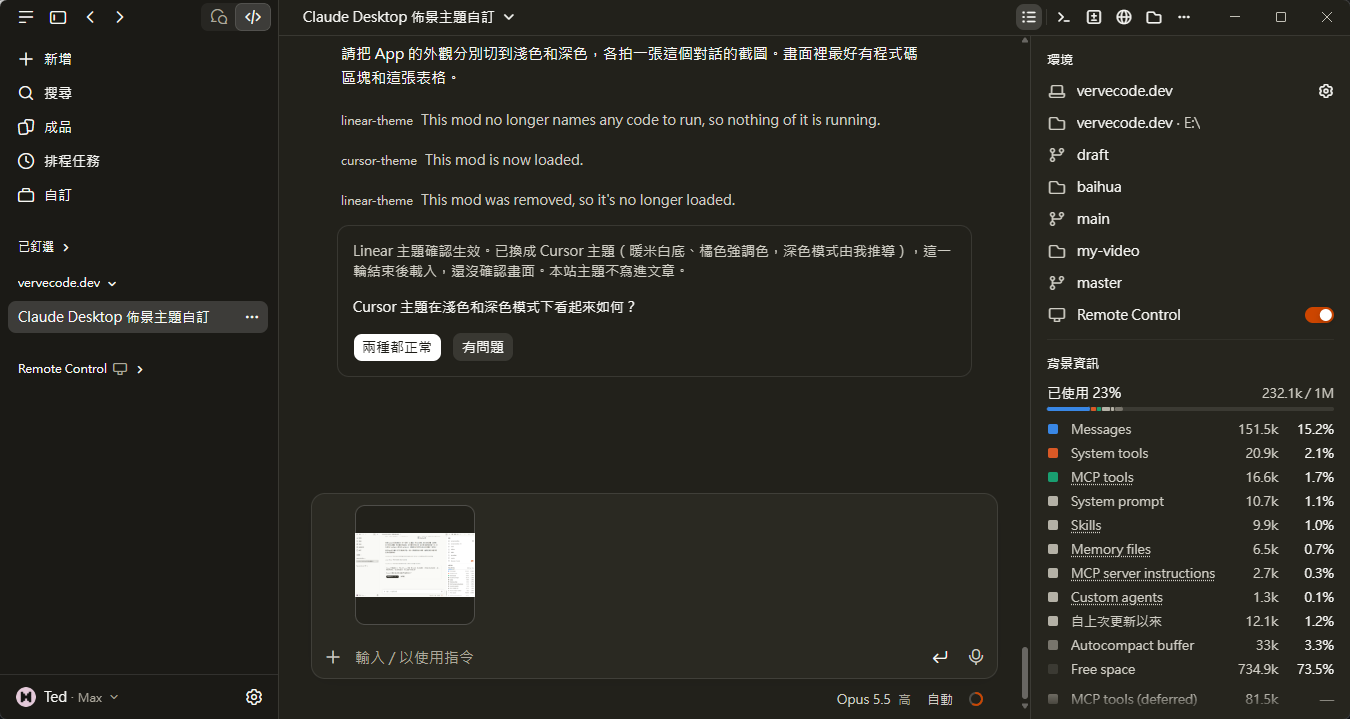
The dark mode Claude derived for Cursor uses a warm brown background and keeps Cursor’s orange toggles:
Change the theme colors
To swap a color, the official docs suggest simply telling Claude what to change. If you ask Claude to set the surface colors in the order the DESIGN.md lists them, though, the theme may fail to apply. The desktop app has four surface layers: the page is surface-0, and cards, panels, and menus are surface-1 through surface-3. The page has to be the darkest, and each layer above it has to be as light or lighter. Websites often put gray cards on a white page, which reverses that order. Linear’s DESIGN.md has no light mode, but it does list a set of inverse colors in exactly that order. When I had Claude fill light mode with those colors in their original order, makeColors threw the error In light mode surface-0 (gray-20, #ffffff) is lighter than surface-1:
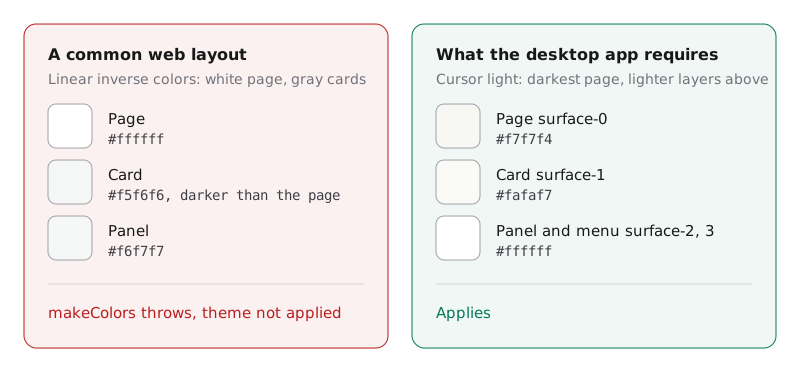
If you hit this error, ask Claude to make the page the darkest of the four surfaces and have cards, panels, and menus get lighter in turn. In dark mode, keep the four surfaces close to each other. When they spread too far apart, makeColors reports more contrast warnings, and you can ask Claude to pull the four surfaces closer together.
Apply the theme to every session
Claude saves the mod under ~/.claude/dev-mods/<session ID>/<mod name>/, and only the session that built it loads it. To apply the theme to every session you open from now on, copy the mod into your personal skills directory. According to the official docs, Claude Code loads every plugin in that directory that contains a .claude-plugin/plugin.json whenever a session starts:
-
Copy the whole mod folder from
~/.claude/dev-mods/<session ID>/to~/.claude/skills/<mod name>/. It needs.claude-plugin/plugin.jsonand thehooksfolder. -
Run
claude plugin listin a terminal. The mod appears under Skills-directory plugins with the status✔ loaded:1Skills-directory plugins (.claude/skills/*): 2 3 ❯ spotify-look@skills-dir 4 Version: 0.1.0 5 Scope: user 6 Path: ~\.claude\skills\spotify-look 7 Status: ✔ loaded -
Start a new local session in the Code tab and send any message. The message doesn’t need to ask Claude for anything, and the theme applies once it’s sent.
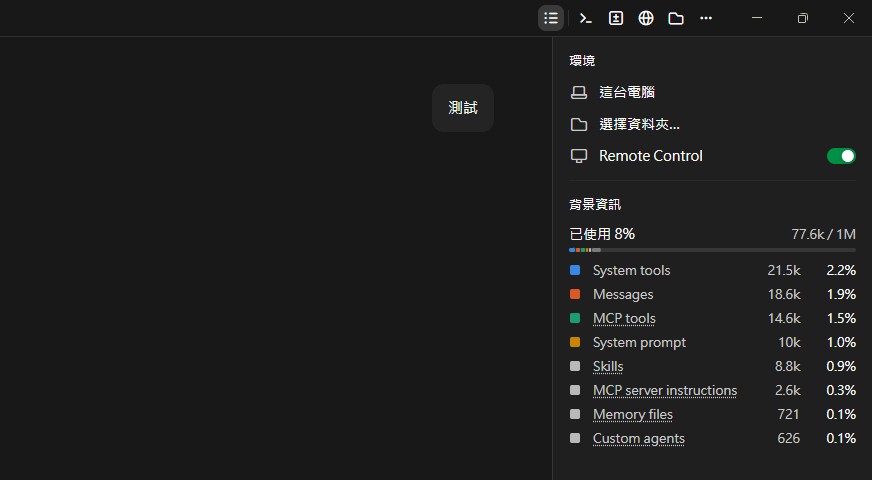
After the Spotify theme applied in a new session, the Remote Control toggle in the right panel turned Spotify green:
According to the official docs, when two mods in the same session set a theme, the later one replaces the earlier one, so keep only one theme mod in the skills directory.
Remove a theme
Move the mod folder out of ~/.claude/skills/, or out of its session folder under ~/.claude/dev-mods/, then start a new local session. The app returns to its default colors. While a theme mod in another session is still running, a new session may pick up that theme’s colors. In my test, after I removed the Spotify theme from the skills directory, a new session showed the Cursor dark theme from another session. Only after I removed the theme mods from every session did new sessions return to the default dark gray background and blue toggles.
Test notes
The Claude Code version bundled with the Code tab was 2.1.325. I built the Linear and Cursor themes step by step with Claude in one session, while the Spotify theme came from a new session where I pasted only the prompt above:
| DESIGN.md | Format | Original mode | Approach | makeColors warnings | Warnings that block the theme |
|---|---|---|---|---|---|
| Linear | YAML front matter | Dark | Dark mode only | 10 | 0 |
| Cursor | YAML front matter | Light | Derived dark mode, surfaces tightened | 32 | 0 |
| Spotify | Free-form Markdown | Dark | One prompt, Claude derived light mode | 27 | 0 |
All three theme mods passed claude plugin validate. In the first version of the Cursor dark mode, the four surfaces went from #1d1c17 all the way up to #38372f, and makeColors listed 55 contrast warnings. After I pulled the four surfaces into the #1d1c17 to #2a2922 range, 32 warnings remained, and only eight of them were in dark mode. The Spotify DESIGN.md has no YAML front matter, and its colors are scattered through free-form prose, and Claude still found them.
Summary
Give Claude your DESIGN.md, and Claude reads the colors, derives the missing mode, and writes the theme mod. What’s left for you is checking the colors Claude derived and borrowed. In my tests, all three DESIGN.md files, Linear, Cursor, and Spotify, applied to the Code tab, whether the colors lived in YAML or in prose.
Further reading