Table of contents
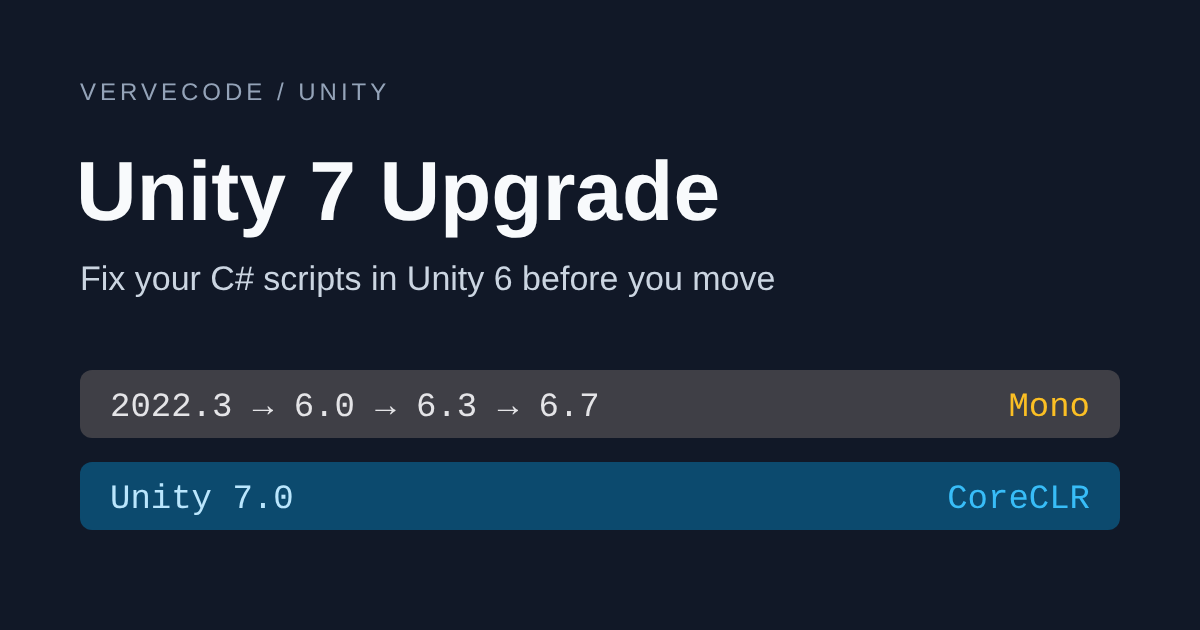
Unity 7 replaces Mono with CoreCLR, the cross-platform .NET runtime from Microsoft, as the engine that runs your C# scripts. It also no longer supports the Built-in Render Pipeline, the legacy renderer that predates URP (Universal Render Pipeline). A project upgraded from Unity 2022 or Unity 6 can compile and run fine in the old version and still break in Unity 7: entering Play Mode keeps static values from the previous run, scripts can’t read an assembly’s file path, or a block of code silently stops compiling because a preprocessor symbol is no longer defined. Unity 6 already has new APIs for most of these patterns. If you upgrade one version at a time and find and rewrite the affected scripts while you are still on Unity 6, you won’t have to fix every problem at once when you move to Unity 7.
Unity 7 is still in public alpha. The latest build is 7000.0.0a20, released on November 19, 2026. According to the schedule Unity announced at Unite Seoul 2026, Unity 7 enters beta in December and ships in the first quarter of 2027, and the Unity 7.0 manual says the upgrade guide will be published after the beta ends. This article follows the manual and release notes for 7000.0.0a20, so details may still change before the full release.
Find what your project needs to change
Existing scripts most often break or change behavior in Unity 7 in eight cases. The last column is the earliest Unity version where you can make the change. Code you rewrite in that version needs no further changes in Unity 7:
| Case | Result in Unity 7 | Fix | Earliest version |
|---|---|---|---|
| Game state kept in static fields or static events | With code reload turned off, Play Mode keeps the values from the previous run | Reset them with RuntimeInitializeOnLoadMethod or [AutoStaticsCleanup] |
Any version |
Code uses AppDomain, Assembly.Location, or Assembly.LoadFile |
GetAssemblies() lists assemblies that are being unloaded, Location returns an empty string, and assemblies loaded with LoadFile can’t be unloaded with the rest of your code |
Use CurrentAssemblies and GetLoadedAssemblyPath() |
6.5 |
Save files written with BinaryFormatter |
No longer supported | Use JsonUtility or Unity serialization |
Any version |
The game quits with Environment.Exit() |
Throws PlatformNotSupportedException |
Use Application.Quit() |
Any version |
Code uses #if DEVELOPMENT_BUILD or #if UNITY_64 |
The symbols are no longer defined, so code in those blocks doesn’t compile | Use UNITY_ENABLE_CHECKS, Debug.isDebugBuild, or IntPtr.Size |
6.6 |
2022-era FindObjectOfType, .rigidbody, or GetInstanceID |
Deprecated or removed between Unity 6.0 and 6.6, so the code doesn’t compile | Use the matching new API | 6.0 to 6.6 |
| The project uses the Built-in Render Pipeline | The screen renders black, and Surface Shaders are disabled | Convert to URP | 6.7 |
| Plugin DLLs not compiled against .NET Standard 2.1 | May fail to load | Use a build compiled against .NET Standard 2.1 | Any version |
The C# language version in the 7.0 alpha is still C# 9.0. Unity’s CoreCLR progress update from October 2026 also says the 7.0 alpha still targets C# 9 and .NET Standard 2.1, and Unity can’t yet say when it will move to .NET 10 and C# 14. The manual marks the old Input Manager as deprecated, but calls like Input.GetKey still work in the 7.0 alpha, and Unity hasn’t announced which version will remove them.
Plan the upgrade path
Unity’s upgrade manual recommends upgrading one major version at a time. A 2022 LTS project should go to Unity 6 first and then to Unity 7, and you should read the upgrade guide for each version in between in release order. Unity 6 has two stops you can’t skip:
- Unity 6.3 removed URP’s Compatibility Mode. If your URP project still runs in that mode and hasn’t enabled Render Graph, switch to Render Graph in 6.0 to 6.2 before upgrading further.
- 6.7 LTS is the last version that supports Mono and the Built-in Render Pipeline. Unity’s post on moving to a single render pipeline recommends converting the project to URP in 6.7 before opening it in Unity 7.
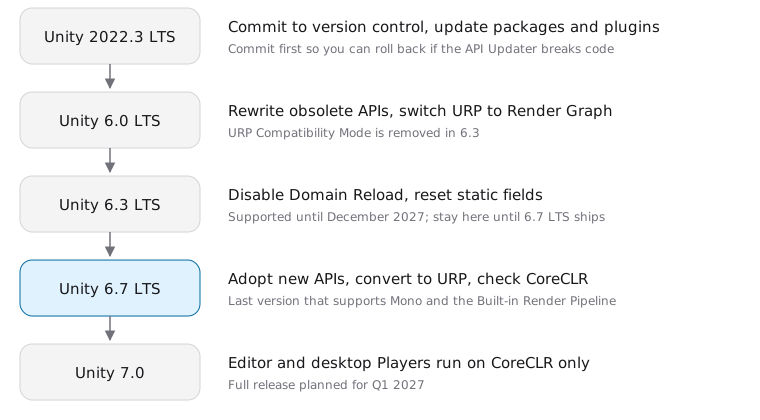
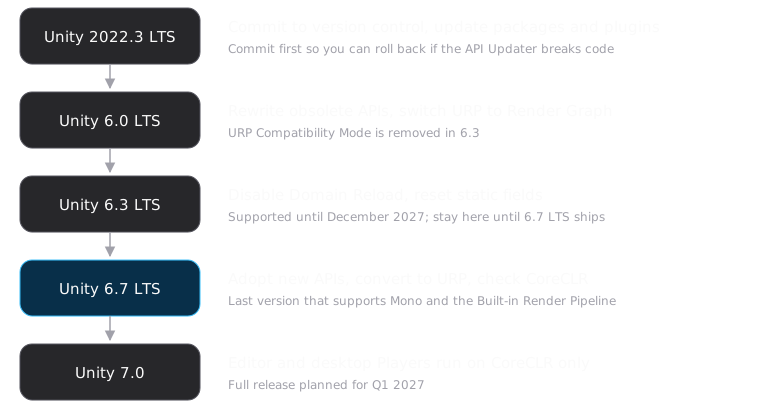
Support for Unity 6.0 LTS ended in October 2026, and 6.3 LTS is supported until December 2027. 6.7 LTS is still in beta (6000.7.0b10). Versions 6.1, 6.2, and 6.4 to 6.6 are Update releases, supported only until the next version ships. So the versions to stay on are 6.3 LTS now and 6.7 LTS once it ships. Do the changes the table marks 6.5 and 6.6 when you move to 6.7 LTS:
- While you are on 6.3 LTS: rewrite APIs removed in 6.0 and 6.3, reset static fields with
RuntimeInitializeOnLoadMethod, replaceBinaryFormatterandEnvironment.Exit(), and swap out plugin DLLs. - After you move to 6.7 LTS: adopt the new APIs from 6.5 and 6.6, replace
DEVELOPMENT_BUILDandUNITY_64, convert to URP, and check CoreCLR compatibility with Project Auditor.
Commit all your changes before each upgrade. During the upgrade, Unity’s API Updater asks whether to rewrite obsolete APIs automatically. If the automatic rewrite breaks something, you can roll back to the commit before it.
Rewrite old APIs removed in Unity 6
When you upgrade a 2022 project to Unity 6, the first problems you hit are APIs that Unity 6.0 to 6.6 deprecated or removed. Deprecated APIs show warnings in the Console, while scripts that use removed APIs fail to compile. These are the ones that show up most often in scripts:
| Old code | New code | Version |
|---|---|---|
FindObjectOfType<T>() |
FindAnyObjectByType<T>() |
6.0 |
FindObjectsOfType<T>() |
FindObjectsByType<T>() |
6.0 |
[SerializeField] int Hp { get; set; } |
[field: SerializeField] int Hp { get; set; } |
6.3 |
int id = go.GetInstanceID(); |
EntityId id = go.GetEntityId(); |
6.5 |
gameObject.rigidbody |
GetComponent<Rigidbody>() |
6.5 |
AddComponent("Rigidbody") |
AddComponent<Rigidbody>() |
6.5 |
UxmlFactory, UxmlTraits |
[UxmlElement], [UxmlAttribute] |
6.6 |
Shortcut properties for getting components, such as gameObject.renderer, gameObject.collider, and gameObject.audio, were also removed in 6.5. Replace all of them with GetComponent<T>().
Three of these changes affect how your code behaves at runtime:
FindObjectsByTypereturns an unsorted array. Code that relied on the orderFindObjectsOfTypereturned has to sort the results itself (6.0 upgrade guide).EntityIdis 8 bytes. Storing it in anint, or using it as an int key in a Dictionary, loses half the data, so change all the related code to use theEntityIdtype (6.5 upgrade guide).- Starting in 6.4,
Object.DestroycallsOnDisableon the components of every descendant object. If your project callsOnDisableon deeply nested children itself, those components getOnDisabletwice after the upgrade, so remove your extra calls (6.4 upgrade guide).
Disable Domain Reload to find static fields that need resetting
Domain Reload is the step where Unity reloads all your scripts, which also resets every static field. If you disable it in Unity 6, you can find, before you upgrade, which scripts depend on code being reloaded every time you enter Play Mode. By default, the Unity 7 Editor reloads only the scene when entering Play Mode, not your code. Static fields, subscribers to static events, and non-serialized fields all keep their values from the previous Play Mode session. According to the 7.0 alpha release notes, existing projects that already have an Editor settings file keep their current Play Mode setting after the upgrade, while new projects reload only the scene by default. An existing project runs into leftover static values only after you switch to scene-only reloading. Unity also recommends scene-only reloading, because it shortens the wait when entering Play Mode.
The setting is under Edit > Project Settings > Editor, in Enter Play Mode Settings:
- Unity 6: in the When entering Play Mode menu, select Reload Scene only.
- Unity 2022: select Enter Play Mode Options, then clear Reload Domain.
In a new project created in the Unity 6.7 beta, this menu already defaults to Reload Scene only:

With the setting changed, press Play twice in a row. If a score, an enemy list, or a singleton still holds the previous run’s value the second time, the static field that stores it needs to be reset when entering Play Mode. Starting in Unity 6.6, projects with Domain Reload disabled turn on an analyzer automatically, and the Console shows UAL0010 and UAL0013 warnings for static members you haven’t handled yet.
In Unity 6.6 and later, [AutoStaticsCleanup] makes Unity reset a field automatically each time you enter Play Mode. Declare the class as partial so Unity can generate the reset code for it:
1using System.Collections.Generic;
2using Unity.Scripting.LifecycleManagement;
3using UnityEngine;
4
5public partial class EnemyRegistry : MonoBehaviour
6{
7    // Re-runs the initializer on every Play Mode entry, back to 0
8    [AutoStaticsCleanup]
9    static int s_DefeatedCount = 0;
10
11    // A readonly collection gets Clear() called, so the list is empty again
12    [AutoStaticsCleanup]
13    static readonly List<EnemyRegistry> s_Enemies = new();
14
15    void OnEnable() => s_Enemies.Add(this);
16    void OnDisable() => s_Enemies.Remove(this);
17}
The Unity documentation lists three limits. The analyzer reports UAL0012 when the class isn’t partial. It reports UAL0014 when the class has an explicit static constructor. The static constructor itself doesn’t re-run on each Play Mode entry. For a counter that must stay unique across Play Mode sessions, such as an ID generator, add [NoAutoStaticsCleanup] instead to keep its value.
Unity 6.3 LTS doesn’t have these two attributes yet. While your project is on 6.3 LTS, reset fields yourself with RuntimeInitializeOnLoadMethod when entering Play Mode. This approach still works in Unity 7:
1using UnityEngine;
2
3public class ScoreBoard : MonoBehaviour
4{
5    static int s_TotalScore;
6
7    [RuntimeInitializeOnLoadMethod(RuntimeInitializeLoadType.SubsystemRegistration)]
8    static void ResetStatics()
9    {
10        s_TotalScore = 0;
11    }
12}
In 6.5 and later, you can also use the [OnEnteringPlayMode] and [OnExitingPlayMode] attributes from the UnityEngine namespace instead of subscribing to EditorApplication.playModeStateChanged. These attributes also run in the Player, so you don’t need to wrap the code in #if UNITY_EDITOR (lifecycle API reference).
Rewrite .NET APIs that CoreCLR doesn’t support
If your project reads the list of loaded assemblies, reads assembly file paths, or loads assemblies at runtime, replace those .NET APIs with Unity’s versions for Unity 7. The Unity 7 Editor and the Windows, macOS, and Linux Players run scripts on CoreCLR, and IL2CPP platforms switch to the .NET 10 base class library. Unity loads assemblies from memory and unloads them when code reloads. The incompatible API reference lists these replacements:
| Old code | New code | Namespace |
|---|---|---|
AppDomain.CurrentDomain.GetAssemblies() |
CurrentAssemblies.GetLoadedAssemblies() |
UnityEngine.Assemblies |
AppDomain.CurrentDomain.DomainUnload |
[OnAssemblyUnloading] |
Unity.Scripting.LifecycleManagement |
assembly.Location |
assembly.GetLoadedAssemblyPath() |
UnityEngine |
Assembly.LoadFile(path) |
CurrentAssemblies.LoadFromPath(path) |
UnityEngine.Assemblies |
BinaryFormatter |
JsonUtility or Unity serialization |
UnityEngine |
CurrentAssemblies and GetLoadedAssemblyPath() are available only from Unity 6.5. While the project is on 6.3 LTS, keep the original code and replace it when you move to 6.7 LTS. Replacing BinaryFormatter isn’t tied to a Unity version, so you can switch your save files to JsonUtility now. Old save files need separate conversion code, so the sooner your game moves to the new save format, the fewer old saves your players will need to convert.
Two other runtime differences don’t show up as compile errors:
- According to the 7.0 alpha release notes,
Environment.Exit()throwsPlatformNotSupportedExceptionon CoreCLR. UseApplication.Quit()to quit the game. - Unity’s CoreCLR upgrade guide notes that CoreCLR registers only the ASCII and Unicode encodings by default. Before you read a Big5 file with
Encoding.GetEncoding(950), callEncoding.RegisterProvider(CodePagesEncodingProvider.Instance)to register the code page encodings.
Also check the compilation target of precompiled DLLs in your Plugins folder. The .NET compatibility table says CoreCLR supports only the .NET Standard API compatibility level. DLLs compiled for .NET Core aren’t supported, DLLs compiled for .NET Framework are only partly supported, and for NuGet packages you should add the .NET Standard 2.1 build to your project.
Replace DEVELOPMENT_BUILD and UNITY_64
The 7.0 alpha no longer defines DEVELOPMENT_BUILD or UNITY_64 when building for any platform. Debug code inside #if DEVELOPMENT_BUILD disappears from Development Builds without any error message. Starting in Unity 6.6, using these two symbols produces UAC0009 and UAC0008 warnings, and the 6.6 upgrade guide gives three replacements depending on what the code does:
- Safety checks and assertions: change to
#if UNITY_ENABLE_CHECKS. The Editor always defines this symbol, so#if UNITY_EDITOR || DEVELOPMENT_BUILDcan become#if UNITY_ENABLE_CHECKS. - Profiler markers and diagnostic logs: change to
#if UNITY_INCLUDE_INSTRUMENTATION, or put them in a method marked[Conditional("UNITY_INCLUDE_INSTRUMENTATION")]. - Code that should run only in Development Builds and must never reach a release build, such as a log that prints a token: check
Debug.isDebugBuildat runtime, because a release build can also be built with a configuration that includes checks.
The two new symbols depend on Managed Code Variant under Edit > Project Settings > Player > Other Settings. The default, Release, defines no diagnostic symbols. If you need debug code to run during development, select Checked or Debug for the platforms where you build Development Builds. Here is a log that should run only in Development Builds, before and after the change:
1// Before
2#if UNITY_EDITOR || DEVELOPMENT_BUILD
3    Debug.LogError($"Rejecting connection: {payload}");
4#endif
5
6// After
7if (Debug.isDebugBuild)
8    Debug.LogError($"Rejecting connection: {payload}");
When Unity compiles scripts, it doesn’t yet know whether the executable will be 32-bit or 64-bit. Code that checked UNITY_64 should check IntPtr.Size at runtime instead: 8 means 64-bit, and 4 means 32-bit.
Convert Built-in Render Pipeline projects to URP
According to the 7000.0.0a20 release notes, when you open a Built-in Render Pipeline project in the 7.0 alpha, everything renders black, the main window shows an error banner, and Surface Shaders are disabled. Scripts that insert rendering commands with Camera.AddCommandBuffer and CameraEvent are also marked obsolete and don’t run under URP, so rewrite them as URP Renderer Features.
Convert to URP after the project is on 6.7. In Unity 6.7, open Project Auditor from Window > Analysis > Project Auditor. The Migrate to URP tab on the Home page lists incompatible shaders, materials, and scripts, and the Render Pipeline Converter then converts the materials. For the full steps, see Unity’s Built-in to URP migration workflow.
Check the whole project with Project Auditor
The problems in the previous sections are scattered across scripts. Once the project is on 6.7, Project Auditor can list them in one place. Besides Migrate to URP from the previous section, the Home page has Upgrade and Migrate to CoreCLR tabs, described on Project Auditor’s upgrade and migration page. After you pick a target version, Upgrade lists the obsolete APIs your project uses. Migrate to CoreCLR lists code and DLLs that can’t load or run on CoreCLR.
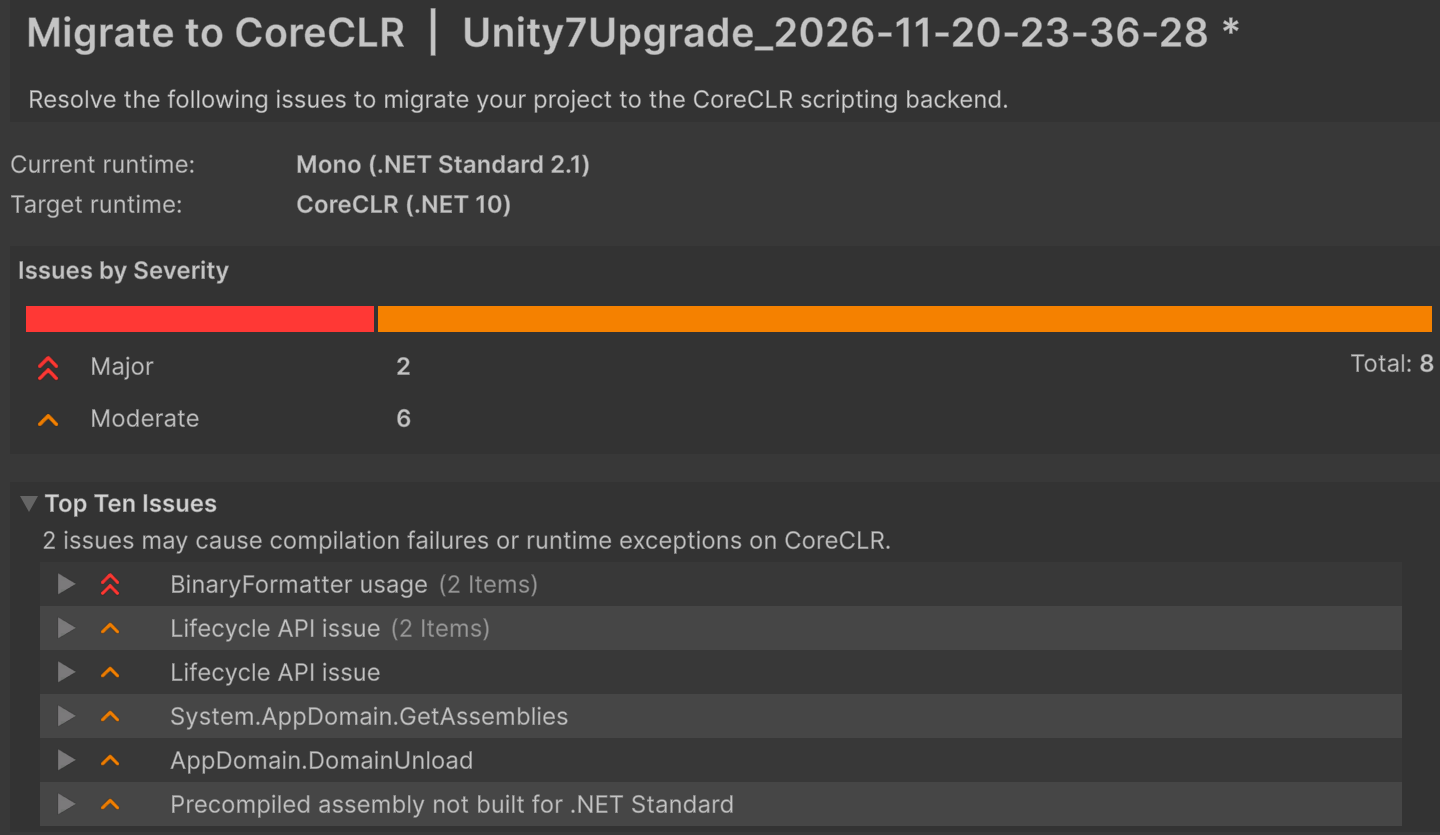
Before you use Migrate to CoreCLR, install the Project Auditor Rules package. Pick a platform and click Start Analysis. The results page shows the current and target runtime, the number of issues at each severity, and the ten most common issues:
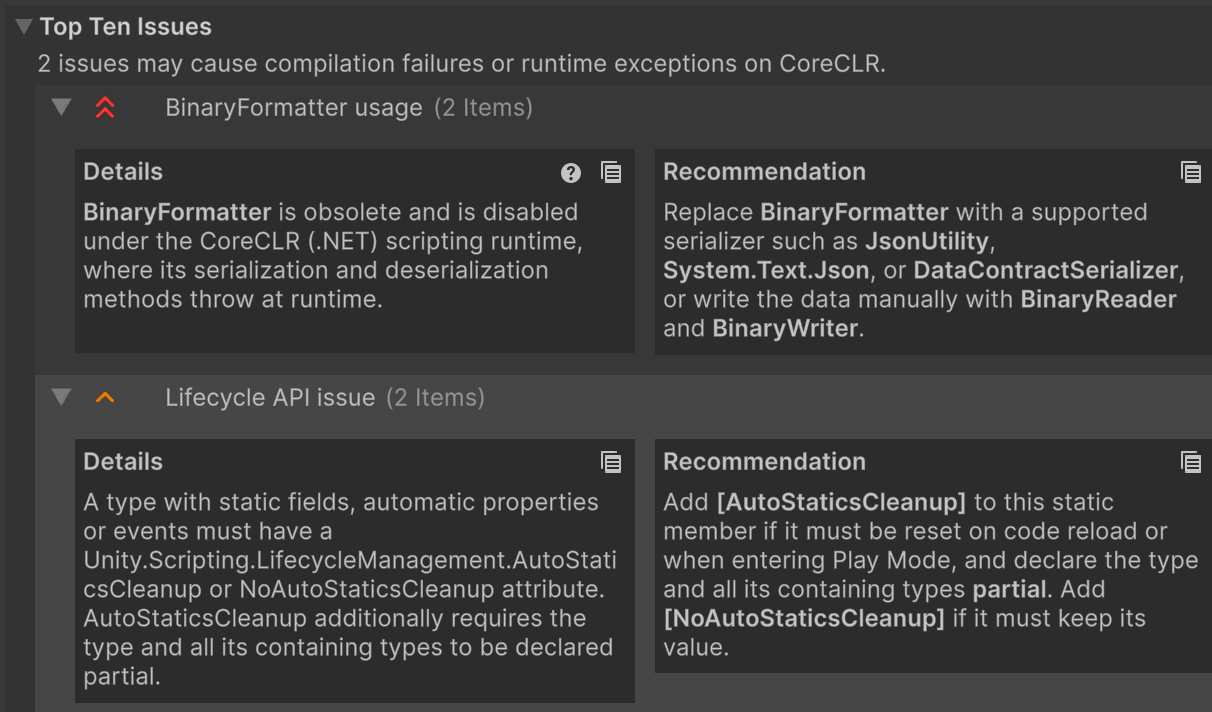
Expand an issue to see why it matters under Details and the suggested fix under Recommendation. More Details lists every place in your code that uses the pattern. Issues that can be fixed automatically also get a fix button:
The analysis doesn’t list every pattern covered in the earlier sections. In this article’s test project, Assembly.Location, Assembly.LoadFile, Environment.Exit(), and #if DEVELOPMENT_BUILD didn’t appear in the results, so you still need to search your code for these yourself. After you finish the changes, go back to Home and run the analysis again to confirm no issues remain.
Test notes
The screenshots and analysis results come from a new project created in the Unity 6.7 beta (6000.7.0b10). I installed Project Auditor Rules 3.2.0 and added three scripts: one saves with BinaryFormatter, one loads assemblies with the AppDomain and Assembly APIs, and one manages game state with static fields, static events, #if DEVELOPMENT_BUILD, #if UNITY_64, and Environment.Exit(). Migrate to CoreCLR returned these results for the Windows platform and Player code:
| Pattern | Analysis result |
|---|---|
BinaryFormatter serialization and deserialization |
Listed, with severity Major |
static fields and static events |
Listed under Lifecycle API issue |
AppDomain.CurrentDomain.GetAssemblies() |
Listed |
AppDomain.CurrentDomain.DomainUnload |
Listed |
Assembly.Location, Assembly.LoadFile |
Not listed |
Environment.Exit() |
Not listed |
#if DEVELOPMENT_BUILD, #if UNITY_64 |
Not listed |
nunit.framework.dll from the com.unity.ext.nunit dependency |
Listed under Precompiled assembly not built for .NET Standard |
Summary
Before upgrading to Unity 7, upgrade through Unity 6 one version at a time, disable Domain Reload and reset static fields, then replace .NET APIs that CoreCLR doesn’t support, old preprocessor symbols, and the Built-in Render Pipeline. Finally, run Project Auditor’s Migrate to CoreCLR analysis, search your code for the patterns it doesn’t list, and move to Unity 7 once no issues remain.
Further reading