Table of contents
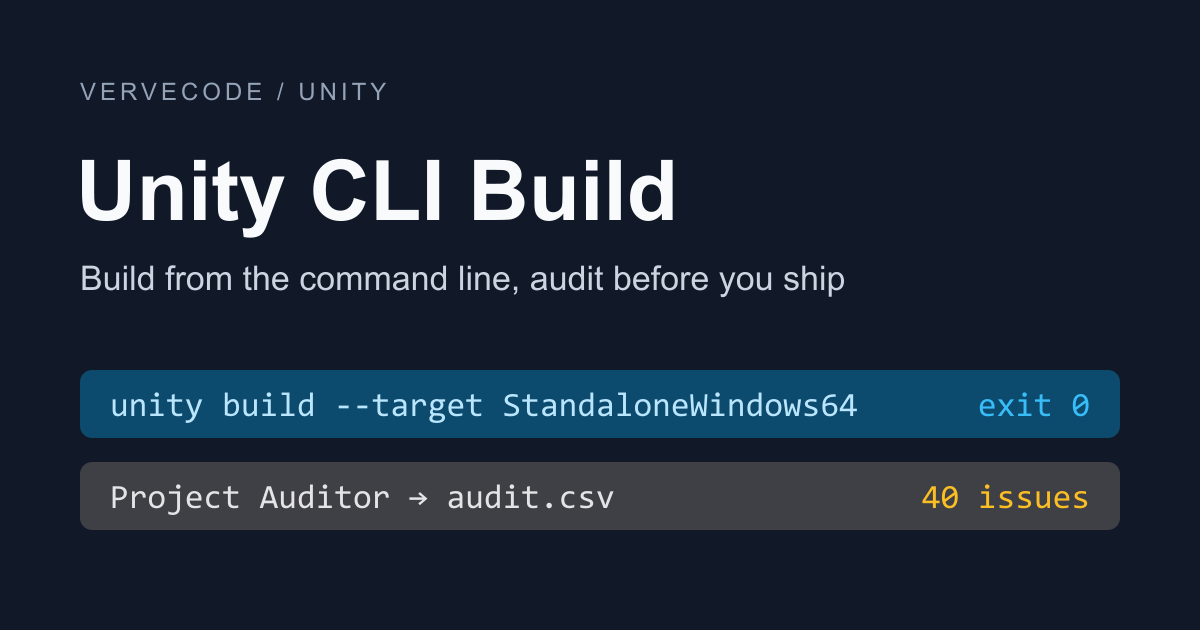
Every time you want someone to playtest, you open Unity, switch the platform in Build Profiles, click Build, and wait. Unity CLI’s build command replaces all of that with one line, and a Windows build needs no C# build script. The command reports success or failure through its exit code, so you can put it in a script and produce a new build by running that script once.
A successful build doesn’t mean the project is healthy. When a build fails, the build log points to the line that broke it. Code and settings that slow the game down or block an upgrade don’t fail the build, and the Console usually shows no warning about them either. Project Auditor, which ships with the Unity Editor, catches this kind of issue. It scans your code, assets, and project settings against a set of rules without running the game:
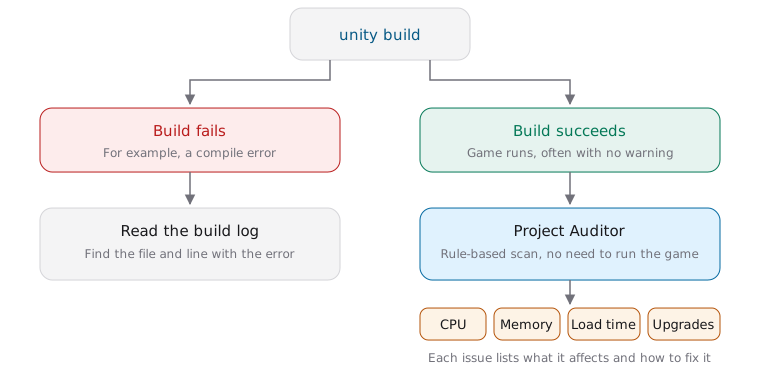
Unity CLI installs the rules package Project Auditor needs and saves the scan results to a CSV file. From there, you can filter the report down to your own project’s issues with PowerShell.
I tested everything below on Windows 11 with Unity CLI 1.0.1 and Unity 6000.6.9f1, using a 3D template project for the Universal Render Pipeline (URP) created with unity projects create. Before you start, follow the Unity CLI install guide to install Unity CLI and the Editor version your project uses, and activate a license. Keep the project on an NTFS drive, because a Dev Drive (the ReFS-formatted volume Windows offers for development) stops Unity CLI from connecting to an open Editor.
Build the project
The platform name for a Windows build is StandaloneWindows64. unity build --list-targets lists every platform and what it needs, and this one is marked as zero-code, meaning it builds without a C# build script and needs only an output path. Run this command in the project folder. --target is the platform to build, and -o is the path of the executable. With --no-tail, the terminal shows only the result instead of the Editor’s full log:
1unity build --target StandaloneWindows64 -o Builds\Windows\Game.exe --no-tail
When the command finishes, check $LASTEXITCODE, the PowerShell variable that holds the exit code of the last command. If the output says the build succeeded and $LASTEXITCODE is 0, the build is done:
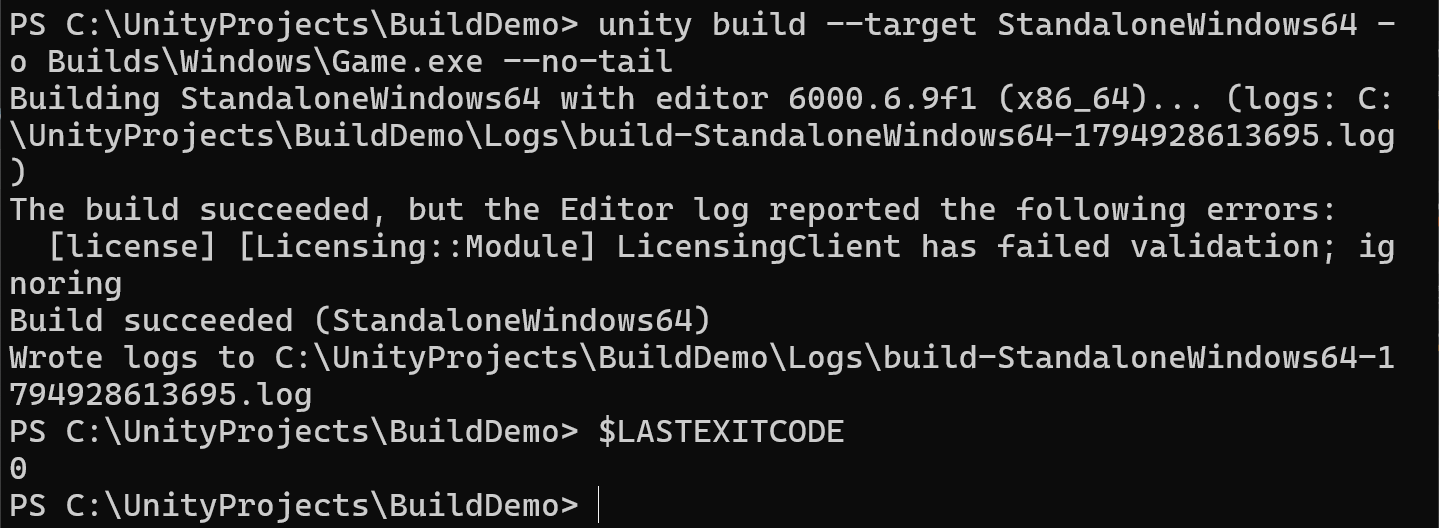
When the Editor isn’t open, the output also shows a LicensingClient has failed validation; ignoring line above the success message. It comes from the log of the Editor that Unity CLI starts in the background. As long as the build succeeded, you can ignore it. I launched the game from this build, and it ran normally.
Besides the game files such as Game.exe and Game_Data, Builds\Windows holds two items left by Unity CLI and Unity:
| Item | Contents |
|---|---|
Game.provenance.json |
A record of this build: the result, exit code, Editor version, and every package version |
Game_BackUpThisFolder_ButDontShipItWithYourGame |
Debugging data. The folder name says not to ship it |
Neither one is needed to run the game. When you send a build to playtesters, zip everything except these two items.
Builds with the Editor open or closed
unity build uses the same command whether or not the Editor is open. Here is how each case builds and how long it took:
| Editor state | How it builds | Measured time |
|---|---|---|
| This project isn’t open | Starts the Editor in the background, builds, then closes the Editor | 1 min 53 s the first time, 17 s for later builds |
| This project is already open | Builds in the open Editor and switches the active platform to the build target | 7 s |
The first background build takes longer because the Editor imports the project’s assets first. Later builds reuse the imported results. If you built with the Editor open and want your previous platform back, switch it in Build Profiles.
Handle a failed build
When the project has a compile error, unity build lists the file and line of each error and ends with the build failure and the log file path:
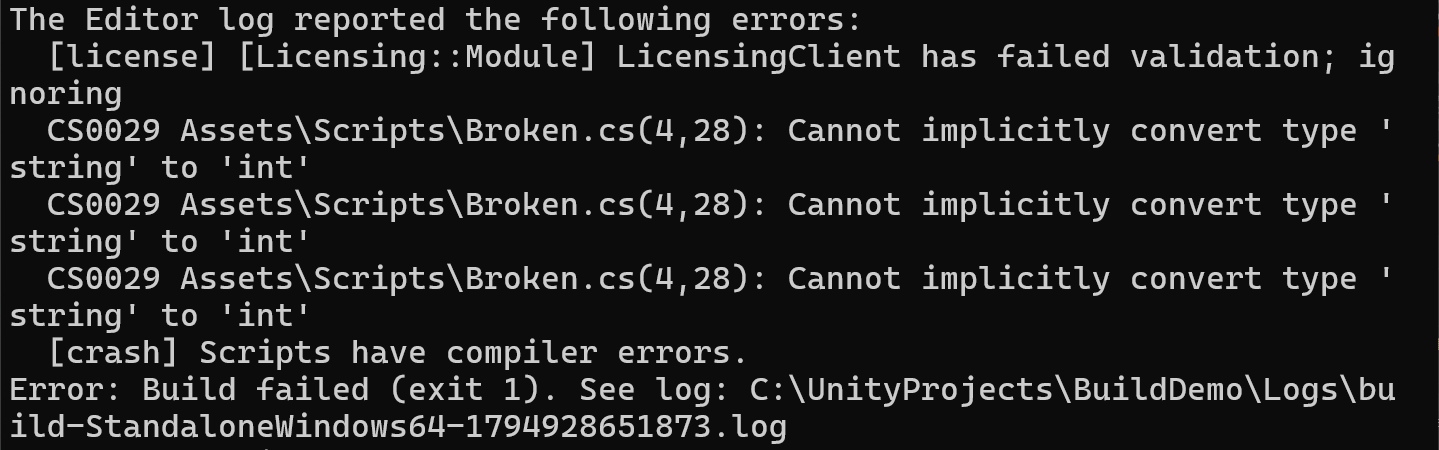
The exit 1 on the last line is the Editor’s own exit code. The $LASTEXITCODE that unity build returns to PowerShell is 6. The full build log is in the project’s Logs folder, named build-<platform>-<timestamp>.log, and that’s where you look for the cause of a failure. After you fix the error, run the same command again. When the exit code is back to 0, the build succeeded.
If you open the same project with unity open . --until-ready, the Editor stops at the “Enter Safe Mode?” dialog, and the command exits with code 6 and a message about compile errors. The Editor hasn’t loaded the project and can’t take commands yet, so unity close . can’t close it. Add --force to end the Editor. Nothing unsaved is lost, because the project never loaded:
1unity close . --force
Write a build script
Put the build command in a PowerShell script, and one run of the script builds the project and reports the result based on the exit code. Create build.ps1 in the project folder:
1param(
2    [string]$Project = ".",
3    [string]$Target = "StandaloneWindows64",
4    [string]$Output = "Builds\Windows\Game.exe"
5)
6
7unity build $Project --target $Target -o $Output --no-tail
8$code = $LASTEXITCODE
9
10if ($code -eq 0) {
11    Write-Host "Build succeeded: $Output"
12} else {
13    Write-Host "Build failed with exit code $code. See the Logs folder in the project for the full log"
14}
15exit $code
Run .\build.ps1 in the project folder. When the build succeeds, the last line says Build succeeded: Builds\Windows\Game.exe. The script passes the exit code of unity build through unchanged, so other scripts or scheduled tasks that call build.ps1 can check $LASTEXITCODE too. For exit codes other than 0 and 6, run unity --help. The end of the help text lists every exit code. If PowerShell says running scripts is disabled, see Fix PowerShell when running .ps1 scripts is disabled.
Check the project for issues
Project Auditor scans only while the project is open in the Editor, so open the project first and wait for the Editor to load:
1unity open . --until-ready
When the Editor is ready, the command exits without an error. To confirm, run unity status. When the state column shows ready, you can continue.
Install the rules package
After the Editor loads, run unity projects audit. It installs Project Auditor’s rules package in the project and opens the Project Auditor window. --workflow only picks the page the window opens on and has nothing to do with the CSV report. This guide uses upgrade:
1unity projects audit --workflow upgrade
The output shows that it installed com.unity.project-auditor-rules@3.2.0, which goes into the project’s Packages\manifest.json. If the project is under version control, manifest.json and packages-lock.json show this change. You can commit it or revert both files.
Save the results to CSV
With the rules package installed, Unity CLI can have the Editor scan the project and write the results straight to a CSV file. unity command asks the open Editor to run one of its functions. For more on how it works, see Let Claude Code drive the Unity Editor. Start the scan with run_audit:
1unity command diagnostics run_audit --output-path Reports/audit.csv
The command returns right away with status: scanning, and the scan continues in the Editor. Check progress with audit_status. When the status is completed, the report is written. On the template project, the scan took 3 min 54 s from start to completed:
1unity command diagnostics audit_status
When the scan finishes, the output looks like this:
1status: completed
2scanId: 461fafe6
3csvPath: C:\UnityProjects\BuildDemo\Reports\audit.csv
4issueCount: 40
Each row in the CSV is one issue, with the columns Category, Severity, Areas, Description, RelativePath, Line, DescriptorId, and Recommendation. Of the template project’s 40 issues, 14 come from Unity’s own packages under Packages or Library, which Unity manages. Filter out those paths with PowerShell to keep only your project’s issues:
1Import-Csv Reports\audit.csv |
2    Where-Object RelativePath -notmatch '^(Packages|Library)/' |
3    Select-Object Category, Severity, Description
On the template project, the filter returns 26 rows: 14 code issues and 12 project setting issues. Here are examples of each kind from the full 40. The Areas column shows what each issue affects, and the CSV’s Recommendation column says how to fix it:
| Category | Issues found in the template project | Areas |
|---|---|---|
| Code | Allocates new VisualElement and Label objects on every call, and calls Debug.LogWarning |
Memory, CPU |
| Code | A precompiled DLL targets .NET Framework | MigrationToCoreCLR |
| Assets | A shader includes UnityCG.cginc from the Built-in Render Pipeline |
MigrationToURP |
| Project settings | No URP Asset is assigned, and Mipmap Streaming is off for the quality levels | Quality, Memory |
| Project settings | The Splash Screen is on, Fixed Timestep is at its default, and every box in the Layer Collision Matrix is ticked | LoadTime, CPU |
| Project settings | Packages such as com.unity.ide.visualstudio have newer versions |
Upgrade |
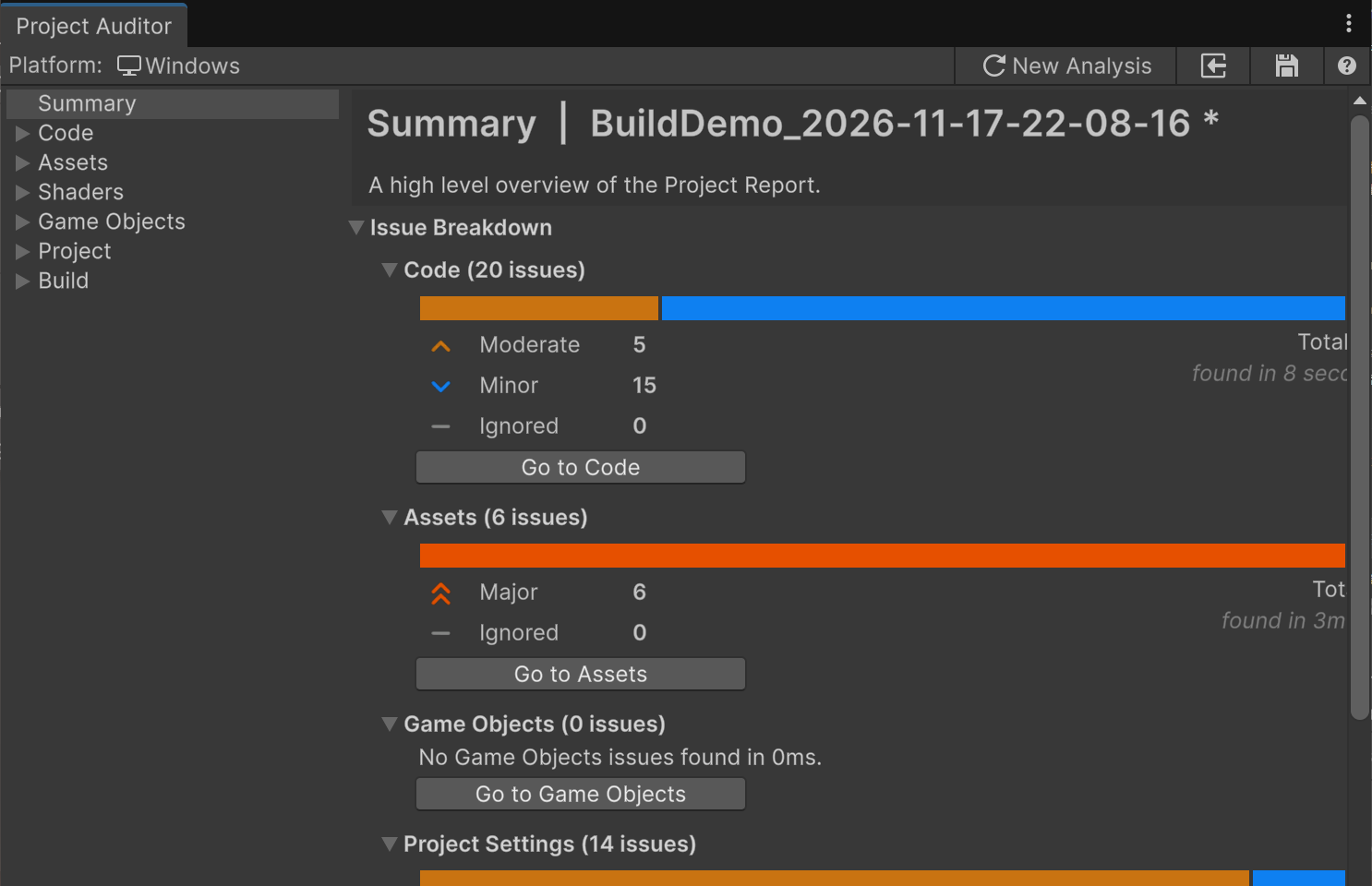
You can also click Start Analysis in the Project Auditor window, and the Editor analyzes the project again. After the analysis, the same button reads New Analysis. The Summary page shows the same per-category counts as the unfiltered CSV, with 20 for Code, 6 for Assets, and 14 for Project Settings:
Troubleshooting
| Symptom | Fix |
|---|---|
unity build says --output is required when building without --execute-method |
Add -o with the path of the executable when you build for Windows |
unity build says the target has no built-in command-line build |
That platform needs a Unity 6 build profile (--profile) or a C# build method (--execute-method) |
audit_status shows unavailable and “Install the Project Auditor Rules package” |
Run unity projects audit once to install the rules package |
The Editor is open, but unity command can’t find it |
This happens when the project is on a ReFS Dev Drive. See the troubleshooting section of Let Claude Code drive the Unity Editor |
Summary
Point Unity CLI at a platform and an output path to build a Windows player, and check the result with its exit code. Project Auditor can save your project’s issues to a CSV file. On the template project, the first background build took 1 min 53 s, later builds took 17 s, and a build with the Editor open took 7 s. Project Auditor found 40 issues, and 26 of them belonged to the project itself.
Further reading