Table of contents
The words readers type into your site search show what they came for but didn’t see on the page, and searches with no results point to articles you haven’t written yet. Google Analytics 4 (GA4) tracks site search on its own only when the query appears as a query parameter in the URL. A search panel like the one on this site, which updates results as the reader types and never changes the URL, leaves GA4 with nothing to record. The fix is to have your site push a search event to the Data Layer once the reader stops typing and settles on a query. The Data Layer is the dataLayer array that Google Tag Manager (GTM) reads. GTM then forwards the event to GA4, and GA4 records every search. After GA4 processes the events, Explorations, GA4’s custom report builder, show the terms readers searched for and how many articles each search returned.
This approach works on any site that already has GTM installed. The search panel itself is covered in Pagefind Chinese search. The screenshots come from my GA4 and GTM accounts, which use the Traditional Chinese interface, so each step names the English labels.
When you need to send the event yourself
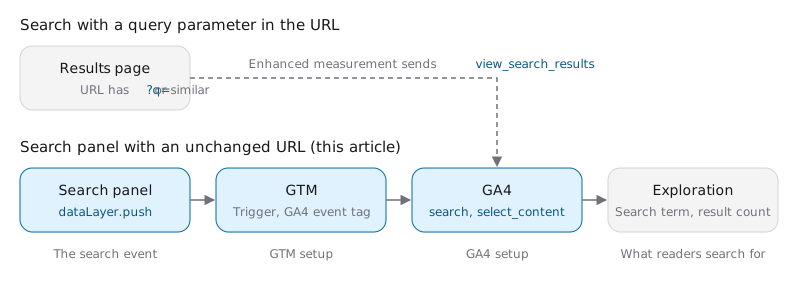
GA4’s Enhanced measurement records site search by default, but only when the search results page has a query parameter in its URL. It recognizes q, s, search, query, and keyword. When the URL matches, GA4 sends a view_search_results event automatically, with no extra setup. When the URL doesn’t change, your site has to send the search event itself. The diagram shows how each kind of search reaches GA4. Its bottom row lists the steps in the order of the sections below:
The search event your site pushes
Search panels usually update results as the reader types. If every update sent an event, typing cmd would send both cm and cmd, and half-typed words would fill your reports. This site sends a search event only after the reader settles on a query. That happens in four cases: the reader stops typing for two seconds, opens an article from the results, closes the search panel, or leaves the page. Each term is sent once per page view. Queries that look like an email address, a phone number, or a number with eight or more digits are never sent, because Google’s policy on personally identifiable information (PII) doesn’t allow that kind of data in GA4.
Wire the functions below into your search panel at four points. Call typing() on every keystroke, and call settle() after each search finishes, passing 0 as total when nothing matches. Call trackOpen() when the reader opens an article from the results, whether by left click, middle click, or Enter, and call flushSearch() when the search panel closes:
1function track(event, params) {
2  window.dataLayer = window.dataLayer || [];
3  window.dataLayer.push({ event, ...params });
4}
5
6// Skip email addresses, phone numbers, and numbers with 8 or more digits
7function analyticsTerm(query) {
8  const term = query.trim().replace(/\s+/g, ' ');
9  if (!term || /\S+@\S+\.\S+|\+?\d[\d\s()-]{7,}\d|\d{8,}/.test(term))
10    return null;
11  return term.slice(0, 100);
12}
13
14const tracked = new Set();
15let settled = null;
16let timer = 0;
17
18// The reader is still typing, so the previous query isn't the one they wanted
19function typing() {
20  clearTimeout(timer);
21  settled = null;
22}
23
24function settle(query, total) {
25  clearTimeout(timer);
26  settled = { query, total };
27  timer = setTimeout(flushSearch, 2000);
28}
29
30function flushSearch() {
31  clearTimeout(timer);
32  if (!settled) return;
33  const term = analyticsTerm(settled.query);
34  if (term && !tracked.has(term)) {
35    tracked.add(term);
36    track('search', {
37      search_term: term,
38      search_results: settled.total,
39      search_language: document.documentElement.lang, // Remove on single-language sites
40    });
41  }
42  settled = null;
43}
44
45function trackOpen(query, href, position) {
46  flushSearch();
47  const term = analyticsTerm(query);
48  if (!term) return;
49  track('select_content', {
50    content_type: 'search_result',
51    content_id: new URL(href, location.href).pathname,
52    search_term: term,
53    search_position: position,
54  });
55}
56
57// Also call flushSearch() when the search panel closes
58window.addEventListener('pagehide', flushSearch);
The event names are GA4’s recommended events search and select_content, not Enhanced measurement’s view_search_results. Both search and view_search_results fill in the Search term dimension, so filter by event name to keep panel searches apart from URL-based ones.
The table lists the parameters each event carries. The GTM and GA4 steps below both use this table. The three parameters marked “Register as” in the GA4 dimension column need a custom dimension, a dimension that GA4 builds from an event parameter you name:
| Parameter | Event | Value | GA4 dimension |
|---|---|---|---|
search_term |
search, select_content |
The query the reader typed | Built-in Search term |
search_results |
search |
Number of articles found | Register as Search results |
search_language |
search |
Page language, for multilingual sites | Register as Search language |
content_type |
select_content |
Always search_result |
Built-in Content type |
content_id |
select_content |
Path of the opened article | Built-in Content ID |
search_position |
select_content |
Position of the opened result | Register as Search result position |
If your site has one language and you drop search_language, skip it in the GTM variables, tag parameters, and GA4 dimensions as well. Once the code is in place, search once on your site and wait two seconds. Type dataLayer in the Console of your browser’s developer tools, press Enter, and expand the array. One entry has event: 'search', along with the query and result count you just produced.
GTM setup
GTM needs a variable to read each parameter, a trigger to fire when the event arrives, and a tag to pass the parameters to GA4. Everything below happens in your workspace, and nothing reaches the live site until you click Submit.
-
Go to Variables > User-Defined Variables > New and choose Data Layer Variable as the type. Set Data Layer Variable Name to a parameter name from the table, such as
search_term, and leave Data Layer Version at Version 2. The name must match what your site pushes, including case and underscores, or GTM can’t read the value. I name these variablesDLV - search_term(DLV for Data Layer Variable) and create one for each parameter in the table. -
Go to Triggers > New > Custom Event, set Event name to
search, choose All Custom Events under “This trigger fires on”, and name the triggerCE - search(CE for Custom Event). CreateCE - select_contentthe same way. -
Go to Tags > New > Google Analytics: GA4 Event, name the tag
GA4 - search, and enter your GA4 Measurement ID, which starts withG-. When the editor shows “Google tag found in this container,” the event tag reuses the settings of the container’s Google tag. -
Set Event Name to
search, add the parameters the table lists forsearchunder Event Parameters, pick the matchingDLV -variable for each value with the building-block icon next to the field, and chooseCE - searchas the trigger: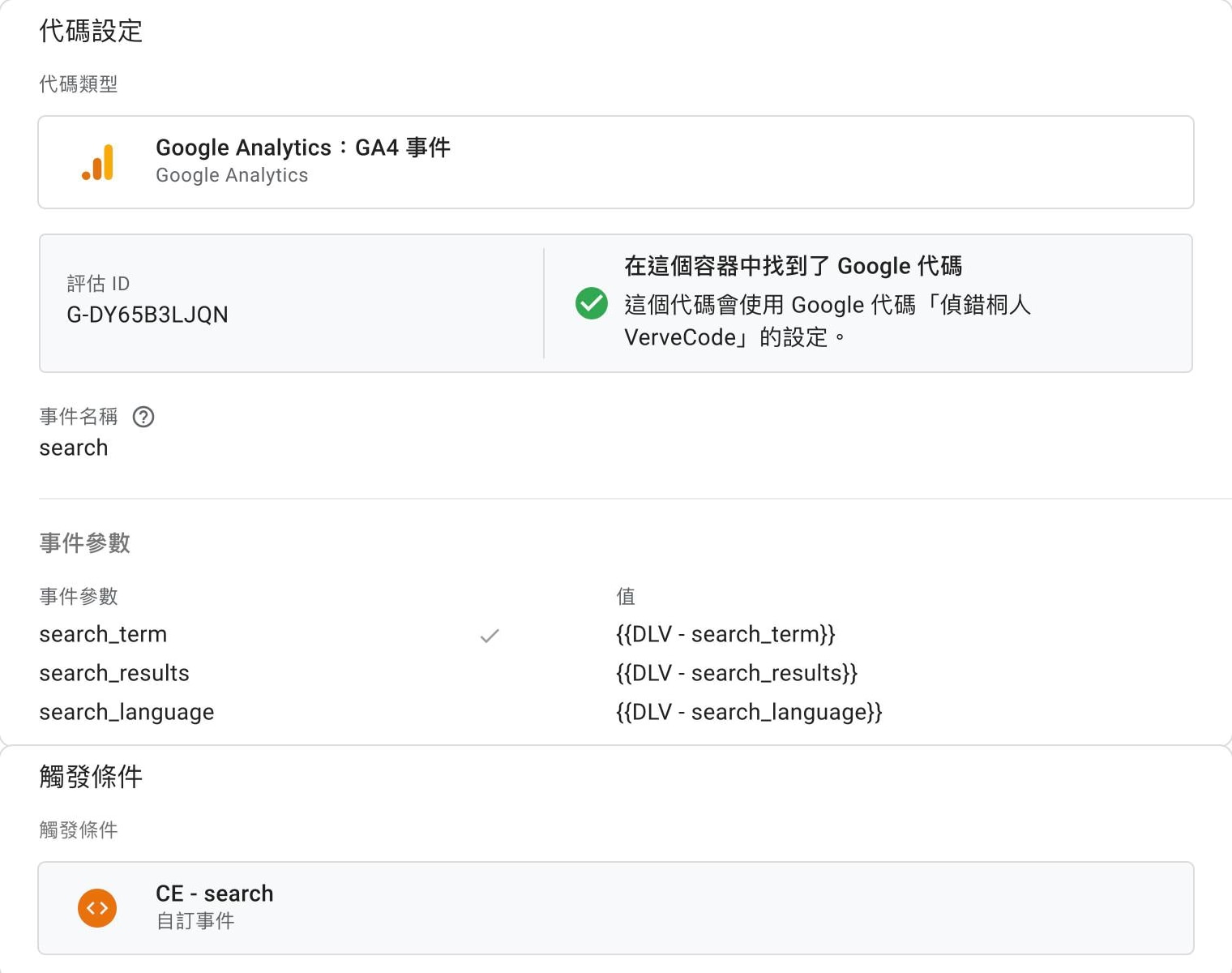
Repeat steps 3 and 4 with the
select_contentparameters to createGA4 - select_content, and attach it toCE - select_content.
Once both tags exist, the Tags column in the Triggers list changes from 0 to 1 for each trigger.
If step 3 doesn’t show that a Google tag was found, GA4 isn’t loaded by this container’s Google tag. Add a Google Tag first, set its Tag ID to the same Measurement ID, and use the Initialization - All Pages trigger. If the container still has Universal Analytics (UA) tags, you can delete them at the same time. UA stopped processing data on July 1, 2023.
GA4 setup
Before you publish the GTM changes, set up two things in GA4.
-
Go to Admin > Data display > Custom definitions > Create custom dimensions, set Scope to Event, and create a custom dimension for each parameter marked “Register as” in the table. If your site hasn’t sent these parameters yet, they won’t appear in the Event parameter dropdown, so type the name in directly. Registering
search_resultsas a dimension lets you place it next to Search term in an exploration’s rows and sort by it: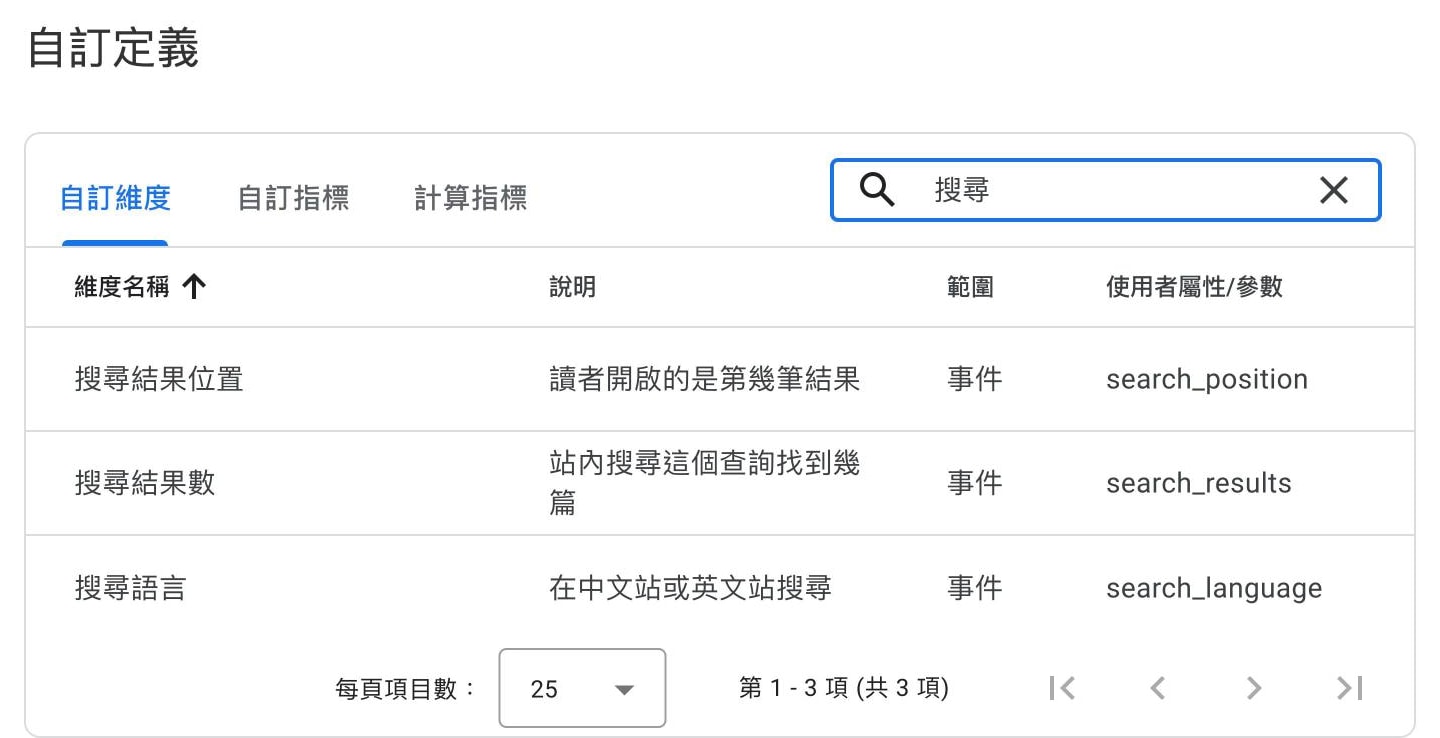
According to Google’s help page, a new custom dimension takes about 24 to 48 hours to become available in reports, so create them before your site starts sending events.
-
Go to Admin > Data collection and modification > Data retention and change Event data retention from the default 2 months to 14 months. Data retention applies only to explorations and funnel reports, and standard reports aren’t affected. Search term is available only in explorations, so with the default setting you can look back only two months. The longer window also applies to existing data that hasn’t expired yet.
Publish and verify
-
Deploy the event-pushing code to the site you’ll test on. With GA4 set up, go back to GTM and click Preview. Tag Assistant, GTM’s debugging tool, opens in a new tab. Enter your site’s home page URL and click Connect. Your site opens in a separate window. Without the Tag Assistant browser extension, Tag Assistant connects only to that window.
-
Search once in that window and wait two seconds. A
searchevent appears on the left side of Tag Assistant. When you select it, GA4 - search appears under Tags Fired, marked Succeeded: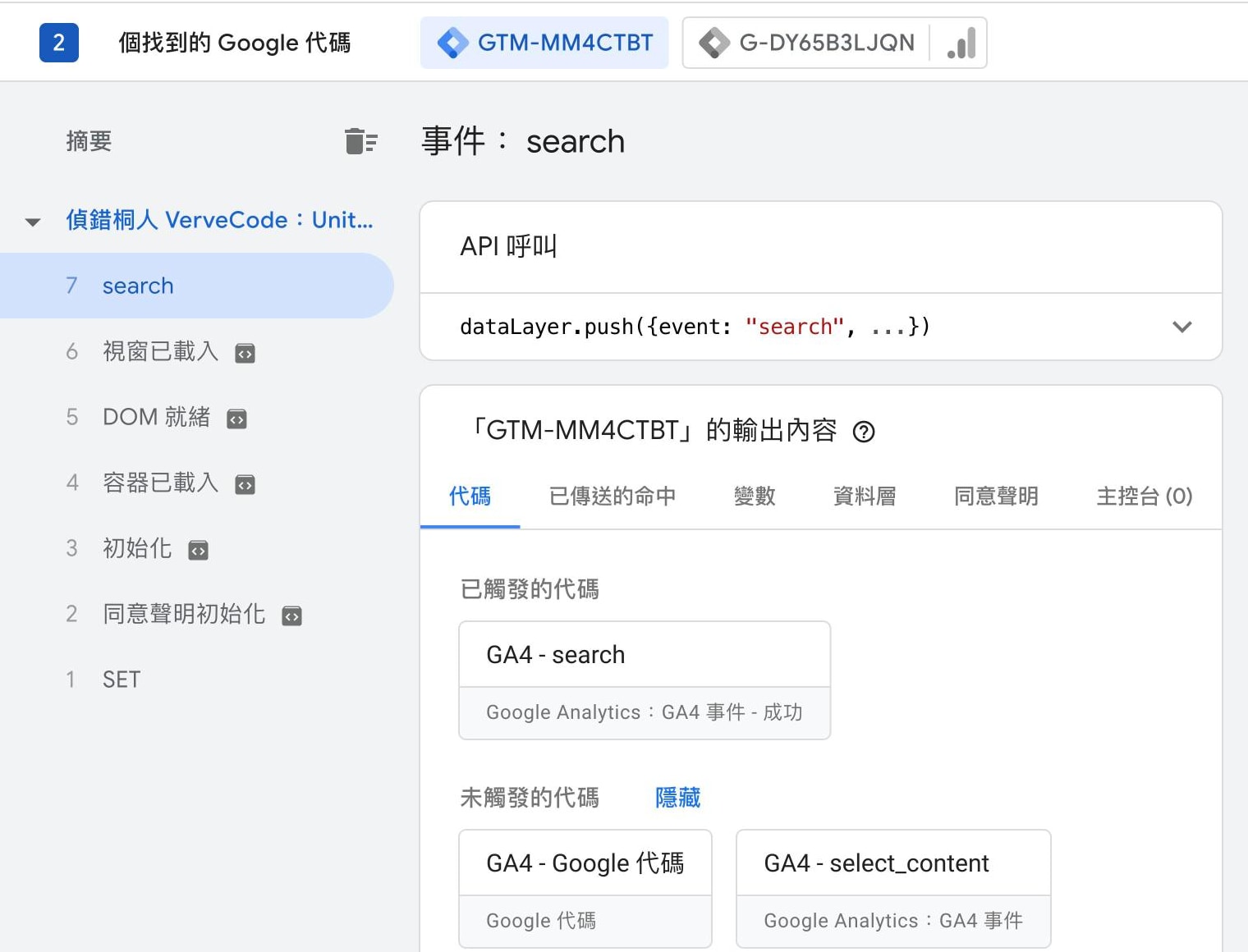
My container has tags for other purposes, so Tags Not Fired lists several of them. What matters is that GA4 - search is in the fired section.
-
When you’re done, click Finish on the Tag Assistant badge in the bottom-right corner of your site to end the preview. Events sent during preview carry a debug flag and still count in reports by default. Events you send after ending the preview carry no flag. To keep test events from future previews out of your reports, create a data filter for developer traffic. The filter applies only to data collected after you create it.
-
Back in GTM, click Submit, enter a version name, and click Publish. This site’s GTM container is cached in the browser for 15 minutes, so if you still see the old behavior right after publishing, do a hard refresh.
-
Search once on your live site, then go to Reports > Realtime overview in GA4. On the Event count card, click
search, thensearch_term. Within about a minute, the term you searched for appears: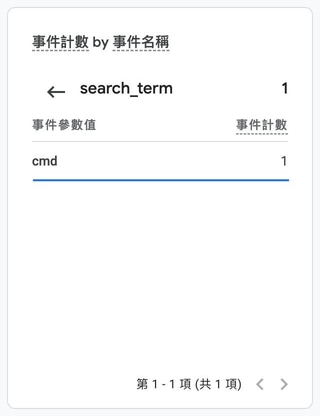
When the term shows up, your site, GTM, and GA4 are connected.
What readers search for
Search term is a built-in GA4 dimension, but the dimension menus in standard reports such as Events and Pages and screens don’t list it, so you need a free-form exploration in Explore. New events take GA4 a few hours to process before they appear in explorations. Until then, the exploration table shows no data.
-
Go to Explore > Free form.
-
Click + next to Dimensions, search for “search,” select Search term and your custom Search results dimension, and click Import. Check that Event count is under Metrics.
-
Put Search term and Search results in Rows and Event count in Values. You can remove the template’s default City and Device category.
-
Under Filters, choose Event name, exactly matches,
search. The table then keeps only search events. -
Click the Search results column header to sort it in ascending order, with the arrow pointing up. Queries with zero results move to the top:
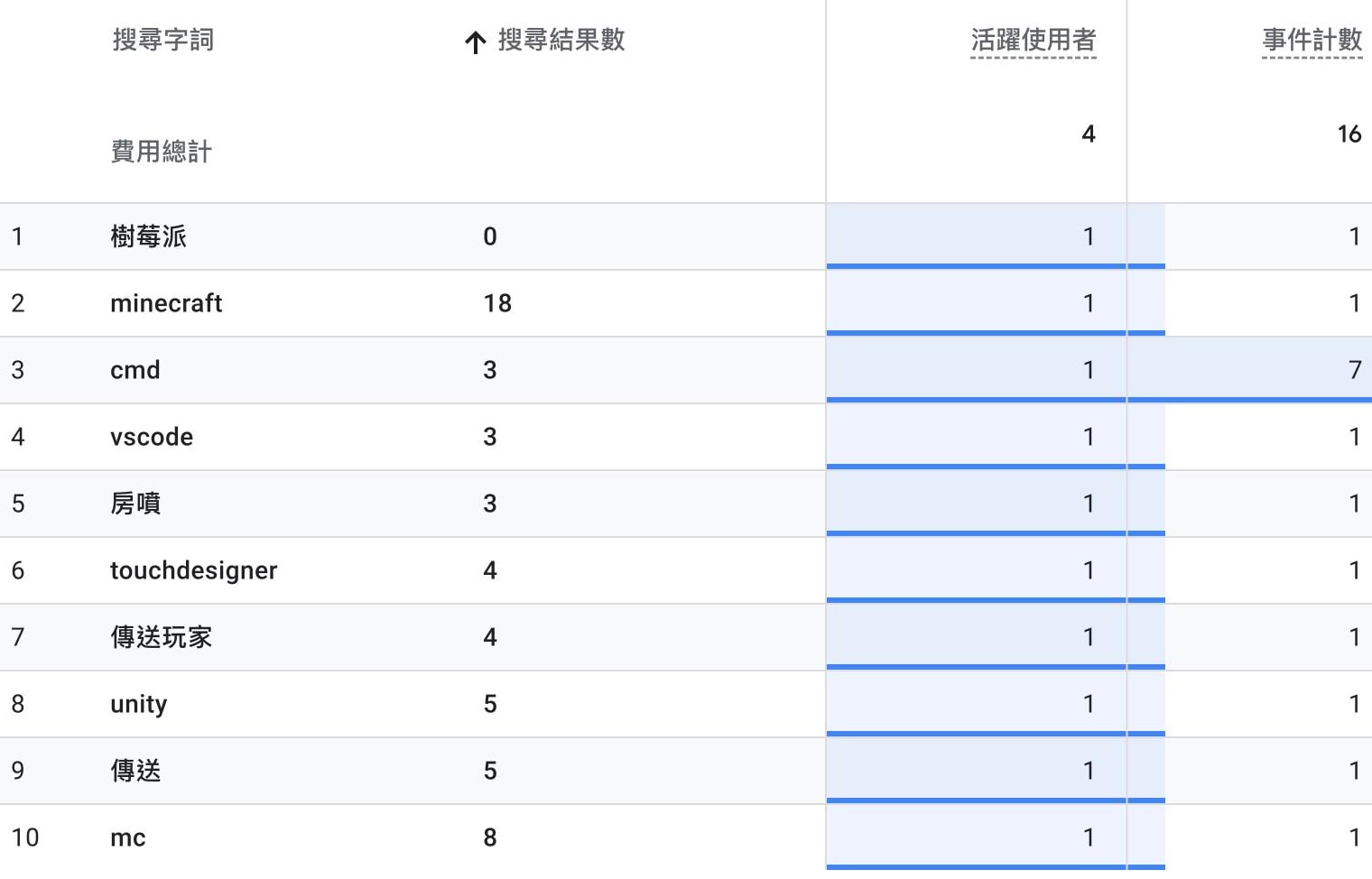
The dimension’s values are text, so 18 sorts before 3.
A zero-result term may be a typo, or a sign that your site lacks what the reader wanted. Nielsen Norman Group’s guide to search log analysis suggests not spending much effort on zero-result queries that appear only a few times. The frequent ones are worth acting on.
To see which terms led to an opened article, change the filter to Event name matches regex search|select_content and add Event name to Rows. Each term then splits into a search row and a select_content row. You can also mark select_content as a key event, which is what GA4 used to call a conversion: go to Admin > Data display > Events and click the star next to it under Recent events. The Key events column in reports then counts that action. An event has to appear in the Recent events list before you can mark it. On this site, it showed up the day after the events started.
Test notes
- This site’s GTM isn’t in its source code. Cloudflare’s Google tag gateway, which serves Google’s tags from your own domain, injects it into the HTML as the page passes through Cloudflare, and the GTM and GA4 requests go through vervecode.dev’s own domain (Google’s setup guide). Workers preview URLs (
*.workers.dev) are outside that domain, so the gateway doesn’t inject GTM there, and I could verify search events only on the live site. - I published the GTM changes and the site search on November 8, 2026. That day I searched for
cmdon the live site and opened the first result, and the Realtime overview received bothsearchandselect_content. - In the 28-day report ending November 9, which covered the two days since launch, GA4 received 14
searchevents from three users, covering nine terms. Besides my own test termcmd, the other eight includedminecraft,touchdesigner,vscode, and a Chinese query about teleporting players. For three of those terms, a reader opened an article after searching. - On November 10, Search term wasn’t in the dimension menu of any report.
- Before 9 a.m. on November 11 (Taiwan time), I searched the live site for the Chinese query for Raspberry Pi to test a zero-result query. The request GA4 received carried
search_results=0. The exploration still had no data at 11:30 a.m., and by 12:30 p.m. the term was in the first row when sorted by search results.
Summary
A search panel that never changes the URL needs your site to send a search event once the reader settles on a query, and GTM forwards it to GA4, where Explorations show the search terms. In its first two days, this site received eight distinct search terms besides the test term cmd.
Further reading