Table of contents
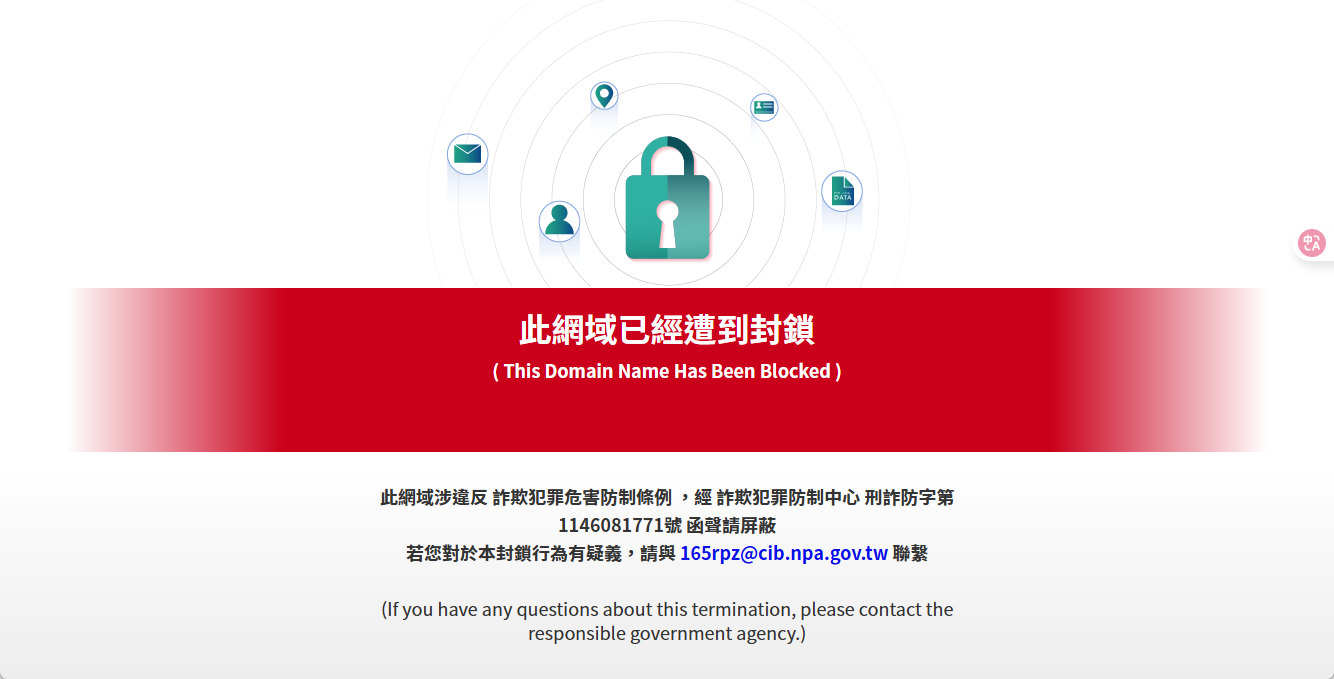
You might change the DNS server in Windows because the default one from your router or ISP is slow or unreliable at resolving names, or because a site fails to load or shows a block page and you suspect your network provider blocks the domain at the DNS step. Switching to a public DNS such as Cloudflare or Google only changes how domain names are resolved. A warning page alone cannot tell you at which layer the block happens. If the restriction comes from an IP address, the browser, endpoint security software, or other network equipment, the site still does not load after you change DNS.
Windows lets you change DNS settings in its network settings, and you can use the public DNS of Google or Cloudflare in place of the default.
This guide covers the Windows 11 graphical interface, and the settings follow the official documentation of Microsoft, Cloudflare, and Google. Before you change anything, note whether the current setting is “Automatic (DHCP)” or manual addresses. Work and school networks and managed devices may require specific DNS servers, and in that case you should follow your administrator’s policy first.
Open the DNS settings
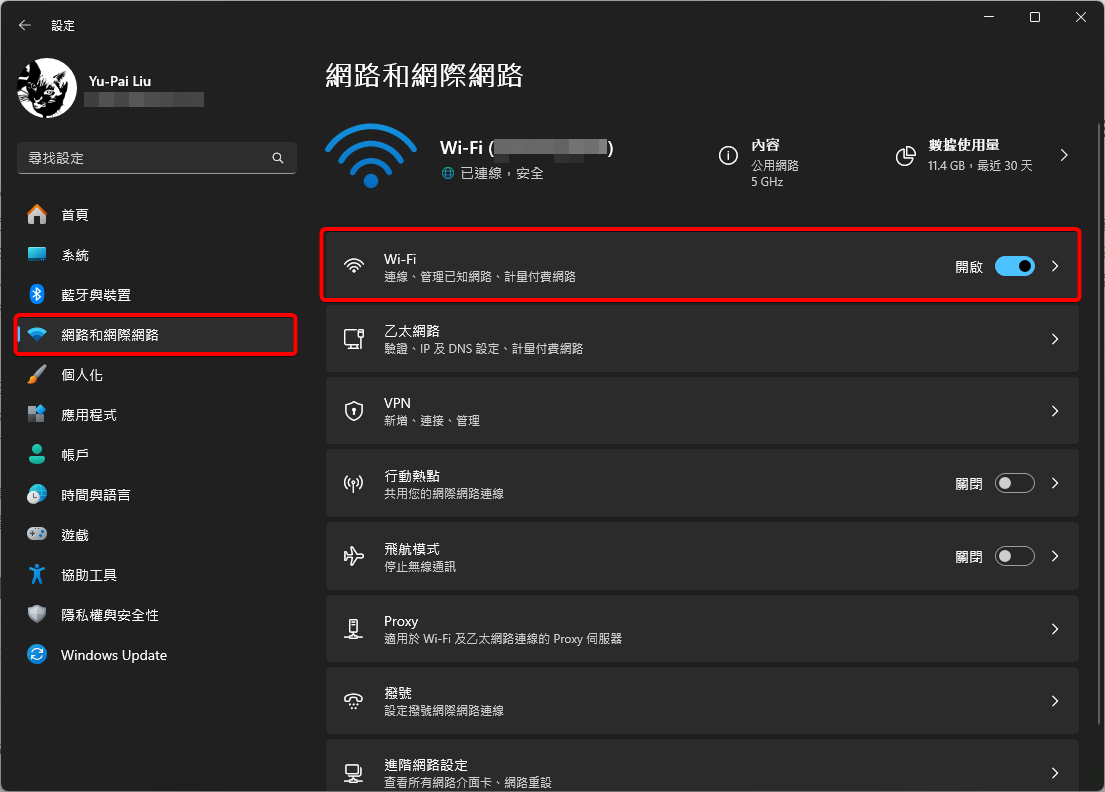
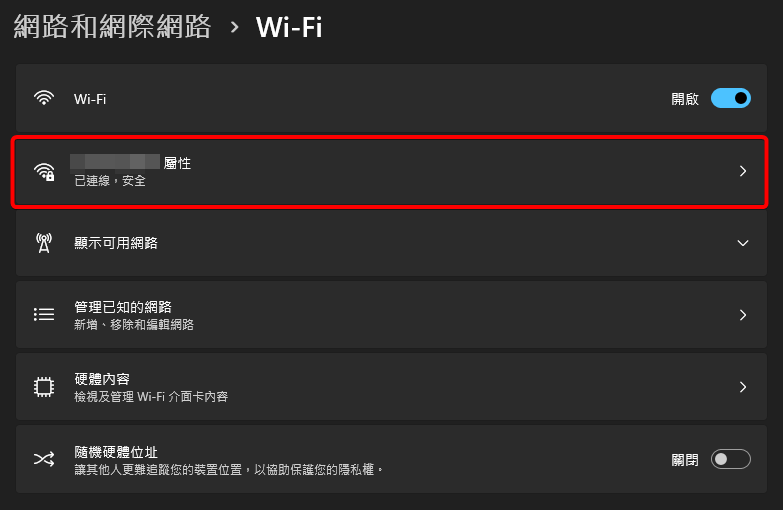
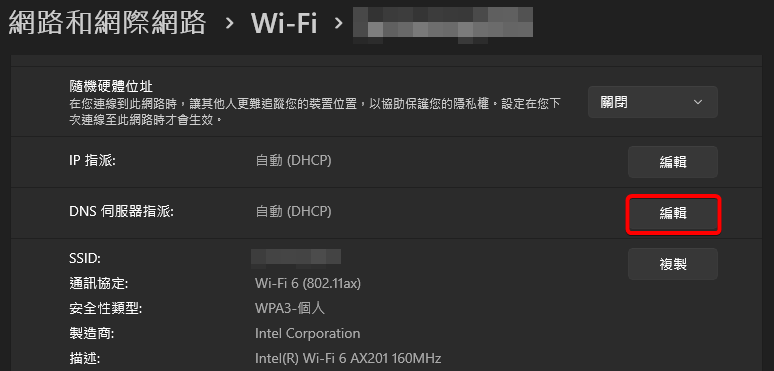
Open Windows Settings and go to “Network & internet > Wi-Fi” or “Network & internet > Ethernet”.
The Settings screenshots in this section are from Traditional Chinese Windows, which labels these pages 網路和網際網路, Wi-Fi, and 乙太網路.
Change the DNS settings
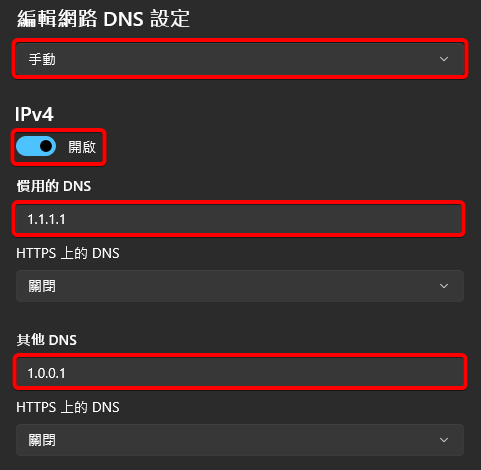
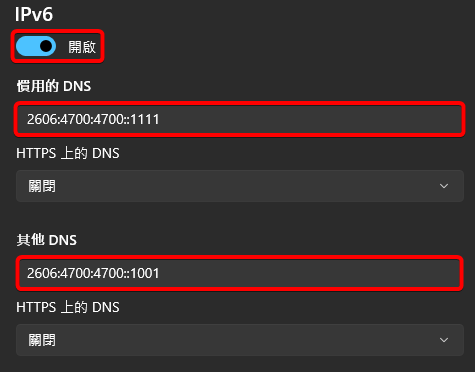
Change “Automatic (DHCP)” to “Manual”, then turn on IPv4. If you use IPv6, you can set it as well.
IPv4
| Cloudflare IPv4 | |
|---|---|
| Preferred DNS | 1.1.1.1 |
| Alternate DNS | 1.0.0.1 |
| Google IPv4 | |
|---|---|
| Preferred DNS | 8.8.8.8 |
| Alternate DNS | 8.8.4.4 |
IPv6
| Cloudflare IPv6 | |
|---|---|
| Preferred DNS | 2606:4700:4700::1111 |
| Alternate DNS | 2606:4700:4700::1001 |
| Google IPv6 | |
|---|---|
| Preferred DNS | 2001:4860:4860::8888 |
| Alternate DNS | 2001:4860:4860::8844 |
Check that the DNS change works
After you save the settings, reopen the browser, then run Resolve-DnsName vervecode.dev in PowerShell. If it returns an IP address, the current DNS can at least complete name resolution. If you still see the original warning, reconnect to the network or clear the DNS cache and test again. If only specific sites fail, the problem may be the address itself or the state of the service, and it is not necessarily DNS.
Restore the original settings if you cannot get online
If no website opens after the change, the usual causes are a mistyped DNS address, a network that does not allow that service, or incomplete IPv4 and IPv6 settings. Go back to the same “DNS server assignment” dialog, change “Manual” back to “Automatic (DHCP)”, and save. DNS is then supplied again by the router or the network administrator.
Summary
Changing to a public DNS only affects the DNS resolution layer. Verify it with Resolve-DnsName first, then judge whether the site opens. If the change does nothing or hurts your overall connection, restore the setting to Automatic (DHCP).