Table of contents
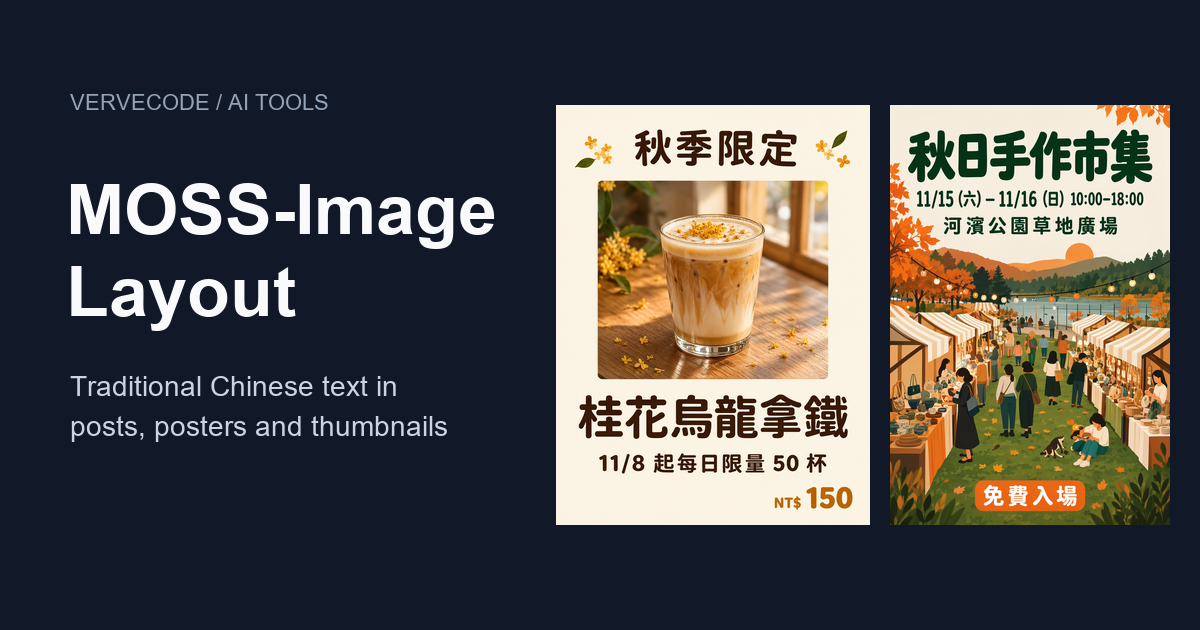
MOSS-Image is an image model built for layout work. You run it in ComfyUI, type the words you want in the prompt, and the model draws them into the image, so a social post or event poster doesn’t need a separate pass in design software. These images usually have fixed spots for the title, product name, and price, and with a prompt alone the layout changes from one image to the next. The MOSS-Image template in ComfyUI lets you box out each piece of text and each photo on a canvas first, then generates the image to that layout.
I tested this only with Traditional Chinese text, using a cafe’s new product post, a market poster, and a tutorial video thumbnail. The Chinese characters came out at high quality, and a new random seed didn’t move the text. That is my evidence that MOSS-Image suits CJK text layout, and it covers Traditional Chinese only. I did not test English text. The only Latin characters in my images are short strings such as NT$ 150 and ComfyUI beside Chinese text, so these results say nothing about how the model sets an English headline.
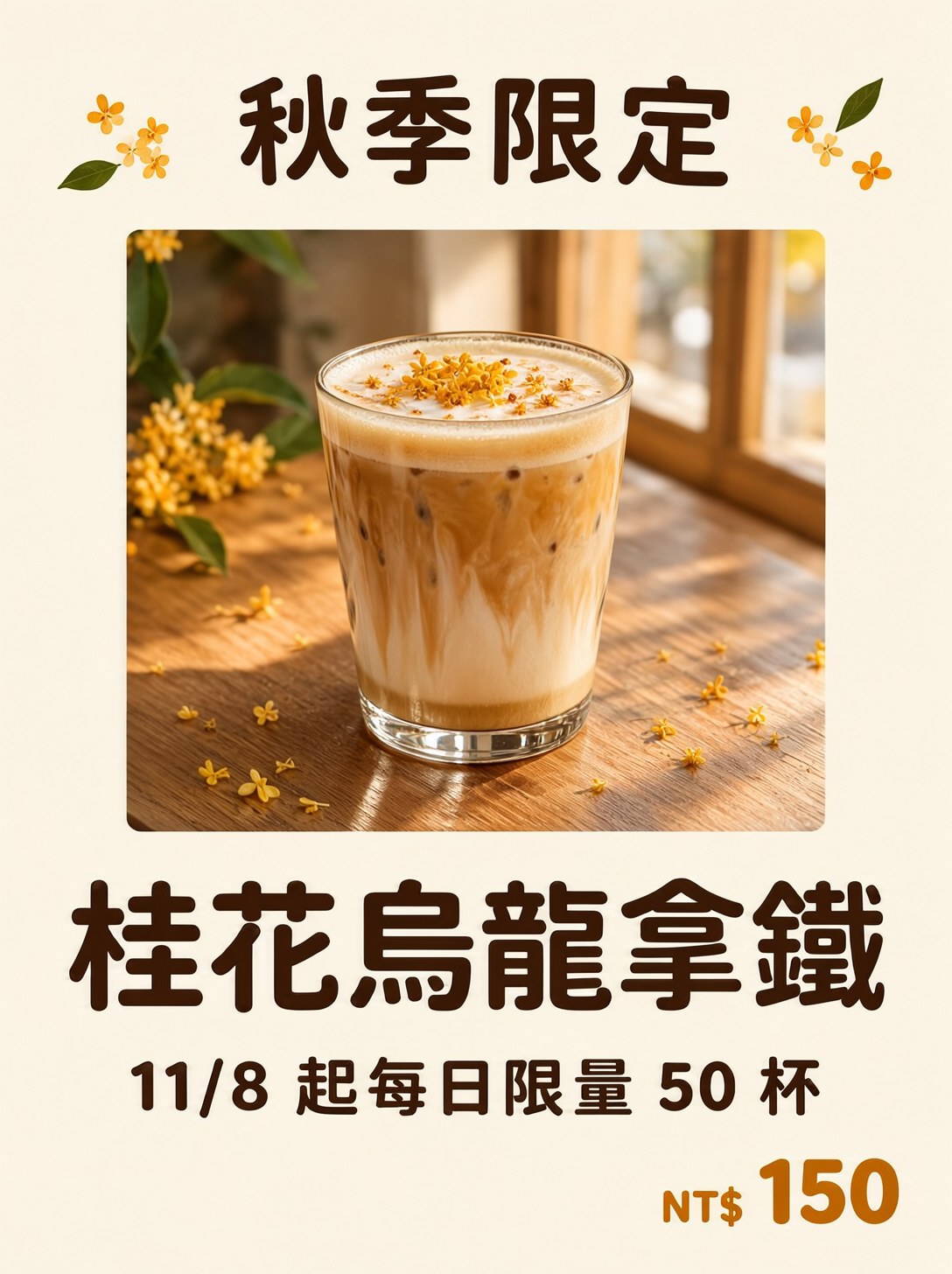
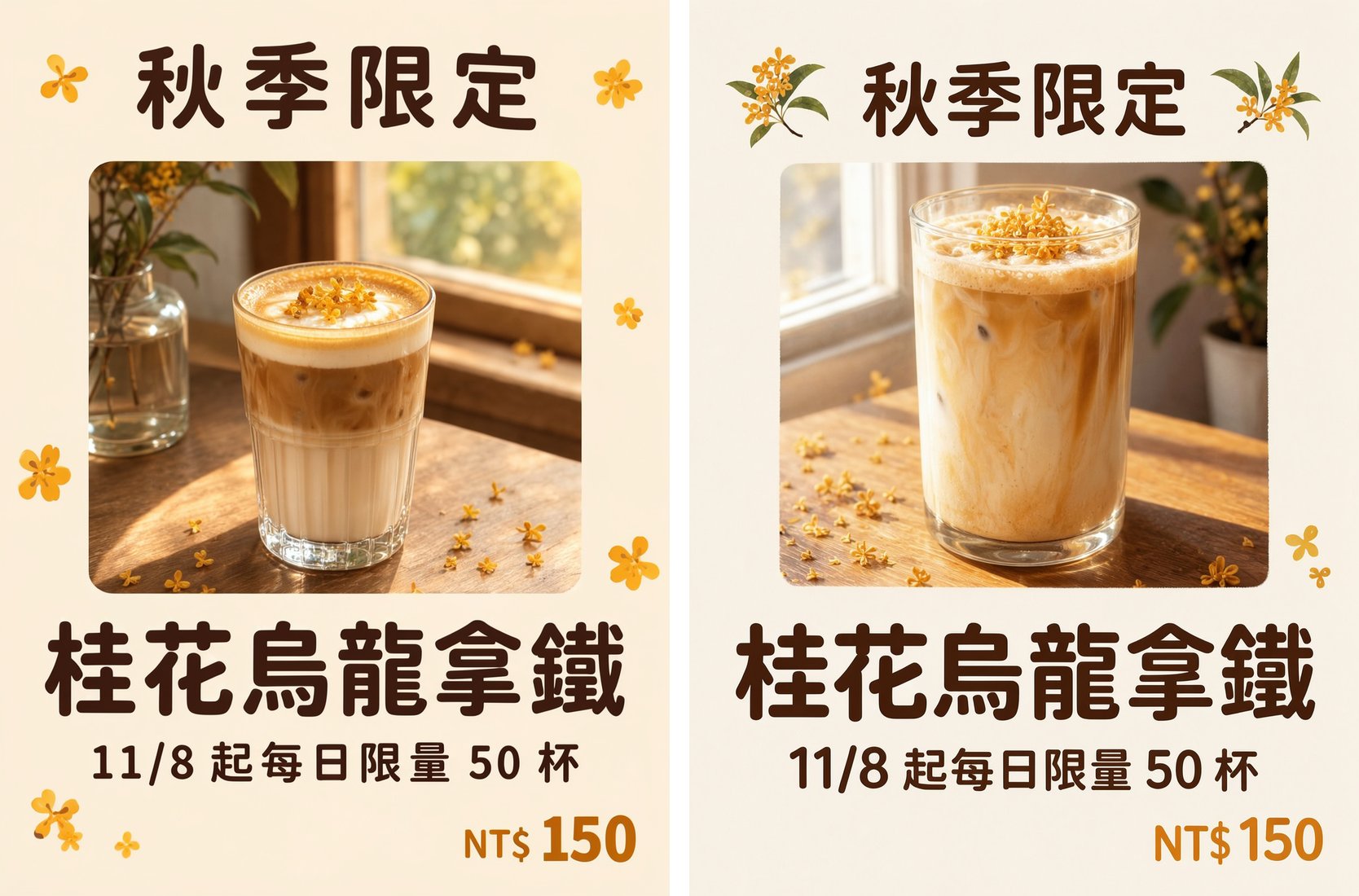
My test system was Windows 11, an RTX 3070 with 8 GB, and ComfyUI 0.43.2, with the quantized MOSS-Image version that the official template uses by default. The shops and events in the images are fictional. I generated this post from five boxes. Its large text means “Autumn limited edition” and “Osmanthus oolong latte”:
Prepare the model and templates
OpenMOSS released MOSS-Image in October 2026, and ComfyUI has supported it natively since 0.42.0. If you haven’t installed ComfyUI yet, you can follow the steps in installing ComfyUI with comfy-cli and having Claude Code generate images from a template. In Templates on the left side of ComfyUI, search for MOSS to find two templates. MOSS-Image: Layout-Guided Text to Image lets you box out text and objects on a canvas. MOSS-Image: Text to Image describes the whole image with a prompt only.
Both templates use the same set of models. You can download them from Comfy-Org/MOSS-Image on Hugging Face and place them in the matching folders under ComfyUI’s models folder:
| Model | File | Folder | Size |
|---|---|---|---|
| Diffusion model | moss_image_sft_int8_convrot.safetensors |
diffusion_models |
5.41 GB |
| Text encoder | qwen3.5_9b_w4a8_gptq.safetensors |
text_encoders |
7.34 GB |
| VAE | flux2-vae_small.safetensors |
vae |
0.25 GB |
If other ComfyUI projects on your computer also use these models, you can let them read one shared model folder instead of downloading them again. The Layout-Guided template draws boxes with the Create Bounding Boxes node. That node’s editor appears only in the Nodes 2.0 interface, which is off by default in a new workspace. Go to the Comfy tab in Settings and turn on Modern Node Design (Nodes 2.0).
Choose an image size
Both templates set the image size in the Resolution Selector node. After you pick aspect_ratio and megapixels, the node shows the actual width and height below them. MOSS-Image’s official user guide recommends 1, 1.5, or 2 megapixels in total, with width and height as multiples of 16, and the sizes from Resolution Selector meet that. These are the settings for my three kinds of images:
| Use | Platform spec | Aspect ratio | Megapixels | Output size |
|---|---|---|---|---|
| Instagram post | Width 1080, aspect 1.91:1 to 3:4 | 3:4 | 1.5 | 1088 × 1456 |
| Event poster | No fixed spec | 2:3 | 1.5 | 1024 × 1536 |
| YouTube thumbnail | 16:9, at least 640 wide | 16:9 | 1.5 | 1664 × 944 |
Instagram’s photo resolution help page says posts are scaled to 1080 pixels wide and aren’t cropped when the aspect ratio is between 1.91:1 and 3:4. Resolution Selector has no 4:5 option, so choose 3:4 for a portrait post. The 1088 × 1456 output is slightly taller than 3:4, and cropping it to 1086 × 1448 gives exactly 3:4.
YouTube’s custom thumbnail help page asks for 16:9 and a width of at least 640 pixels, and recommends 3840 × 2160. At 16:9 and 1.5 megapixels, Resolution Selector gives 1664 × 944, which is slightly taller than 16:9. Cropping 8 pixels of height gives 1664 × 936.
Box out text and objects
Open the MOSS-Image: Layout-Guided Text to Image template. The Create Bounding Boxes node has a canvas, and each box you drag on it becomes one region of the image. A text box holds the words to draw, an object box describes the thing to draw, and the model places them where you put the boxes.
Match the canvas to the aspect ratio
After you choose 3:4 in Resolution Selector, set width and height on the Create Bounding Boxes node to the same size so the canvas becomes 3:4. These two inputs are wired to Resolution Selector by default, so you have to disconnect them before you can type in them:
- Drag a link out of the
widthinput on the Create Bounding Boxes node and release it on an empty part of the canvas. When the node search dialog appears, press Esc to close it. The link is now removed. - Remove the
heightlink the same way. - In the
widthandheightfields that appear, enter the size shown in Resolution Selector, which is 1088 and 1456 in this example.
Once the canvas is 3:4, boxes you already drew scale to fit. If you change the aspect ratio later, change these two fields as well.
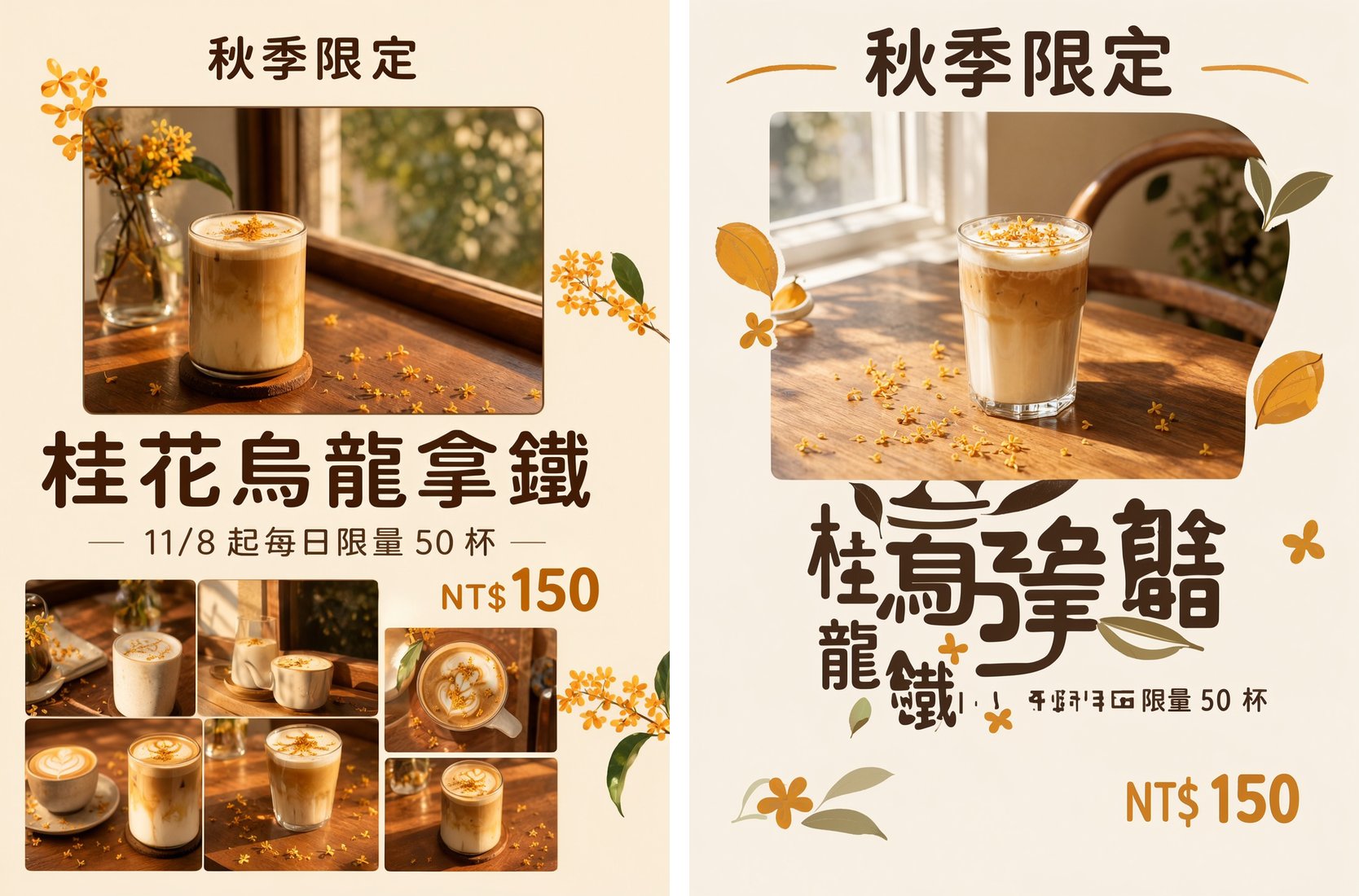
If you skip this, the canvas stays a 1024 × 1024 square, the box positions are calculated on that square, and generation applies them to a 1088 × 1456 image, so all the boxes crowd into roughly the top 70% of the image. I boxed out the five regions of the opening post on a square canvas and generated. The left image below has an unrequested collage of drink photos at the bottom, and on the right image the product name and date turned into garbled characters:
Draw the boxes and fill them in
Click Clear all at the upper right of the editor to delete the template’s sample boxes, then drag on the canvas to draw each box. A new box is an object box by default. For text, switch the box to the text type and enter the words to draw in its Text field. In the description field, write the size, color, typeface, and position of the text. An object box needs only a description. Following the official user guide, I wrote the descriptions in English and kept the words to draw in Chinese.
These are the five boxes for the cafe post. The Text column shows the exact Chinese strings I entered. The English in parentheses is for your reference and wasn’t sent to the model:
| Box | Type | Text | Description |
|---|---|---|---|
| 01 | Text | 秋季限定 (Autumn limited edition) | At the top center, medium-size dark brown rounded sans-serif characters on the cream background, clearly readable |
| 02 | Object | None | A tall glass of osmanthus oolong latte with visible milk and tea layers, a few golden osmanthus petals scattered on the wooden table, soft window light |
| 03 | Text | 桂花烏龍拿鐵 (Osmanthus oolong latte) | Large bold dark brown sans-serif product name, centered, the largest text on the post |
| 04 | Text | 11/8 起每日限量 50 杯 (50 cups a day from 11/8) | One line of small dark brown sans-serif text centered under the product name |
| 05 | Text | NT$ 150 | Price in bold amber sans-serif at the bottom right corner |
Next, write a description of the whole image in the prompt field of the MOSS-Image Layout Prompt node. I used this one:
1Warm autumn Instagram post for a cafe: a glass of osmanthus oolong latte on a wooden table with fallen osmanthus petals, soft morning window light, cream and amber palette, clean layout with generous margins.
The character_boxes field on the same node is set to 2 by default, which treats box 2 as a character. This image has no character, so clear the field. Here is the finished setup. My ComfyUI runs in Traditional Chinese, so the screenshot shows Chinese labels. From left to right, the nodes are Resolution Selector, Create Bounding Boxes, and MOSS-Image Layout Prompt:
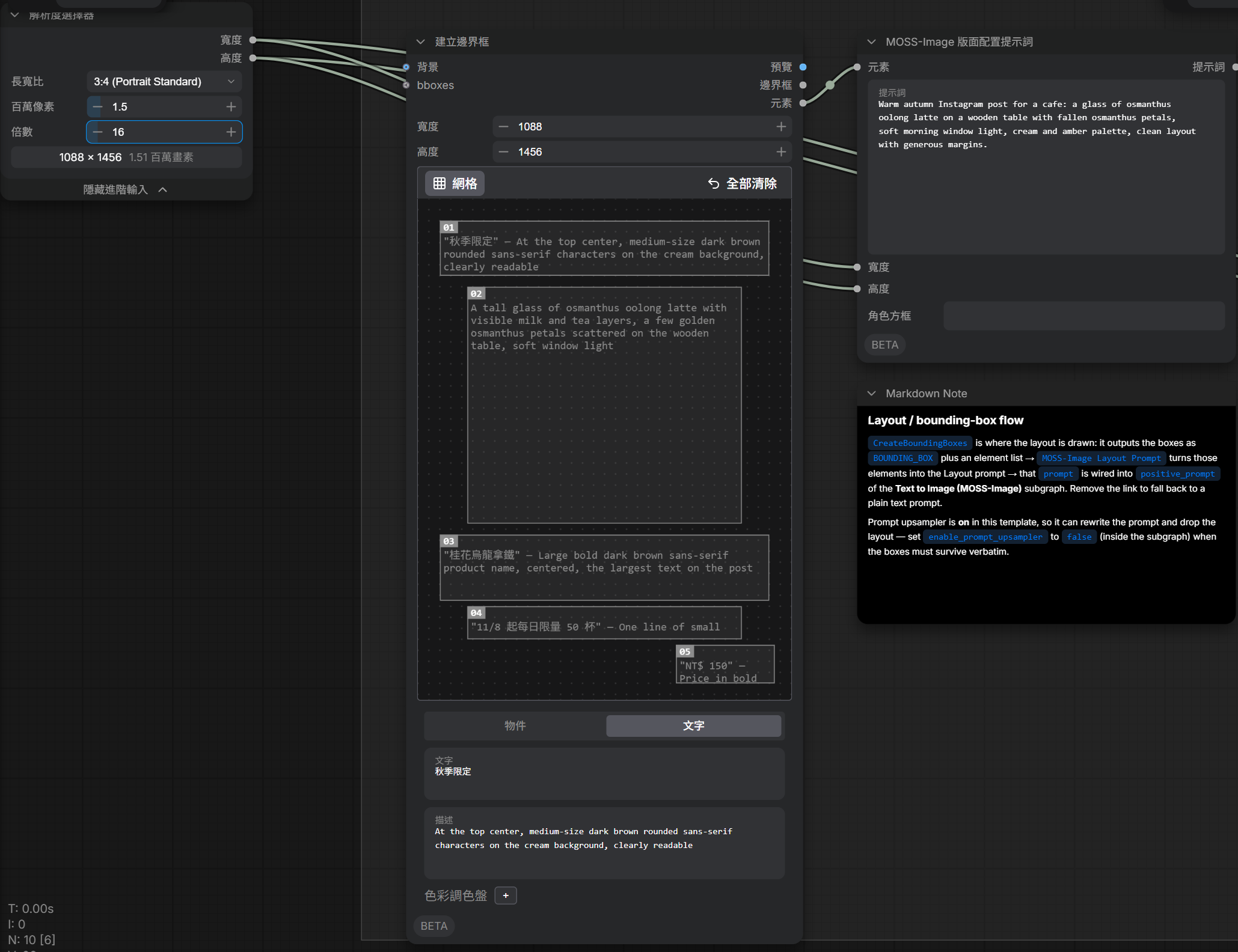
enable_prompt_enhancer expands the prompt into a detailed English description before generation. It is off by default in this template, and a note in the template says that turning it on rewrites the content of the boxes, so leave it off. Another note at the lower right of the screen says “Prompt upsampler is on”, which doesn’t match the actual default, and you can ignore it. Click Run to generate the post shown at the top.
The resulting posts, posters, and thumbnails
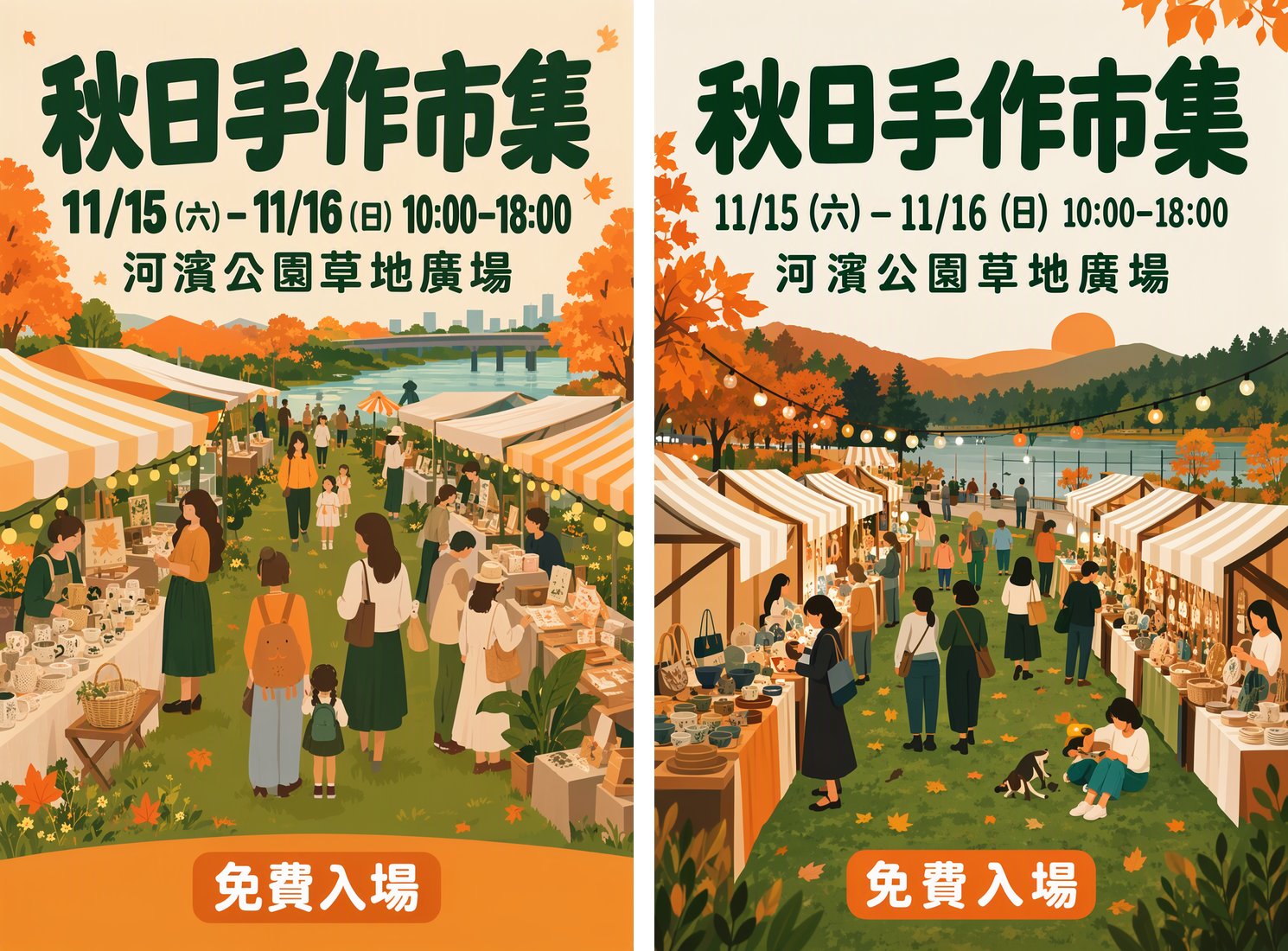
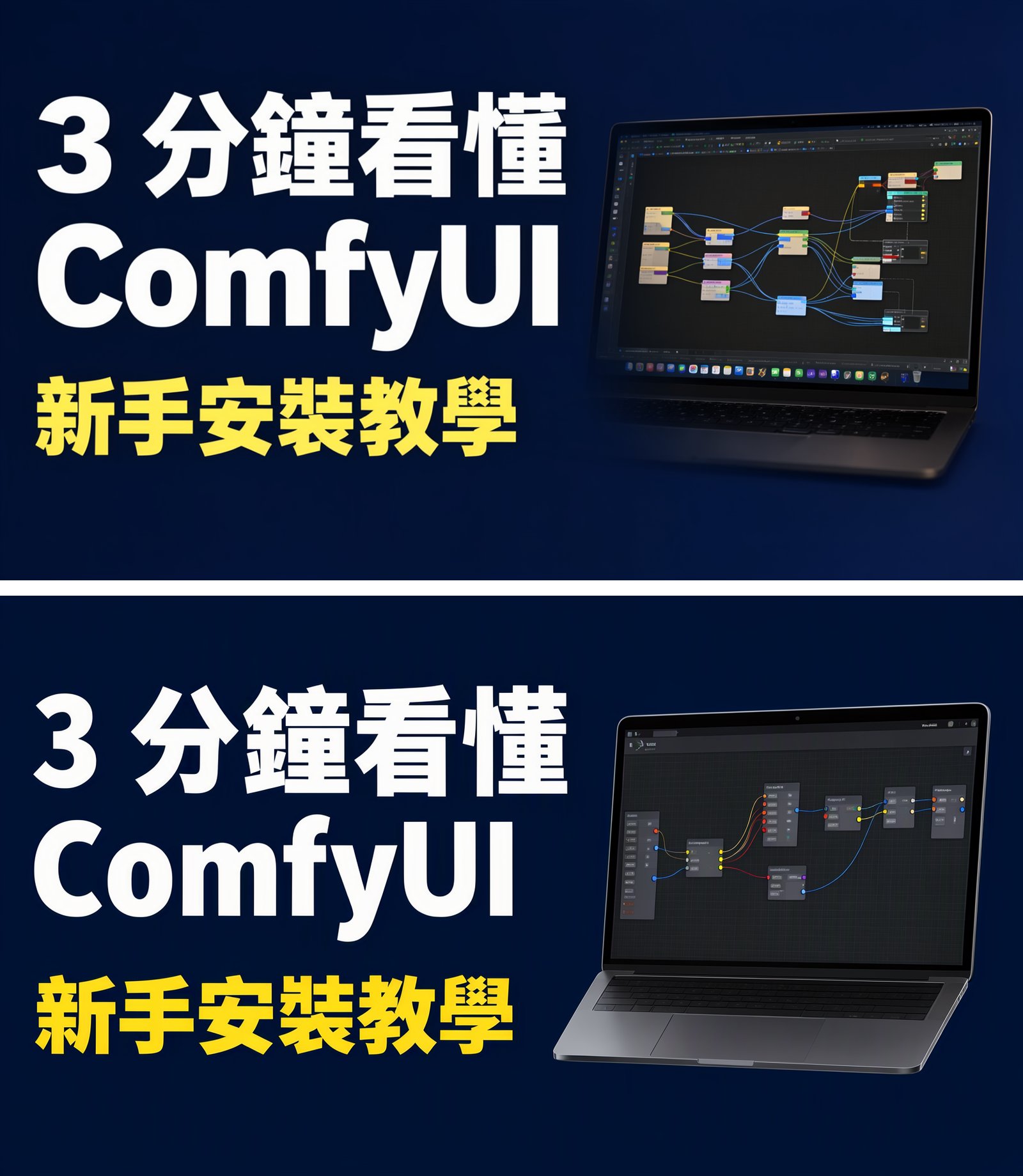
The same boxes with two random seeds gave almost identical positions, sizes, and colors for the text. Only the glass, the window view, and the osmanthus decorations in the photo changed:
Describe the layout with a prompt only
The MOSS-Image: Text to Image template doesn’t use boxes. You write the words and their positions into the prompt. This template has enable_prompt_enhancer on by default, and the expanded English description keeps the text you put in 「」 corner brackets, so you can write the prompt directly in Chinese. This is the prompt I used for the cafe post, exactly as I entered it:
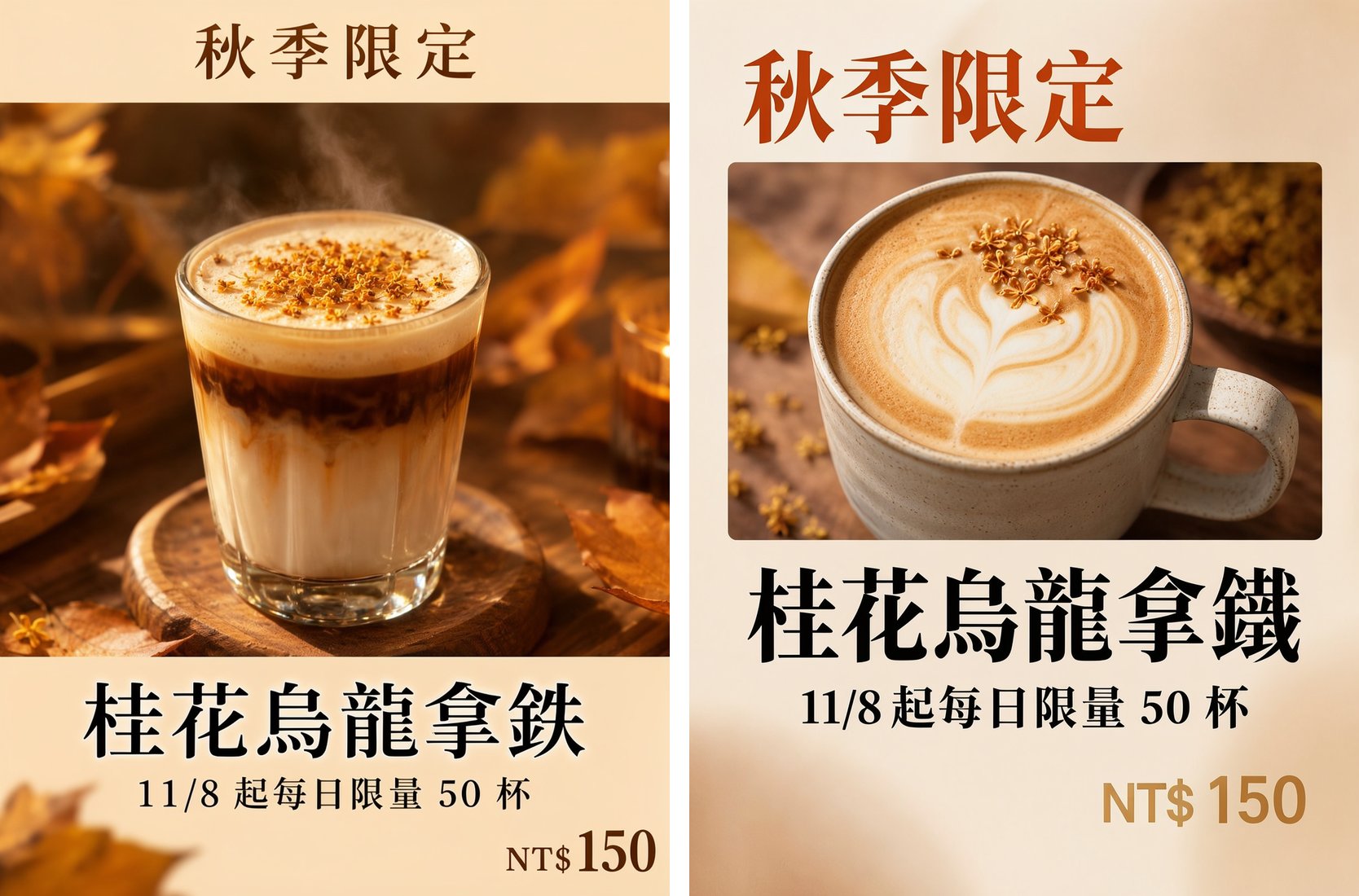
1咖啡店的 Instagram 新品貼文,3:4 直式。上方寫「秋季限定」,中間是一杯桂花烏龍拿鐵的照片,下方大字寫品名「桂花烏龍拿鐵」,品名下面寫「11/8 起每日限量 50 杯」,右下角寫價格「NT$ 150」。暖色、溫暖的秋天氛圍,版面乾淨。
In English, it asks for a cafe’s Instagram new product post in 3:4 portrait, with “Autumn limited edition” at the top, a photo of an osmanthus oolong latte in the middle, the product name in large text below it, the line about 50 cups a day under the name, and the price NT$ 150 at the lower right, in warm colors with an autumn mood and a clean layout. The English is only a reference. I did not run it.
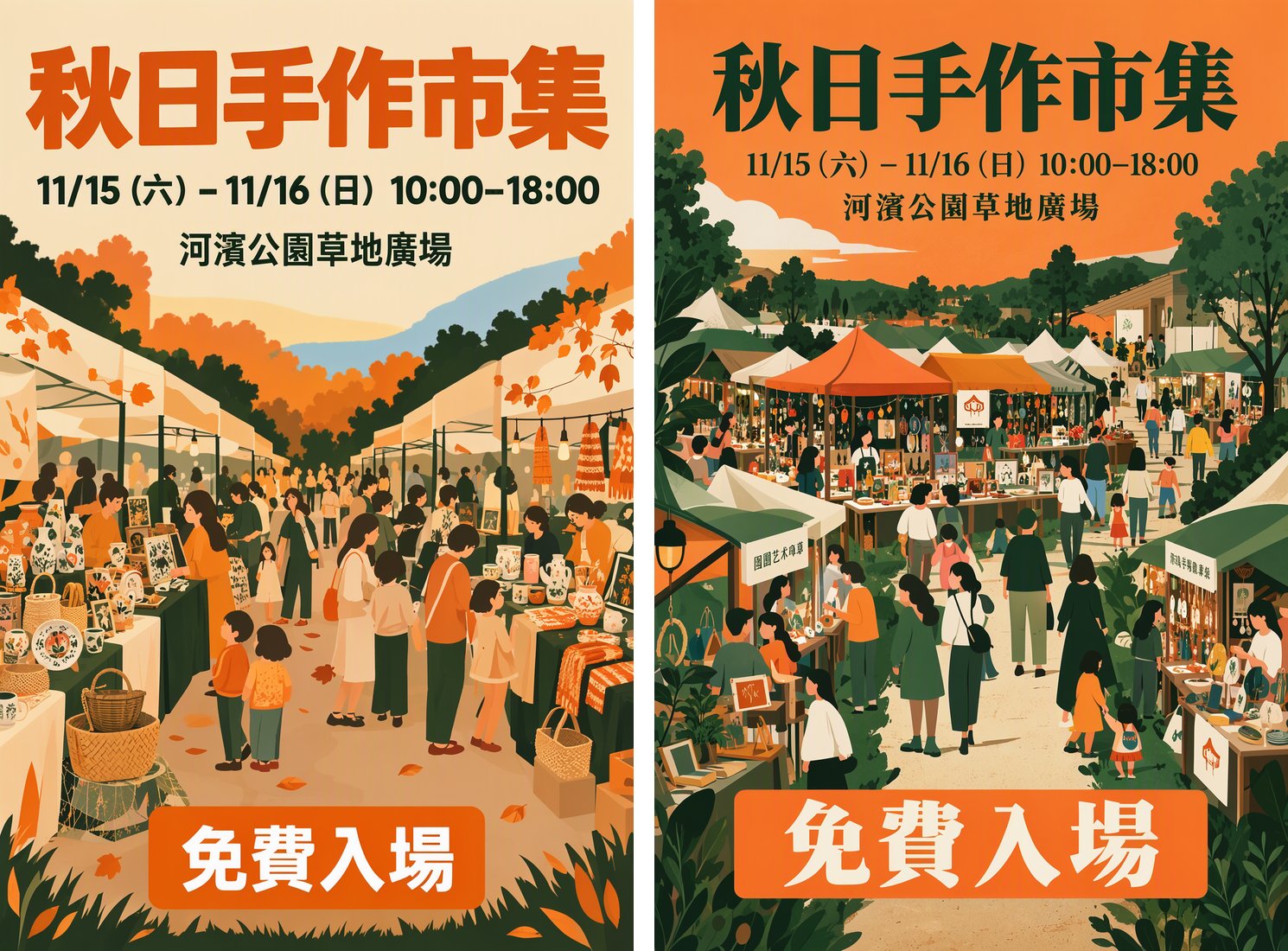
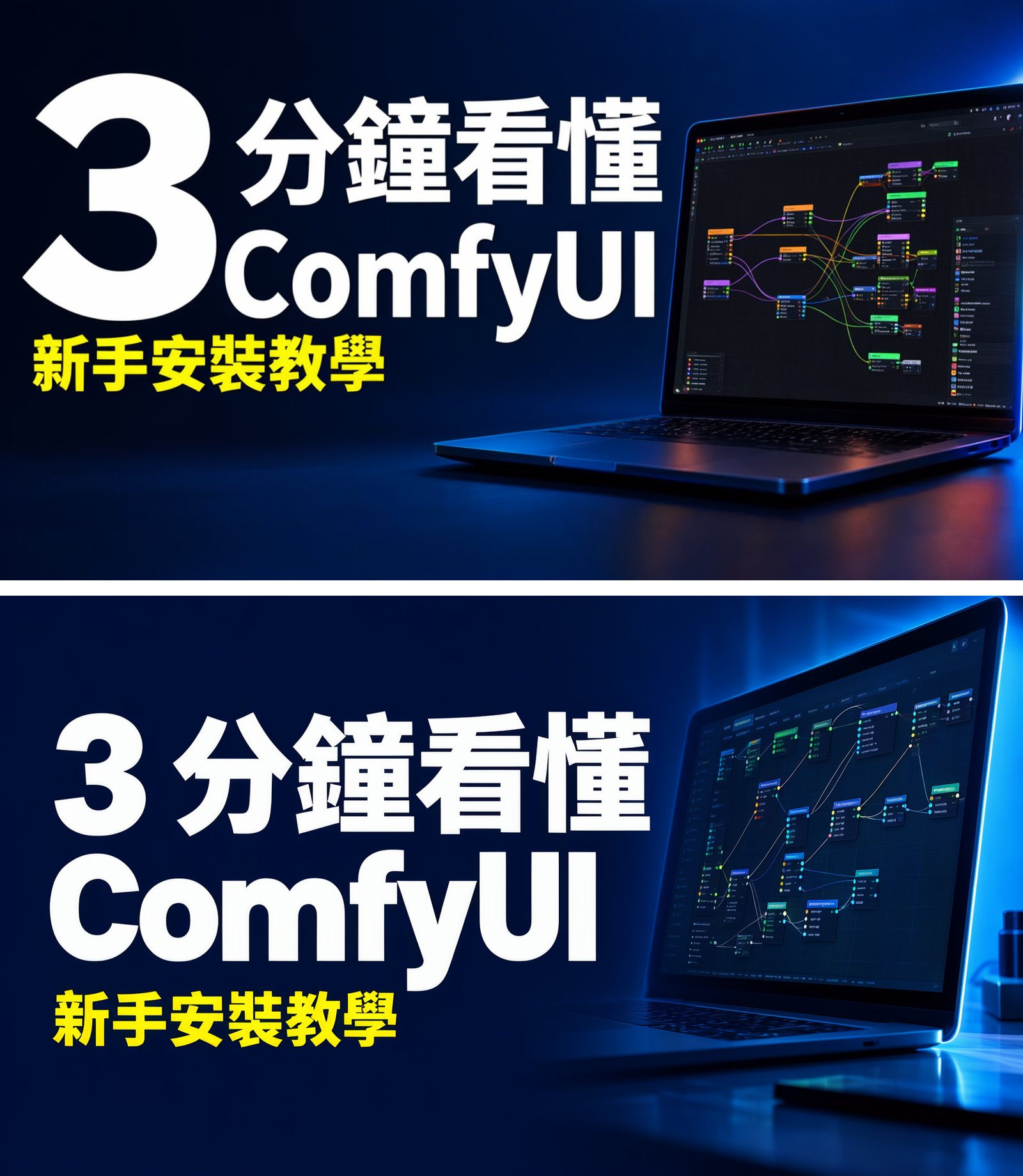
I generated one image for each of two random seeds. Both followed the prompt’s top-to-bottom order, but the photo, typeface, and price position differ between them. The left image has a full-bleed photo with the text on bands above and below it, and the last character of the product name came out as the Japanese form, 鉄 instead of 鐵. The right image has the photo in a rounded card, and its product name is correct:
Test notes
Every text string in these tests was Traditional Chinese, sometimes with short Latin strings or numbers beside it. I did not test English, Simplified Chinese, Japanese, or Korean as the requested text.
Both templates used the default sampling settings (25 steps, CFG 2.5, er_sde, simple), with random seeds 20261103 and 20261104. The Layout-Guided template has enable_prompt_enhancer off and SLG (Skip Layer Guidance), a sampling setting, on by default. The Text to Image template has enable_prompt_enhancer on by default, and its times include the prompt expansion. The first image of each batch has to load the model and took about 130 to 160 seconds. The times below don’t include that image:
| Image | Method | Time per image | Text |
|---|---|---|---|
| Cafe post | Boxes | 50 s | Both correct |
| Event poster | Boxes | 48 to 49 s | Both correct |
| YouTube thumbnail | Boxes | 48 to 50 s | Both correct |
| Cafe post, width and height wired | Boxes | 49 s | Layout crowded to the top, second image has garbled name and date |
| Cafe post | Prompt | 61 s | First image has 鉄 instead of 鐵, second correct |
| Event poster | Prompt | 61 to 67 s | Main text correct, second image has Simplified and garbled signs |
| YouTube thumbnail | Prompt | 58 s | Both correct |
While generating the images above, total graphics card memory use peaked at 7.3 to 7.8 GB, and the idle desktop alone takes about 1.2 GB. I measured system memory in a 1024 × 1024 test. Generation used about 12 GB more than when ComfyUI had just finished starting, or about 14.5 GB more with enable_prompt_enhancer on.
Summary
In the Layout-Guided template, all six images made with boxes had correct Traditional Chinese titles, product names, dates, and prices, and a new random seed left the layout almost unchanged, which is my evidence that MOSS-Image suits CJK text layout. Before you draw boxes, disconnect the width and height of Create Bounding Boxes and enter the image size, or the boxes fill only about the top 70% of the image. With a prompt alone, the composition and typeface change from image to image, a Japanese form and stray Simplified characters appeared, and English text remains untested.