Table of contents
After you set up a Minecraft server, you often want to change the player limit, the difficulty, the seed, or the MOTD (the message of the day, the description shown in the server list). All of them live in server.properties in the server folder. But after you edit the file and restart, the setting often doesn’t change. The setting may have become a game rule (a world setting you change with a command), it may only apply when a new world is created, or the value may be wrong. I changed the common settings one by one on a 26.3 server. The old pvp=false that used to turn off PvP no longer does anything, and a wrong value produces no error message at all.
The tests ran on Windows 11 and Java 25, with the official (vanilla) server and Paper (a third-party server software), both 26.3. If you don’t have a server yet, set up a Java Edition vanilla server first.
Why a setting doesn’t take effect
When a change has no effect, find your situation in this table first:
| Situation | What to do |
|---|---|
| You edited the file while the server was running | Type stop to stop the server, then edit. See “Edit the settings” |
You added pvp=false to turn off PvP |
Newer versions use a game rule instead. See “Settings removed in newer versions” |
You changed level-seed, level-type or hardcore and the world didn’t change |
These three only apply when a new world is created. See “Create a new world” |
A value you set with the difficulty or defaultgamemode command reverts after restart |
The vanilla server applies the file’s value on every start, so change the file |
You changed gamemode, but players who joined before keep their mode |
Set force-gamemode to true. Every player then gets gamemode each time they join |
| A setting returns to its default, or the line does nothing | The name or the value was mistyped. See “When a setting is wrong” |
| Chinese characters in the MOTD turn into garbled text | Save the file as UTF-8. See “Chinese text and colors in the MOTD” |
Edit the settings
The server only reads server.properties when it starts. The reload command doesn’t read it again. A value you change while the server runs only applies at the next start. In addition, when someone types whitelist on or whitelist off, the server overwrites the whole file with the values it read at startup, and your edits disappear. Stop the server before you change a setting:
- Type
stopin the server window and wait for the server to shut down. - Open
server.propertiesin the server folder with Notepad and change the value after=. Before you save, check that the status bar at the bottom right of Notepad shows “UTF-8”. - Start the server. When you see
Done, check the result. For example, typedifficultyin the server window to print the current difficulty.
On startup the server rewrites the whole file in alphabetical order. The two lines at the top that start with # are a title and the save time, and you can ignore them. If you break a setting, delete the whole line. The server adds the default value back at the next start.
Common settings
These are the defaults that 26.3 generates on the first start, and when each setting takes effect:
| Setting | Purpose | Default | Common value | When it takes effect |
|---|---|---|---|---|
server-port |
Port | 25565 | 25566 when you run a second server on the same computer | After a restart |
max-players |
Player limit | 20 | 10 | After a restart |
motd |
Description shown in the server list | A Minecraft Server | See “Chinese text and colors in the MOTD” | After a restart |
white-list |
Only players on the whitelist can join | true | false | After a restart, or immediately with whitelist off |
online-mode |
Verify that players own the game | true | With false, any name can join | After a restart |
gamemode |
Game mode when a player joins for the first time | survival | creative, adventure | After a restart |
force-gamemode |
Apply gamemode every time a player joins |
false | true | After a restart |
difficulty |
Difficulty | easy | normal, hard | After a restart on vanilla. On Paper, only for a new world |
hardcore |
Hardcore mode | false | true | Only for a new world. Vanilla locks the difficulty to Hard |
level-name |
Name of the world folder | world | world2 | After a restart. A new world is created if the folder doesn’t exist |
level-seed |
Seed | Empty, which means a random seed | A number or text | Only for a new world |
level-type |
Terrain type | minecraft\:normal, regular terrain |
minecraft:flat, Superflat |
Only for a new world |
spawn-protection |
Area around the spawn point where nobody can break blocks | 16 | 0 | After a restart, but it does nothing when the server has no operator (a player with admin rights) |
view-distance |
Chunk range sent to players | 10 | 8 | After a restart |
pause-when-empty-seconds |
Seconds without players before the server pauses | 60 on vanilla, -1 on Paper | At -1 the server never pauses | After a restart |
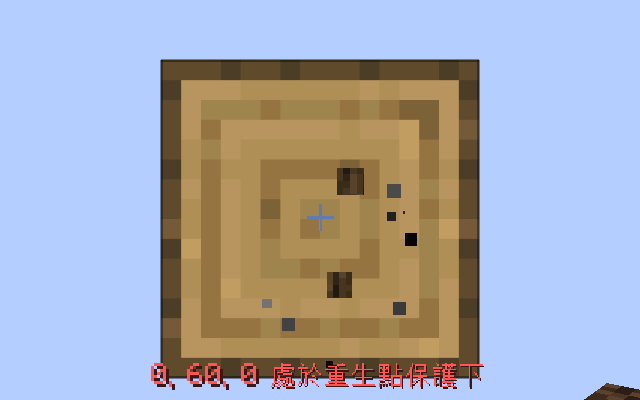
white-list defaults to true from 26.3 snapshot 2, so players must be added to the whitelist before they can join. When spawn-protection stops players from breaking the block that a map such as OneBlock relies on, see the article on moving a singleplayer world to a server.
When the server writes level-type back to the file, it adds a backslash before the colon, so minecraft\:normal and minecraft:normal both work.
Settings removed in newer versions
Of the settings people used to rely on, four became game rules in 25w35a, a snapshot of 1.21.9. Two others were removed in 24w33a, a snapshot of 1.21.2. If you write them in the 26.3 file, the server raises no error but doesn’t read them. Type these commands in the server window instead:
| Old setting | What to do in 26.3 |
|---|---|
pvp=false |
Type gamerule pvp false |
spawn-monsters=false |
Type gamerule spawn_monsters false |
allow-nether=false |
Type gamerule allow_entering_nether_using_portals false |
enable-command-block=false |
Command blocks work by default. To turn them off, type gamerule command_blocks_work false |
spawn-animals, spawn-npcs |
Both settings were removed, and no game rule replaces them |
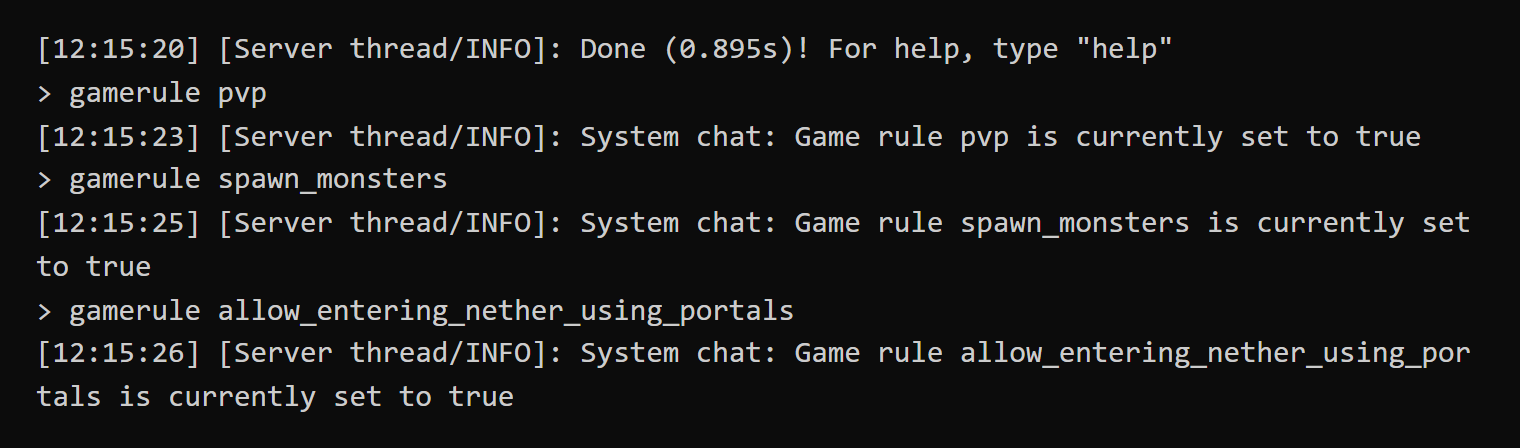
Suppose a world was created on a 1.20.1 server with pvp=false, spawn-monsters=false and allow-nether=false, and you start it on 26.3. The three settings are still in the file, but the matching game rules are all true, so PvP, monster spawning and Nether portals are on again:
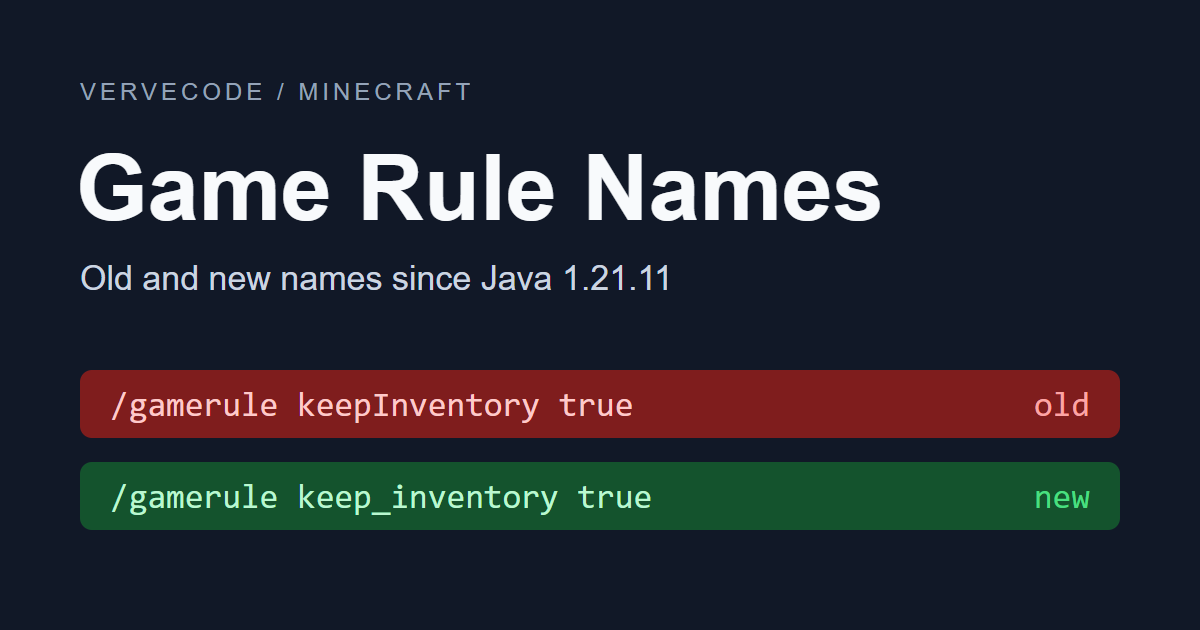
After you run the commands in the table above in the server window, the game rules are stored in the world and stay after a restart. On a 1.21.9 or 1.21.10 server the rule names differ from 26.3, so check the table of old and new game rule names. Upgrading also rewrites the world data, so back up the world before you upgrade.
Create a new world
To use a new seed, terrain type or Hardcore mode, let the server create a new world folder:
- Type
stopin the server window. - Change a setting such as
level-seed, and changelevel-nameto a new name, for exampleworld2. You don’t need to delete the originalworld. Changelevel-nameback toworldlater to return to the old world. - Start the server and type
seedin the server window to check the seed.
When the server creates a new world, the server window first prints No existing world data, creating new world. You can also write the seed as text, and the server converts it to a number:
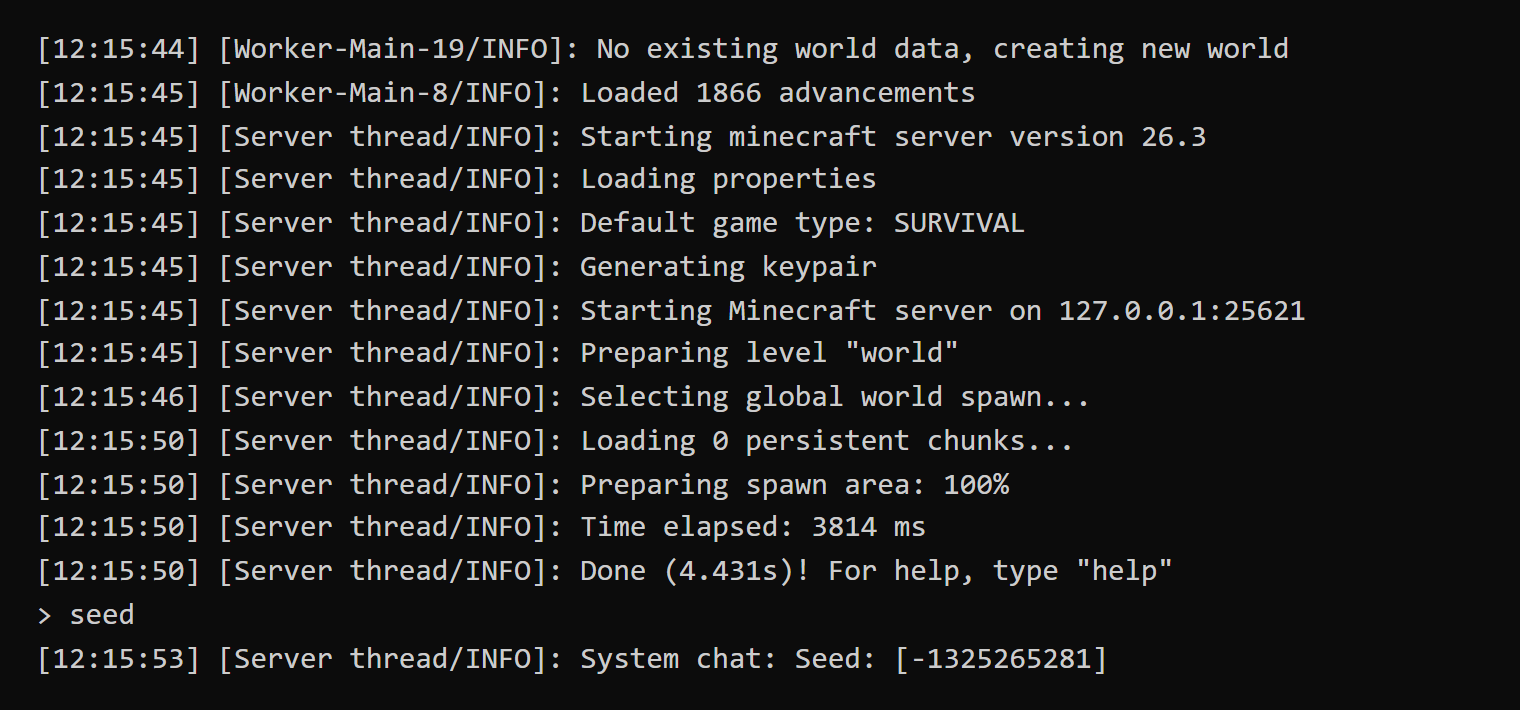
When you create a Superflat world, the server window prints an ERROR line with No key layers in MapLike[{}], but the world is still created normally, so you can ignore it.
Chinese text and colors in the MOTD
The description in the server list is set by motd. You can type Chinese text directly or write it as escape codes. The example text below is a Chinese server name, which shows how each way of writing behaves:
| How you write it | Example | Result |
|---|---|---|
| Save as UTF-8 | motd=偵錯桐人的伺服器 |
Displays correctly |
\u escape codes |
motd=\u5075\u932f\u6850\u4eba\u7684\u4f3a\u670d\u5668 |
Displays correctly. After the server starts, it replaces the escape codes in the file with the Chinese characters |
| Save with ANSI encoding | motd=偵錯桐人的伺服器 |
The server list shows garbled text, and the server also rewrites the Chinese in the file at startup, so the original text can’t be recovered |
§ color code |
motd=§6偵錯桐人§r的伺服器 |
The first part, 偵錯桐人, is gold |
\u00a7 color code |
motd=\u00a7a偵錯桐人\u00a7r的伺服器 |
The first part, 偵錯桐人, is green |
& color code |
motd=&a偵錯桐人&r的伺服器 |
&a and &r appear as they are, with no color |
\n line break |
motd=\u00a76\u00a7l偵錯桐人的伺服器\n\u00a77歡迎加入 |
Shows on two lines |
For the color codes, see formatting codes on the Minecraft Wiki. For example, 6 is gold, 7 is gray, l is bold, and r clears the formatting before it. If § is hard to type, write it as \u00a7.
If you set the MOTD as in the last row of the table and change max-players to 10, the game’s server list shows the following. The game here uses a Traditional Chinese interface, and the server name and the MOTD are Chinese text from the config file. The first line is gold and bold, the second line is gray, and the player count reads 0/10:

With ANSI encoding, the Chinese in Notepad still looks normal, and only the status bar shows “ANSI”. In that case, use “Save as”, change the “Encoding” box at the bottom of the dialog to “UTF-8”, save, and type the Chinese text again, because the server has already replaced it with garbled characters.
When a setting is wrong
When a setting is wrong, the server still starts normally and doesn’t say which line is at fault:
| How it is wrong | Example | Result |
|---|---|---|
| Mistyped value or different case | difficulty=hardd, difficulty=Hard |
The difficulty becomes the default easy, and the value in the file is changed to easy |
| Trailing space after the value | difficulty=hard followed by one space |
The difficulty becomes the default easy |
| Text in a numeric field | max-players=abc |
The player limit becomes the default 20 |
Mistyped true |
online-mode=ture |
It is read as false, so the server starts in offline mode |
| Mistyped setting name | max-player=5 |
The line stays in the file as it is, but the server doesn’t read it, and the player limit keeps its old value |
| Same setting written twice | Two max-players= lines with different values |
The later line wins, and the file keeps only that line |
| Full-width equals sign | max-players=10 |
The whole line is treated as an unknown setting, and the player limit stays at 20 |
Spaces around the equals sign and the case of true and false don’t affect how the server reads the file. A space after the value does matter, as shown in the table above. The old numeric form such as gamemode=1 is also read, and the server rewrites it as creative.
When online-mode is mistyped, the server starts in offline mode, and anyone can join with someone else’s name. The offline mode warning in the server window is the only clue. When you see it, stop the server, change online-mode back to true and restart:
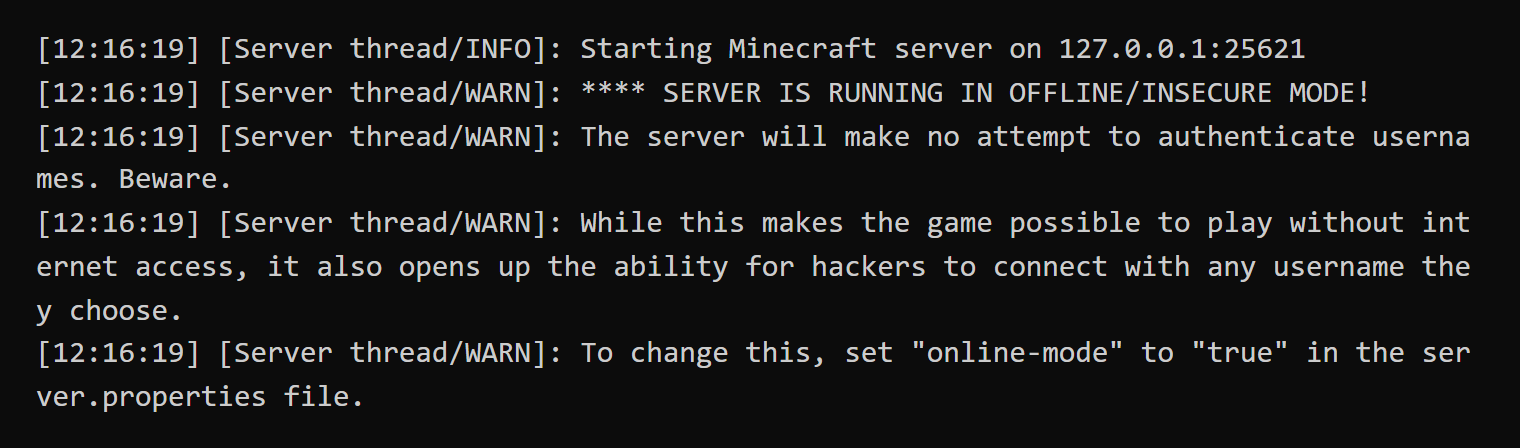
Test notes
I tested the official 26.3 server and Paper 26.3 build 238. For the old settings, I compared against official 1.20.1 and 1.21.11 servers. Paper behaves the same as vanilla except in how difficulty applies, including the difficulty of a Hardcore world. I confirmed the player limit and the MOTD in the server list by reading the server’s response with the Server List Ping protocol. I then confirmed the colors, the two-line MOTD and the game mode of a joining player with the 26.3 game. For the ANSI case, I saved the file with Notepad’s ANSI encoding on a Traditional Chinese edition of Windows, where that encoding is Big5.
Summary
Stop the server before you edit its settings. Then restart, create a new world, or use a game rule, depending on when the setting takes effect. In my tests on the official and Paper 26.3 servers, every setting took effect when I followed the method in the table, and the two servers differed only in how the difficulty applies.
Further reading