Table of contents
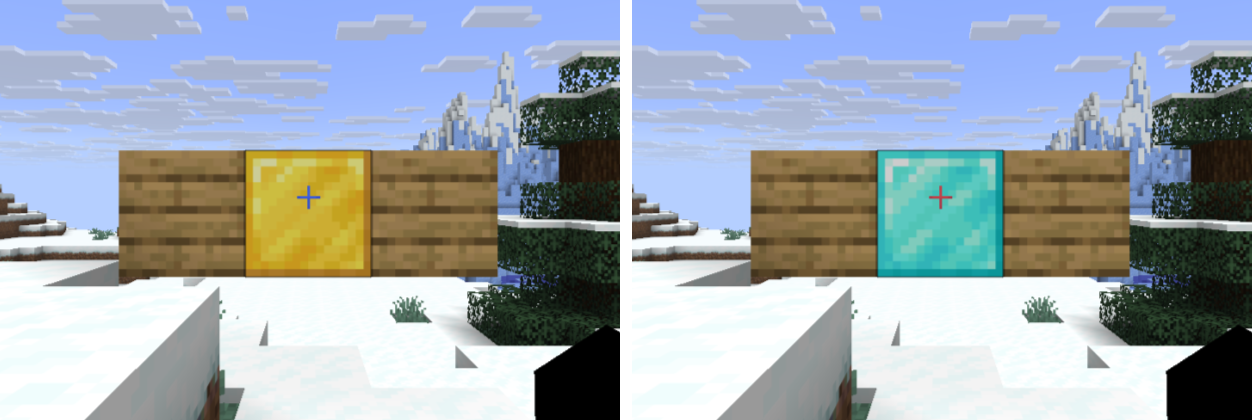
Before you upgrade a Minecraft server or change its settings, you want to keep a copy of the world, so you can go back to the original state if something goes wrong. The simplest backup does not need any command. Stop the server and copy the world folder in File Explorer. To restore, put this backup back, and the world returns to the state it had when you backed it up.
I tested on Windows 11, Java 25, and vanilla and Paper 26.3, and the steps are the same on both kinds of server. If you do not have a server yet, set up a vanilla Java Edition server first.
Where the world folder is
The server’s world is the world folder inside the server folder, and its name is set by level-name in server.properties. Singleplayer saves are under %APPDATA%\.minecraft\saves, one folder per world, with the same internal structure as the server.
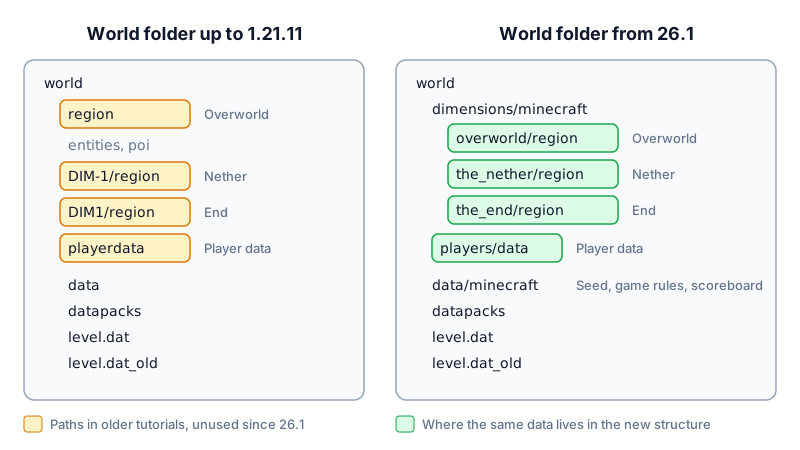
Minecraft 26.1 changed the structure of the world folder. The world/region and DIM-1 that older tutorials mention are no longer used in newer versions, so back up the whole folder and do not pick out only region. In the diagram below, the left side is a 1.21.11 world and the right side is a 26.3 world:
Preparing level in the console is not world, level-name was changed. Change it back to the original name and start again.
Back up the world
These steps stop the server. server.properties and plugins stay untouched:
- Type
stopin the server window and wait for the server to finish saving. - Open the server folder in File Explorer, right-click
world, choose Copy, then right-click again and choose Paste. - Rename the pasted copy to the date of the day, for example
world-20261106. - Start the server and keep playing.
The File Explorer screenshots in this article use a Traditional Chinese interface. The folder names are the same in English.
When you are done, the server folder holds both world and the backup you just made:
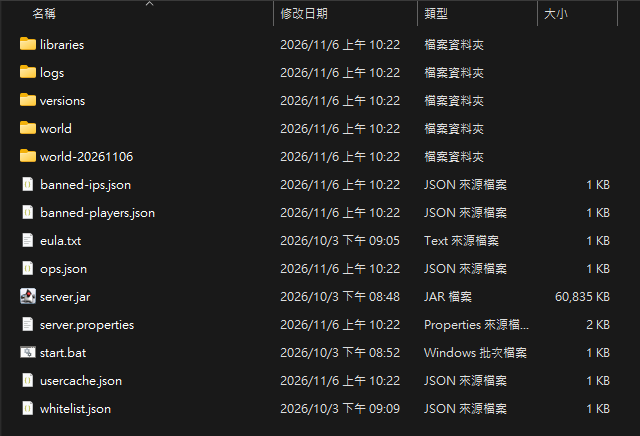
world-20261106 and see level.dat and dimensions, the backup is complete. Copy this folder to another drive or a USB drive as well, so a drive failure does not take the world and the backup together.
Restore the world
To restore, rename the current world to keep it, and then put the backup in its place. server.properties, plugins, and the jar stay untouched:
- Type
stopin the server window and wait for the server to exit. - Rename
worldtoworld-before-restore. If the restore result is not right, rename it back toworldto return to the state before the restore. - Copy
world-20261106, paste it, and rename the copy toworld. Keep the backup itself so you can use it again. - Start the server, wait for it to print
Done, then join the game and check that the world is back to the state of the backup.
When the restore is done, the folder looks like this:
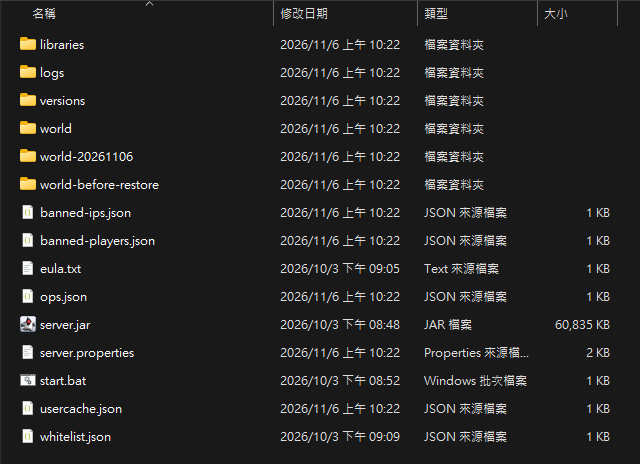
world-before-restore only when you are sure you do not need it.
To check with a command, place a marker block before the backup, using coordinates where nobody goes. After the backup, replace it with another block, for example a gold block. After the restore, check it in the server window. If Test passed appears, the world is back to the state of the backup:
1forceload add 3000 3000
2setblock 3000 300 3000 minecraft:diamond_block
3execute if block 3000 300 3000 minecraft:diamond_block
Handle a damaged level.dat
level.dat records the world’s time, spawn point, difficulty, and game version. In 26.3, blocks are stored in dimensions, and game rules and the scoreboard are stored in data/minecraft, so when this file is damaged, that data is still there. Use this table to decide what to do:
| Situation | Server reaction | What to do |
|---|---|---|
Only level.dat is damaged |
Falls back to level.dat_old and starts normally |
Nothing |
Both level.dat and level.dat_old are damaged |
Cannot start | Copy level.dat from the backup |
| Both are damaged and there is no backup | Cannot start | Copy a level.dat from a new world of the same version |
When only level.dat is damaged, the console prints Attempting to use fallback, and Done still appears at the end. You do not need to rename level.dat_old by hand:

World files may be corrupted. Shutting down., and the server exits right away. You do not need to restore the whole world. Copy level.dat from the backup into world, and the builds made after the backup are kept.
If you have no backup, change level-name to donor and start the server once to create a new world of the same version. Then copy donor/level.dat to world, change level-name back to world, and start the server. After this, the blocks, seed, game rules, and scoreboard are kept, but the world’s time and spawn point become the values of the new world, so use setworldspawn X Y Z to set the original spawn point again.
Prepare before an upgrade
If you want to go back to an older version after an upgrade, you can only restore the backup from before the upgrade, because the older jar does not convert a newer world back. So before you upgrade, keep a backup and the old jar. To roll back, put the backup back as in “Restore the world”, and swap the jar back to the old version before you start.
Opening a newer world with an older version can damage the world. When I opened a 26.3 world with 26.2, the server still printed Done, but every chunk that had been loaded became air, and switching back to 26.3 did not recover it.
Back up without stopping the server
If you cannot easily stop the server, stop automatic saving first and then compress the world. If you copy the world while the server is running, you get an error on the session.lock file. This procedure uses Command Prompt:
-
Type
save-offin the server window to stop writing data to the world folder. -
Type
save-all flushto write all current data to disk, and wait forSaved the gamebefore you continue. Without this step, the blocks you placed most recently do not make it into the backup. -
Open Command Prompt in the server folder and type the command below to compress the world.
taris built into Windows 11, and--exclude=session.lockis required, or you end up with a 0-byte archive:1tar -a -cf world-20261106.zip --exclude=session.lock world -
When compression finishes, go back to the server window and type
save-onto turn automatic saving back on.
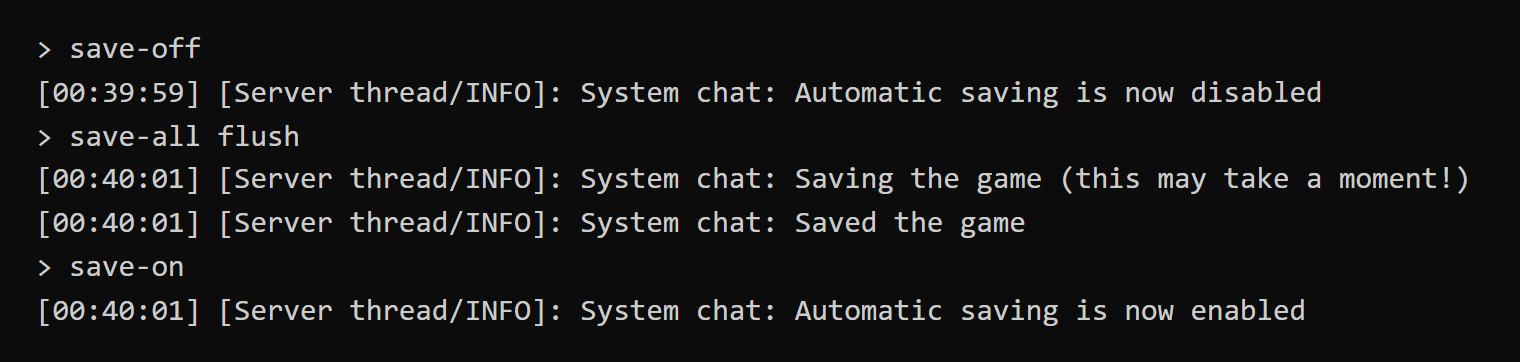
This is the output in the server window:
world as in “Restore the world”, and then type tar -xf world-20261106.zip to extract, and a new world folder appears.
Test notes
The test server had no players connected. For the stop-and-copy method, I placed a diamond block on vanilla 26.3 and made a backup, replaced it with a gold block, and restored by the steps above. The diamond block and the seed came back to their values from the backup, and I also confirmed the view by connecting with the game. For the method that does not stop the server, I placed a block in each of the three dimensions, set a scoreboard score, and set a game rule. Vanilla 26.3 and Paper 26.3 build 238 both came back to the backed-up values. For the File Explorer copy and rename, I ran commands with the same effect, and the screenshots are of the real folders.
Summary
To keep a world you can restore, stop the server and copy the whole world folder, then put the backup back when you restore. In my test, after the restore, the marker block and the seed came back to the state of the backup.