Table of contents
You may want to move a map such as OneBlock (a skyblock map), or a singleplayer world you have been playing for a while, to a Minecraft server so you can play it with friends. If you just copy the folder and start the server, it often creates a brand new world, and with the wrong version it can stop entirely. Run a server of the same version as the world and put the world folder’s name in server.properties. Your friends then join the same world, and your singleplayer inventory and position carry over.
The tests ran on Windows 11 and Java 25. I opened OneBlock on a vanilla (official) 26.1.2 server and moved the singleplayer world to a vanilla 26.3 server. If you don’t have a server yet, set up a Java Edition vanilla server first.
Server version
The server must run the same version as the world, and your friends’ games must run that version too. For a singleplayer world, the version is shown under the world name in the Singleplayer list. For a downloaded map, it is the version you chose when you downloaded it. For example, the 26.1 version of OneBlock opens on 26.1.2, the newest 26.1 server. You can download older server.jar files from the Minecraft Wiki version pages. The “Downloads” row on the 26.1.2 page has a “Server” link.
When the versions don’t match, the server window prints one of these messages:
| Situation | Message in the server window | Fix |
|---|---|---|
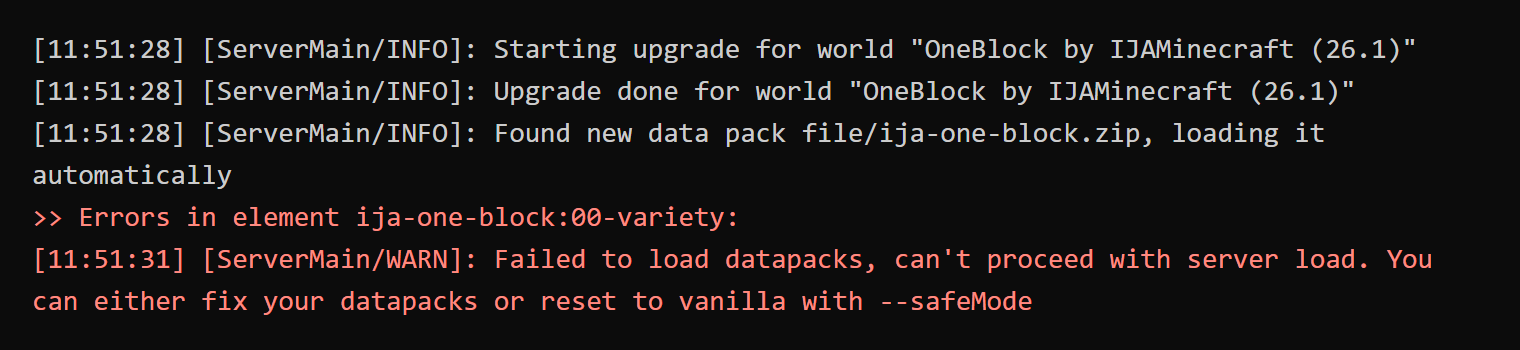
| Open OneBlock 26.1 on a 26.3 server | Prints Upgrade done for world, then Failed to load datapacks and stops |
Use the 26.1.2 server. The 26.3 server already upgraded the first copy, so extract the zip again and copy a fresh folder |
| Open a 26.3 world on a 26.2 server | Prints Recoverable errors when loading section, and blocks in the world disappear |
Use the 26.3 server and copy the world again from the original |
| Open a 26.3 world on a 1.21.11 server | Prints Failed to load datapacks and stops |
Use the 26.3 server. The world is not affected |
This is the server window when OneBlock 26.1 is opened on a 26.3 server:
Copy the world folder
Once the version matches, type stop in the server window to shut the server down, then copy the world into the server folder. Keep the original world so you can copy it again later if you change versions. Follow these steps. You don’t need to delete the server’s own world folder.
- Open the world folder:
- Singleplayer world: select the world in the Singleplayer list, click Edit, then click Open World Folder.
- OneBlock: extract the downloaded zip file and open the
OneBlock by IJAMinecraft (26.1)folder inside.
- Check that you can see
level.datdirectly inside the folder. If the folder contains only another folder, the one you need to copy is the inner one. - Copy the whole folder into the folder that contains
server.jar.
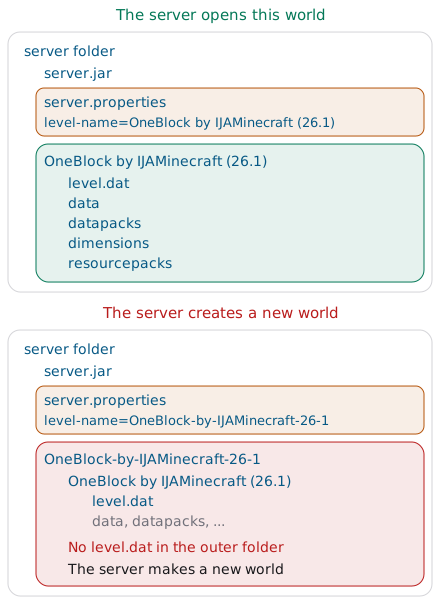
If the world folder is wrapped in an extra folder, the server can’t find level.dat in the outer folder and creates a new world:
Edit server.properties
After you place the world, open server.properties in the server folder with Notepad, change the three lines below and save. You need to change spawn-protection only for a map like OneBlock, whose mechanism sits at the spawn point:
1level-name=OneBlock by IJAMinecraft (26.1)
2difficulty=normal
3spawn-protection=0
| Setting | Value | What happens if you don’t change it |
|---|---|---|
level-name |
The name of the world folder, such as New World, without quotation marks |
The server opens the default world instead of the world you moved in |
difficulty |
The world’s original difficulty, such as normal or hard |
The vanilla server resets the difficulty to the default easy |
spawn-protection |
0 |
Once a player becomes an operator (a player with admin rights), other players can’t break the OneBlock block |
If you later change level-name back to world and start the server, it returns to the server’s own world folder, and the two worlds don’t affect each other.
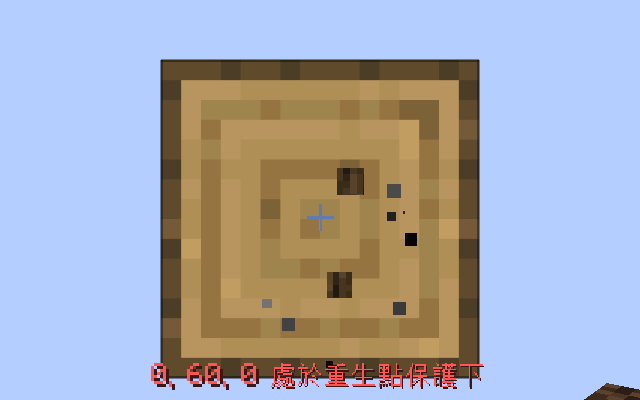
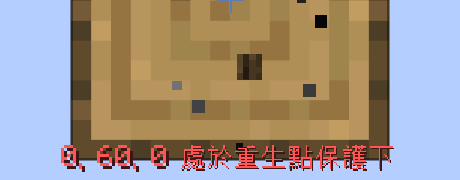
The OneBlock block sits right below the spawn point. Spawn protection only takes effect once the server has an operator. At that point, if another player breaks the block, it is restored at once, and the game shows a spawn protection message. The game in this screenshot uses a Traditional Chinese interface, so the red text is in Chinese. In an English interface it reads “0, 60, 0 is under spawn protection”:
Check the world
After you save the settings, start the server as usual, for example by double-clicking your start.bat file. The Preparing level line in the server window prints the name of the world it opened. If No existing world data, creating new world appears before it, the server didn’t find your world. Your world folder isn’t modified in that case, so type stop, fix the name or the folder location, and start the server again.
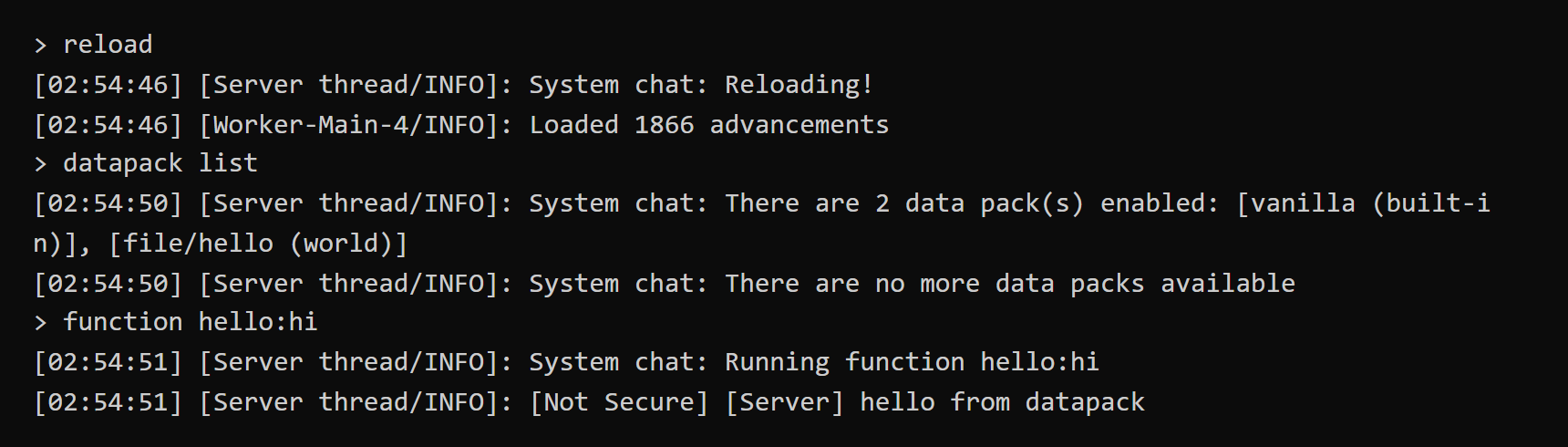
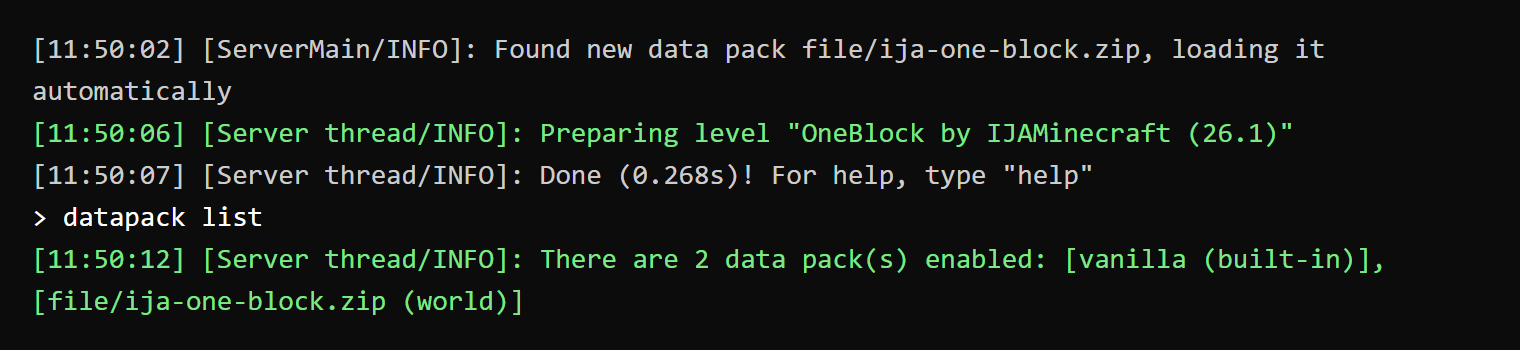
After OneBlock finishes starting, type datapack list in the server window. If the list contains file/ija-one-block.zip (world), the map’s data pack has loaded:
For a singleplayer world, type seed in the server window. If the seed it shows matches the one you get from /seed in singleplayer, the server opened your original world.
Join the server
The 26.3 server turns the whitelist (the list of players allowed to join) on by default. You and your friends must each type whitelist add <player name> in the server window before joining. Otherwise the game shows “You are not white-listed on this server!”.
When you join OneBlock, you stand on a grass block in the void, in Survival mode. The map’s hints show in English on the server. The Chinese translation lives in the world’s resource pack, and the server doesn’t send resource packs to players. If you want the hints in Traditional Chinese, click “Click to open the settings.” in the chat, then choose “Change Language” and the Traditional Chinese entry in turn.
For a singleplayer world, join with the account that created the world. Your inventory and position are the same as when you left singleplayer.
Test notes
OneBlock is version 3.10.0, which the IJAMinecraft site released on March 30, 2026 for Minecraft 26.1. The singleplayer world was created in the 26.3 game. I added diamonds, logs and bread to my inventory and placed a gold block at coordinates 2, 71, 6. On the client side, I used Prism Launcher (a third-party game launcher) to start 26.1.2 and 26.3 clients and connect. To test spawn protection, another player acted as the operator, and the test account was not an operator. For the two cases where the server is older than the world, I put a test world created on a 26.3 server onto a 26.2 server and a 1.21.11 server.
Paper (a third-party server software) 26.1.2 build 74 handles the copy and the level-name setting the same way as vanilla, but it keeps the world’s original difficulty. The first time Paper opens a world, it also prints an ALERT warning and counts down for 30 seconds before it imports the world.
Summary
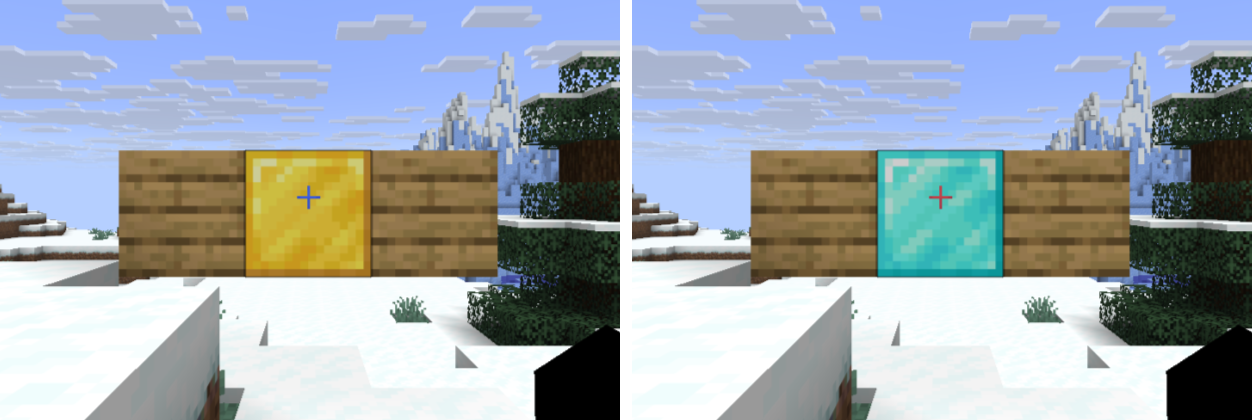
To move a world to a server, run a server of the same version as the world and make level-name match the world folder’s name. In my tests, the OneBlock data pack loaded on the 26.1.2 server, and after I moved the singleplayer world to the 26.3 server, the seed and the gold block matched what I had in singleplayer.
Further reading