Table of contents
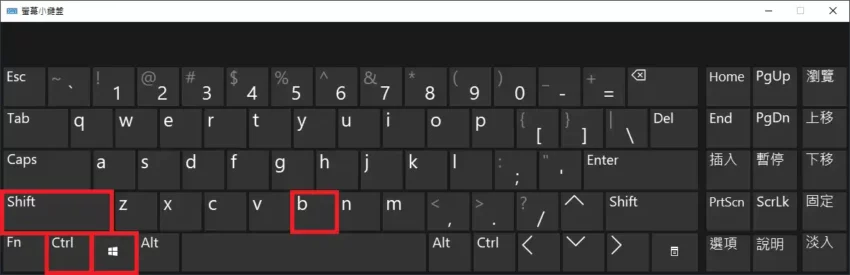
If the PC wakes from sleep and the system is still running but the screen is completely black, first press Win + Ctrl + Shift + B together. In Microsoft’s blank screen troubleshooting guide, this shortcut is described as resetting the graphics driver. It works on both Windows 10 and Windows 11.
I sometimes got a black screen after sleep on Windows 10 and early versions of Windows 11. After I pressed this shortcut, the PC beeped once, the picture came back, and I could keep using it. A game that freezes halfway through is a different case. Windows first tries to reset the graphics card on its own, and the way to handle it is different.
How to press it and how to tell it worked
Hold all four keys at the same time. Win is the key with the Windows logo, usually between Ctrl and Alt.
The screenshot below is the Windows On-Screen Keyboard in Traditional Chinese. Red boxes mark the Shift, Ctrl, Windows, and B keys.
When it works and its limits
According to MSI’s explanation (in Chinese), this shortcut deals with a screen that shows nothing while the system may still be running, for example a black screen after waking from sleep, after boot, after sign-in, or after a system update finishes. The shortcut only resets the graphics driver and does not restart the whole PC. It helps only with a black screen caused by a driver problem. If the video cable is loose or the monitor has no power, you still get no picture.
If the shortcut does nothing
If you hear no beep and the picture does not come back, work through the basic steps on Microsoft’s troubleshooting page in order:
- Check that the device is charged or plugged in. If you use an external monitor, check that it is connected, plugged in, and turned on.
- Press
Win + Pto open the project menu, then pressPto cycle through display modes such as “PC screen only”, “Duplicate”, and “Extend”, and pressEnterto confirm. - Press
Ctrl + Alt + Del. If the security screen appears, open “Task Manager” and restart “Windows Explorer”. - If none of that works, hold the power button for 20 seconds to force a restart.
If the screen is still black after a restart, Microsoft’s advanced steps are to enter Safe Mode and then update or roll back the driver:
- Hold the power button for 10 seconds to force a shutdown, then turn the PC on again. Repeat this 2 to 3 times until Windows enters recovery mode.
- Choose “Troubleshoot”, “Advanced options”, “Startup Settings”, and “Restart” in turn, then press
F5for “Safe Mode with Networking”. - Open “Device Manager”, expand “Display adapters”, right-click the graphics adapter, and choose “Update driver”. If the problem began after a driver update, choose “Roll Back Driver” instead.
A frozen game and display timeout recovery
A frozen game is a different situation from a black screen after sleep, and Microsoft’s TDR documentation does not mention this shortcut. According to it, a freeze in a game is often the graphics card being busy with a large amount of drawing work and not updating the picture. Windows has a mechanism called Timeout Detection and Recovery (TDR). When the graphics card cannot finish its current work within 2 seconds, Windows resets the card automatically. The screen flickers and recovers, and then a notification says that the display driver stopped responding and has recovered.
This recovery needs no key press. When the picture freezes, wait a moment and see whether it recovers on its own. Some older DirectX games show only a black screen after recovery. In that case, close the game and open it again.
TDR recovery also has a limit on the number of attempts. By default, when the 6th reset happens within 1 minute, Windows crashes and shows a blue screen with the stop code 0x117 (VIDEO_TDR_TIMEOUT_DETECTED).
Event log: Event ID 4101 from the Display source
TDR recovery messages are recorded in Event Viewer. Microsoft’s Event ID 4101 documentation, written for Windows Vista and Windows 7, says this entry has the source Display and the event ID 4101. To look for it in Event Viewer:
- Press
Win + Xand choose “Event Viewer”. - On the left, expand “Windows Logs” and select “System”.
- On the right, click “Filter Current Log…” and enter
4101in the “Event IDs” field.
The remedies listed in that document are, in order, raising the TDR registry values, installing the latest version through Windows Update, and reducing visual effects and background programs. The first one is the TdrDelay value in the next section, which Microsoft’s current documentation advises ordinary users not to change.
The TdrDelay registry value
TdrDelay stretches the timeout threshold from the default 2 seconds, so Windows waits longer before it decides the graphics card is stuck. It lives under this key in Registry Editor:
1HKEY_LOCAL_MACHINE\System\CurrentControlSet\Control\GraphicsDrivers
Microsoft’s current TDR registry keys documentation says these keys are meant only for testing during driver development, and ordinary users should not change them.
Summary
For a black screen after sleep, try Win + Ctrl + Shift + B first. If nothing happens, follow Microsoft’s basic steps, and only then enter Safe Mode to update or roll back the driver. A frozen game is recovered automatically by Windows TDR, and you do not need this shortcut. If Event Viewer keeps showing 4101, update through Windows Update first and leave TdrDelay alone.