Table of contents
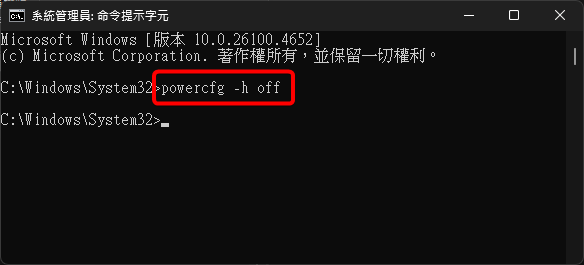
You see a hiberfil.sys of several GB in the root of drive C, and Windows blocks you when you try to delete it. You can get rid of the file, but the way to do it is to turn off hibernation. Run powercfg -h off as administrator, and Windows deletes the file itself.
hiberfil.sys is the hibernation file. When the computer hibernates, Windows writes the contents of memory to this file and shuts down, then restores from the file at the next startup. According to Microsoft’s system power states documentation, the hibernation file is about 40% of physical memory by default, so the more RAM you have, the more space it takes.
Check how much space hiberfil.sys uses
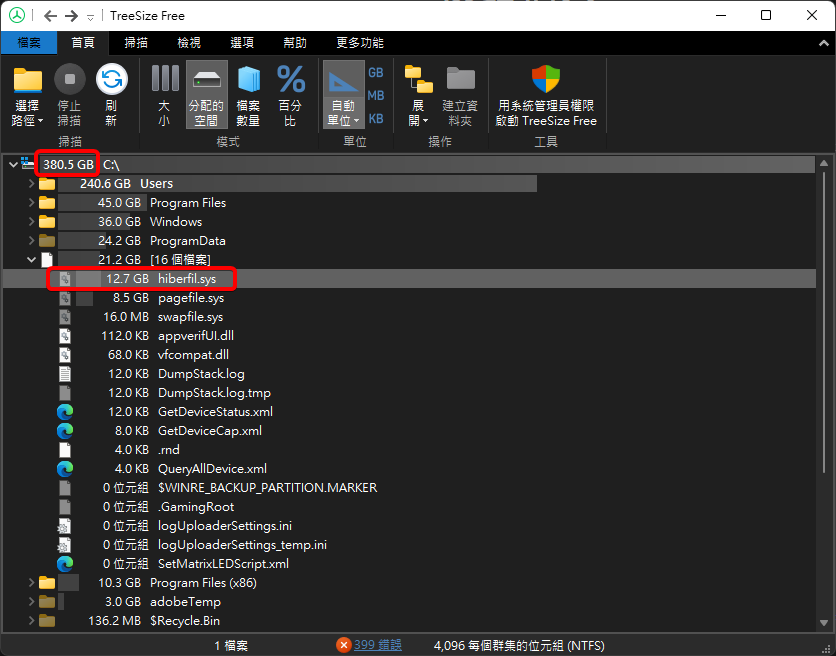
hiberfil.sys is a hidden system file, so File Explorer does not show it by default. You can scan drive C with a disk analyzer. The screenshot below uses TreeSize Free. On this PC, hiberfil.sys takes 12.7 GB, and drive C uses 380.5 GB in total.
The TreeSize Free window in this screenshot uses a Traditional Chinese interface. The red boxes mark the total usage of 380.5 GB at the top and the 12.7 GB hiberfil.sys in the root folder.
Turn off hibernation with powercfg
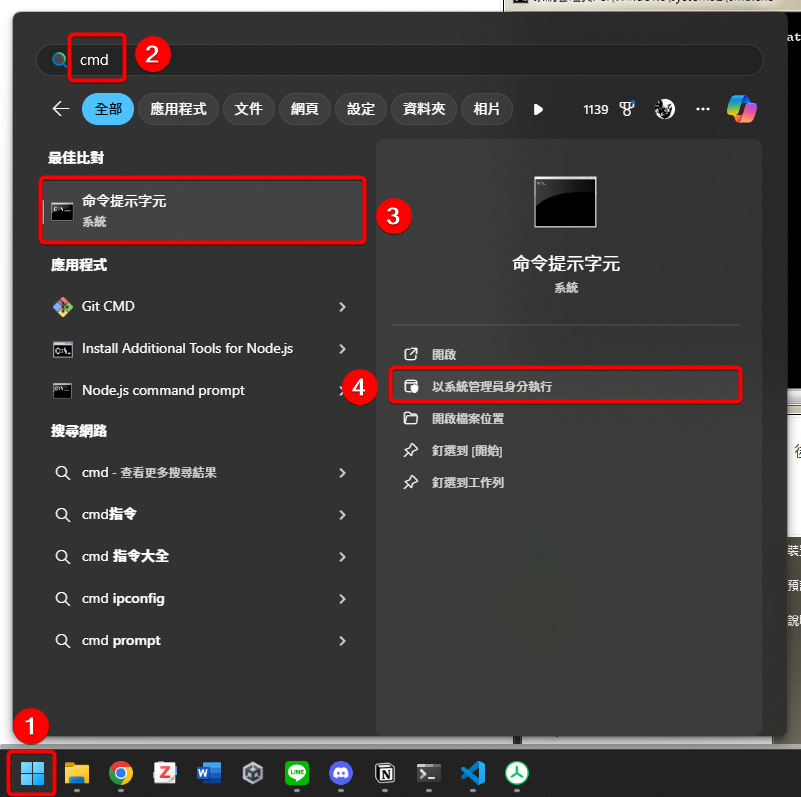
powercfg needs administrator rights. Click Start and search for cmd. Next to “Command Prompt”, choose “Run as administrator”.
This screenshot is from Traditional Chinese Windows. The numbered marks show, in order, the Start button, the search box, the Command Prompt result, and the “Run as administrator” action.
1powercfg -h off
When the command succeeds it prints nothing and returns straight to the prompt.
The title bar in this screenshot reads “Administrator: Command Prompt” in Traditional Chinese.
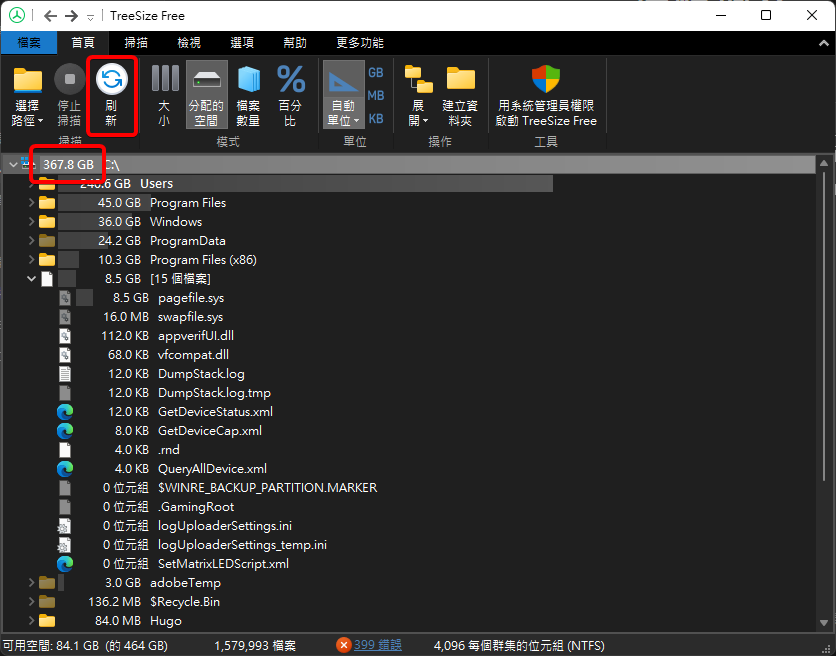
hiberfil.sys is gone from the root folder, and drive C usage dropped from 380.5 GB to 367.8 GB.
What turning off hibernation affects
powercfg -h off turns off the whole hibernation mechanism, so these features stop together:
- Hibernate: the computer can no longer hibernate, and the “Hibernate” entry in the power menu disappears if you had added it.
- Fast Startup: the default Fast Startup in Windows also relies on the hibernation file, so startup goes through the full boot process after you turn it off.
- Hybrid sleep: not available. Microsoft warns that a computer that relied on hybrid sleep can lose unsaved data if it loses power during sleep.
Turn hibernation back on
To restore hibernation later, run this as administrator:
1powercfg -h on
Windows creates hiberfil.sys again, and Fast Startup comes back too.
Summary
You cannot delete hiberfil.sys directly. Turn hibernation off with powercfg -h off and Windows removes the file itself, which freed 12.7 GB on this PC. Hibernate, Fast Startup, and hybrid sleep are disabled together, and powercfg -h on restores them.