Table of contents
When drive C is almost full, File Explorer makes you open the Properties of each folder one by one to see its size, so it is hard to spot what is taking the space. TreeSize Free scans a drive or folder you choose, calculates the size of every folder, and lists them from largest to smallest. Starting from the top item and expanding down, you can find the folders and files that actually use the space.
TreeSize Free is the free edition from JAM Software, limited to personal, non-commercial use.
Download TreeSize Free
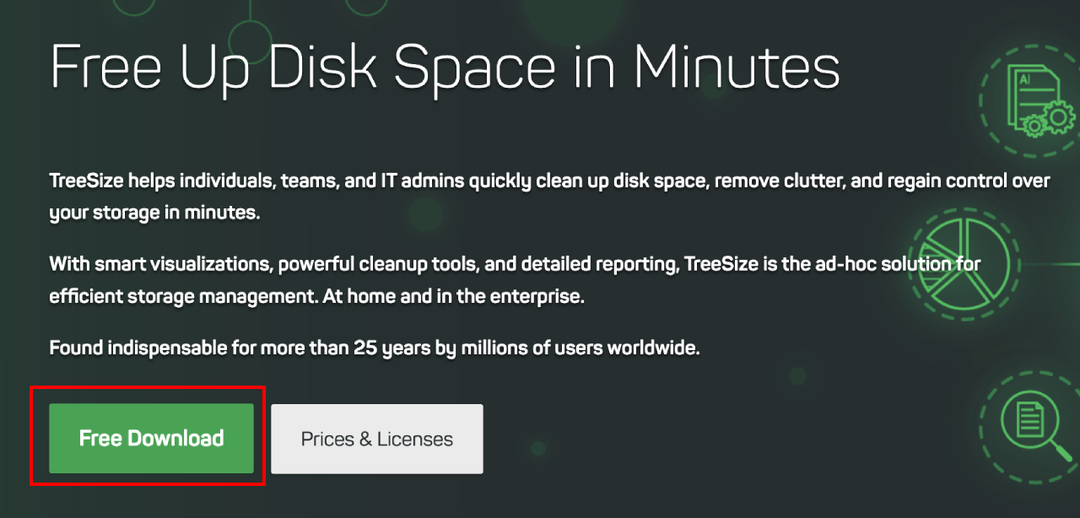
Go to the TreeSize website and click “Free Download” on the home page.
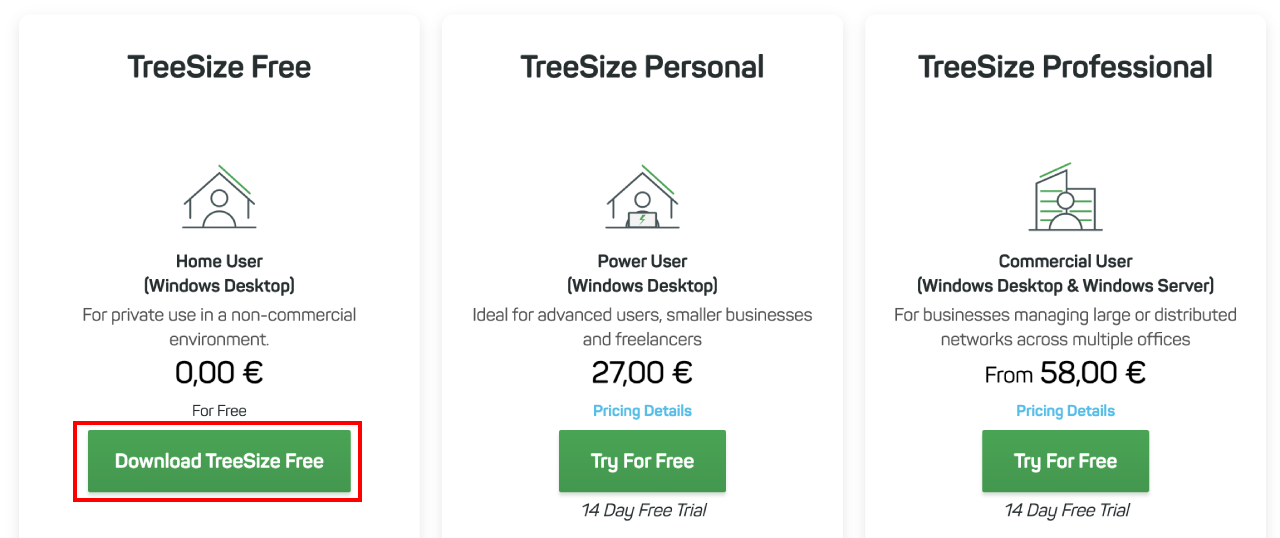
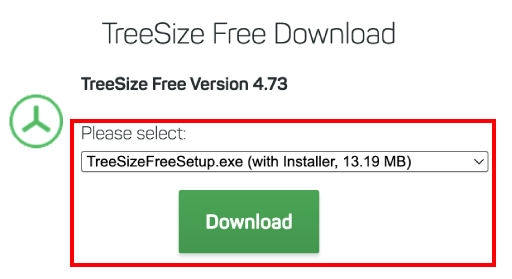
TreeSizeFreeSetup.exe. Click “Download” and install it.
Scan drive C
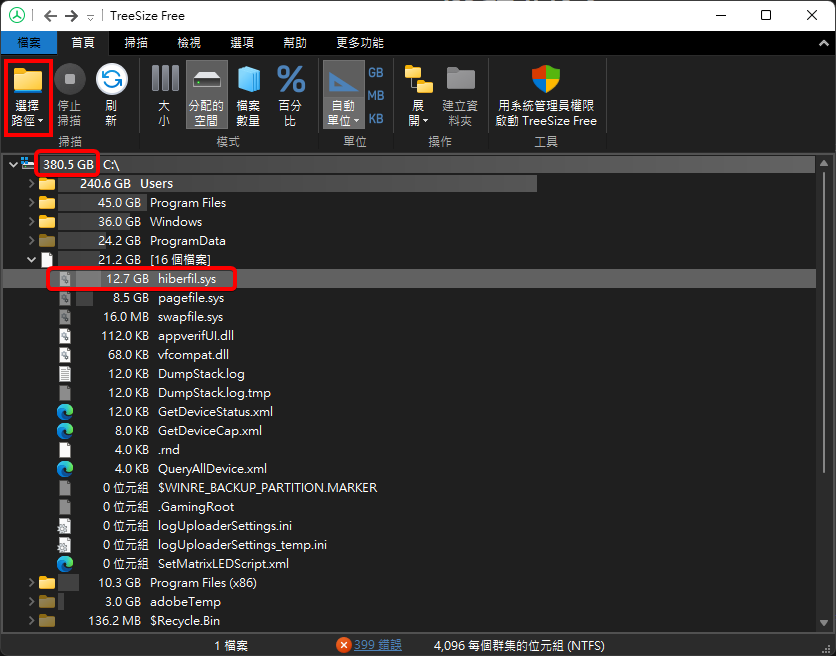
Open TreeSize Free, click “Select Directory” at the top left, and choose “Local Disk (C:)” to start the scan. When the scan finishes, the window lists the size of every folder in a tree, sorted by size.
The TreeSize Free window in this screenshot uses a Traditional Chinese interface, so the button you click is labeled “選擇路徑” there (the “Select Directory” button in English). The boxes mark that button, the total drive C usage of 380.5 GB, and the 12.7 GB hiberfil.sys in the root folder. The Users folder takes 240.6 GB.
Users accounts for 240.6 GB. From here, expand the largest item and keep going down until you reach the folder or file that uses the space.
The system files in the root of drive C are also worth a look. In the screenshot, hiberfil.sys takes 12.7 GB. It is the Windows hibernation file and is hidden in File Explorer by default. To deal with it, see Can you delete hiberfil.sys? Turn off hibernation in Windows to free disk space.
Scan as administrator
TreeSize without administrator rights cannot read some folders with access restrictions, and the sizes of those folders are not counted in the result. In the screenshot, the status bar shows “399 errors” (the “399 錯誤” link in the Chinese interface), which means 399 items could not be read during the scan.
For a more complete result, click “Start TreeSize Free as Administrator” in the “Tools” group on the right side of the ribbon. TreeSize reopens with administrator rights, and you scan again.
Summary
Scan with TreeSize Free and expand from the largest folder down to find the source of the space. A scan with administrator rights is more complete than one without.