Table of contents
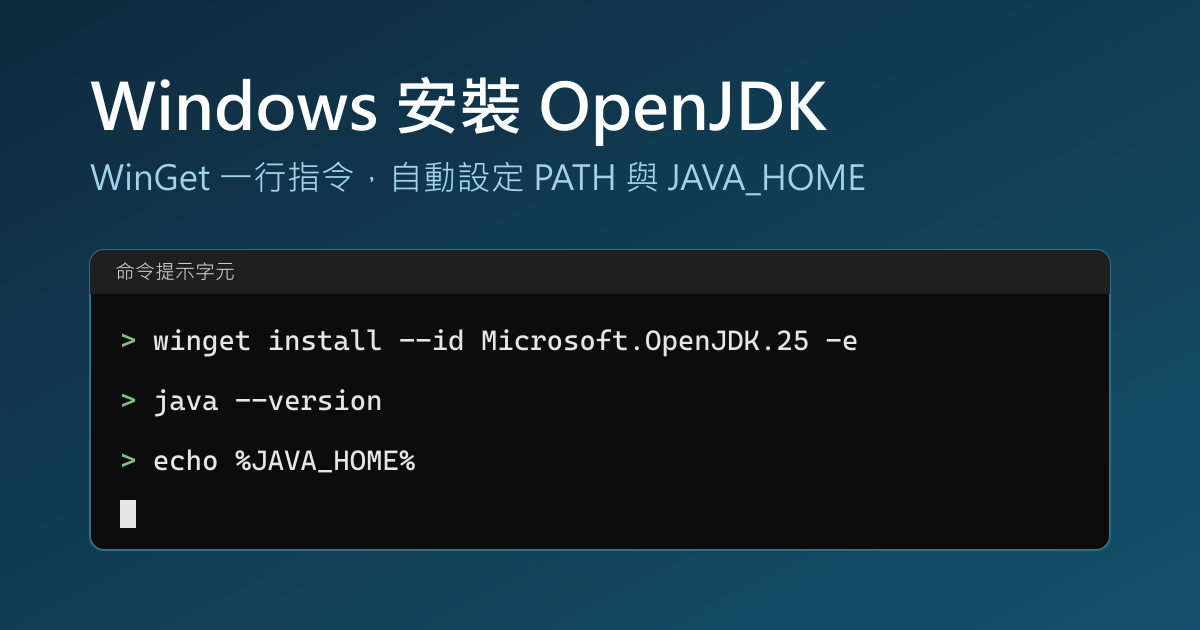
To install OpenJDK on Windows, one WinGet command is enough. Using the Microsoft Build of OpenJDK as the example, run winget install --id Microsoft.OpenJDK.25 -e --source winget. The installer sets both PATH and JAVA_HOME, and after you reopen the command line you can verify with java --version.
OpenJDK versions
According to Microsoft’s support roadmap, four LTS versions are available. The WinGet package ID is Microsoft.OpenJDK. followed by the version number:
| Version | WinGet package ID | Earliest end of support |
|---|---|---|
| OpenJDK 11 | Microsoft.OpenJDK.11 |
September 2027 |
| OpenJDK 17 | Microsoft.OpenJDK.17 |
September 2027 |
| OpenJDK 21 | Microsoft.OpenJDK.21 |
September 2028 |
| OpenJDK 25 | Microsoft.OpenJDK.25 |
September 2030 |
Microsoft does not provide Java 8. The support roadmap points to Eclipse Adoptium, where you can download Eclipse Temurin.
Install
Open Command Prompt and run the following (this installs OpenJDK 25):
1winget install --id Microsoft.OpenJDK.25 -e --source winget
For another version, replace 25 with the version number from the table. --id together with -e matches the package ID exactly, and --source winget searches only the winget source, which avoids duplicate results when you have several sources configured. If a User Account Control window appears during installation, click “Yes”.
If the winget command does not run, follow Microsoft’s WinGet installation guide and install or update “App Installer” from the Microsoft Store.
Verify
Environment variables apply only to newly opened windows. When the installation finishes, close the current Command Prompt and open a new one, then run:
1java --version
2echo %JAVA_HOME%
If the first line of output starts with openjdk 25 and JAVA_HOME prints a JDK folder under C:\Program Files\Microsoft\, the installation is complete. WinGet installs Microsoft’s MSI package, and the WinGet package manifest already selects the option that sets JAVA_HOME, so you do not need to set it by hand.
If java --version shows a different version, another JDK on the machine comes earlier in PATH. Run where java to list every java.exe. The first one is the one that actually runs.
Uninstall
Use WinGet again. First run winget list OpenJDK to see the installed versions, then uninstall by package ID:
1winget uninstall --id Microsoft.OpenJDK.25 -e --source winget
Summary
Installing OpenJDK with WinGet takes one command, and the installer sets PATH and JAVA_HOME, so you do not need to configure anything by hand.