Table of contents
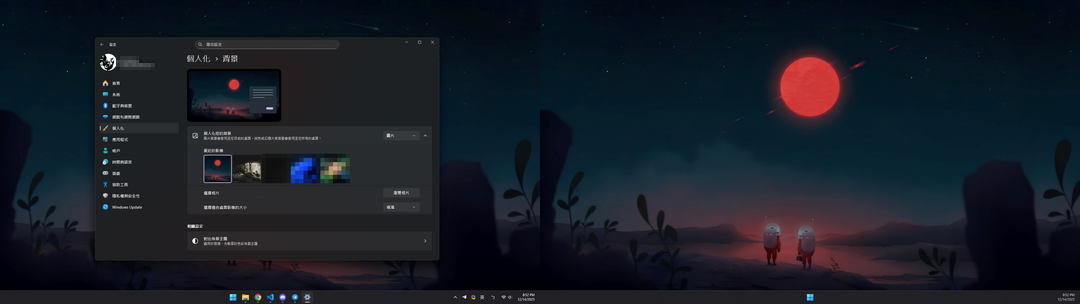
After you connect a second monitor, Windows 11 applies the same wallpaper to all monitors by default. To give each monitor its own picture, go to Settings > Personalization > Background, right-click a picture under “Recent images”, and choose a monitor number. This option is hidden in the right-click menu. If you simply click a picture, it is applied to all monitors.
Add the wallpapers you want
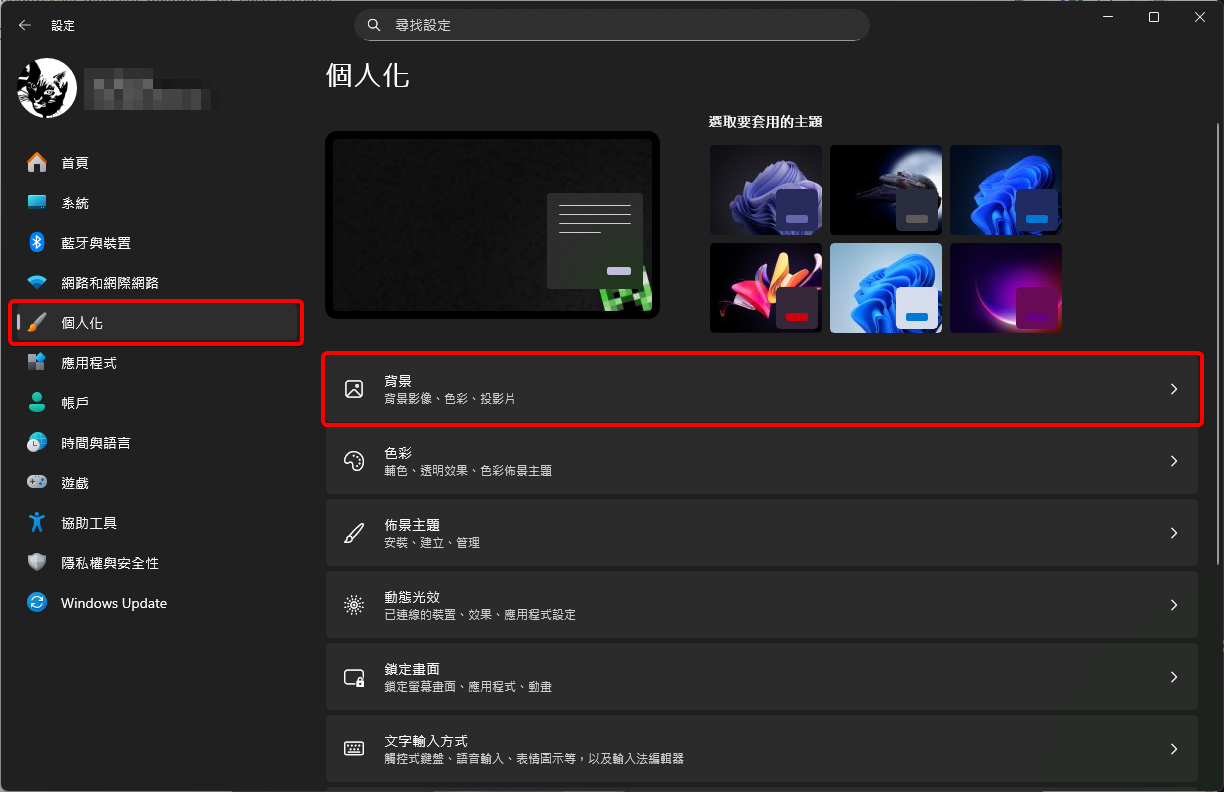
Open Windows Settings (Win + I) and go to “Personalization > Background”.
The Settings screenshots below are from Traditional Chinese Windows. In this one, “Personalization” is selected on the left, and the “Background” item is boxed on the right.
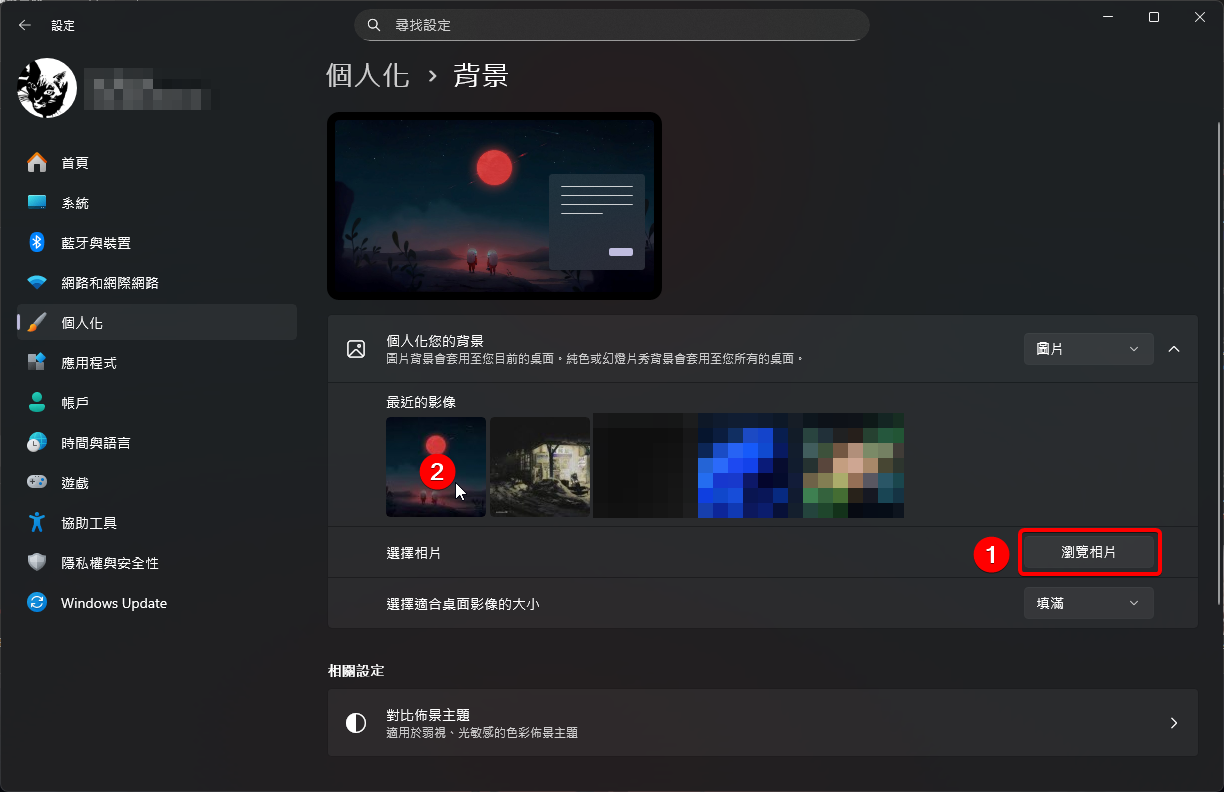
In this screenshot (Traditional Chinese interface), mark 1 points to the “Browse photos” button, and mark 2 points to the first picture under “Recent images”.
Assign a wallpaper to one monitor
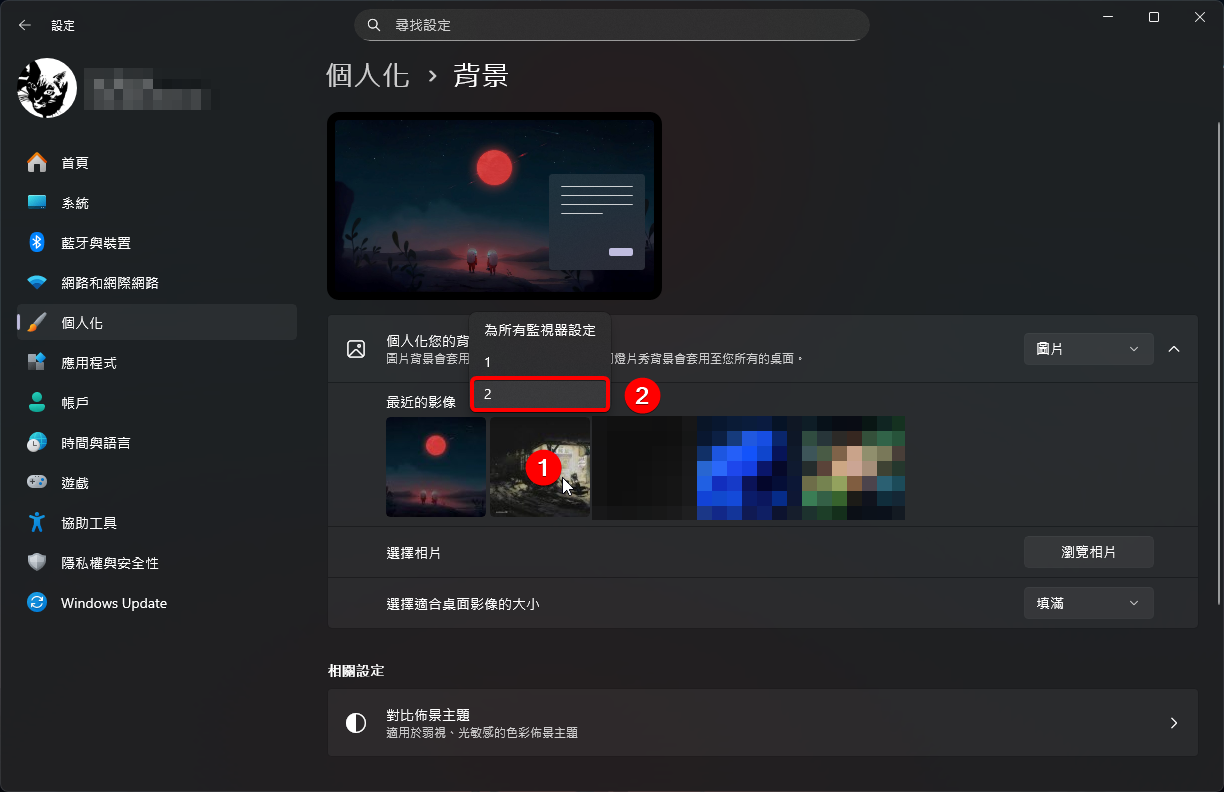
Under “Recent images”, right-click the picture you want for the second monitor. The menu lists “Set for all monitors” and the monitor numbers. Choose “2”.
In this screenshot (Traditional Chinese interface), mark 1 points to the second picture in “Recent images” that was right-clicked. The menu lists “Set for all monitors”, “1”, and “2”, and the “2” option is boxed.
Summary
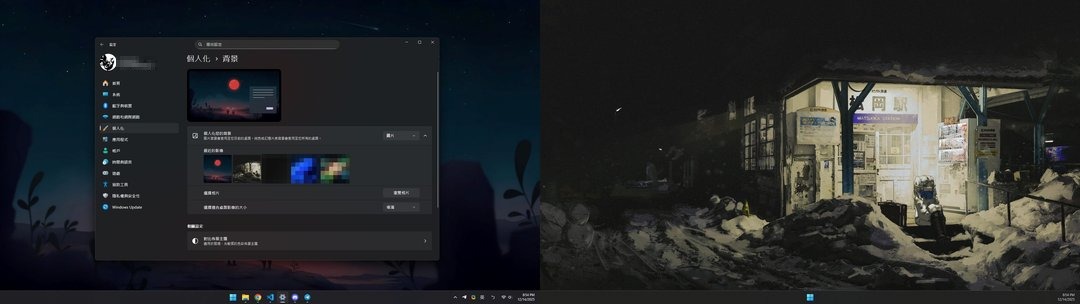
Right-click a picture in the Background settings and choose a monitor number to show a different wallpaper on each monitor.