Table of contents
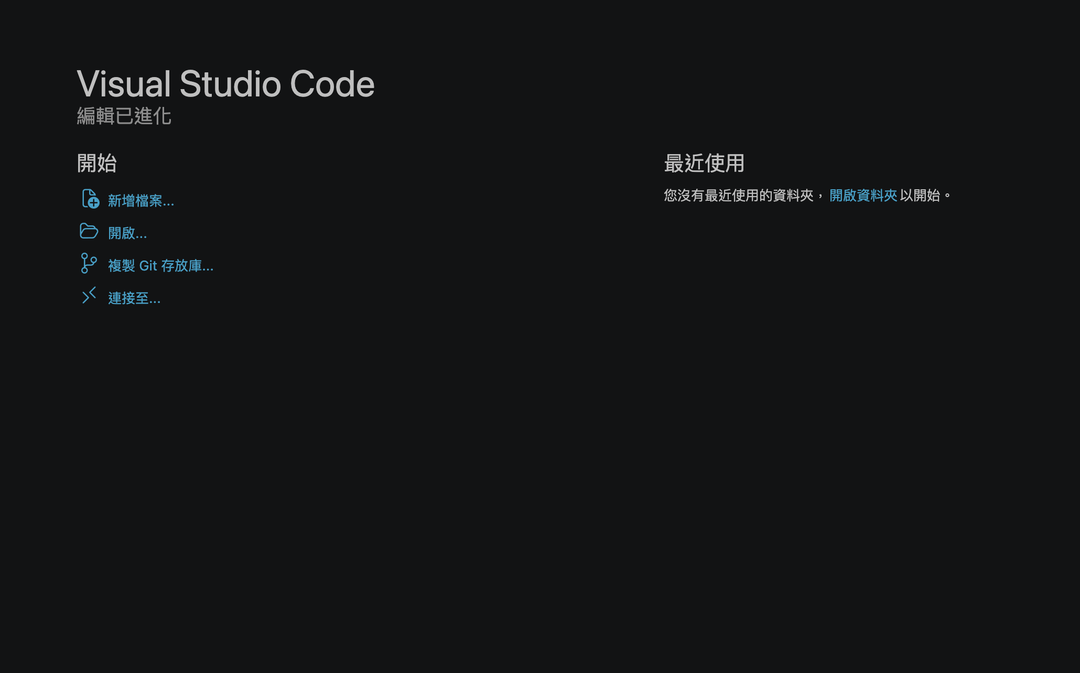
VS Code shows its interface in English by default. To use another language, install the Language Pack extension for it, select the language with the Configure Display Language command, and restart. You can look up the available languages in the Language Packs category of the VS Code Marketplace. To get back to English, run that command again and pick English.
The switching steps follow the official VS Code Display Language documentation, which also lists the locale IDs. A Language Pack changes only the interface text. It doesn’t change your programming language, your project’s encoding, or terminal output.
I ran these steps with the Chinese (Traditional) pack, whose locale is zh-tw, so the screenshots and examples show that pack. I did not test other language packs. For another language, search for its name and look for its locale in the official list.
Install a Language Pack
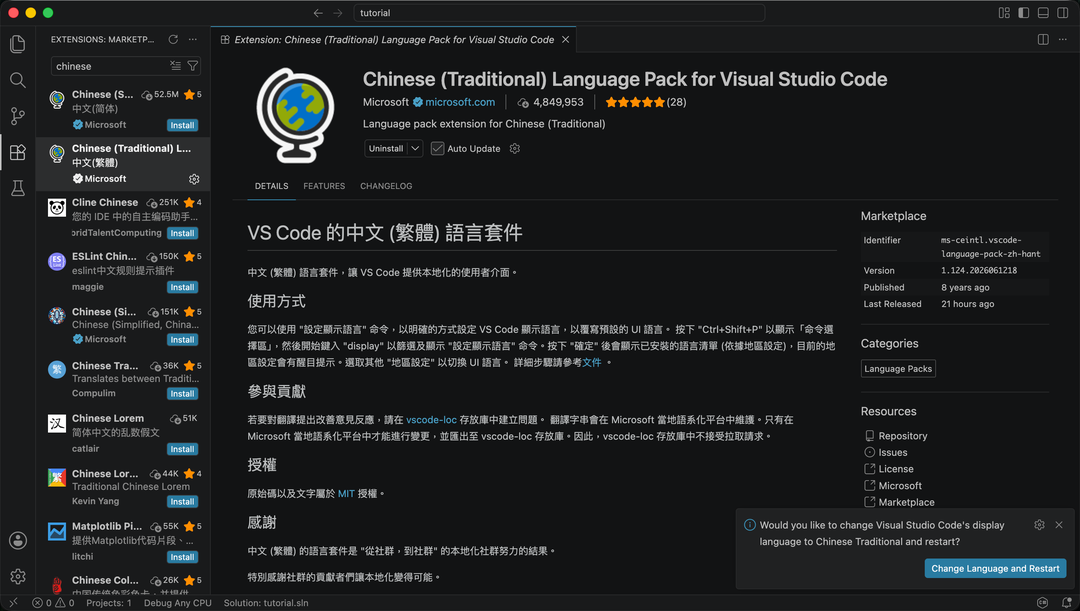
Open Extensions in the left sidebar, search for your language, and install its Language Pack. When the install finishes, a notification appears at the lower right. Click Change Language and Restart to switch. In this screenshot I searched for “chinese”. The extension’s details page is in Chinese, but the button and the rest of the interface are still in English:
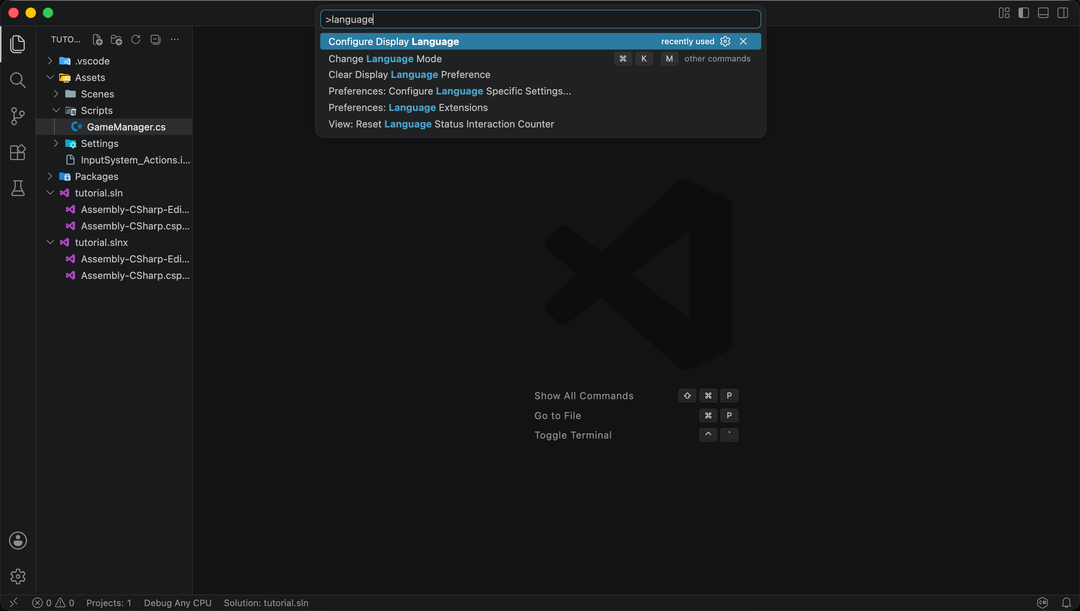
View > Command Palette..., type Configure Display Language, and press Enter to run it. Select your language, which is 中文(繁體) for Chinese (Traditional), and click Restart.
Confirm the language and switch back to English
After the restart, the menus and the Settings screen should appear in the language you picked. When you run Configure Display Language again, the language in use is marked in the list. If the interface is still in English after a restart, first confirm that the Language Pack is enabled, then check that you selected the right locale in the command’s list, such as zh-tw.
You don’t have to remove VS Code to go back to English. Run Configure Display Language again, choose English (en), and restart. When you’re sure you no longer need the Language Pack, disable or uninstall it from the Extensions view.
Summary
The VS Code display language depends on the installed Language Pack and the locale you select. Install the pack, restart, and confirm the locale, which was zh-tw in my test. Choosing en and restarting returns the interface to English.