Table of contents
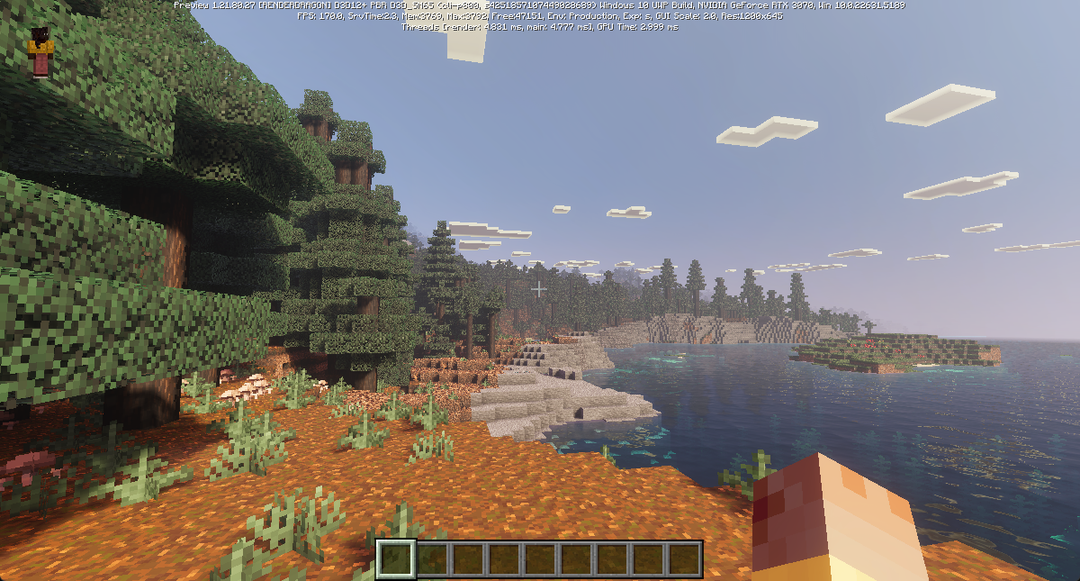
After you have played vanilla Minecraft for a while, you may want a different look. Bedrock Edition can now change the look of water, plants, lighting and night scenes when you pair Vibrant Visuals (Bedrock’s shader-style graphics mode) with a resource pack. This article covers four resource packs I tested, from one that stays close to vanilla to one with a stronger atmosphere.
The screenshots were taken in Minecraft Preview 1.21.80.27. Vibrant Visuals can now be turned on in the release version of Bedrock Edition on supported devices. The supported devices and conditions are in Minecraft’s official announcement.
Four resource packs
Vanilla Reforged
Vanilla Reforged keeps the vanilla block designs and mainly adds water, sunlight and texture detail. The picture is close to vanilla.
Luminous Dreams
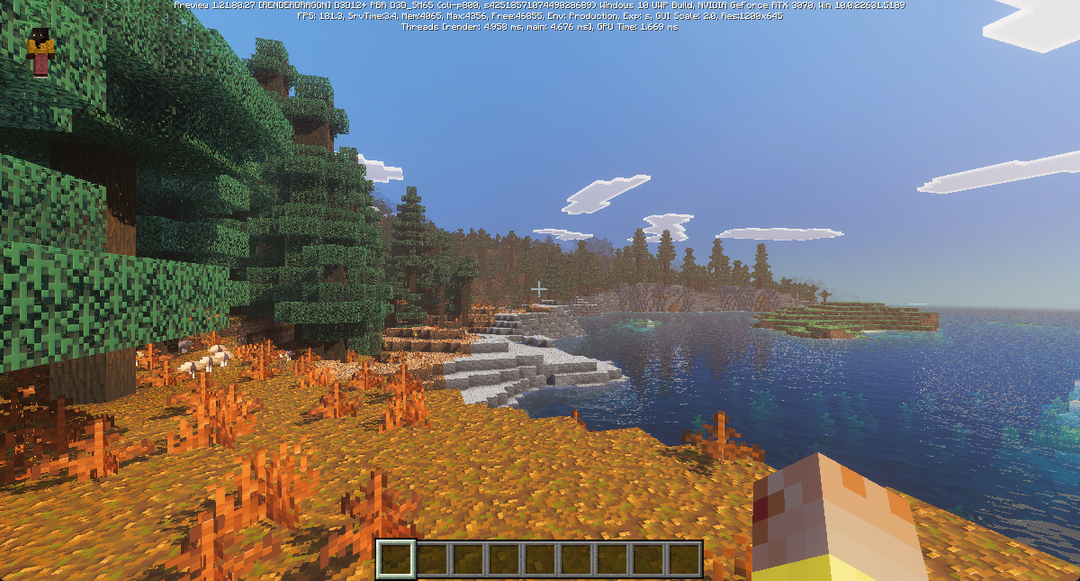
Luminous Dreams has more vivid colors and stronger contrast between light and dark. The water reflections and the night lighting stand out, and the overall mood is a bit heavier than vanilla.
Overgrown
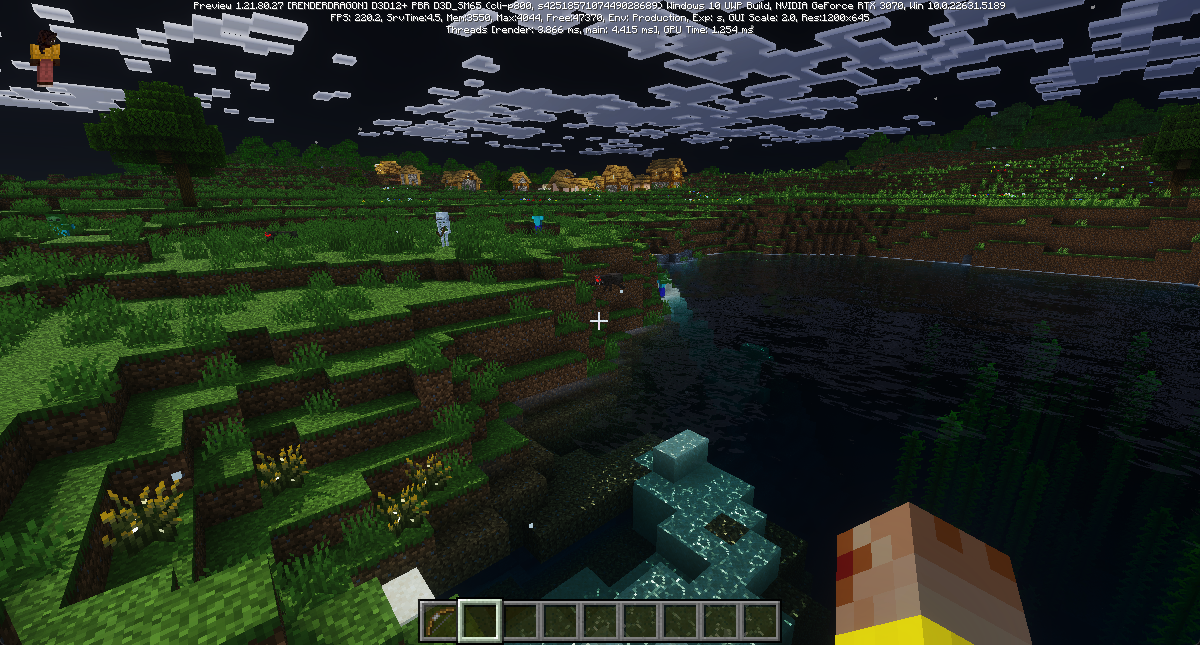
Overgrown mainly changes plants, models and natural textures. Forests and grass become denser, which suits exploring the wilderness or looking at landscapes.
Prizma Visuals Legacy
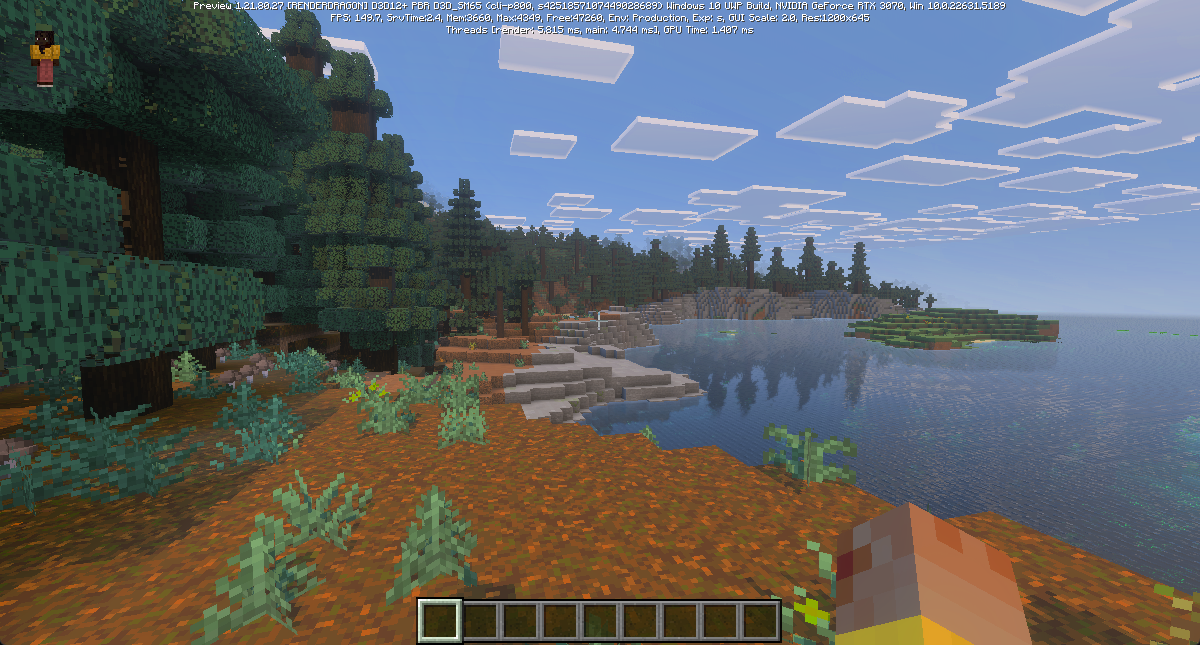
Prizma Visuals Legacy has a softer picture, and its fog, water and PBR materials stand out. CurseForge has marked this project as Legacy, and there is also a Prizma Visuals 2.0.
Install a resource pack
Download the .mcpack from the link above, open the file, and wait for Minecraft to show “Successfully imported”. The screenshot below uses a Traditional Chinese interface, and “已順利匯入” is “Successfully imported”.

If nothing changes after you import a pack
Check these items in order:
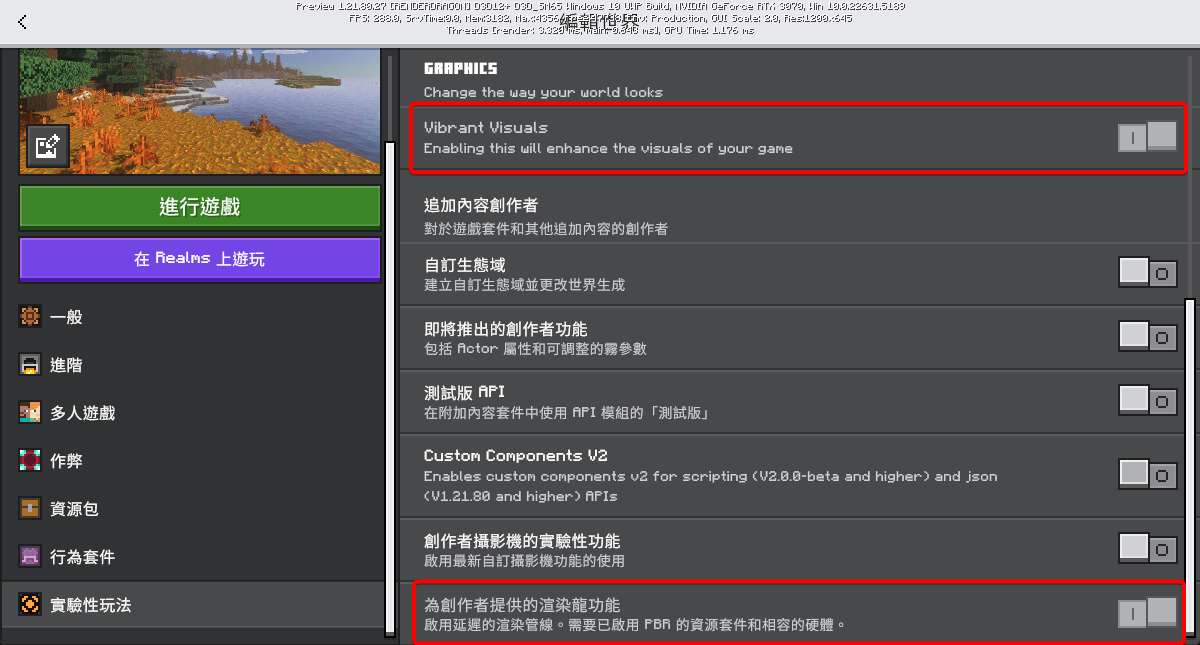
- Whether you can select Vibrant Visuals under “Settings” > “Video” > “Graphics Mode”.
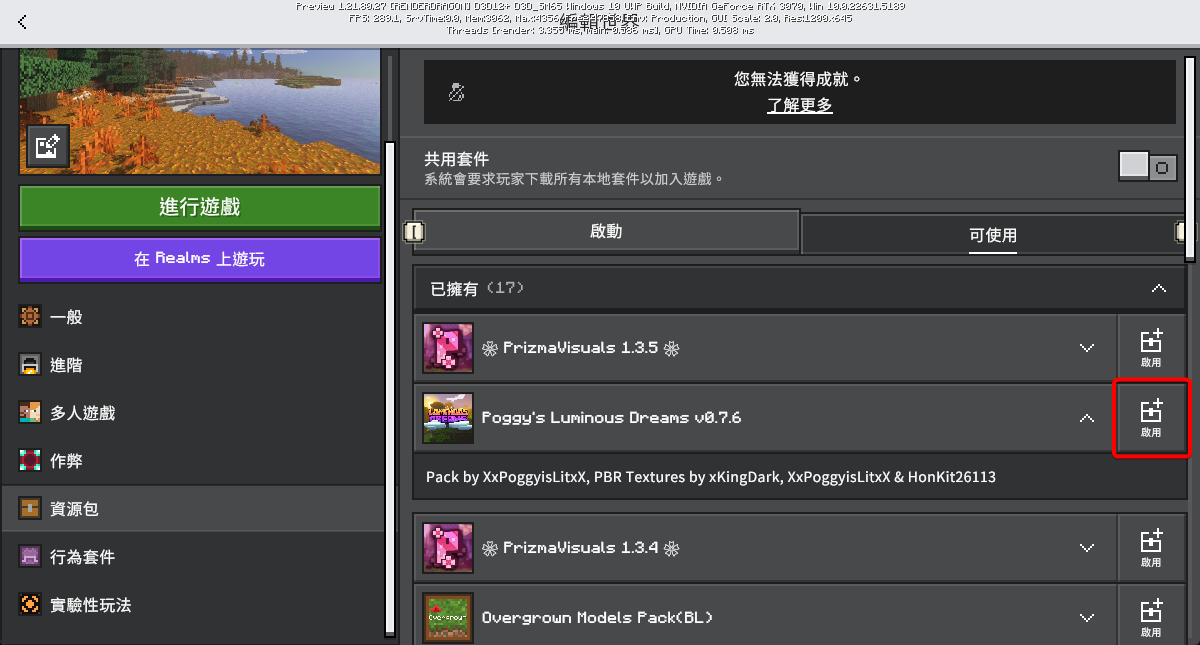
- Whether the pack is listed under “Resource Packs” > “Active” in the world settings.
- Whether the resource pack supports your current Minecraft version.
- Disable other resource packs and add-ons for now, then enter the world again.
When Vibrant Visuals is grayed out, leave the current world first and then change the setting. If you still can’t select it, follow Minecraft Help to check device support, drivers and incompatible packs.
Summary
The four resource packs differ in visual style, and the installation steps are the same: import the .mcpack, activate it in the world settings, and switch the graphics mode to Vibrant Visuals.