Table of contents
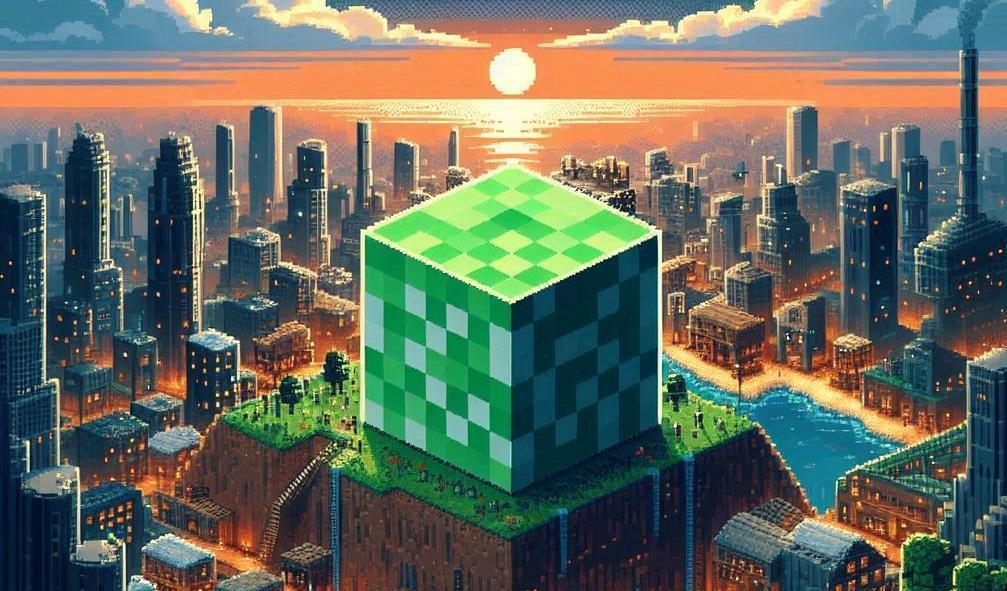
OneBlock is a map for Minecraft Java Edition that needs no mods, and it supports versions 1.15 to 26.1.
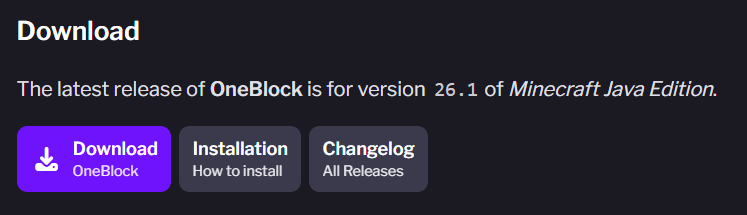
According to the OneBlock official page and its changelog, the newest version supports Minecraft Java 26.1. The map doesn’t support Bedrock Edition. Before you download it, check that the matching Java Edition version is installed in the Launcher, and back up an old world before you upgrade it.
Download the OneBlock map
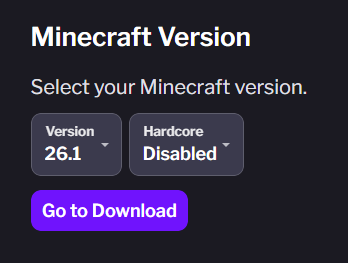
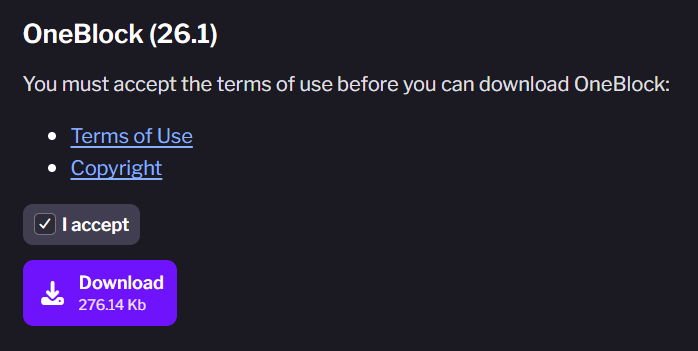
Go to the IJAMinecraft OneBlock page and click Download.
Install the map in the game
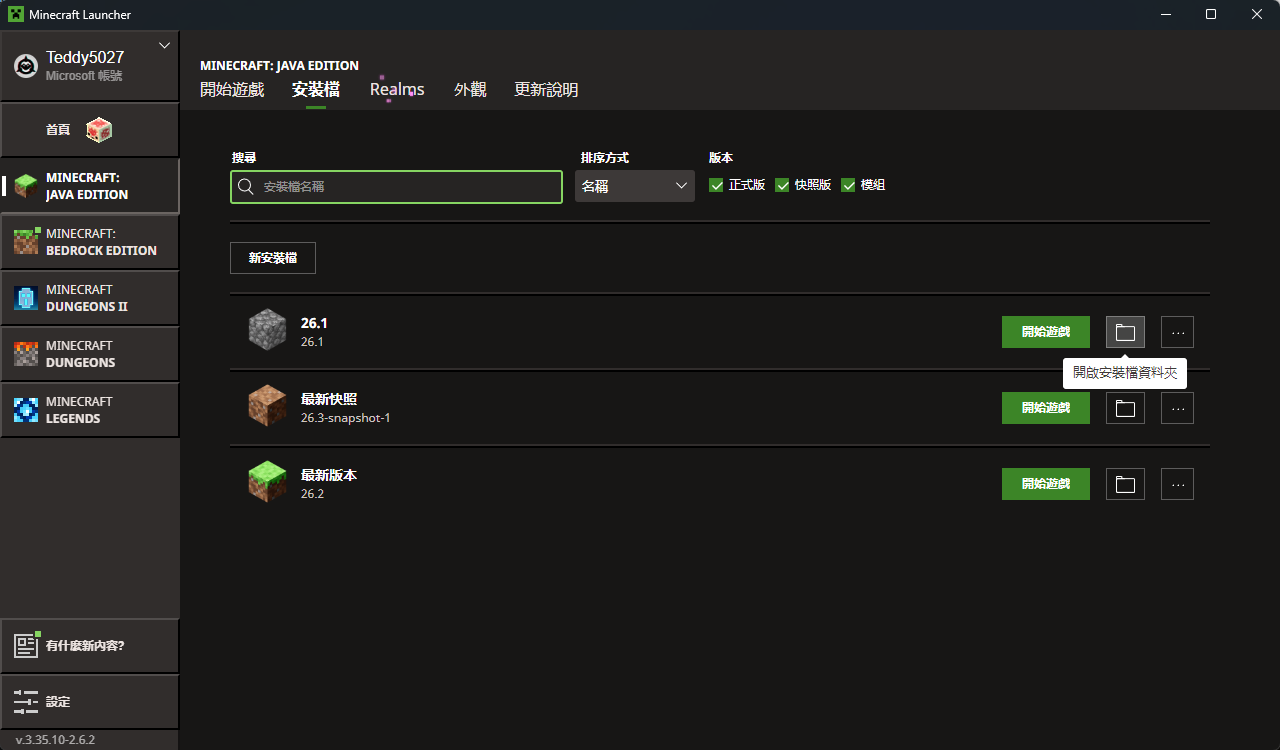
Open the Minecraft Launcher, switch to the Installations tab under Java Edition, and click the folder icon to the right of the game version you want, which opens the installation folder. The Launcher in the screenshot uses a Traditional Chinese interface. “安裝檔” is Installations and the tooltip “開啟安裝檔資料夾” belongs to the folder icon.
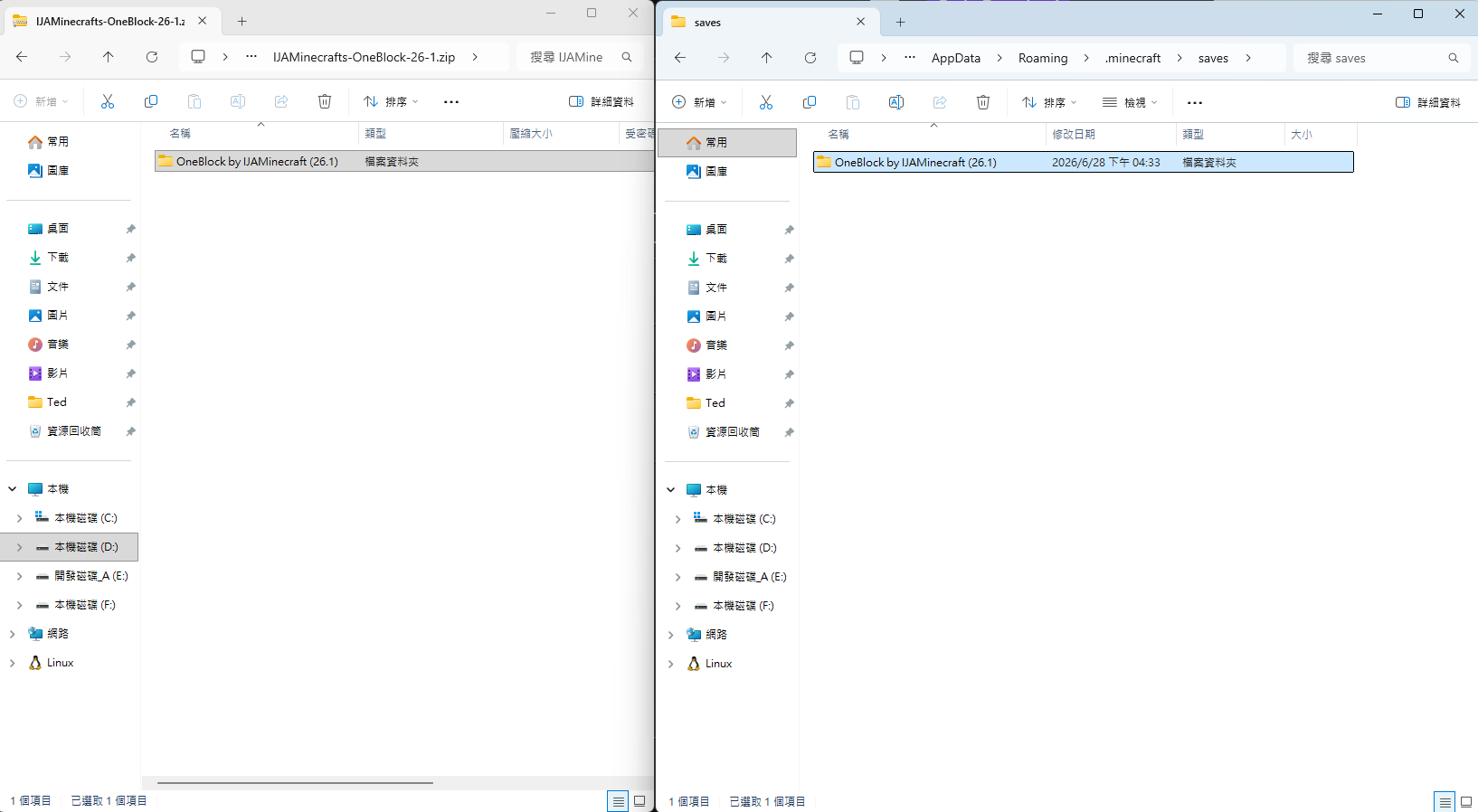
OneBlock by IJAMinecraft (<game version>) folder from the archive straight into the saves folder inside the installation folder.
Start playing OneBlock
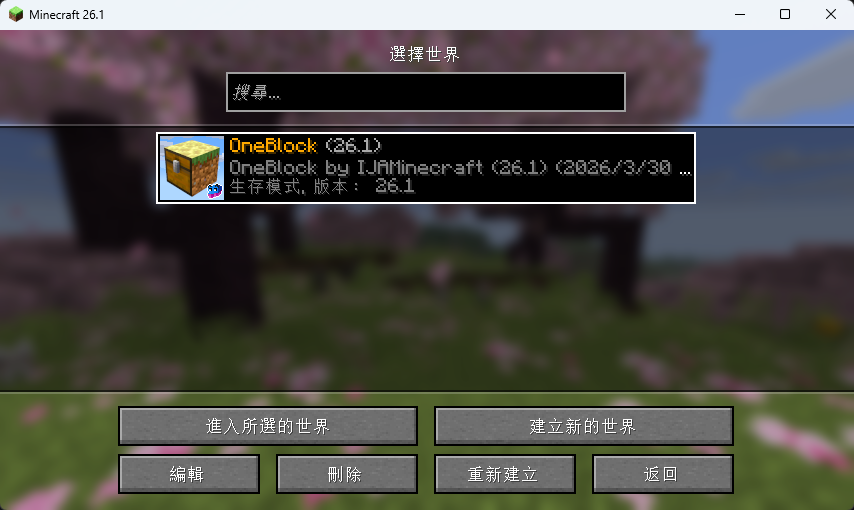
Open Minecraft, and the OneBlock map appears in the Singleplayer world list. In the screenshot, “選擇世界” is Select World, and the last line of the world entry, “生存模式, 版本: 26.1”, is “Survival Mode, Version: 26.1”.
Confirm the map installed correctly
Once the OneBlock world appears in the Singleplayer list, enter it once. The player should spawn on a single block in the void, and mining the block generates the next one. When both are true, the version, the folder level and the map data all loaded correctly.
If the world doesn’t show up
The most common cause is a ZIP file that hasn’t been extracted, or an extra wrapper folder. Open the OneBlock folder you put in saves. It should directly contain the world’s data files, not another folder with the same name. If the world opens but the block mechanics don’t work, check that the game version matches the map version you chose when you downloaded it, and don’t switch the original world back and forth between versions.
To remove the map, first leave the world in Minecraft, then back up any world folders you want to keep, and finally remove the OneBlock folder from the saves folder of the matching installation. This only removes that one world. You don’t need to uninstall Minecraft or delete any other saves.
Summary
OneBlock needs no mods, and a successful installation depends on the Java Edition version and the world folder level. If you can enter the world and start mining from a single block, the installation worked.