Prism Launcher guide: install a CurseForge modpack and handle blocked mods

Translated from the original Traditional Chinese version.

Summary

Prism Launcher is an open-source launcher that manages multiple Minecraft instances and can search for and install CurseForge modpacks directly. When a mod’s author forbids third-party downloads, click Open Missing, download the missing jar in your browser, and Prism continues the installation once it detects the file. I used Prism Launcher 11.1.1 and installed RLCraft to show the steps.

Table of contents

Prism Launcher can search for and install CurseForge modpacks directly, but CurseForge lets mod authors block downloads from third-party launchers. If a modpack contains such a mod, Prism shows the “Blocked mods found” window and asks you to download it manually in a browser. Click “Open Missing” to download the missing jar files into the folder Prism watches. When the window shows “All mods found”, click “OK” and the installation continues.

I installed RLCraft from CurseForge with Prism Launcher 11.1.1. This modpack has 2 mods that need a manual download.

The Prism screenshots in this article use a Traditional Chinese interface, with the same layout as English. The button and window names in the text are the English names.

Install Prism Launcher

Download the Installer for your CPU architecture (x86-64 or ARM64) from the official Prism Launcher download page. You can also install it with WinGet in Command Prompt:

1winget install --exact PrismLauncher.PrismLauncher

The first launch opens Quick Setup. On the Language page, pick the interface language from the list. The screenshot picks American English.
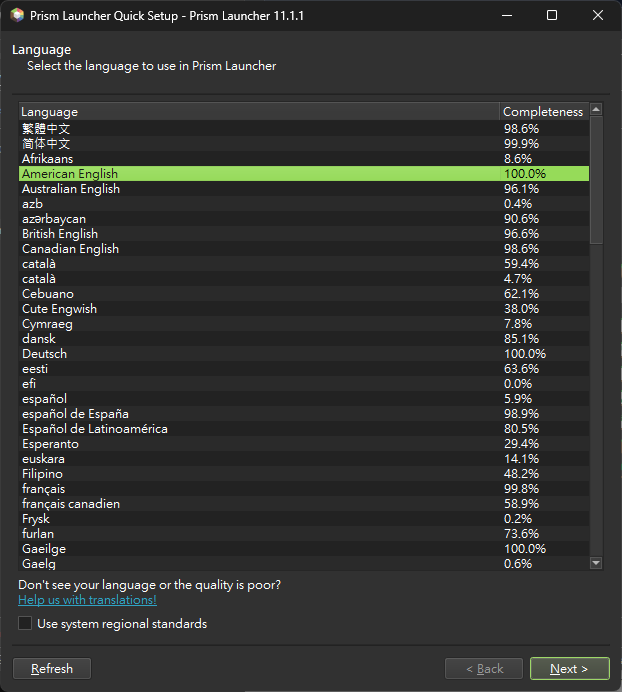
The Language page of Prism Launcher’s Quick Setup, with American English selected in the list
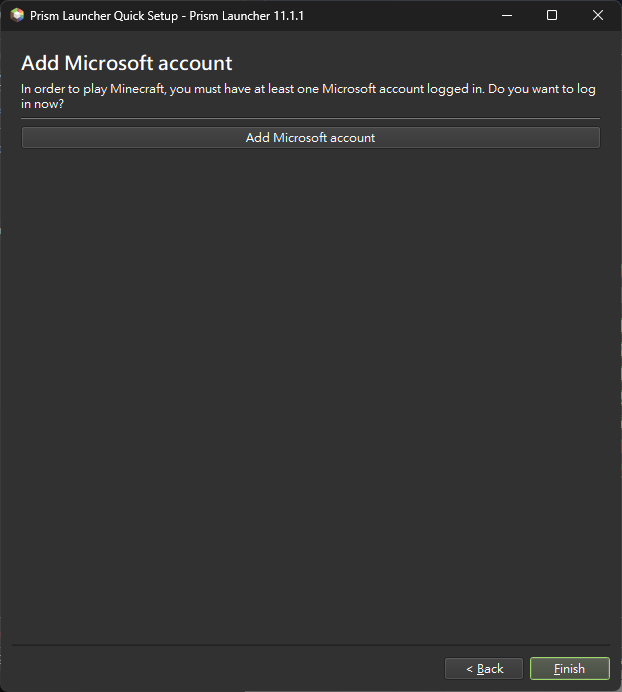
Click “Next >” through the pages that follow, where you set the appearance. The last page is “Add Microsoft account”. Prism needs you to sign in with a Microsoft account that owns Minecraft: Java Edition before it can launch the game. After you click the button, finish signing in in the browser as the screen directs.

The last page of Prism Launcher’s Quick Setup, showing the Add Microsoft account button

Create a modpack instance from CurseForge

In the main window, click “Add Instance” and choose “CurseForge” on the left. You can search for CurseForge modpacks, and the top of the page also notes which modpacks need a manual download.
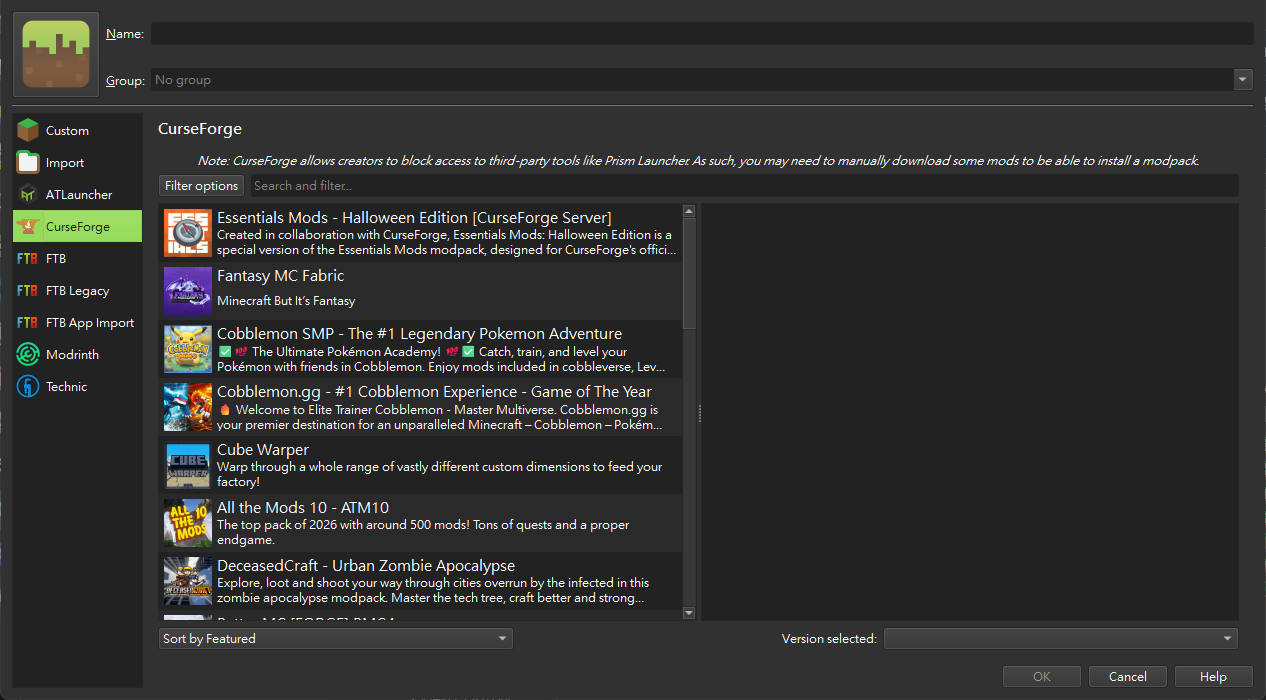
The CurseForge tab of the New Instance window, listing modpacks such as Cobblemon SMP and All the Mods 10
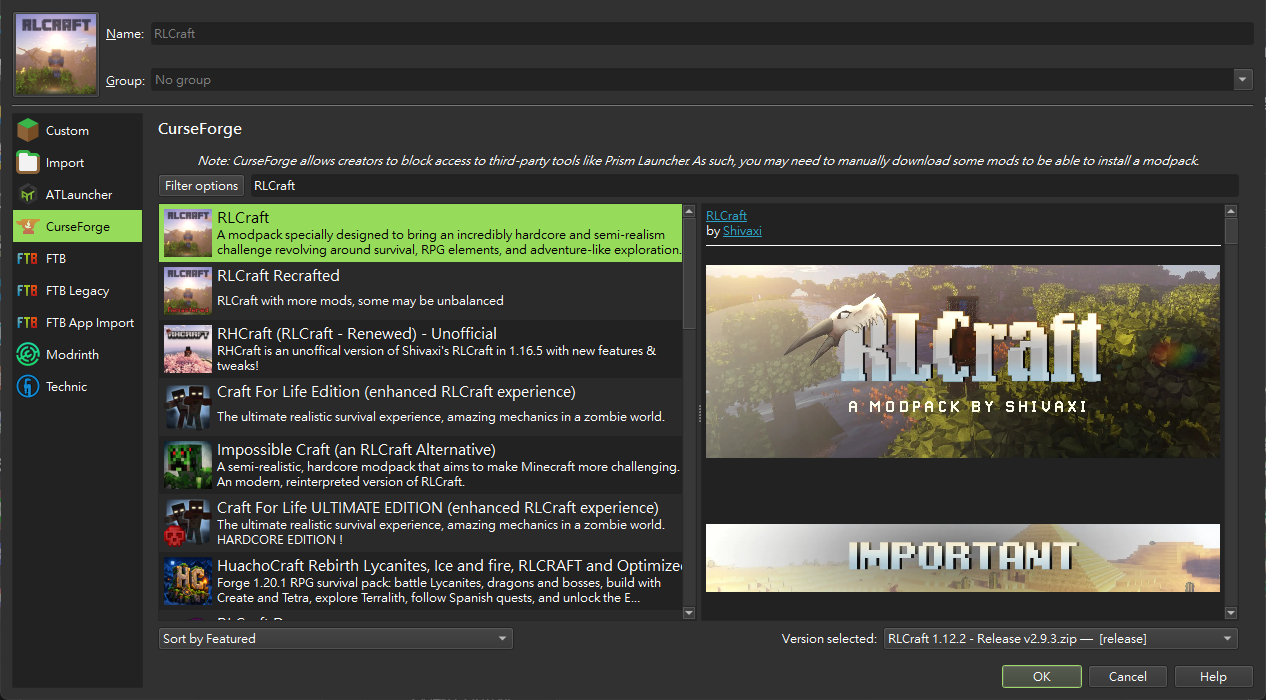
Click the modpack you want to install and the description shows on the right. You can change the version with “Version selected:” at the bottom right. After you confirm, click “OK”.

RLCraft selected with the modpack description on the right, and the selected version RLCraft 1.12.2 - Release v2.9.3

Download the blocked mods manually

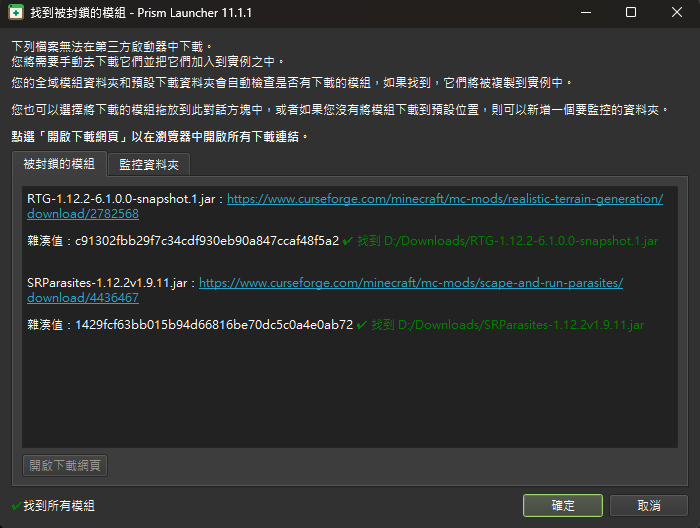
After Prism reads the modpack contents, if the author blocked any mod, the “Blocked mods found” window appears. It lists the name and the CurseForge download link of each file, with the status “Not Found”. This time RLCraft had two files to download manually, RTG-1.12.2-6.1.0.0-snapshot.1.jar and SRParasites-1.12.2v1.9.11.jar. While files are still missing, the button at the bottom right is “Skip”. If you click it, Prism skips the missing mods, and the modpack is incomplete.
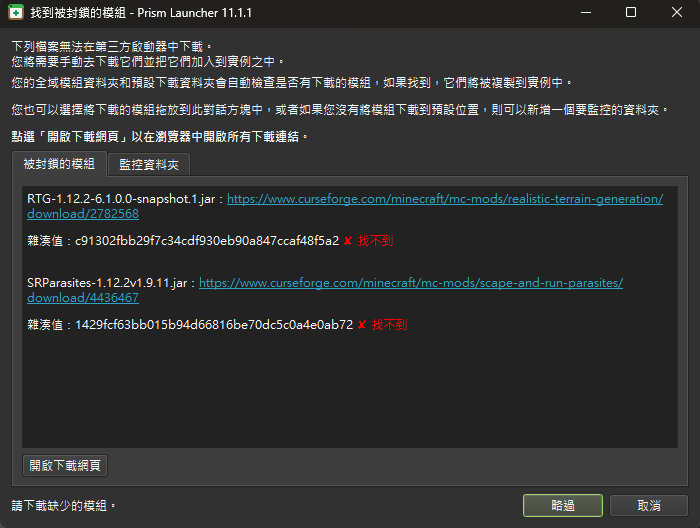
The Blocked mods found window listing download links for the RTG and SRParasites jar files, both with status Not Found, and the Skip button at the bottom right
Before you download, switch to the “Watched Folders” tab and check that your browser’s download location is in the list. In this example it is D:/Downloads. If your download location is not in the list, click “Add Download Folder” to add it. You can also drag the jar files into this window after you download them.
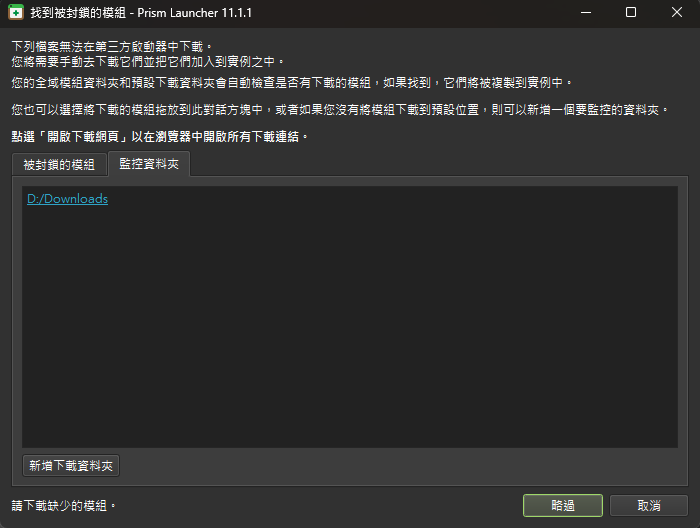
The Watched Folders tab of the Blocked Mods window, with D:/Downloads in the list and the Add Download Folder button below
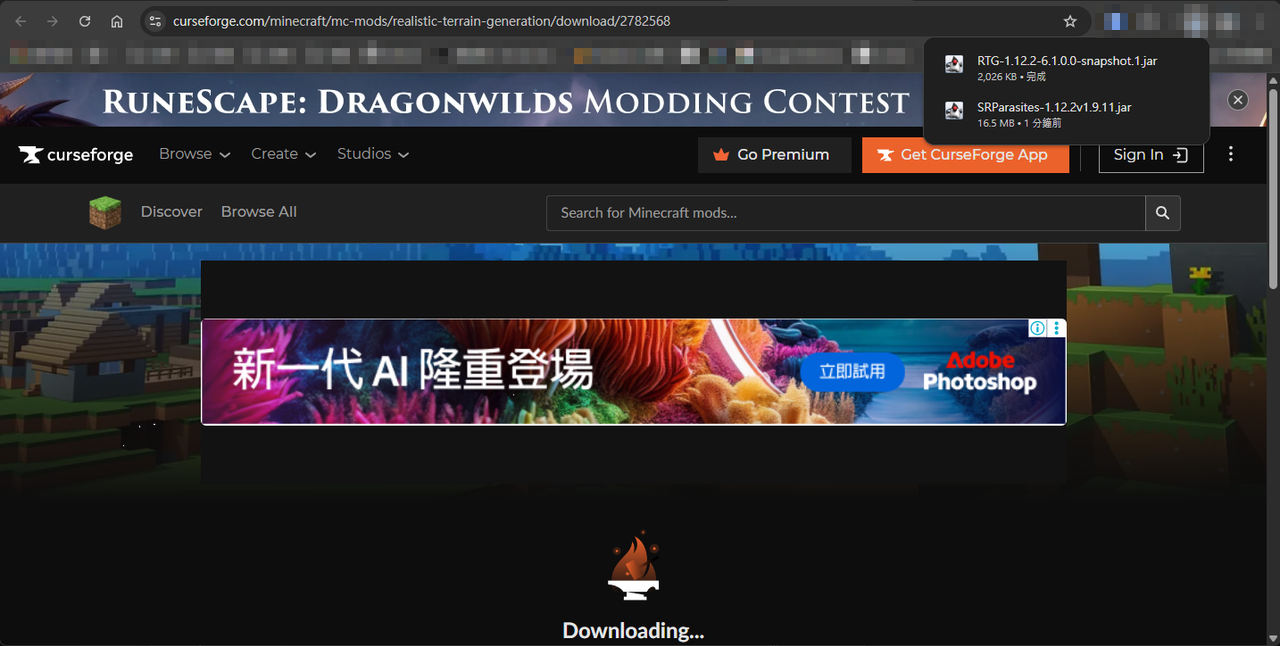
Go back to the “Blocked Mods” tab and click “Open Missing” below the list. The browser opens one CurseForge download page per file, and after a page loads, the download starts automatically. In my test, the download in a background tab did not start by itself, and it only started after I switched to that tab. Every jar has to show up in the browser’s download list.

CurseForge download pages and the browser’s download list, with both the RTG and SRParasites jar files downloaded
When Prism finds the files, the status of each item changes to “Found at” followed by the file path. “All mods found” appears at the bottom left, and the button at the bottom right changes from “Skip” to “OK”. Click “OK” now.

The Blocked Mods window with both files shown as found with the path in D:/Downloads, All mods found at the bottom left, and the OK button at the bottom right

Finish the installation and launch

After you click “OK”, Prism continues to download the other mods in the modpack and copies the manually downloaded files into the instance’s mods folder. RLCraft has 185 mods in total, and the progress window shows the file being downloaded and the number completed.
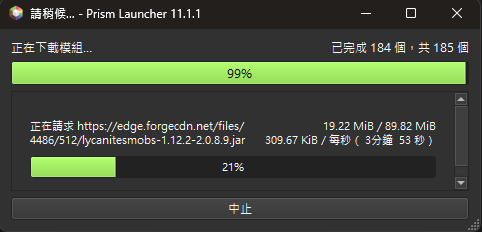
The Please wait… window showing mods being downloaded, 184 of 185 completed
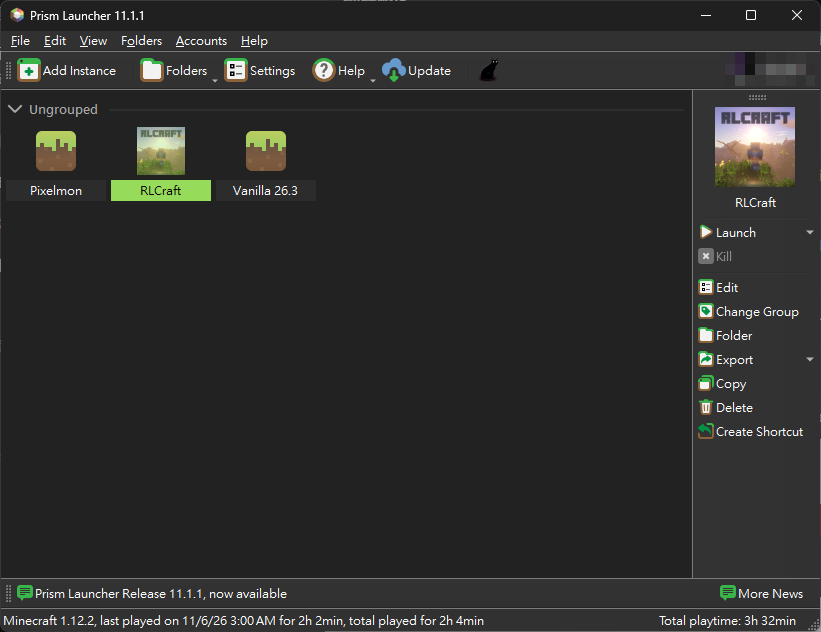
When the installation finishes, RLCraft shows up in the instance list of the main window. Select the instance and click “Launch” on the right. In my test, Prism first downloaded the Java runtime and the game files that Minecraft 1.12.2 needs, and then opened the game.

Prism Launcher’s main window with RLCraft in the instance list and the Launch button on the right
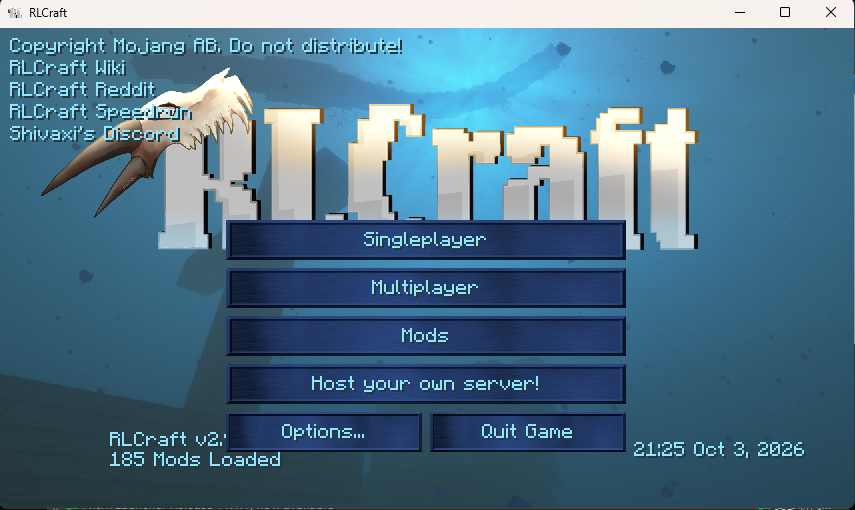
When the game finishes loading, the RLCraft title screen shows “185 Mods Loaded” at the bottom left.

The RLCraft title screen with 185 Mods Loaded at the bottom left

Summary

Blocked mods only need to be downloaded into a watched folder. Prism detects them and copies them into the instance. This is how the 2 RLCraft mods were filled in, and after launch the game showed 185 Mods Loaded.

Where to go next

PreviousMinecraft Bedrock shader packs: four Vibrant Visuals resource packs and how to install themGamesNextWord on Mac replaces a Windows font and the layout shifts: install DFKai-SB (kaiu.ttf)Workflow
Ted Liou

Ted Liou

Software engineer writing about Unity and AI development. Available for consulting.