Table of contents
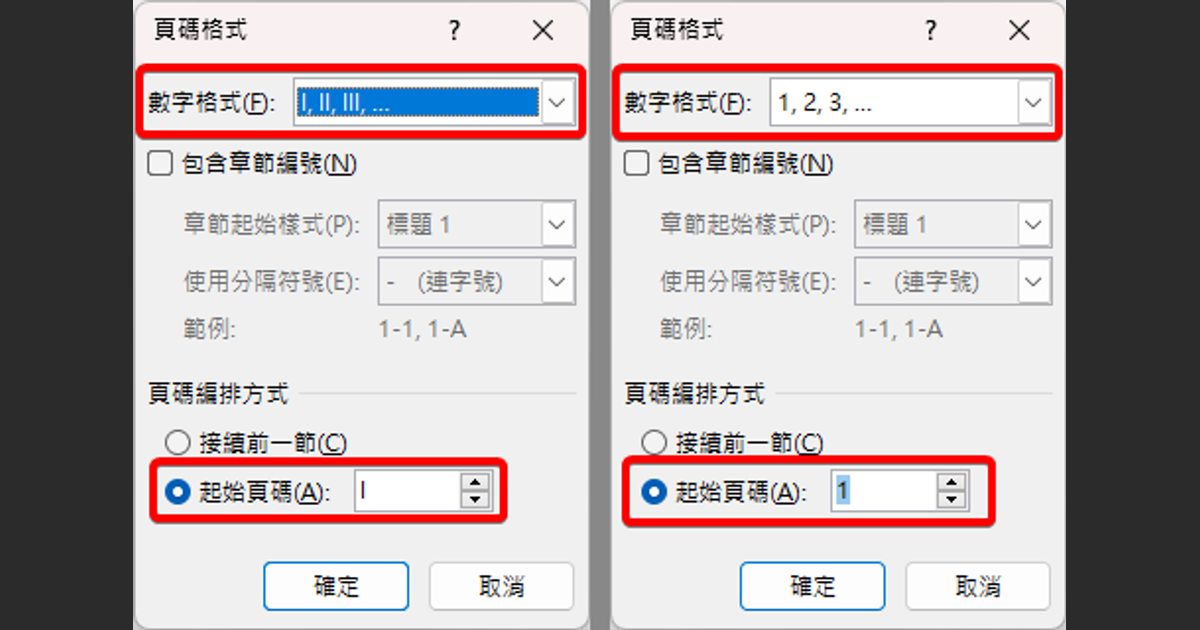
If your thesis or report format wants no page number on the title page, Roman numerals on the front matter, and Arabic numerals starting at 1 on the body, a single page number setting won’t do it. One section in Word can have only one page number setting. Split the document into three sections with Next Page section breaks, then go to the footers of the table of contents and body sections, turn off Link to Previous, and set each section’s page numbers on its own.
I used Word for Windows with a sample document of three pages: a title page, a table of contents, and an introduction. My Word runs in Traditional Chinese, so the screenshots show Chinese labels. The text gives the English name of each command and field, and the alt text says what each screenshot shows.
Split the document into three sections
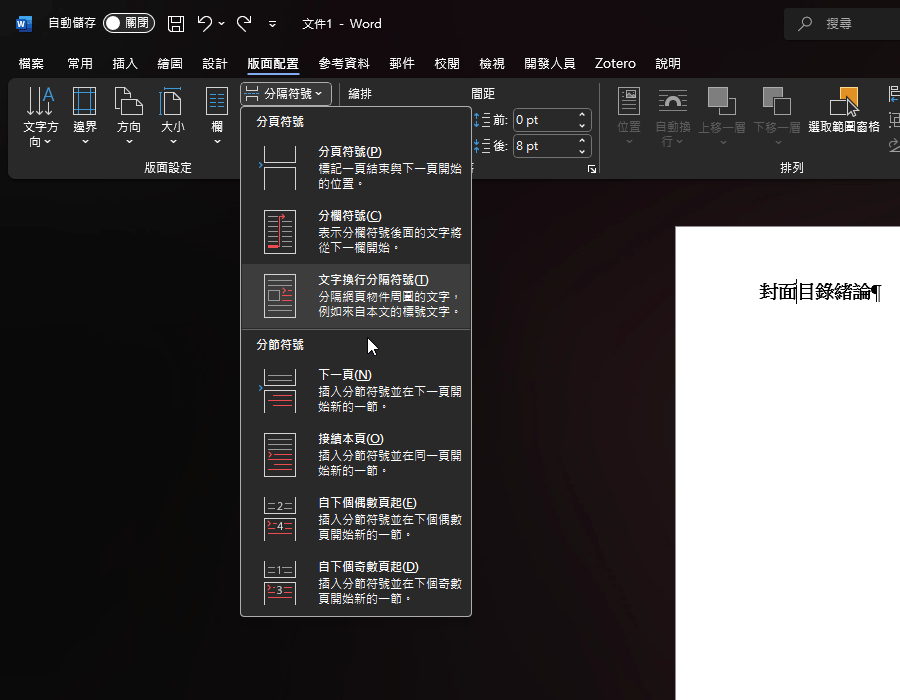
Put the cursor at the end of the title page and go to Layout > Breaks > Next Page. The table of contents now starts on a new page and becomes section 2. Put the cursor at the end of the table of contents and insert another Next Page section break. The introduction and everything after it become section 3.

Section 2: Roman numerals for the front matter
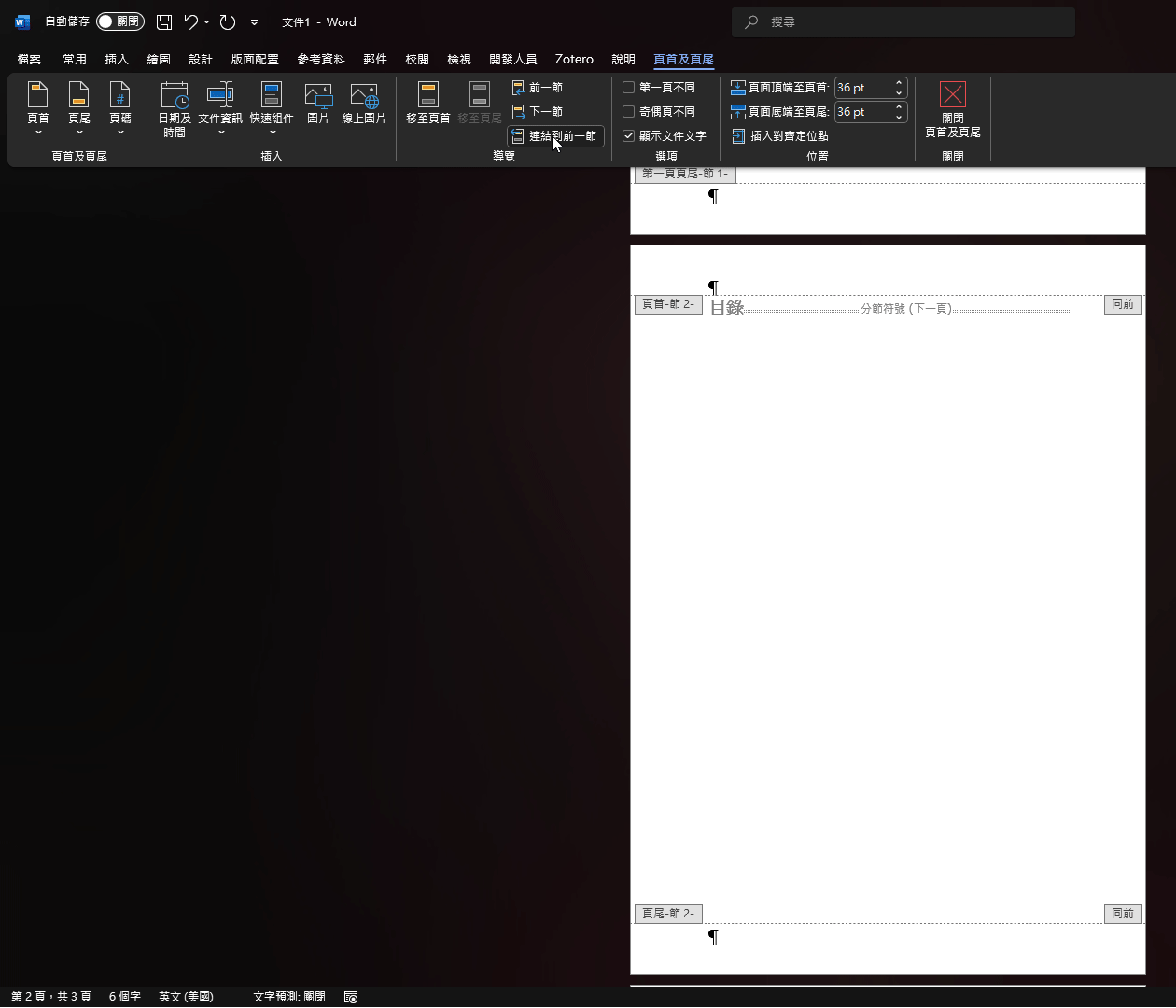
Double-click the footer on the table of contents page to edit it. The left side of the footer reads Footer -Section 2-, and Same as Previous on the right means this section reuses the previous section’s footer. In the screenshot, section 1 has Different First Page turned on, so its footer reads First Page Footer. That doesn’t affect the later steps. On the Header & Footer tab, click Link to Previous to turn it off. Same as Previous disappears, and the page number you set next won’t reach the title page.
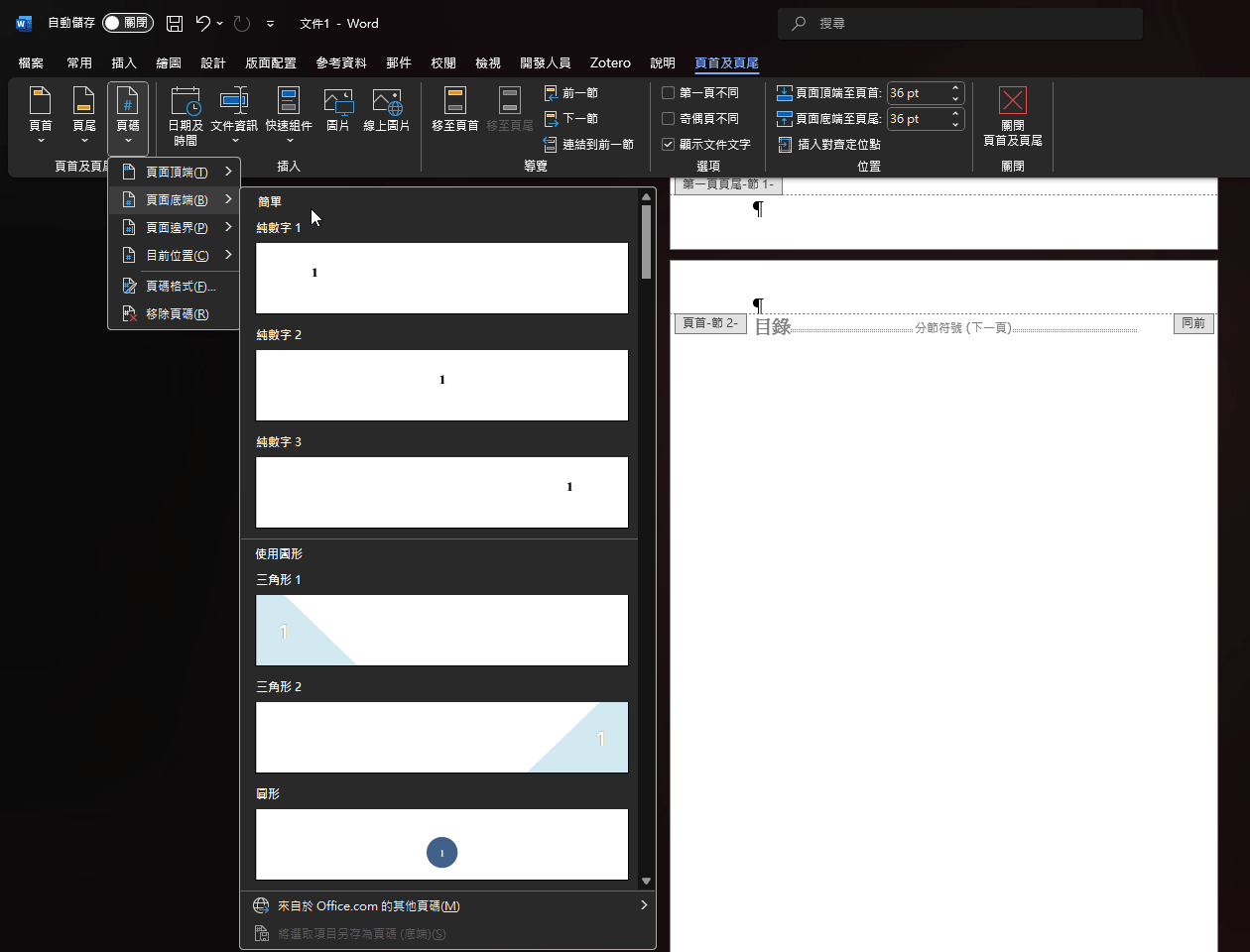
Next, on the same tab, go to Page Number > Bottom of Page and choose where the number goes. For example, Plain Number 2 is centered.
Page Number > Format Page Numbers. Set Number format to I, II, III, … and, under Page numbering, select Start at and set it to I. My sample uses uppercase numerals. Microsoft’s example uses lowercase i, ii, iii, which is a choice in the same list if your format asks for it, though I tested only uppercase.

Section 3: Start the body at 1
Go to the footer on the introduction page and turn off Link to Previous there too. Then insert a number with Page Number > Bottom of Page, open Page Number > Format Page Numbers, set Number format to 1, 2, 3, …, and set Start at to 1.

Add pages later
To add an abstract, acknowledgments, or a new chapter within a section, start the new page with Insert > Page Break or Ctrl + Enter. The new page continues that section’s numbering. You need another section break only when the page number format or the header and footer have to change.
Summary
Split page numbers into three sections for the title page, front matter, and body, so each section can have its own settings. If editing one section’s footer also changes the previous section’s footer, this section’s link is still on.