Table of contents
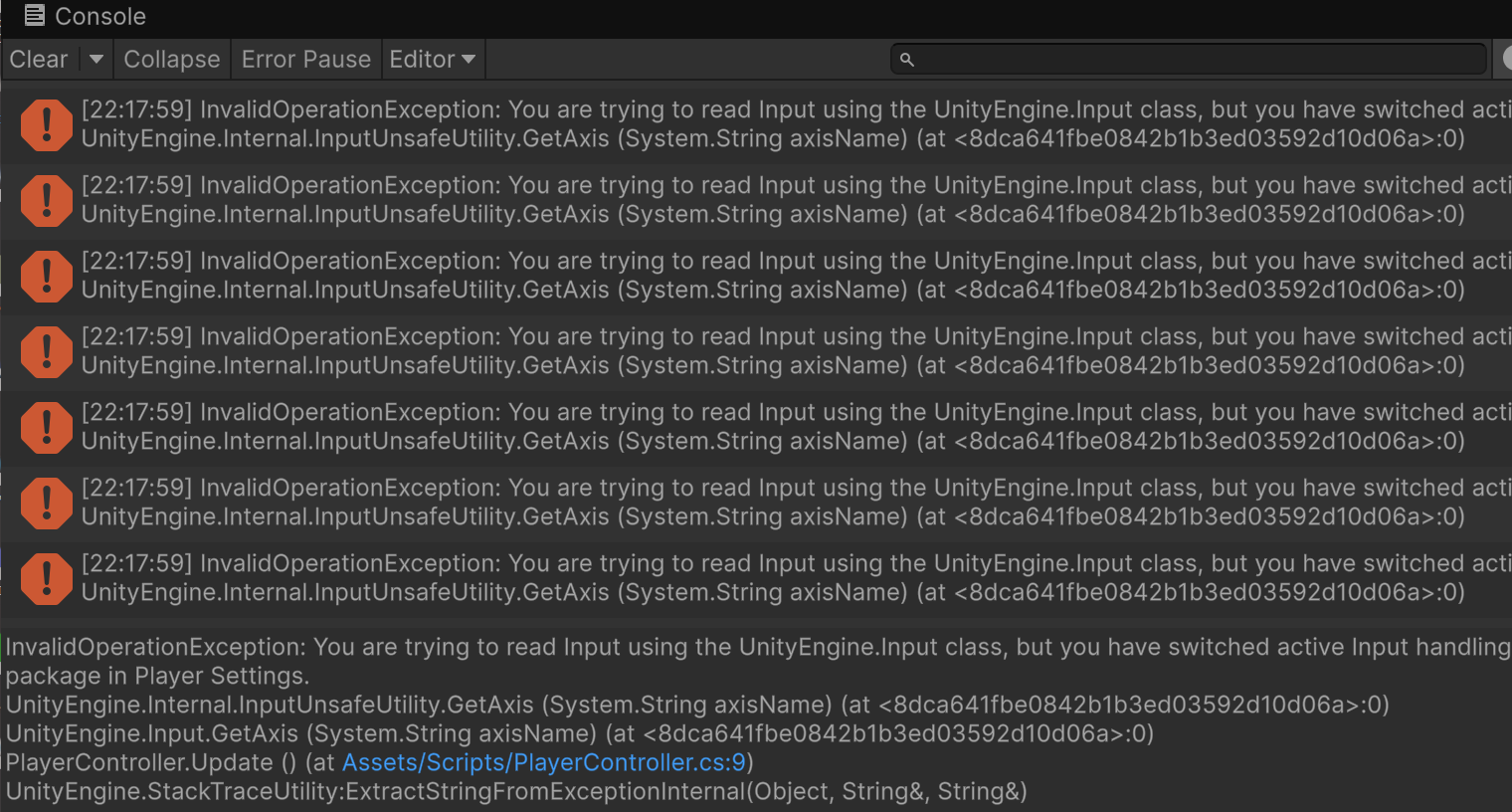
You create a project from a Unity 6 template, read the arrow keys with Input.GetAxis and the space bar with Input.GetKeyDown in a script’s Update, and press Play. The Console keeps printing the same error, and your character does not move:
1InvalidOperationException: You are trying to read Input using the UnityEngine.Input class, but you have switched active Input handling to Input System package in Player Settings.
Unity 6 templates enable only the new Input System by default, and in that setting any call to UnityEngine.Input, the API most projects used up to Unity 2022, throws an exception. Rewrite your input code with the Input Actions that the template already includes, and the error goes away and movement and jumping work as before.
I tested on Windows 11 with the 3D URP template in Unity 6000.6.10f1 and Input System package 1.20.1. I also created a new project in Unity 6000.7.0b10, and the template defaults and the error message were the same.
Find the source of the error
Click the error in the Console to see the stack trace below it. In the screenshot, the first line that belongs to your own script is PlayerController.cs line 9, where the script calls Input.GetAxis:
Match what appears in the stack trace against this table to see what to change:
| In the stack trace | What is happening | What to do |
|---|---|---|
Your own script and a line number, such as PlayerController.cs:9 |
Your script calls Input.GetKey, Input.GetAxis, or a similar API |
Rewrite it with Input Actions, covered in the next section |
StandaloneInputModule.UpdateModule, with none of your scripts |
The scene’s EventSystem uses the old UI input component | Replace it with InputSystemUIInputModule |
| A script inside an asset package folder that you did not write | The asset package still uses UnityEngine.Input |
Set Active Input Handling to Both for now |
Input.GetKey, Input.GetAxis, Input.mousePosition, Input.GetMouseButtonDown, Input.GetButtonDown, and Input.anyKey all throw the same message. Update stops at the first line that calls Input, so the rest of the method never runs. After you fix that line, the next Input.GetAxis or Input.mousePosition throws the same error.
Read movement and jumping with Input Actions
Unity 6 templates already include an InputSystem_Actions asset that groups keys into actions, such as Move bound to WASD and the arrow keys and Jump bound to the space bar. The asset is set up as the project-wide actions and is enabled when you enter Play Mode without a call to Enable(), so your code only needs to find an action by name to read its value.
Change PlayerController to the following. FindAction looks up an action by name, and it runs once in Start because the official documentation warns that a string lookup in Update every frame can hurt performance:
1using UnityEngine;
2using UnityEngine.InputSystem;
3
4public class PlayerController : MonoBehaviour
5{
6    public float speed = 5f;
7
8    InputAction moveAction;
9    InputAction jumpAction;
10
11    void Start()
12    {
13        moveAction = InputSystem.actions.FindAction("Move");
14        jumpAction = InputSystem.actions.FindAction("Jump");
15    }
16
17    void Update()
18    {
19        Vector2 move = moveAction.ReadValue<Vector2>();
20        transform.Translate(new Vector3(move.x, 0f, move.y) * speed * Time.deltaTime);
21
22        if (jumpAction.WasPressedThisFrame())
23        {
24            Debug.Log("Jump");
25        }
26    }
27}
Save it and press Play. Holding W moves the object forward, each press of the space bar prints Jump once in the Console, and the exception no longer appears.
Move returns a Vector2, with x for left and right and y for forward and back. Holding W and D together gives 0.7071 for both values, so moving diagonally is not faster than moving straight. The template’s Move is also bound to a gamepad’s left stick, and to change keys you edit the bindings in InputSystem_Actions instead of the code.
Rewrite other Input calls
If your script has other Input calls, first check which keys the template has already turned into actions. Double-click Assets/InputSystem_Actions in the Project window to open the Input Actions editor. Select Player and expand Move to see the WASD and arrow key bindings:
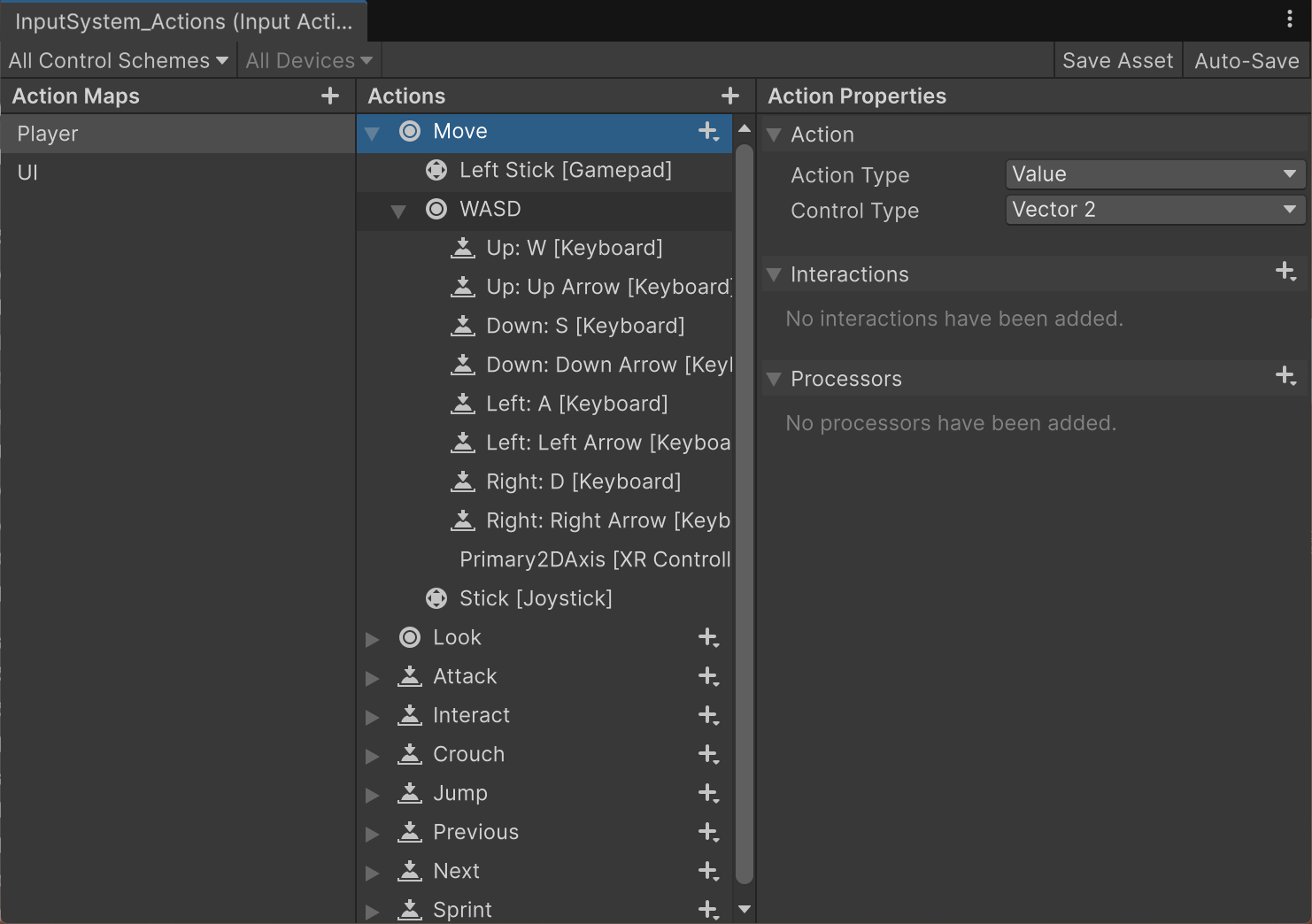
In the 2D template, InputSystem_Actions is in Assets/Settings/, and its actions and bindings match the 3D template. Besides Move, the template binds keyboard and mouse controls for looking, attacking, jumping, and more:
| Action | Type | Keyboard and mouse bindings |
|---|---|---|
| Move | Vector2 | W, A, S, D, and the arrow keys |
| Look | Vector2 | Mouse movement |
| Attack | Button | Left mouse button, Enter |
| Interact | Button | E (hold) |
| Crouch | Button | C |
| Jump | Button | Space bar |
| Sprint | Button | Left Shift |
| Previous, Next | Button | 1, 2 |
You can replace common calls with these actions. For example, code that read the space bar now reads Jump, and code that read the left mouse button now reads Attack. Attack is also bound to Enter, so after the swap Enter triggers it too. If you want only the left mouse button, remove the Enter binding in the Input Actions editor:
| Old code | Input Actions | Read the keyboard and mouse directly |
|---|---|---|
Input.GetKey(KeyCode.Space) |
jumpAction.IsPressed() |
Keyboard.current.spaceKey.isPressed |
Input.GetKeyDown(KeyCode.Space) |
jumpAction.WasPressedThisFrame() |
Keyboard.current.spaceKey.wasPressedThisFrame |
Input.GetKeyUp(KeyCode.Space) |
jumpAction.WasReleasedThisFrame() |
Keyboard.current.spaceKey.wasReleasedThisFrame |
Input.GetMouseButtonDown(0) |
attackAction.WasPressedThisFrame() |
Mouse.current.leftButton.wasPressedThisFrame |
Reading the keyboard directly also needs using UnityEngine.InputSystem; at the top of the file. It takes the fewest changes, but the keys end up hard-coded, so supporting a gamepad later means changing the code again. On platforms without a keyboard, Keyboard.current is null.
Input.GetAxis("Horizontal") and "Vertical" map to Move’s ReadValue<Vector2>(). Input.GetAxis ramps the value up gradually according to the Gravity and Sensitivity settings in the Input Manager, while Move jumps straight to 1 when you press a key. If your code relied on that ramp for acceleration, compute the ramp yourself with Time.deltaTime.
The template’s Player has no action for the mouse position, so replace Input.mousePosition with Mouse.current.position.ReadValue(). It returns a Vector2, while Input.mousePosition returned a Vector3.
Replace the EventSystem’s input component
When the stack trace shows StandaloneInputModule.UpdateModule and none of your scripts, the error comes from the scene’s EventSystem. The Console shows this error even if your own scripts never use Input.
Select the EventSystem in the scene. Under Standalone Input Module in the Inspector, a “Replace with InputSystemUIInputModule” button swaps in the new component:

After the swap, press Play. The Console stays clear and the buttons respond to clicks. In Unity 6, buttons you add from the GameObject > UI (Canvas) menu create an EventSystem that already uses the new component, so there is nothing to replace.
Set Active Input Handling to Both for now
When an asset package’s scripts still use UnityEngine.Input and you do not plan to rewrite them yourself, you can set Active Input Handling to Both so the two input systems run side by side. The setting is in Edit > Project Settings > Player > Other Settings, and a new project has it set to Input System Package (New):
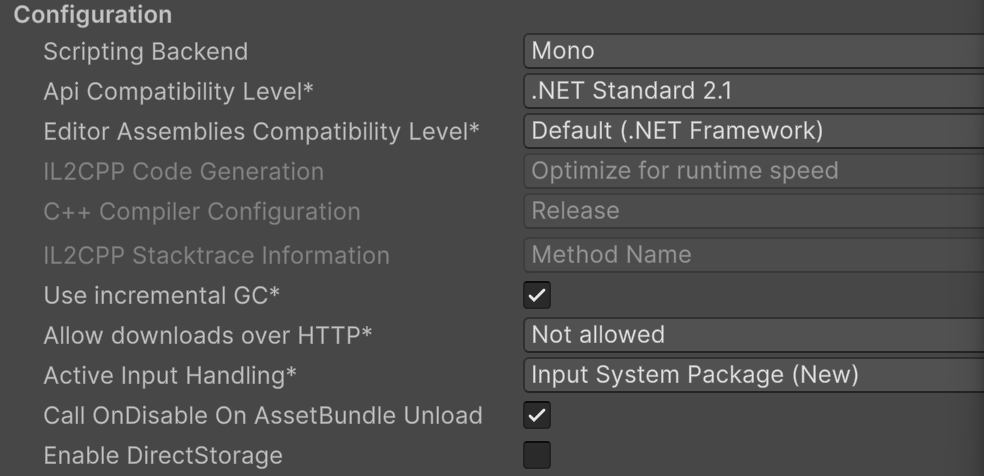
When you choose Both, a “Unity editor restart required” dialog appears. Select Apply to restart the Editor, or Cancel to undo the change. After the Editor restarts, the old code no longer throws the exception, and Input Actions keep working.
Treat this setting as a stopgap. The Unity 6.6 manual marks the old Input Manager as deprecated and says a future version will remove it, without naming the version.
Test notes
I created a project from the 3D URP template with Unity CLI, simulated key presses with the Input System test tools, and checked each approach in Play Mode:
| Test | Result |
|---|---|
| Default Active Input Handling | Input System Package (New) in both the 3D URP and 2D templates |
An object with an Input.GetKey script, run for 10 frames |
10 exceptions, and Update stopped at the first line every time |
| Move: hold W | (0, 1) |
| Move: hold W and D | (0.7071, 0.7071) |
| Jump: hold the space bar for 3 frames | WasPressedThisFrame once, IsPressed true for all 3 frames |
| Attack: press the left mouse button and Enter once each | Triggered twice |
| EventSystem with StandaloneInputModule, run for 10 frames | 10 exceptions, none of your scripts in the stack trace |
| Click a button after switching to InputSystemUIInputModule | No exception, onClick fired once |
| Switch to Both and restart the Editor | None of the 6 old calls threw the exception |
| The rewritten script on an object in the Editor, with real key presses | With speed 5, holding W for about 1.5 seconds moved the object forward 7.5 units, and pressing the space bar twice printed Jump twice |
Summary
Input Actions fix only the scripts you rewrite yourself. When the stack trace points to the EventSystem or an asset package, replace the input component or switch to Both for now. With the rewritten script on an object and real key presses, holding W moved the object forward and the space bar printed Jump, and after switching the EventSystem to InputSystemUIInputModule the buttons responded to clicks.
Further reading