Table of contents
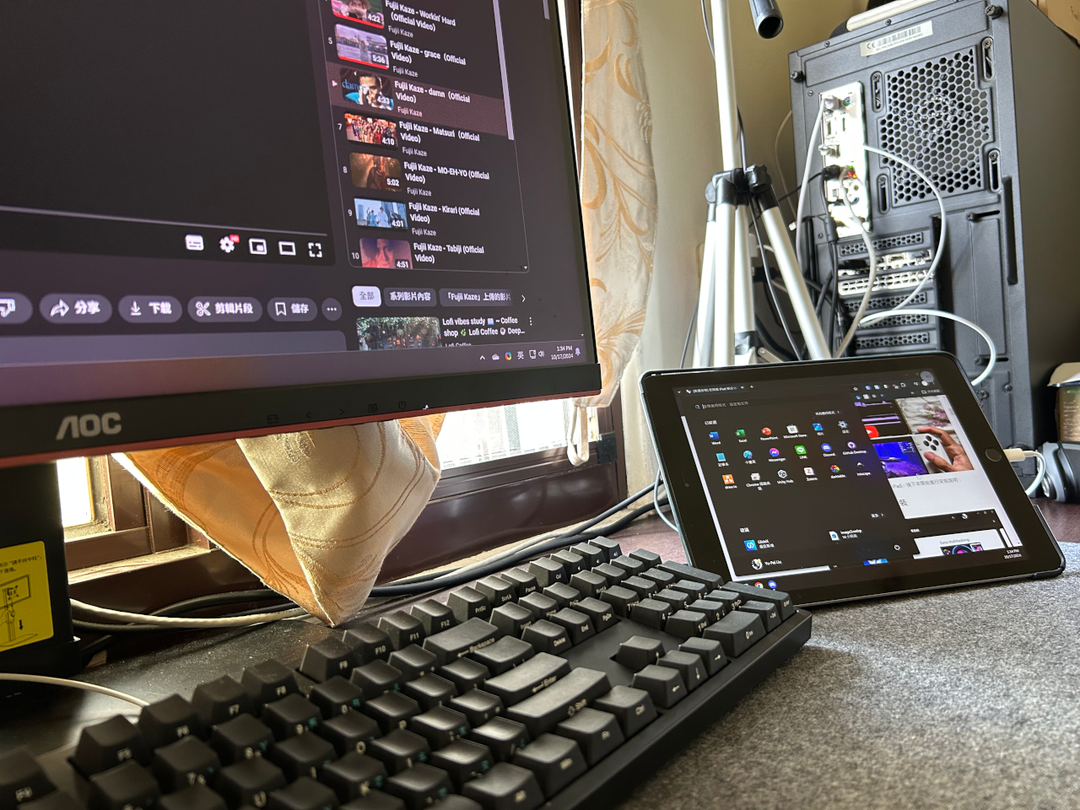
If you work on Windows and want one more screen for documents or reference material, you can turn an iPad into a second monitor. Install GlideX on both devices, choose “Extend”, and you can drag app windows from your PC onto the iPad. Both Wi-Fi and USB connections are supported.
The thumbnail and the permission screenshot are from 2024.
Install GlideX
On Windows, search the Microsoft Store for “ASUS GlideX”. On the iPad, search the App Store for “GlideX” and check that the developer is ASUS. You can also find the download links on the ASUS GlideX website.
ASUS currently lists Windows 10 version 1909 or later, or Windows 11 (64-bit), and Windows in S mode is not supported. The iPad needs iPadOS 14 or later. Extend also works on PCs from other brands. The standard version can connect one display device, with video quality up to 1080p at 60 FPS, and actual performance depends on your devices and connection. For the differences between versions, see ASUS’s overview.
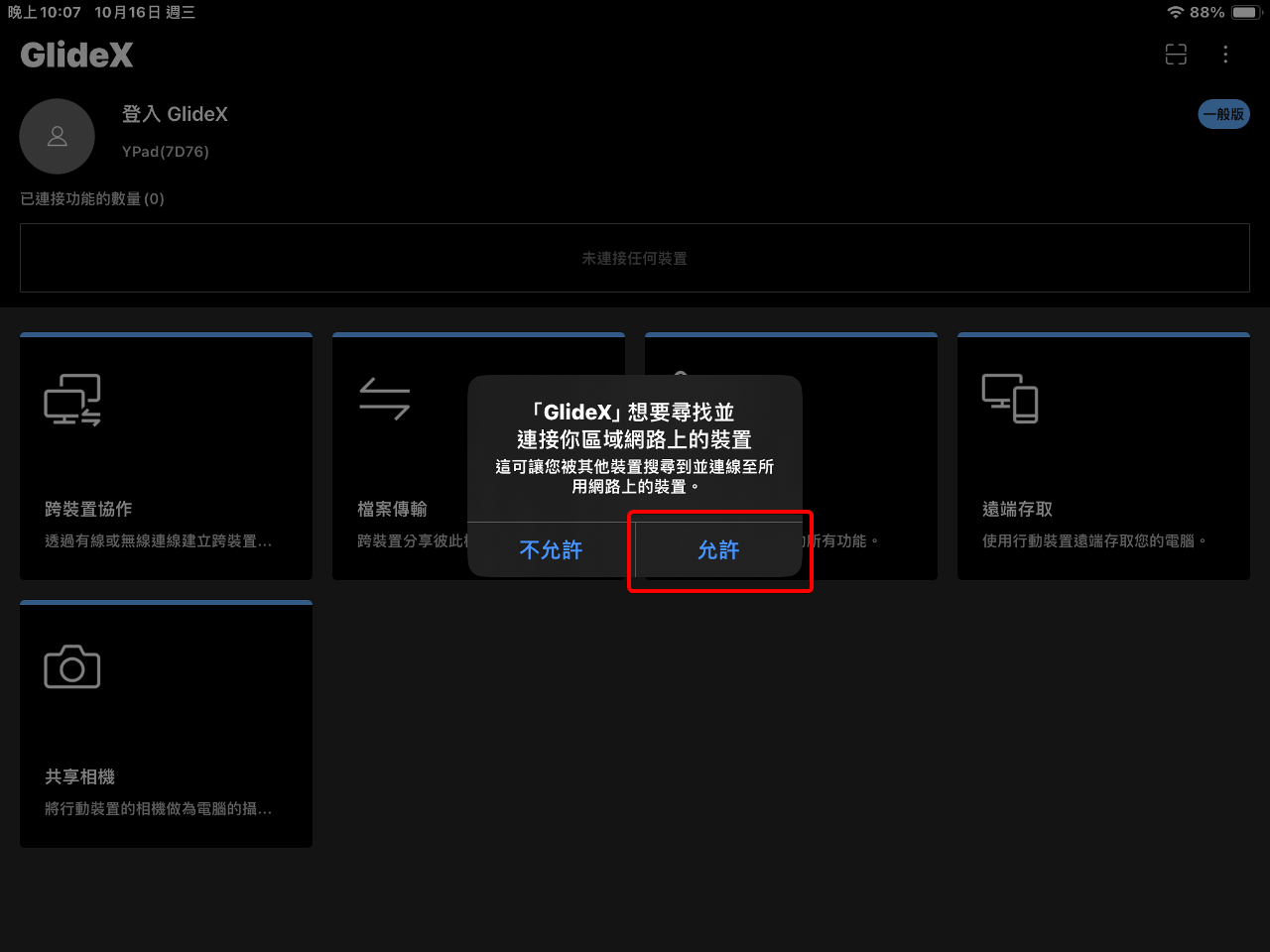
Open GlideX on both devices and finish the first-time setup. When the iPad asks for local network access, choose “Allow”. Without it, Windows cannot find the iPad on your network.
The iPad in this screenshot uses a Traditional Chinese interface. The prompt says GlideX wants to find and connect to devices on your local network, and the red box marks the “Allow” button (the right-hand button; the left one is “Don’t Allow”).
Extend the desktop over Wi-Fi
- Connect Windows and the iPad to the same local network. Windows can also use an Ethernet cable to the same router.
- Open GlideX on both devices. Keep the iPad inside the app with the screen on while you use it.
- In GlideX on Windows, choose “Extend → Device”, find the iPad and start the connection, then accept the request on the iPad.
- Drag a Windows window past the edge of the screen and check that it appears on the iPad. If both screens show the same content, go to “Device preferences” and change the mode to “Extend”.
- In “Device preferences”, adjust the screen arrangement to match how the screens sit on your desk, then click “Apply”.
You can compare the interface with ASUS’s Extend guide. You can also change the arrangement in Windows under Settings → System → Display. Click “Identify” to confirm the number of the iPad, then drag the screen boxes. If the iPad sits on your right but you have to move the mouse left to reach it, you need to change the arrangement. For details, see Microsoft’s multiple monitors guide.
Connect over USB
USB needs a cable that can carry data. A charge-only cable cannot extend the desktop. The steps below follow ASUS’s connection guide:
- Install the 64-bit version of iTunes on Windows, which also installs the USB driver the iPad needs. Do not use the Microsoft Store version. ASUS says it can cause compatibility problems.
- Unlock the iPad and plug it into the PC. When the “Trust This Computer” prompt appears, choose “Trust”.
- Open iTunes and check that it recognizes the iPad.
- Open GlideX on both devices, select the iPad in GlideX on Windows, check that a USB icon appears next to the device, then connect with Extend.
- Drag a Windows window onto the iPad and check that the extended desktop works. The screen position uses the arrangement from the previous section.
Apple’s current documentation uses the Apple Devices app to recognize an iPad. GlideX’s USB driver installation still follows the iTunes route that ASUS specifies.
If the iPad is not found or the connection is poor
If both devices show the same Wi-Fi name but Windows cannot find the iPad, a work or guest network may block devices from reaching each other. Test on a network you manage to confirm.
If USB does not connect, first check whether Windows recognizes the iPad. Apple’s troubleshooting guide for a computer that does not recognize an iPhone or iPad suggests tapping Trust in the “Trust This Computer?” prompt, checking that the cable can carry data, and trying a different USB port.
If the picture appears but the wireless connection lags, you can follow ASUS’s advice to switch to 5 GHz Wi-Fi or move closer to the router. You can also try USB to see whether the lag comes from the wireless link.
Summary
Once GlideX is connected, you can move documents to the iPad and keep the main Windows screen for the work in front of you. If the iPad is not found, check the network and permissions first. For USB, confirm the PC recognizes the device before you set up Extend.