Table of contents
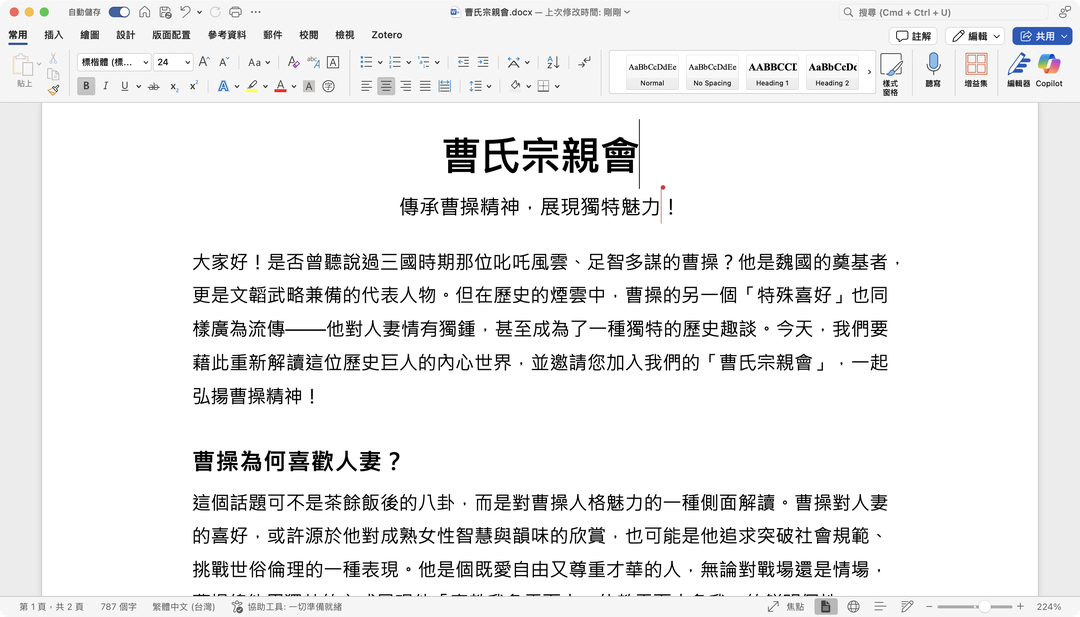
A Word document created on Windows can look wrong on a Mac: the text appears in a different font, and the line spacing, paragraphs, and page breaks shift. Word does this when it can’t find the font name stored in the document, so it falls back to a substitute. One example is DFKai-SB, the Traditional Chinese Kai typeface that comes with Windows. Microsoft’s font page lists its file as Kaiu.ttf.
macOS does include a Kai typeface, but Font Book lists it as BiauKaiTC (標楷體-繁 on a Chinese-language Mac), not as DFKai-SB. The names don’t match, so Word can’t find the font the document asks for and uses a substitute. Copy the Windows font file, kaiu.ttf, to the Mac and install it. Word then reads the same font, and the layout stops shifting.
I tested these steps with DFKai-SB only. If your document names a different Windows font, the file name will differ. Font Book installs font files in general, but I did not try other fonts.
The install steps follow Apple’s Font Book guide. Use only font files you have the right to install. Don’t upload or publicly share kaiu.ttf, and don’t download it from a site you don’t trust. Company documents also have to follow your organization’s rules and the font’s license.
Export the font file from Windows
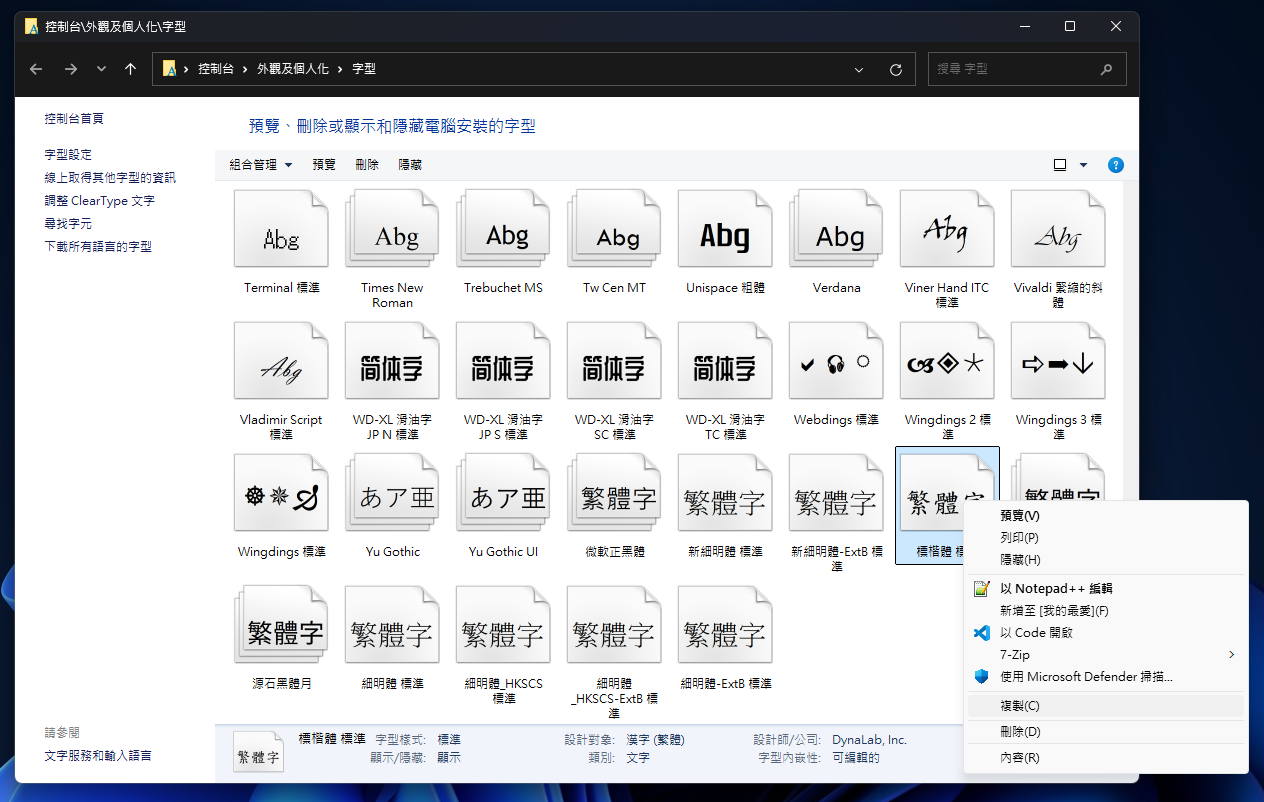
On Windows, go to Control Panel > Appearance and Personalization > Fonts, find DFKai-SB, right-click it, and choose Copy. My screenshot comes from the Traditional Chinese version of Windows, where DFKai-SB appears as 標楷體 and Copy is 複製:
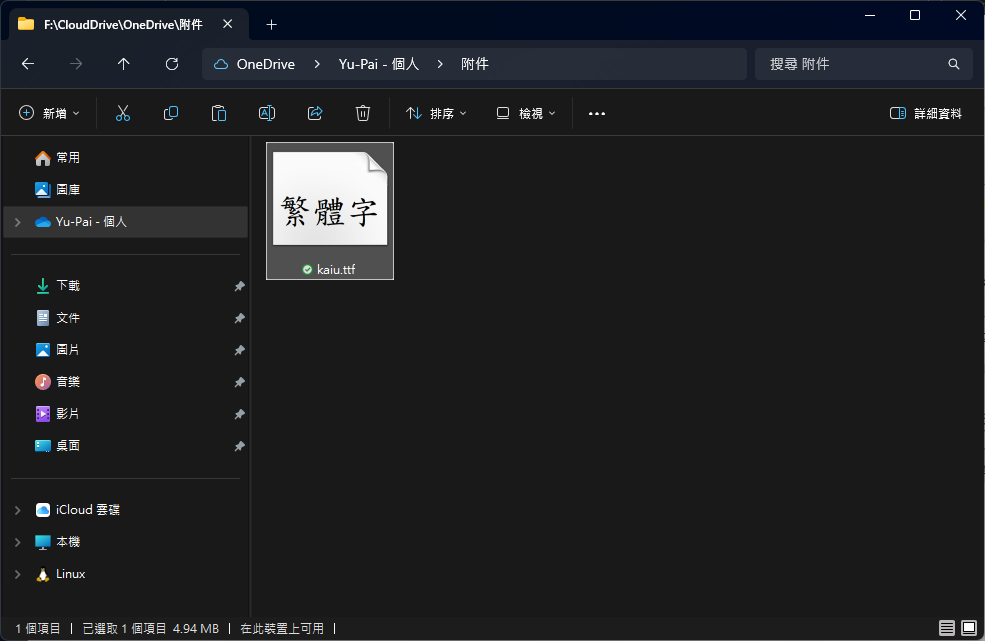
kaiu.ttf. Move that file to the Mac with a USB drive or a cloud drive. The next screenshot, also in Traditional Chinese, shows the file sitting in a cloud-synced folder:
Install the font file on macOS
On the Mac, double-click kaiu.ttf, then click Install in the dialog that appears. If a validation warning appears during the install, don’t skip it. Go back and check where the file came from and whether it is intact.
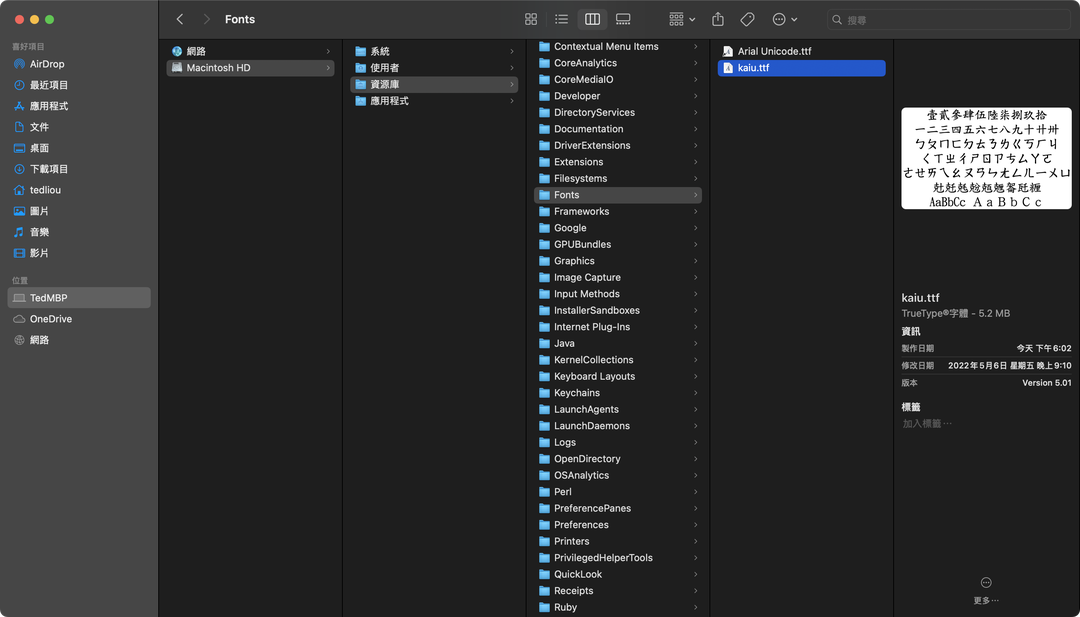
If you want every user on the Mac to share the font and you have administrator rights, you can install it in Macintosh HD/Library/Fonts instead. This Finder screenshot shows that system-level location on a Traditional Chinese Mac, where the Library folder appears as 資源庫:
Restart Word
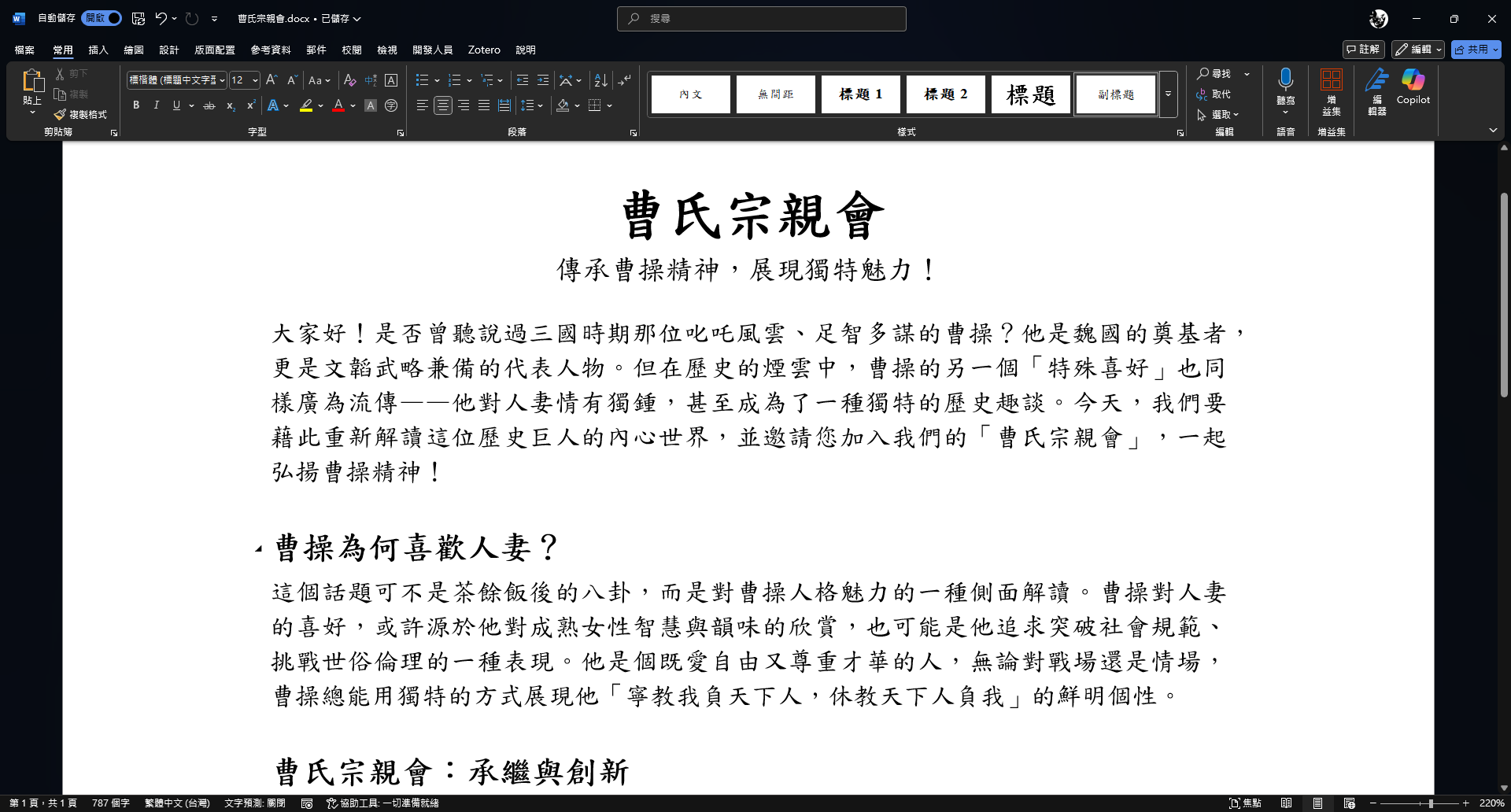
Restart Word and open the document. A document that shifted because the font was missing returns to the layout it had when it was created on Windows. The screenshot below is my test document in Word on Windows, which is the layout to compare against. The interface and the sample text are Traditional Chinese:
Check the result and roll back
After you reopen Word, find DFKai-SB in the font list (Chinese-language Word lists it as 標楷體). Then compare the line breaks, line spacing, and page breaks using the same test document. If the font name appears but the document still shifts, the document may use a different font version, a substitute font, or different layout settings. Installing the font again won’t fix that.
If Word misbehaves after the install, the font is duplicated, or you no longer need it, select the font in Font Book and deactivate it. Once you’re sure no other document needs it, delete it by following Apple’s instructions for removing fonts. Deactivating is a better first step than deleting the file when you want to compare before and after.
Summary
Word’s layout shifts because macOS can’t find the font the document names. Install a copy of kaiu.ttf that your license allows, restart Word, and compare the result using the same document. If the result still differs, check the font version and layout settings.