Table of contents
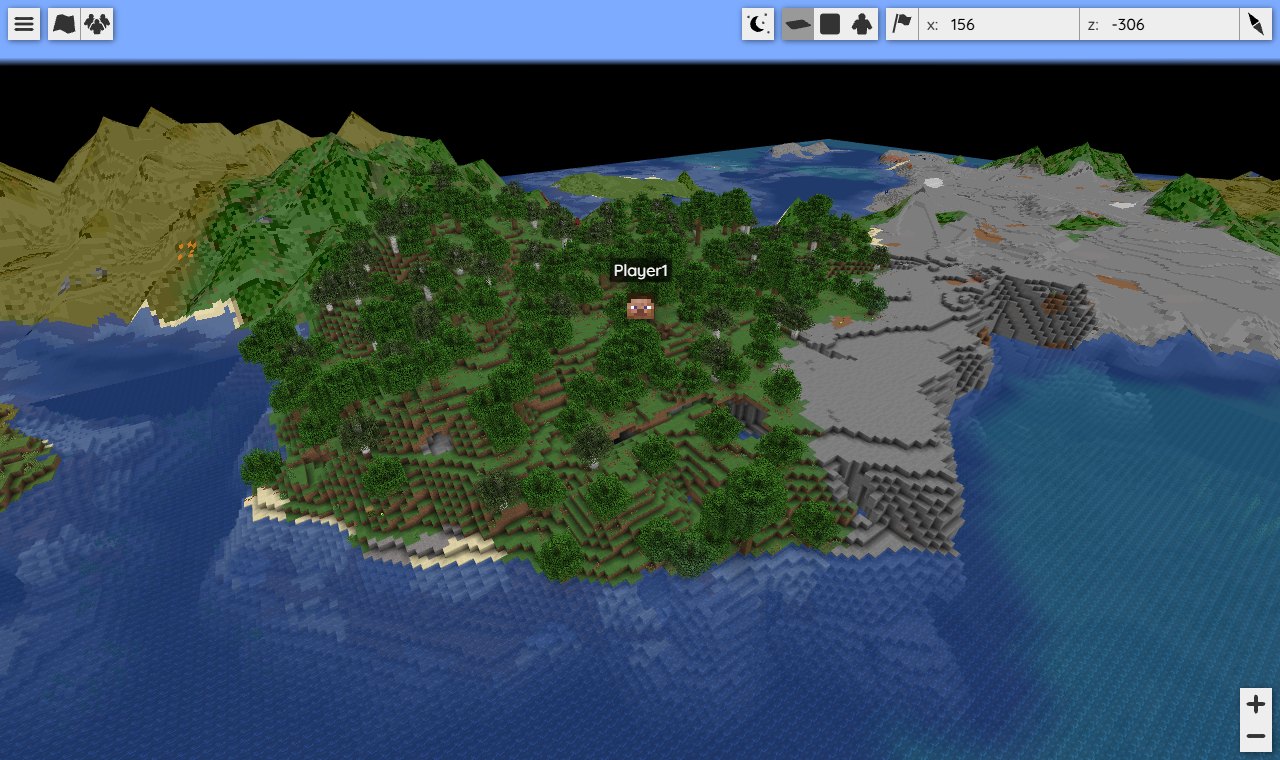
Once your Minecraft server is running, friends who want to see what the world looks like, or who is online, have to launch the game and connect. BlueMap is a Minecraft server plugin that renders the world as a 3D map you can rotate, and your friends only need to open a URL to see the terrain and the positions of online players.
I tested on Windows 11 with Java 25 and Paper 26.3. If your server still runs Spigot, you can migrate it to Paper first.
Install the BlueMap plugin
The BlueMap version has to support your server’s Minecraft version. The Paper build of 5.29 lists support for 26.1.1 through 26.3. Your world and your other plugins stay untouched:
- Download
bluemap-5.29-paper.jarfrom GitHub Releases. - Type
stopin the server window to stop the server, then put the jar in thepluginsfolder, as shown below. - Start the server the way you normally do.
The File Explorer screenshots in this article use a Traditional Chinese interface. The file and folder names are the same in English.
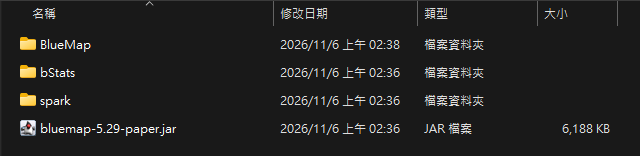
BlueMap folder with config files appears under plugins, and the server window prints BlueMap is missing important resources!. This means BlueMap is waiting for you to agree to download the resources, and the web map is not running yet. BlueMap saves the world once when it starts, so you can ignore the warning A manual (plugin-induced) save has been detected.
To remove BlueMap, stop the server, then delete the jar, plugins/BlueMap, and the bluemap folder in the server folder. The world still opens normally.
Agree to the resource download
BlueMap draws the map with the block models and textures from the Minecraft client, and it downloads those resources from Mojang’s servers. Open plugins/BlueMap/core.conf and change accept-download to true:
1accept-download: true
The comment in the file says that setting it to true means you accept the Minecraft EULA, you own a license for Minecraft: Java Edition, and you agree that BlueMap downloads this client file. You may not pass the file on to anyone else.
Save the file and type bluemap reload in the server window. You do not need to restart the server. BlueMap downloads the client file, about 40 MB, into the bluemap folder in the server folder. When you see WebServer started and BlueMap reloaded!, the web map is running and rendering starts automatically.
The web map URL
The port in plugins/BlueMap/webserver.conf defaults to 8100, so on the server computer you can open http://localhost:8100 in a browser to see the map. If another program already uses that port, change the number in port and run bluemap reload again. To open the map from another computer, use the server’s IP address in the URL, and that port has to be reachable. The official installation guide mentions this requirement.
On the web page, drag with the left mouse button to move the map, use the scroll wheel to zoom, and drag with the right button to rotate or tilt the view. Online players show up as a head icon with their name, the position updates about one second after they move, and the marker disappears when they go offline.
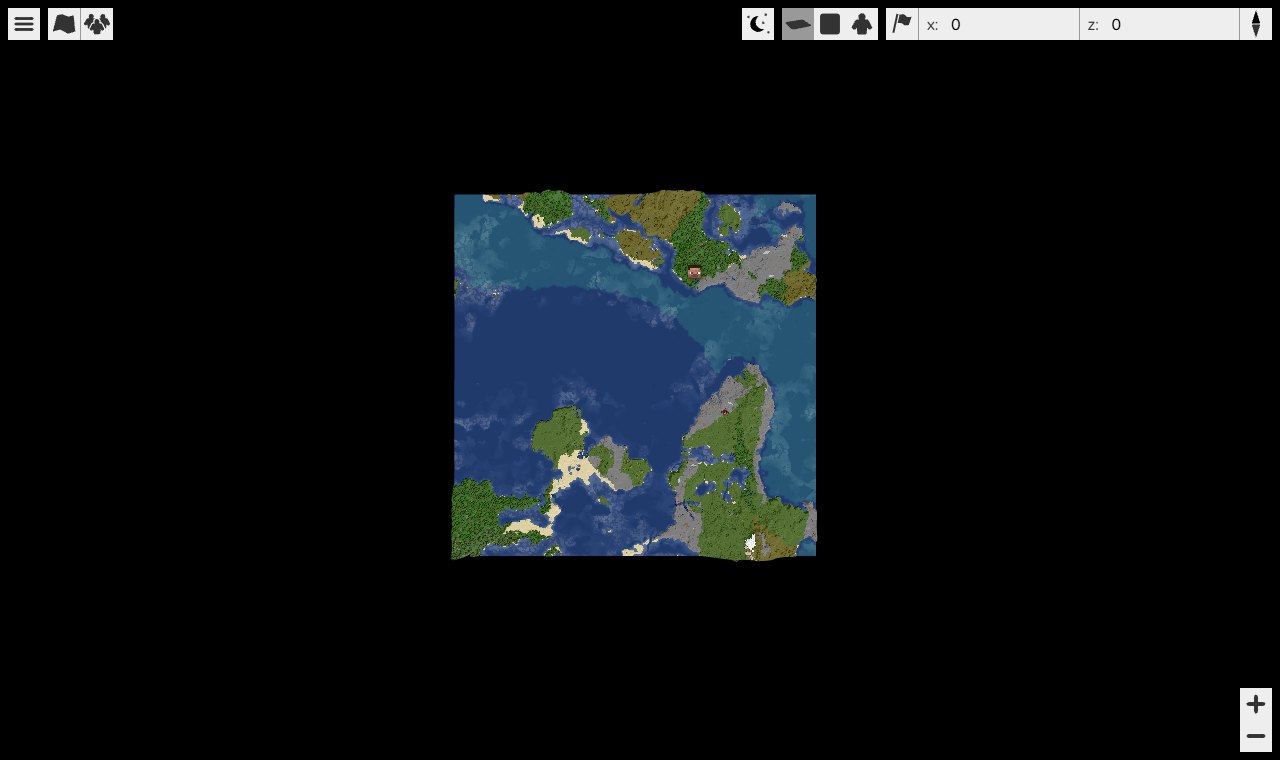
Rendering progress and time
Rendering runs in the background, and you do not need a command to start it. To check progress, type bluemap in the server window. This is the output when the overworld is about halfway done:
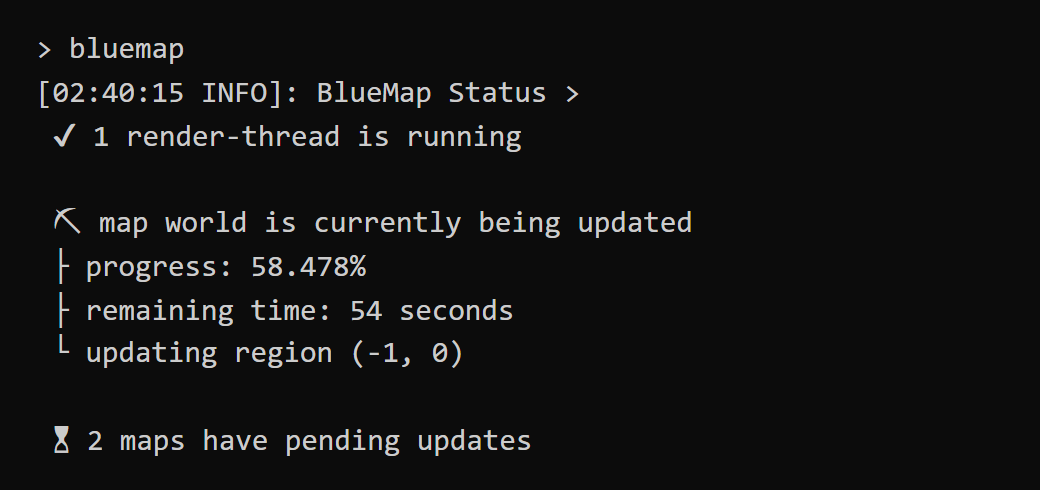
progress is the progress of the current map, and remaining time is the estimated time left. That number changes as rendering goes on. In my test it once showed 16 minutes left, and the render finished in under 4. When everything is done, the output changes to render-thread is idle and 3 maps are updated.
Render time and disk usage both depend on how much of the world has been generated. The overworld, the Nether, and the End are each rendered as one map, and the data is stored in bluemap/web/maps in the server folder:
| Map | Generated area | Render time | Disk usage |
|---|---|---|---|
| Overworld | 1,024 × 1,024 blocks, 4,096 chunks | About 5 to 7 minutes | About 65 MB |
| Nether | 256 × 256 blocks, 256 chunks | About 30 seconds | About 12 MB |
| End | 256 × 256 blocks, 256 chunks | About 14 seconds | About 2 MB |
By default, BlueMap renders with one thread. After I set render-thread-count in core.conf to 4 and ran bluemap reload, re-rendering the same overworld took about 1.5 minutes. The official FAQ says rendering runs separately from the server’s main thread. No players were connected during my test, and TPS (ticks per second, the server’s speed) stayed at 20. If the server lags while BlueMap renders, you can find the source of the lag with spark.
Update the map after the world changes
When a player builds something, BlueMap picks up the change when the server saves and updates the map automatically. In my test, the map updated 2 to 6 minutes after I placed a block. To see the change right away, type save-all in the server window, then bluemap update world. The update finishes within about 6 seconds, and the open web page switches to the new image on its own. In the command, world is the name of the map, and you can look it up with bluemap maps.
Show only some dimensions
BlueMap creates one map per dimension by default. The config files are in plugins/BlueMap/maps, for example world.conf, world_the_nether.conf, and world_the_end.conf. To hide the End:
- Move
world_the_end.confout of themapsfolder. - Type
bluemap reloadin the server window. - Type
bluemap storages file delete world_the_endto delete the rendered map data and free the disk space.
After you refresh the page, the Maps list, which is the second button at the top left, shows only the overworld and the Nether. The change also stays after a server restart. To bring the End back, move the config file back into maps, run bluemap reload, and then run bluemap update world_the_end to render it again.
Test notes
I tested BlueMap 5.29 with a 2 GB memory limit and with pausing when no players are online turned off. I generated the areas in the table with forceload, set the port in webserver.conf to 8108, and added ip: "127.0.0.1" so that only local connections were allowed. The two overworld render times are the first render and the re-render after clearing the map. I confirmed the player marker with an offline-mode test client.
Summary
After you install BlueMap and agree to download Minecraft’s resources, the server renders a 3D map on its own, and friends can open a URL in a browser to see the world and the online players. In my test, a 1,024 × 1,024 block overworld finished rendering in 5 to 7 minutes and took about 65 MB.