Table of contents
After you download a data pack and put it on a Minecraft server, it often has no effect, and in some cases the server shows no error either. Put the data pack in the right location and check the list, and you can find out why it isn’t working and fix it.
The tests ran on Windows 11, Java 25 and the vanilla server 26.3. You need a server that starts before you begin. If you don’t have one yet, set up a Java Edition vanilla server first. If the data pack changes the contents of the world, back up the server’s world before you install it.
Where data packs go
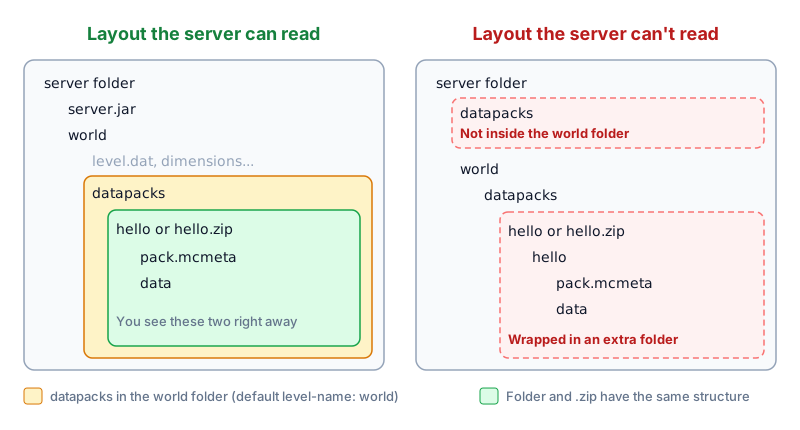
A data pack goes in the datapacks folder inside the world folder, which is world/datapacks inside the server folder. You can add a data pack while the server is running, and you don’t need to touch server.jar or any other file in the world.
A data pack can be a folder, or a .zip file that you don’t need to extract. When you open the data pack, you should see pack.mcmeta and data right away, like this:

Load and verify
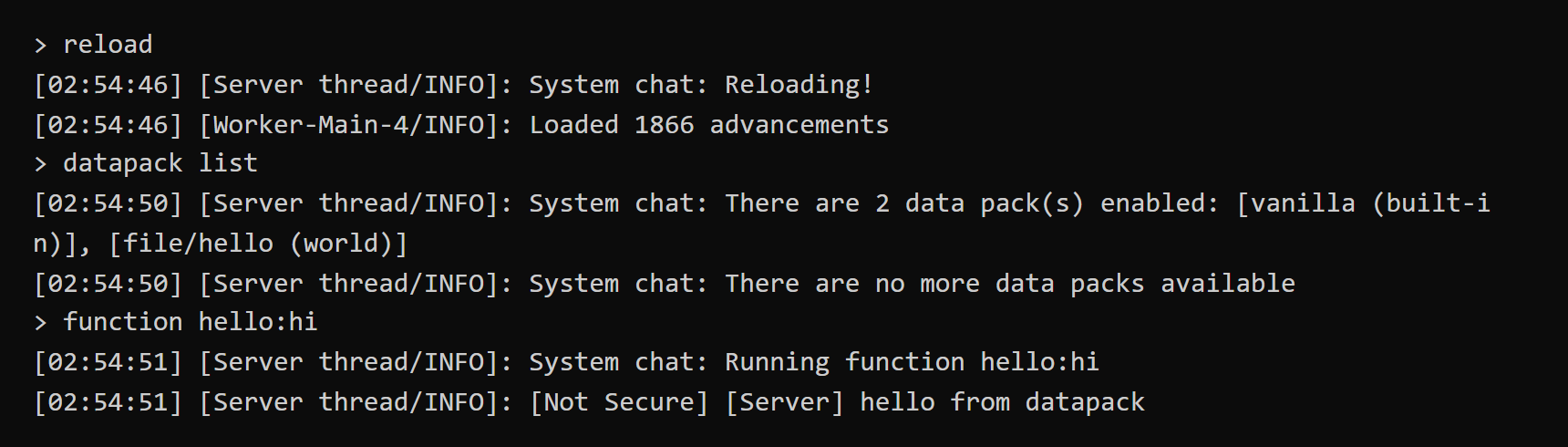
After you place the data pack, type reload in the server window, and the newly added data pack is enabled automatically. Then type datapack list to see the list. When the name of your data pack appears on the enabled line, it loaded successfully. You can ignore [Not Secure] in the messages:
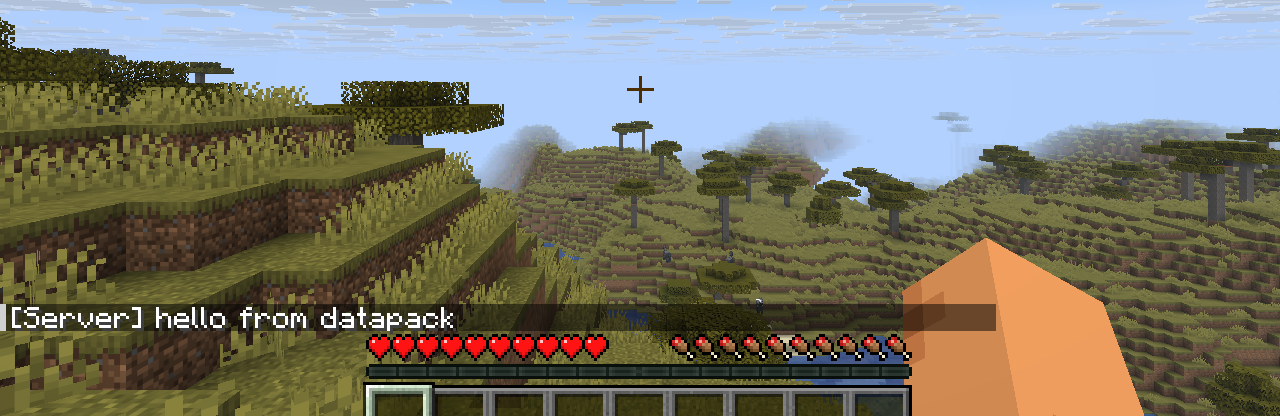
available line, type datapack enable "file/hello" to enable it. Write the name as it appears in the list, include .zip for a zip file, and keep the quotation marks.
Most data packs work with just reload. When a data pack adds a dimension or an enchantment, type stop and start the server again. Otherwise the list shows the data pack as enabled, but using it gives messages such as Unknown dimension or Can't find element.
Troubleshoot a data pack that does nothing
When a data pack does nothing, first check whether datapack list has it, and then read the messages the server window prints during reload:
datapack list |
Situation | Message in the server window | Fix |
|---|---|---|---|
| Not listed | Wrong folder | No message | Move it to world/datapacks |
| Not listed | A zip file wrapped in an extra folder | Prints Missing metadata in pack |
Extract it and move the inner folder to datapacks |
| Not listed | A folder wrapped in an extra folder, or the pack.mcmeta file name is wrong |
Prints Found non-pack entry |
Put pack.mcmeta in the first level and fix the file name |
| Enabled | An old data pack whose folder is functions |
No message, shows Unknown function when you run it |
Download a data pack that supports the current version |
| Enabled | The data pack contains old or invalid commands | Prints Failed to load function |
Download a data pack that supports the current version |
| Server won’t start | A dimension or enchantment added by the data pack has an error | Prints Failed to load datapacks |
Move the data pack out of datapacks and start again |
The server doesn’t reject a data pack because its version number is too old or too new, and an old data pack shows as enabled too. So when a data pack is enabled but does nothing, it is most likely too old, and the easiest fix is to download a file that supports your current version. To remove a data pack, move it out of datapacks and type reload.
When you edit a data pack yourself
If you can’t find a newer file, or the data pack is your own, you have to edit its contents. In a 1.21 development version, Minecraft changed the data pack folder names from plural to singular. For an old data pack, rename functions under data/<namespace> to function and tags/functions to tags/function, and then type reload.
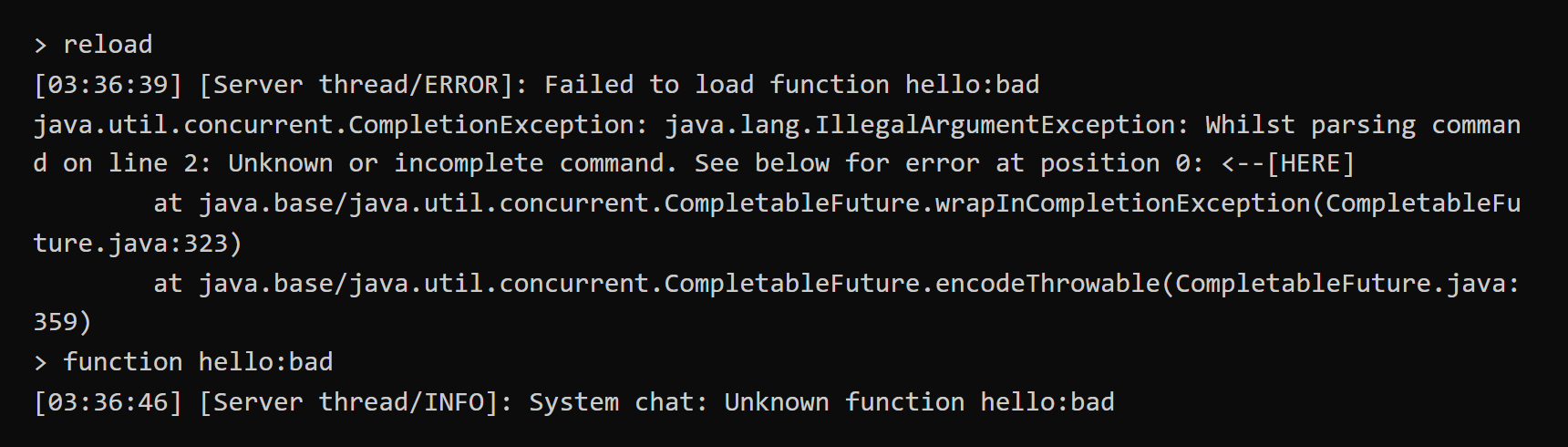
If a single line in a function can’t be parsed, the server window prints Failed to load function during reload, and the next line gives the reason. In the screenshot below, hello:bad has setblok typed instead of setblock on line 2, and line 2 is the line with the error. You can ignore the long list of lines starting with at below it:
pack.mcmeta declares the supported versions with min_format and max_format, and the data pack version is 121:
1{
2  "pack": {
3    "description": "test pack",
4    "min_format": 121,
5    "max_format": 121
6  }
7}
Test notes
I used a test data pack with a single say line and reproduced each situation above on the vanilla 26.3 server. Every case started from a new world. After I placed the data pack, I ran reload first and then restarted the server to check once more. Dimension and enchantment errors were checked with separate test data packs.
Summary
A data pack goes in the world folder, can’t be wrapped in an extra folder, and works after a reload. The server doesn’t reject a data pack for a mismatched version number, so when a data pack is enabled but does nothing, suspect first that it is too old.