Table of contents
When you host a Minecraft server on your own PC, a crash in the middle of the night or a reboot leaves your friends unable to connect, and you have to get back to the computer to start the server again. The obvious fix is to make start.bat run Java again whenever it exits, but then the server also restarts when you type stop, so you can never shut it down. Once the script can tell a normal stop from a crash, and Windows opens it when you sign in, the server restarts itself after a crash and really stops when you shut it down.
I tested this on Windows 11 with Java 25 and the vanilla 26.3 server, and nothing here needs administrator rights. If you don’t have a server yet, set up a Java Edition vanilla server first.
How the server can exit
The script decides whether to restart based on how the server exited. When Java exits, it returns an exit code, but when the server crashes on an exception while running, that code is 0, the same as after stop. A crash also makes the server save a crash report in the crash-reports folder and write a line containing This crash report has been saved to in logs/latest.log. The script checks both the exit code and that line, which separates these cases:
| How the server exited | Exit code | Crash report | What the script does |
|---|---|---|---|
You typed stop |
0 | No | Stops |
| The world files are corrupt, or EULA not accepted | 0 | No | Stops and keeps the window open with the error |
| Exception while running, or port already in use | 0 | Yes | Restarts after 10 seconds |
| The server hung for more than 60 seconds | 1 | Yes | Restarts after 10 seconds |
| The process was killed | 1 | No | Restarts after 10 seconds |
Edit start.bat
Open start.bat in your server folder with Notepad and replace its contents with the script below. Keep the java line from your original start.bat, so the memory settings and jar file name stay the same. You don’t need to touch the world or server.properties either:
1@echo off
2cd /d "%~dp0"
3
4:start
5java -Xms1G -Xmx2G -jar server.jar nogui
6if %errorlevel% neq 0 goto restart
7findstr /C:"ERROR]: This crash report" logs\latest.log >nul
8if %errorlevel%==0 goto restart
9
10echo Server stopped.
11pause
12exit /b
13
14:restart
15echo Server crashed. Restarting in 10 seconds. Press Ctrl+C to cancel.
16timeout /t 10 /nobreak
17goto start
The second line switches the script to its own folder first. As long as start.bat stays in the server folder, the server opens your existing world no matter where you start the script from.
Simulate a crash and check the restart
After you save the script, kill the server to simulate a crash:
-
Double-click
start.batand wait until the server window showsDone. -
Open another Command Prompt and enter the command below. If your
server-portisn’t 25565, use your actual port:1netstat -ano | findstr :25565 | findstr LISTENINGThe output usually has two lines, one for IPv4 and one for IPv6, and both end with the same number:

-
That number is the server’s process ID (PID). Enter
taskkill /PID 12345 /F, replacing12345with that number. -
Go back to the server window. It shows
Server crashedand counts down, and after the restart it showsDoneagain.
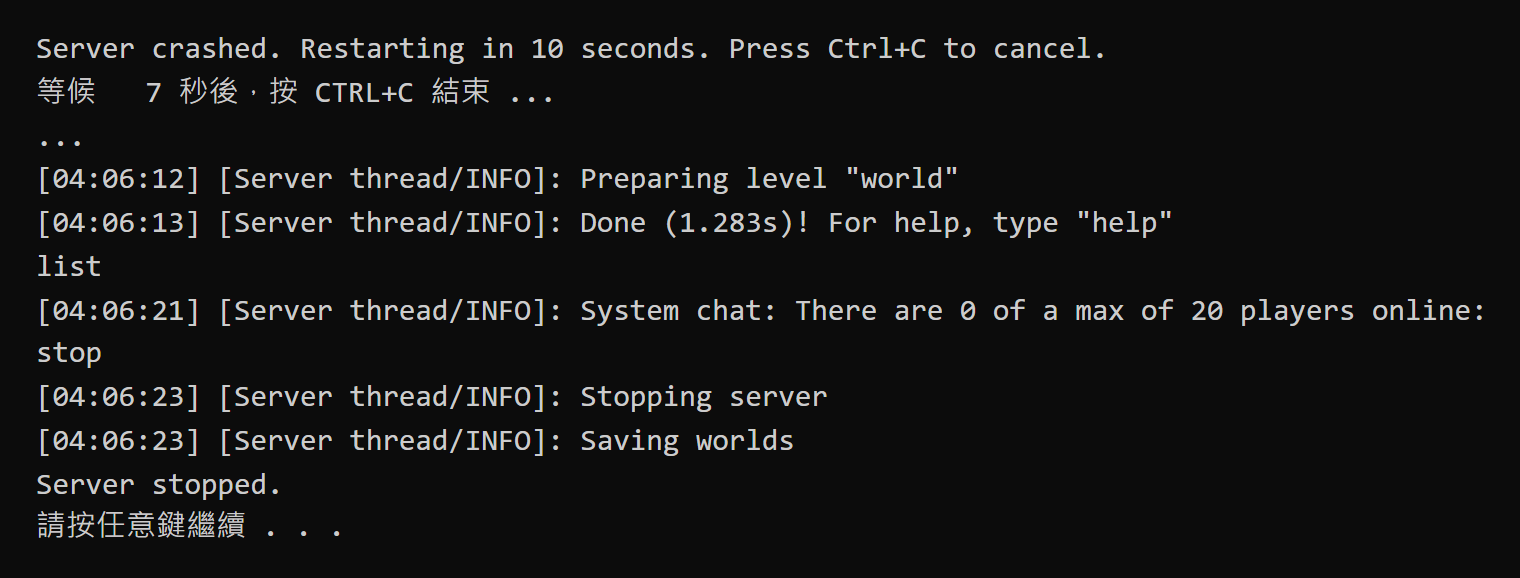
Here is the server window output, with the startup messages cut out in the middle. The screenshot comes from a Traditional Chinese edition of Windows, so the last line, “Press any key to continue . . .”, appears in Chinese:
Killing the server can lose recent changes that weren’t written to disk yet, and the automatic restart can’t bring them back. To go back to an earlier state, you still need to back up the world folder.
Stop the server
To shut the server down, type stop in the server window as usual. After the server saves, the window shows Server stopped. and “Press any key to continue”. The server has exited at that point and won’t restart, and the window closes when you press a key.
If the server keeps crashing and you want to cancel the restart, press Ctrl+C during the countdown. When the window asks “Terminate batch job (Y/N)?”, type Y and press Enter, and the window closes.
Start the server on sign-in
With automatic restarts working, have Windows open the script when you sign in. Shortcuts in the Windows Startup folder open automatically when the user signs in:
- Press Win+R, type
shell:startup, and press Enter to open the Startup folder. - Right-click an empty area of the folder and choose “New”, then “Shortcut”.
- In “Type the location of the item”, enter the full path of
start.bat, for exampleC:\minecraft\server\start.bat, and click “Next”. - Type a name for the shortcut, for example
Minecraft server, and click “Finish”. - Type
stopin the server window you already have open to shut that server down, then double-click the shortcut and check that a server window opens. If the old server is still running, the new one can’t start because the world folder is locked, and its window only showsServer stopped..
Now restart the computer and sign in. The server window opens on its own, and its title shows the shortcut’s name. When the window shows Done, the server is up:

The shortcut only opens after you sign in. If the computer restarts and sits at the sign-in screen, the server doesn’t start and your friends can’t connect. If you no longer want the server to start automatically, delete the shortcut. The server itself isn’t affected.
Test notes
The test server had a 2 GB memory limit and no players connected. I tested every case in the table. For “exception while running”, a small test program made the server throw an exception while it ran. For “port already in use”, another program held the server’s port before it started. For “the server hung”, I lowered the memory limit to 260 MB and loaded a large number of chunks. For “corrupt world files” and “EULA not accepted”, I broke the world’s level.dat and set eula.txt back to false. After a kill, the server responded again in about 20 seconds.
I tested starting on sign-in in a Windows 11 22H2 virtual machine on Hyper-V, with the memory limit at 1 GB and the account set to sign in automatically. About 30 seconds after the restart, the server was listening on port 25565. When I killed the server in the virtual machine with taskkill, it was listening again after about 17 seconds.
Summary
To make the server restart itself after a crash, the script checks both the exit code and the crash log, and Windows opens the script when you sign in. In my tests, the server restarted after being killed, after an exception while running, and when its port was already in use, and it stayed stopped after stop.
Further reading