Table of contents
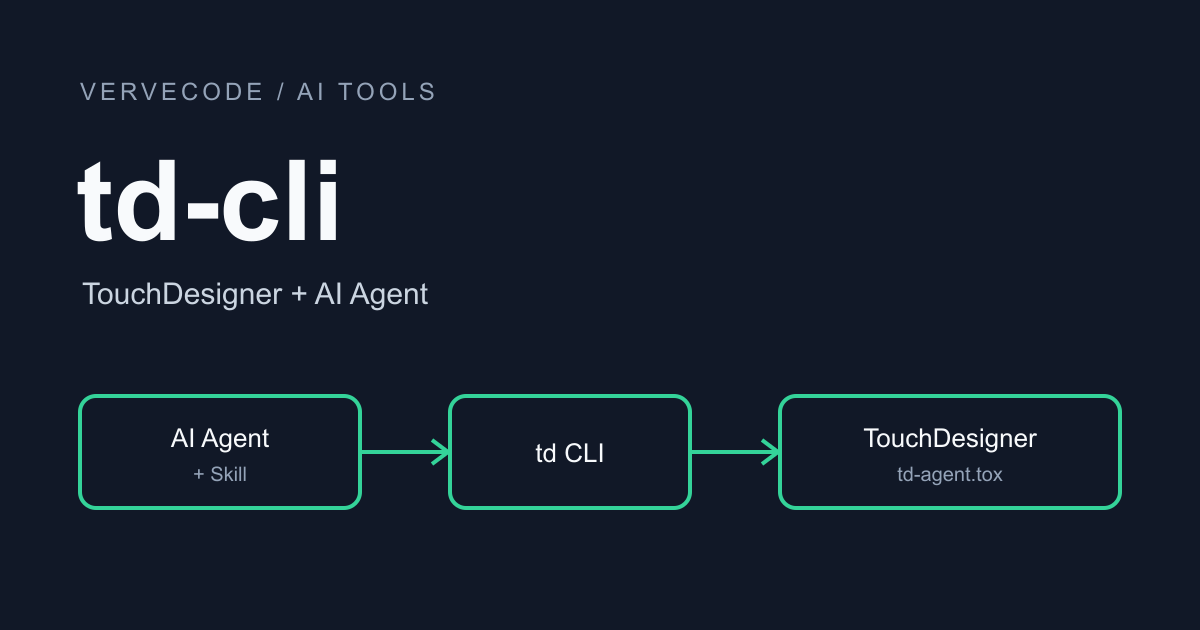
td-cli is a TouchDesigner command-line tool I built so that Claude Code can operate TD projects directly. Once the CLI, a skill, and the agent TOX are installed, you describe what you want and the AI connects nodes, processes signals, or adjusts effects for you.
I could not find a tool that worked well for collaborating with an agent, so I decided to build td-cli, and I had AI do all of the development work too. It mainly serves my own interactive design work, so it supports only Windows x86-64 and TouchDesigner 2025.32050. This article covers version 1.0.0. If you used an older version, go straight to upgrading from an older version to 1.0.0.
td-cli has three parts:
| Component | Location | Role |
|---|---|---|
| CLI | The td, td-agent, and td-daemon commands |
The AI sends commands with td, and a background service (daemon) forwards them to TD |
| Skill | Claude Code’s skills folder | Teaches the AI the steps and cautions for using td-cli |
| Agent TOX | The td_agent component in your TD project |
Receives and runs commands inside TD |
Install td-cli
You can have Claude Code do the installation, or follow the manual steps below. Either way, you still drag the agent TOX into your project afterward.
Let Claude Code install it
Open Claude Code on the Windows computer where TD runs, make sure it can run local commands, and paste this prompt:
1Please read the README and the latest stable release of https://github.com/tedliou/td-cli,
2then install or upgrade td-cli for me and install the td-cli skill into your personal skills folder.
3
4First confirm that this computer's Windows architecture and TouchDesigner version meet the requirements.
5If it is already installed, check the version first, and tell me the differences before overwriting the skill.
6When you are done, confirm that the td command runs and that you can read the new skill,
7then tell me where td-agent.tox is.
After Claude Code reports the TOX location, continue with “Add the agent to your TD project”.
Install manually
These commands follow the v1.0.0 install instructions. First open PowerShell and install the latest stable release. The installer verifies the checksum and adds the commands to your user PATH:
1irm https://github.com/tedliou/td-cli/releases/latest/download/install.ps1 | iex
After installing, open a new PowerShell window, check the version, and install the skill into Claude Code’s personal skills folder:
1td --version
2td-agent install-skill --destination "$env:USERPROFILE\.claude\skills\td-cli"
If the destination folder already has a skill, add --replace to overwrite it. If you use Codex, omit --destination and the skill is installed to ~/.codex/skills/td-cli.
Add the agent to your TD project
Open the project you want to operate in TouchDesigner 2025.32050, and paste this path into the File Explorer address bar:
1%LOCALAPPDATA%\Programs\touchdesigner-cli\current
Drag the td-agent.tox inside into TD’s node editor. On the Connection page of td_agent, the status goes from waiting_for_daemon and connecting to online. If the connection fails, it shows an authentication or registration error. When you see online, go back to PowerShell and check the connection. This command also starts the daemon if needed:
1td --json instances list
In the list, status should be online, and project shows the project’s file name and folder:
1{"selector":"d146","status":"online","agent_version":"1.0.0","protocol_version":4,
2 "project":{"name":"design.toe","folder":"E:/td-cli-test"}}
Once that works, save the .toe, and the agent loads with the project the next time you open it.
Confirm the agent can operate the project with a blue image
Start a new Claude Code conversation and ask it to use the td-cli skill to operate the project. The td-cli skill tells the AI to read the nodes and parameters first, check the supported commands with --help of the installed version, and verify the result when it is done.
First, create a blue image to confirm that Claude Code is operating the right project. Replace the path below with your own .toe that has the agent in it:
1Please use the td-cli skill to open E:\td-cli-test\design.toe.
2If the project is already open, connect to the existing instance, and confirm the project path before changing anything.
3
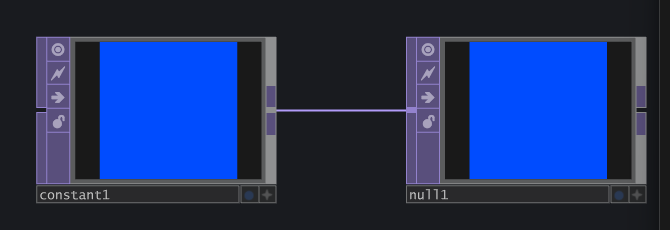
4In /project1, create a Constant TOP and connect it to a Null TOP, and set the color to blue.
5Keep the existing nodes, and choose names for the new nodes that do not collide with existing ones.
6When you are done, check the parameters and connections, and tell me where the output node is.
In this test, these are the commands that went into TD. Each returns succeeded or an error code, and the AI decides the next step from the result:
1td --json ops create /project1 constantTOP constant1 --node-x 300
2td --json ops create /project1 nullTOP null1 --node-x 500
3td --json ops connect /project1/constant1 /project1/null1
4td --json parameters set /project1/constant1 colorr --number 0
5td --json parameters set /project1/constant1 colorg --number 0.3
6td --json parameters set /project1/constant1 colorb --number 1
Back in TD, you can see the new Constant TOP connected to a Null TOP, and the previews of both nodes are blue.
When the design is done, save in TD yourself, or ask the AI to “check the result and then save the current project”. To save, the AI uses project save with the SHA-256 of the .toe on disk, and if the file was saved elsewhere in the meantime, the hash no longer matches and the save is refused. The CLI can only save an existing .toe, so for a new project, save it once manually in TD first.
Use AI for interactive signals and effects
I know some TD, but I am not an expert. When I built an interaction for an EEG device, I needed to receive OSC signals and handle message parsing, value conversion, and remapping. Doing that math and logic by hand takes a lot of time. With td-cli, the AI handled it in about half an hour, and then I fine-tuned how each signal feels.
If you already have an OSC receiving node, you can tell the AI directly which signal to handle and what it is for:
1Please use the td-cli skill to look at the current OSC receiving node and list the channels and values it actually receives.
2I want to pick one signal to control image brightness. Confirm the channel and the input range with me first,
3then map the values to 0 to 1, keeping the original signal and a range parameter I can adjust by hand.
4When you are done, confirm that brightness follows the signal.
If you already know the channel name, the unit, and the input range, put them straight into the prompt.
Besides OSC, I have used it for image variations, particle effects, complex adjustments, and Base COMP interface design. You can describe the need directly, such as “use this signal to control particle speed, and let me adjust the upper and lower speed limits by hand” or “tidy this effect into a Base COMP and put the intensity and the on/off switch on a custom parameter page”. For generating real-time AI video in TD, see StreamTurbo for real-time AI video in TouchDesigner.
After the AI finishes a feature, I go back to TD and look at the actual effect. If it reacts too fast, changes too little, or needs smoothing, I ask it to keep adjusting.
Upgrade from an older version to 1.0.0
Version 1.0.0 changes the protocol to v4 and makes td a native executable, which cuts the latency of a single command from 0.5 to 2 seconds down to 12 to 33 ms. I compared 0.11.0 and 1.0.0 on the same computer with an empty TouchDesigner 2025.32050 project, running each single command 10 times and taking the median:
| Command | 0.11.0 | 1.0.0 |
|---|---|---|
td --version |
500 ms | 12 ms |
td --json instances list |
1,447 ms | 17 ms |
td --json parameters get |
1,954 ms | 33 ms |
Using commands execute to create 256 Constant TOPs and then set 256 parameters took about 274 seconds on 0.11.0 and 8.9 seconds on 1.0.0. 1.0.0 also adds --frame-batch, which runs consecutive commands in the same frame, and the same work drops to 1.7 seconds. The 1.0.0 td also no longer expands ~, $VAR, or wildcards, so paths used in scripts must be expanded to full paths first.
The cost is that the daemon accepts only the 1.0.0 agent, and updating the CLI does not replace the agent embedded in your .toe. If you open an old project directly, the Connection status of td_agent stays at connecting and td --json instances list returns an empty list. Each old project has to be upgraded once. The upgrade tool accepts only official agents on its allowlist, and the 1.0.0 allowlist covers 0.7.0 to 0.11.0.
Before you start, save your TD project and close every TouchDesigner window. The upgrade tool refuses to act if it detects TD still running. Two things in the commands below depend on your setup: the project file name design.toe, and --tools-dir if TD is not in the default location.
-
Update the CLI with the install command, then stop the old daemon. The next
tdcommand starts the new one:1irm https://github.com/tedliou/td-cli/releases/latest/download/install.ps1 | iex 2td-daemon stop -
Open PowerShell in the project folder and run the upgrade.
--artifactand--manifestpoint to the files of the version you just installed, and--expected-sha256is the project’s current hash, so the tool stops if the file was changed before it ran:1$bundle = "$env:LOCALAPPDATA/Programs/touchdesigner-cli/current" 2$project = (Resolve-Path ./design.toe).Path 3$sha = (Get-FileHash $project -Algorithm SHA256).Hash.ToLower() 4& "$bundle/td-agent.exe" upgrade-project $project --artifact "$bundle/td-agent.tox" --manifest "$bundle/manifest.json" --tools-dir "C:/Program Files/Derivative/TouchDesigner/bin" --expected-sha256 $sha --timeout 90 -
Confirm that
statusin the output isupgraded. I tested with a project that embedded a 0.7.1 agent, and it finished in about 2 seconds. The original file is saved in the same folder as.agent-backup-*, and you can delete it yourself once you have confirmed the new project works:1{"agent_path":"/project1/td_agent","agent_version":"1.0.0", 2 "backup":"E:\\td-cli-test\\design.toe.agent-backup-87a4406d80c34014b59a7fdd6cdbba40", 3 "path":"E:\\td-cli-test\\design.toe","status":"upgraded"} -
Reopen the project. You can double-click the
.toe, or lettdstart TD:1td --json project open E:/td-cli-test/design.toe --executable 'C:/Program Files/Derivative/TouchDesigner/bin/TouchDesigner.exe'After the project loads, run
td --json instances listand confirm thatagent_versionis1.0.0andstatusisonline. -
Update the skill with the
install-skillcommand from “Install manually” plus--replace, so the AI reads the new command descriptions.
Troubleshooting
| Symptom | What to do |
|---|---|
instances list is empty and Connection stays at connecting |
The project embeds an old agent. Upgrade it as described in “Upgrade from an older version to 1.0.0” |
install-skill reports Skill destination is not empty |
Make sure the folder has no changes you want to keep, then add --replace |
upgrade-project refuses to run |
Close all TouchDesigner windows, or recompute --expected-sha256 |
project save returns project_file_changed |
The .toe on disk was changed. Recompute the SHA-256 and save again |
~ or $VAR in a command is not replaced with a path |
Work out the full path in PowerShell first and pass it to td |
When you stop using td-cli, remove the executables with this command. The daemon’s data and your TD projects are kept:
1irm https://github.com/tedliou/td-cli/releases/latest/download/uninstall.ps1 | iex
Summary
Install the CLI and the skill, add td_agent to your project, and confirm it is online, and then you can ask Claude Code to help with TouchDesigner design. In 1.0.0, parameters get drops from 1,954 ms to 33 ms, and 512 consecutive commands drop from about 274 seconds to 8.9 seconds, or 1.7 seconds with --frame-batch. An old project needs one run of upgrade-project to connect again. I hand the time-consuming calculation and node work to the AI, and then tune how the interaction feels myself.