Table of contents
The ComfyUI server has a built-in API, so a script can put a workflow in the queue and fetch the images without anyone operating the interface. This matters when you want to run one workflow with a whole batch of different text. In the UI you would have to edit the prompt, click Run, and go find the file for every single image, and a tool of your own that generates images in the background cannot work that way at all. Export the workflow in API format, then use a short Python script to replace the text and random seed for each image, and you get the whole batch in one run.
I tested on Windows 11 with an RTX 3070 (8 GB) and ComfyUI 0.43.2. Calling a local ComfyUI needs no API key. The API key of a ComfyUI account is only used when you call the paid cloud Partner Nodes. This article uses the MOSS-Image text-to-image template to generate three staff introduction posts for a cat cafe.
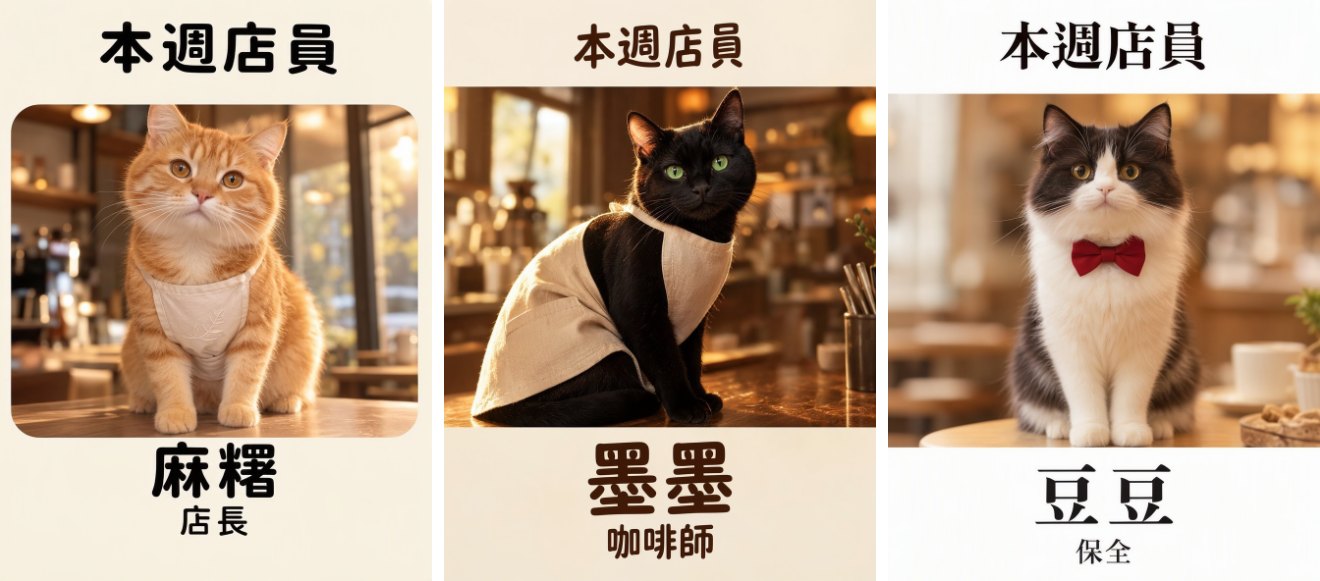
I ran these prompts in Chinese, so the poster text in the image below is Chinese: “This Week’s Staff” (本週店員) at the top, then each cat’s name and job title. The prompts in the script below are English translations of those Chinese prompts, and I have not rerun the script with them.
Export the workflow in API format
The API only accepts a workflow in API format. A file saved with Save or Export in the interface cannot be sent as is. Open a workflow in ComfyUI that already generates images correctly, and set everything that is the same for every image first. I changed the Resolution Selector node to 3:4. Then click the ComfyUI icon at the top left and choose File, then Export (API). This item is shown without enabling dev mode.
The screenshot uses the Traditional Chinese interface. The menu shows File (檔案) with Export (API) (匯出(API)) at the bottom of its submenu:
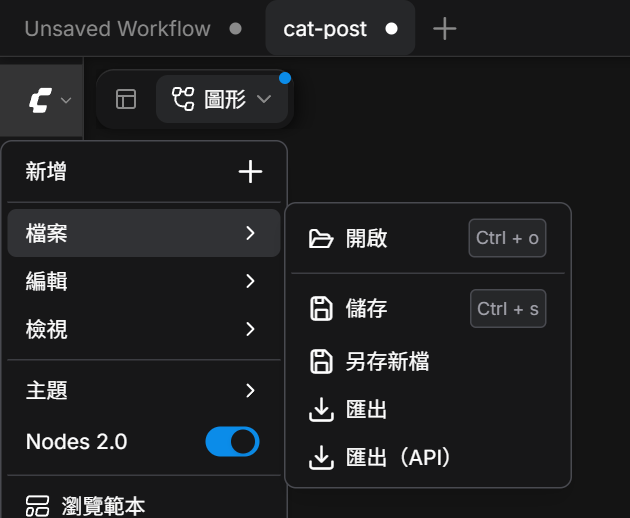
cat-post-api and click Confirm, and the browser downloads cat-post-api.json. Put this file in a new folder. The script in the next sections goes in the same folder.
Find the nodes to replace
Open cat-post-api.json in a text editor. Each top-level key is a node ID, and the node’s values are in inputs. Search the file for the original prompt text, KSampler, and SaveImage to find the nodes you want to replace. An excerpt of my file is below. This time I replace the prompt value, the seed of KSampler, and filename_prefix, which sets the name of the saved file:
1{
2  "9": {
3    "inputs": { "filename_prefix": "moss_image_t2i", "images": ["18:8", 0] },
4    "class_type": "SaveImage"
5  },
6  "18:7": {
7    "inputs": { "seed": 438829726369282, "steps": 25, "cfg": 2.5 },
8    "class_type": "KSampler"
9  },
10  "18:17": {
11    "inputs": { "value": "Cinematic night street photograph: ..." },
12    "class_type": "PrimitiveStringMultiline"
13  }
14}
Node IDs and field names are different in every workflow. For example, some workflows keep the prompt in the text field of CLIPTextEncode, so replace the IDs and field names in the script below with your own. An ID with a colon, such as 18:7, means the node is inside a subgraph.
The batch generation script
For each image, the script repeats the steps below. It waits for completion over a WebSocket, the same way as the official API examples. Start ComfyUI first and install uv:
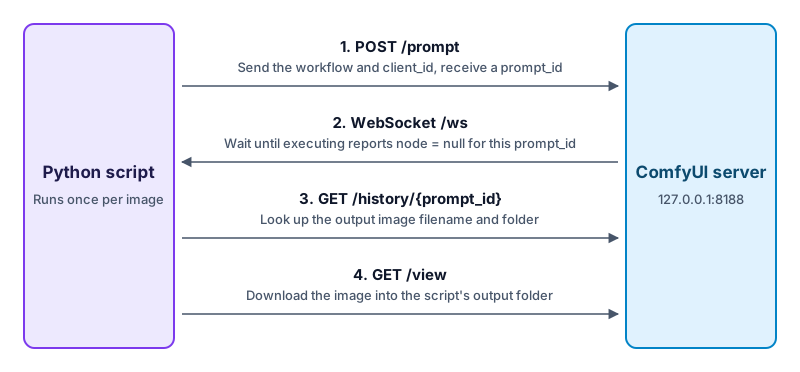
generate_cat_posts.py in the same folder with the content below. POSTS holds the name, random seed, and prompt of each image. SERVER must match the address of your ComfyUI:
1import json
2import pathlib
3import urllib.error
4import urllib.parse
5import urllib.request
6import uuid
7
8import websocket
9
10SERVER = "127.0.0.1:8188"
11OUTPUT_DIR = pathlib.Path("output")
12
13POSTS = [
14    {"name": "mochi", "seed": 20261103, "prompt": "Instagram staff introduction post for a cat cafe, 3:4 portrait. At the top, the text \"This Week's Staff\". In the middle, a photo of an orange cat wearing a small apron. Below it, large text with the name \"Mochi\", and under the name the job title \"Manager\". Warm, cozy cafe atmosphere, clean layout."},
15    {"name": "inky", "seed": 20261104, "prompt": "Instagram staff introduction post for a cat cafe, 3:4 portrait. At the top, the text \"This Week's Staff\". In the middle, a photo of a black cat wearing a small apron. Below it, large text with the name \"Inky\", and under the name the job title \"Barista\". Warm, cozy cafe atmosphere, clean layout."},
16    {"name": "bean", "seed": 20261105, "prompt": "Instagram staff introduction post for a cat cafe, 3:4 portrait. At the top, the text \"This Week's Staff\". In the middle, a photo of a black-and-white cat wearing a small bow tie. Below it, large text with the name \"Bean\", and under the name the job title \"Security\". Warm, cozy cafe atmosphere, clean layout."},
17]
18
19
20def queue_workflow(workflow, client_id):
21    body = json.dumps({"prompt": workflow, "client_id": client_id}).encode()
22    request = urllib.request.Request(
23        f"http://{SERVER}/prompt",
24        data=body,
25        headers={"Content-Type": "application/json"},
26    )
27    try:
28        with urllib.request.urlopen(request) as response:
29            result = json.load(response)
30    except urllib.error.HTTPError as error:
31        raise RuntimeError(error.read().decode()) from error
32    if result["node_errors"]:
33        raise RuntimeError(result["node_errors"])
34    return result["prompt_id"]
35
36
37def wait_until_done(ws, prompt_id):
38    while True:
39        message = ws.recv()
40        if isinstance(message, bytes):
41            continue  # With previews enabled, in-progress preview images arrive as binary messages
42        event = json.loads(message)
43        data = event.get("data", {})
44        if data.get("prompt_id") != prompt_id:
45            continue
46        if event["type"] == "execution_error":
47            raise RuntimeError(data.get("exception_message"))
48        if event["type"] == "executing" and data.get("node") is None:
49            return
50
51
52def download_images(prompt_id, name):
53    with urllib.request.urlopen(f"http://{SERVER}/history/{prompt_id}") as response:
54        outputs = json.load(response)[prompt_id]["outputs"]
55    for node_output in outputs.values():
56        for index, image in enumerate(node_output.get("images", [])):
57            if image["type"] != "output":
58                continue
59            query = urllib.parse.urlencode(
60                {"filename": image["filename"], "subfolder": image["subfolder"], "type": image["type"]}
61            )
62            with urllib.request.urlopen(f"http://{SERVER}/view?{query}") as response:
63                path = OUTPUT_DIR / f"{name}_{index}.png"
64                path.write_bytes(response.read())
65                print(f"{name}: {path}")
66
67
68workflow = json.loads(pathlib.Path("cat-post-api.json").read_text(encoding="utf-8"))
69OUTPUT_DIR.mkdir(exist_ok=True)
70client_id = str(uuid.uuid4())
71ws = websocket.create_connection(f"ws://{SERVER}/ws?clientId={client_id}")
72
73for post in POSTS:
74    workflow["18:17"]["inputs"]["value"] = post["prompt"]
75    workflow["18:7"]["inputs"]["seed"] = post["seed"]
76    workflow["9"]["inputs"]["filename_prefix"] = f"cats/{post['name']}"
77    prompt_id = queue_workflow(workflow, client_id)
78    wait_until_done(ws, prompt_id)
79    download_images(prompt_id, post["name"])
80
81ws.close()
The script changes the content only in memory and never modifies cat-post-api.json. Run it in this folder. uv prepares the websocket-client package for you, and the ComfyUI interface does not need to be open:
1uv run --with websocket-client generate_cat_posts.py
The terminal prints a file path after each image finishes. When the run is done, the output folder holds three 880 × 1184 PNG files, which are the posts at the top of this article, and ComfyUI keeps a copy in its own output\cats folder. On the RTX 3070 (8 GB), the first image takes about 150 seconds because the model has to load, and each later image takes about 40 seconds.
When a call fails
These are the failures you can see. The script stops and prints the error message:
| Situation | Cause | What to do |
|---|---|---|
The script raises KeyError, or /prompt returns HTTP 500 when you send the request yourself |
The file is a workflow in the interface’s save format | Use the file from Export (API) |
/prompt returns HTTP 400, or returns HTTP 200 with content in node_errors |
A node value is wrong, for example a model name that is not in the list. No image is generated | Fix that field according to details in node_errors |
An execution_error arrives |
A node failed partway through, for example when the VAE does not match the model | Check that node using exception_message and node_id |
Two more cases give no error message, so you have to recognize them from what you see:
- The script waits forever although ComfyUI has already finished the image: when
/promptis sent without aclient_id, the server does not send events for that job to the WebSocket connection. Theclient_idmust be the same as theclientIdin the connection URL. - The terminal prints the path immediately, but
output\catsin ComfyUI has no new file: this request was identical to the previous one, so ComfyUI returned the previous result. Change the random seed to get a new image.
Summary
To connect ComfyUI to a script or your own tool, export the workflow in API format from the interface, then replace the node values from code, put the job in the queue, and fetch the images. In my test, the same script generated three posts in a row, and the text in all three images was correct.